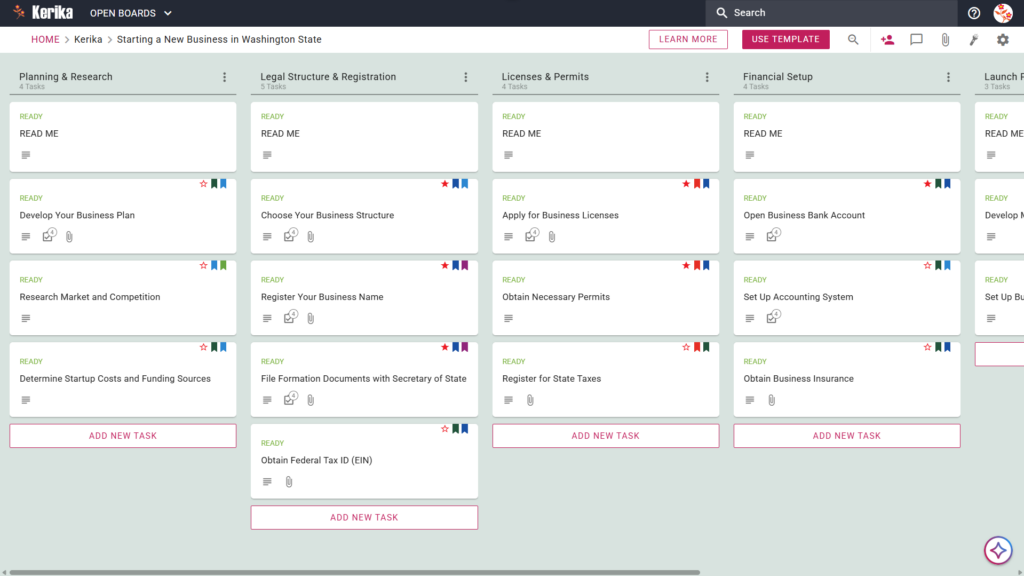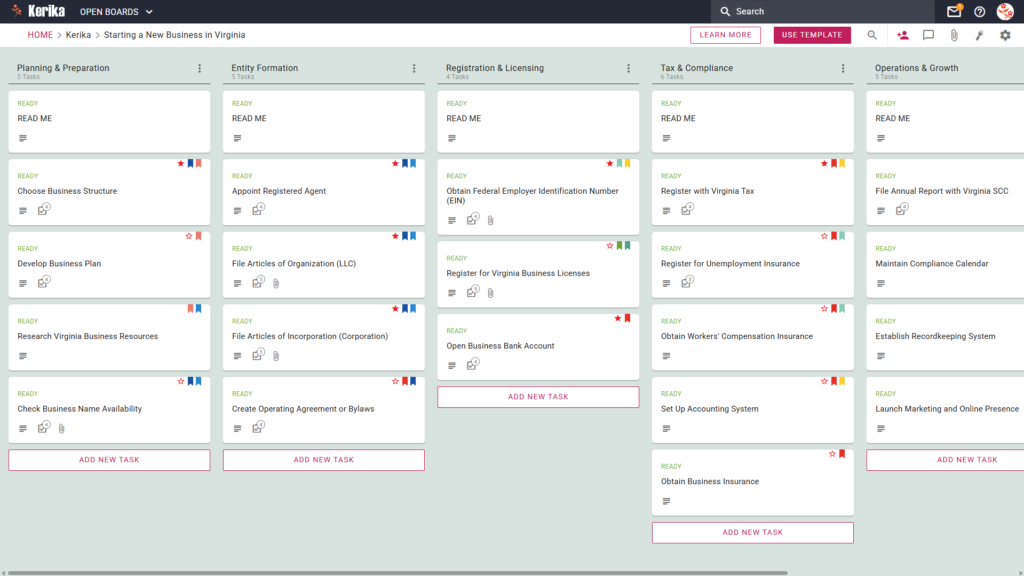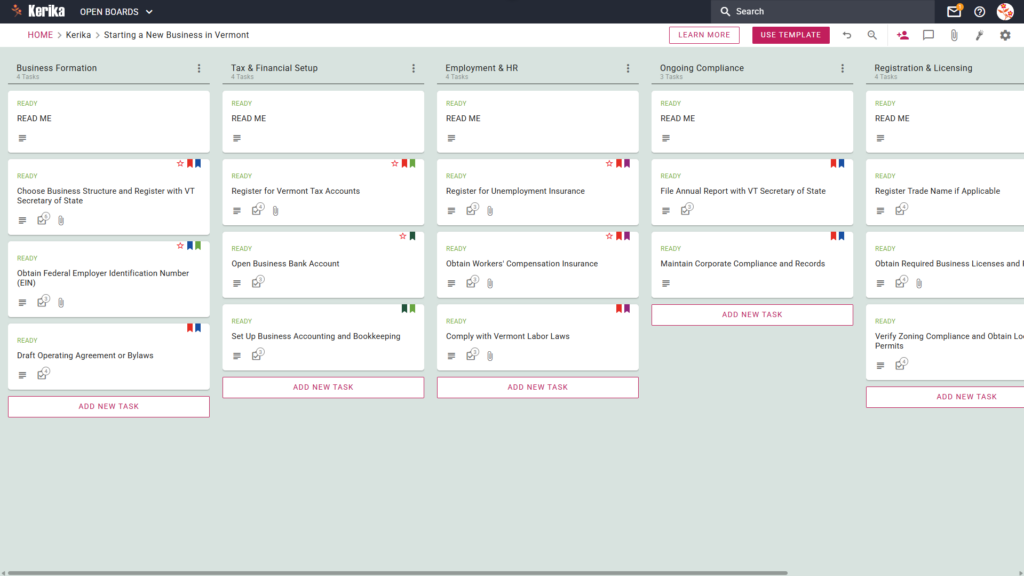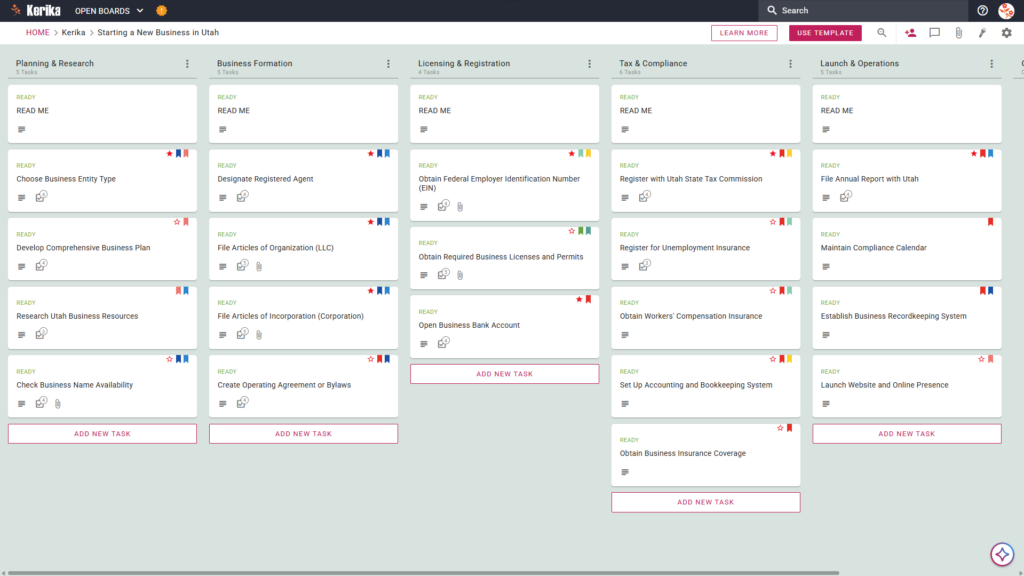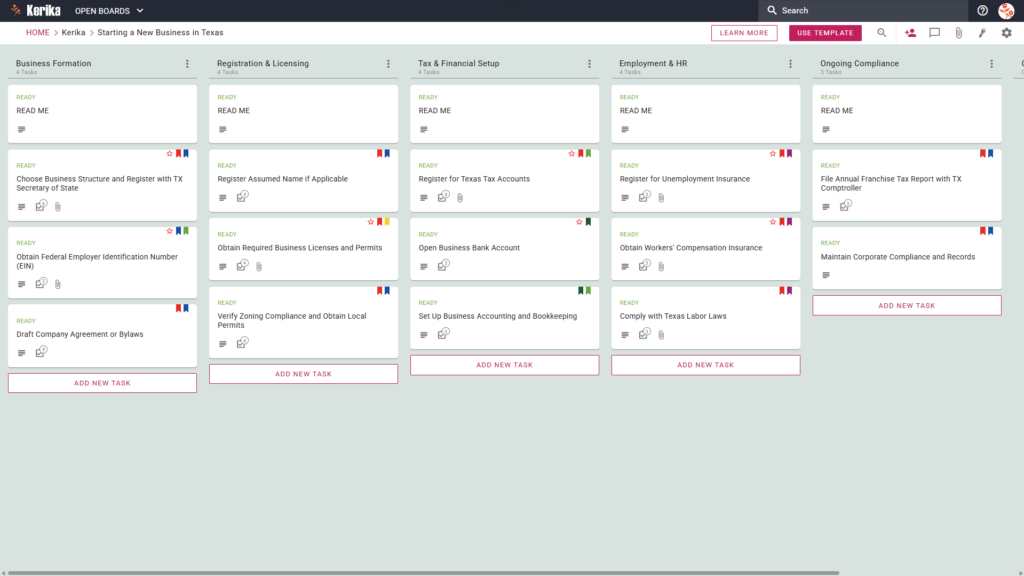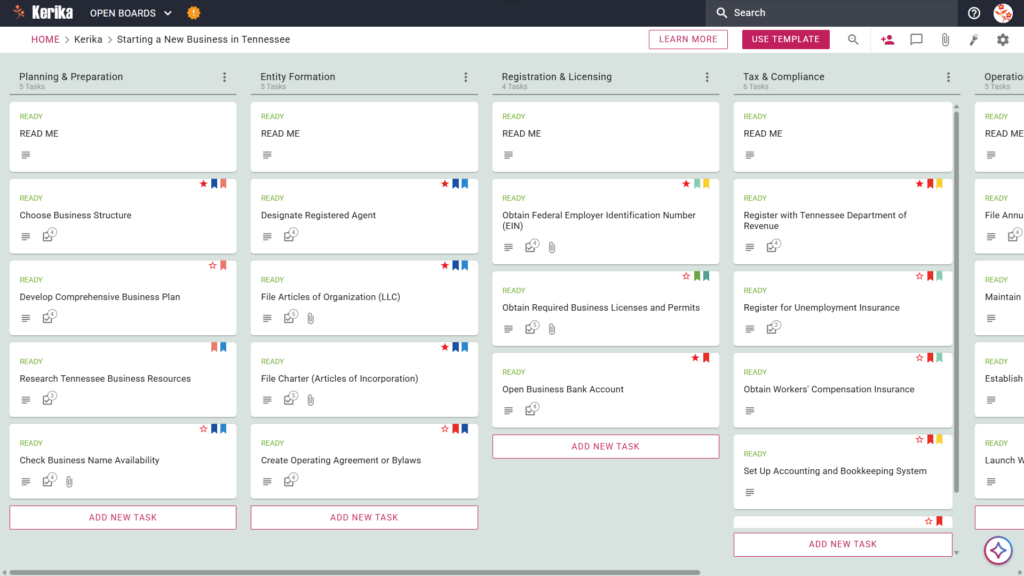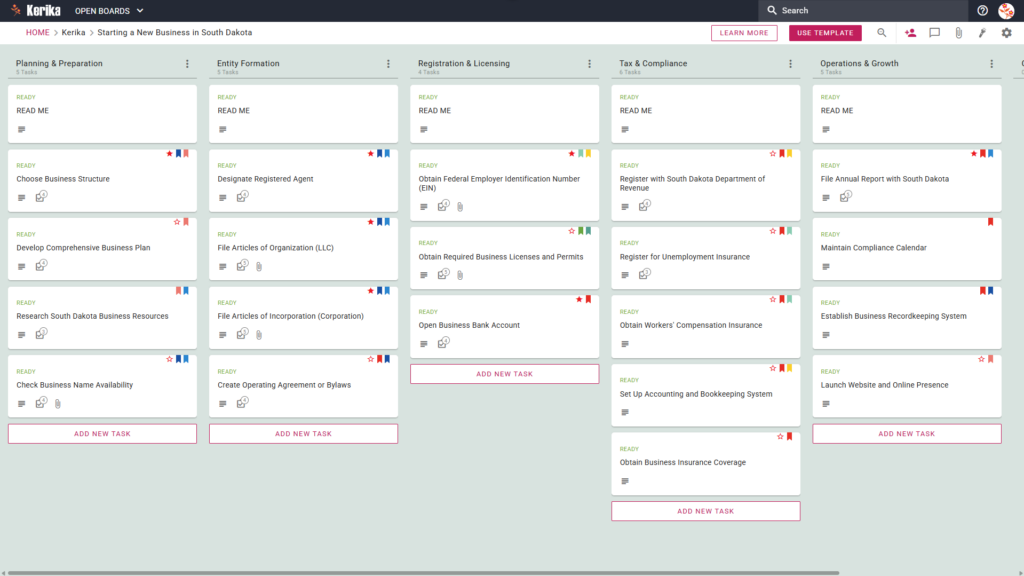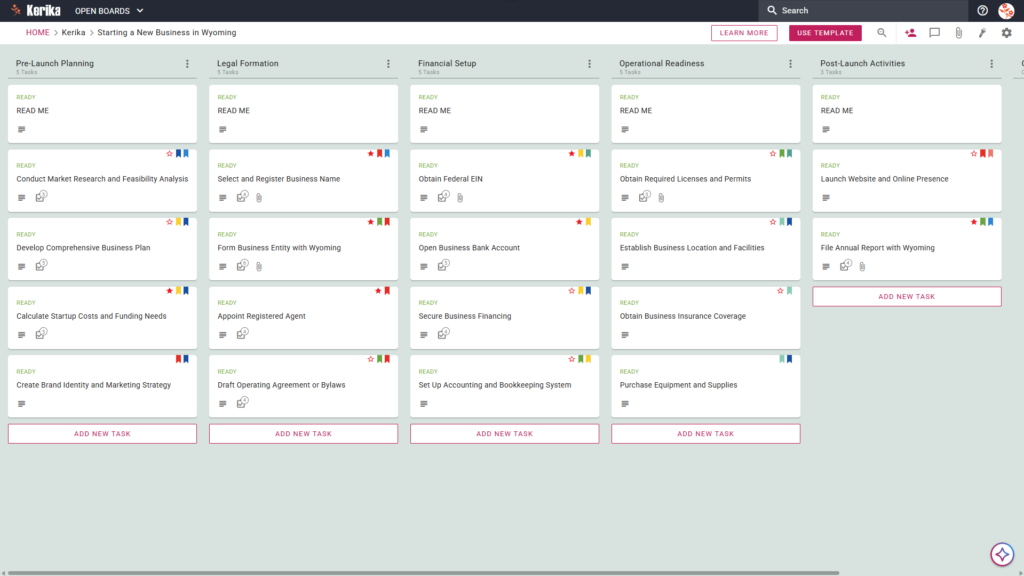
Starting a business in the Last Frontier is an exhilarating journey, but the logistical hurdles and bureaucratic friction can often feel like a climb up Denali. From navigating state-specific regulations to managing the paperwork required by various agencies, the administrative overhead is enough to stall even the most inspired entrepreneurs.
But don’t worry, we’ve mapped it out for you. We designed the Kerika Alaska Business Template to simplify this complex process, providing a visual, structured workspace that guides you from your initial research through your official launch.
Ready to turn your Alaskan dream into a reality? Let’s get started!
1. Who Can Use This
This template is built specifically for entrepreneurs and small business owners located in or moving to Alaska. Whether you are currently brainstorming your first idea or are ready to transition your passion project into a legal entity, this roadmap provides the structure you need.
It is designed to support both solo founders and small teams who need a “single source of truth.” By keeping all your documents and tasks in one place, you can collaborate with partners or advisors without losing track of your progress or document versions.
2. What it includes
The “Starting a New Business in Alaska” Kanban board provides a comprehensive workflow organized into five main stages, each designed to ensure you meet every state requirement:
Planning & Research: Build a solid foundation by creating your business plan, researching Alaska Market and Resources, and calculating your startup costs and funding needs.
Business Formation: Navigate the legalities of choosing a business structure, registering your business name, and filing official formation documents with the State of Alaska.
Licenses & Compliance: Manage critical requirements including obtaining your Alaska Business License, securing local permits, and registering for unemployment insurance.
Financial & Tax Setup: Organize your business infrastructure by opening bank accounts, setting up your bookkeeping systems, and securing necessary insurance coverage.
Launch Preparation: Finalize your entry into the market by developing your Marketing and Branding Strategy and securing a physical location for your operations.
The primary deliverables you will achieve using this template include a finished business plan, all required state and local licenses, and a functional accounting system.
3. When You Should Use This
You should use this template the moment you are ready to navigate the official requirements from the Alaska State government’s Small Business Assistance Center.
Attempting to track state-specific regulations and high-stakes compliance through messy email threads or static spreadsheets often leads to confusion and missed deadlines. This template acts as your central hub, eliminating the guesswork and ensuring you meet every regulatory milestone with confidence.
4. How To Use It
Managing your business launch is straightforward with these six steps:
Initiate Your Board: Start by opening the template to create your own personal or team workspace.
Assemble Your Team: Add your co-founders or employees as collaborators so everyone can see the project’s progress in real-time.
Include Stakeholders: Invite external advisors, such as lawyers or accountants, to provide feedback directly on specific tasks.
Methodically Progress: Move task cards from left to right through the columns. Always check the READ ME card at the top of each column for specific criteria and use the CHECKLIST tab within each card to manage sub-tasks and details.
Facilitate Communication: Use the discussion features within each task card to ask questions and share updates, keeping all project-related talk organized in context.
Monitor Advancements: Regularly review the board to track the overall health of your business launch and identify any tasks that need immediate attention.
5. Conclusion
Using a visual Kanban system like Kerika ensures that your business formation is supported by organized, professional preparation. By moving away from fragmented notes and into a structured workspace, you can manage every detail of your Alaskan launch from one central location.
Because Kerika integrates seamlessly with your existing cloud storage including Google Drive, OneDrive, and Box, you maintain full ownership of your files while ensuring your team has the access they need. Launch your business with the confidence that nothing has been overlooked.
6. Need Something Different?
If this template isn’t exactly what you need, let us know support@kerika.com and we will create a custom version for you, free!
Organizing a board meeting can feel like a massive logistical hurdle, especially when you’re dealing with the administrative overhead of governance. For leaders in both commercial and nonprofit organizations, the real friction usually lies in the “board pack.”
It’s a complex assembly of reports, agendas, and financial statements that you need to distribute and update in real-time. But don’t worry, this guide is here to help! If you’re wondering how to get your board pack together quickly and easily, this template is exactly what you need. We designed this template to simplify the complex process of board prep. It provides a visual, structured workspace for your entire team, whether they are across the hall or across the globe.
Ready to reclaim your time and productivity?Let’s get started!
1. Who Can Use This
This template is built to support the diverse group of professionals responsible for high-level governance:
Corporate Secretaries and Administrative Professionals: Those who manage the logistics and final assembly of board materials.
Executive Leadership Teams (CEOs and CFOs): Leaders who must provide high-level strategic and financial updates.
Committee Chairs: Specifically those leading Audit, Risk, Governance, or Remuneration committees who must submit specialized reports.
Distributed Teams: Professionals working across different time zones who need a “single source of truth” to collaborate without losing track of document versions.
2. What it includes
The Board Pack template provides a comprehensive starting point with a pre-configured, visual layout:
A Four-Column Workflow: Your progress is tracked through the Preparation, Review & Approval, Final Distribution, and Completed columns.
Standard Board Documents: Pre-configured cards include the Meeting Agenda and Schedule, CEO Report and Strategic Updates, and Financial Reports and Analysis.
Committee Reports: Dedicated cards are ready for the Audit Committee Report, Risk and Compliance Committee Report, Governance and Nominations Committee Report, and Remuneration Committee Report.
Quality Control Cards: To ensure accuracy, the template includes cards for Board Pack Quality Review and Fact-Checking and Chair and Committee Chair Review.
3. When You Should Use This
This workspace provides the most value in high-stakes environments where organization and security are critical:
Quarterly Board Meetings: Use this template when you need a repeatable, reliable process every three months to keep your board cycles consistent.
Remote Board Coordination: This is the perfect solution when your directors and staff are spread across different locations. Kerika handles time zone adjustments automatically so everyone stays in sync.
High-Stakes Document Security: Use this when your IT department requires strict access control. Kerika is the only task management tool that leaves file ownership entirely with you by storing documents in your own Google Drive, OneDrive, or Box account.
4. How To Use It
Managing your board prep is straightforward with these steps:
The READ ME Card: You will find a “READ ME” card at the top of every column. Always check these first. They contain specific rules on the criteria that must be met before adding or moving tasks to the next stage.
Advancing the Workflow: Only move task cards from Preparation to Review & Approval once the initial content is fully drafted. This ensures the review team only sees “ready” materials.
The CHECKLIST Tab: Open every card and navigate to the CHECKLIST tab to manage sub-tasks. Check these off one-by-one to ensure no detail, like a specific figure or date, is ever missed.
The ATTACHMENTS Tab: Use the ATTACHMENTS tab to upload reports or spreadsheets directly to the relevant card. These files stay in your secure cloud storage, and Kerika ensures they are shared automatically with the right people.
Conclusion
Using the Kerika Board Pack Template ensures your board meetings are supported by professional, organized preparation. Because Kerika integrates seamlessly with Google Workspace and Microsoft 365, access rights are managed for you. When you change a user’s role in Kerika, their file access in your cloud storage is updated instantly.
Team members get the read+write access they need to build the pack, while board directors are added as Visitors with read-only access. By moving to a visual board, you can eliminate messy email chains and ensure your organization maintains the highest professional standards.
Need Something Different?
If this template isn’t exactly what you need, let us know at support@kerika.com and we will create a custom version for you, free!
Collaboration works best when everyone knows their role and has access to the right tools. With Kerika, inviting teammates to your board is simple and flexible.
Whether you’re working with a project manager, developers, designers, or external stakeholders, Kerika makes it possible to assign roles and ensure everyone has the level of access they need.
Here’s how you can add teammates and manage their roles effortlessly:
Open your board and click the Team Icon in the toolbar.
Enter the email address of the person you want to invite.
Select a role for them: Board Admin, Team Member, or Visitor.
Step 2: Assign Roles
Board Admin: If you have created the board, then by default you’re a Board Admin. But you can give full control of the board to someone, which includes managing team members and settings.
Team Member: Can collaborate on tasks, upload files, and contribute to the board. Ideal for designers, developers, and other contributors.
Visitor: View-only access. Great for external stakeholders or clients who just need to monitor progress.
Step 3: Add Them to the Team
Click Add, and your teammate is instantly part of the board with the role you’ve assigned.
The Benefits of Kerika’s Role-Based Access:
1. Board Admin: Full Control for Team Leads
If you created the board, you’re the admin by default. But Kerika also lets you assign admin rights to others.
Key Benefits:
Manage team members, update board settings, and maintain control over the board’s structure.
Perfect for projects with multiple leads or project managers who need equal control.
Avoids bottlenecks that might occur if there’s only a single Board Admin who is unavailable for some reason, e.g. on vacation.
Admins ensure the board stays organized and functional while empowering leadership collaboration.
2. Team Member: Empower Your Contributors
Team Members have all the tools they need to get the job done. They can collaborate on tasks, assign tasks to each other, upload files, and contribute to the board’s progress.
Key Benefits:
Ideal for designers, developers, and other active contributors.
Keeps the board dynamic by enabling hands-on collaboration while maintaining admin oversight.
Team Members drive the project forward, making them the backbone of productive teamwork.
3. Visitor: Keep Stakeholders in the Loop
Visitors have view-only access, which means they can monitor the board’s progress without making changes.
Key Benefits:
Perfect for external stakeholders or clients who only need to see updates.
Ensures transparency without compromising the board’s structure or workflow.
Visitors are ideal for keeping everyone informed without adding complexity.
With Kerika, adding teammates isn’t just quick – it’s designed to support how your team works best. Whether you’re managing a tight-knit group or collaborating with external stakeholders, Kerika’s role-based system makes teamwork seamless and efficient.
Ready to streamline your team collaboration? Start inviting teammates and assign roles today with Kerika!
Working across multiple tasks and projects can make it challenging to focus on specific types of work, like design or research tasks, without scanning through the entire project board. This process can be time-consuming and may even lead to missed deadlines.
Tags provide a simple solution. By marking tasks with clear, customizable labels, you can quickly filter and highlight exactly what you need to focus on. With just a few clicks, tags help bring order to even the busiest boards.
Tags act as visual markers that can be added to tasks. They let you categorize work based on topics, teams, priorities, or anything that suits your workflow. And the best part? They’re completely customizable.
Tags are not just for looks – they’re your secret weapon for filtering tasks:
Use the Highlight Option: In the board menu, click on “Highlight Tasks on This Board.”
Select a Tag: Choose the tag you want to focus on. Instantly, only the tasks with that tag are highlighted, cutting through the noise.
Combine with Other Filters: Add due dates, priorities, or statuses to refine your search even further.
Why You’ll Love Using Tags
Streamlined Focus: Whether it’s a tag for “Urgent,” “Research,” or “Collaboration,” tags make it easy to zoom in on specific tasks.
Customizable Organization: No two projects are alike, so why should your tags be? Tailor them to suit your workflow.
Time-Saving Navigation: With tags and highlights, you’ll never waste time hunting for a task again.
Wrap-Up
Tags are more than just labels: They’re a practical tool for boosting productivity and maintaining clarity. By creating, applying, and filtering tasks with tags, you can streamline your workflow and stay organized, no matter the complexity of your project.
Big projects can often feel overwhelming, with multiple moving parts and team members juggling different responsibilities. That’s where checklists come in, offering a simple yet powerful way to break down complex tasks into manageable steps.
Why Use Checklists?
Clarity Through Simplicity: Checklists turn daunting tasks into actionable steps, helping your team understand what needs to be done.
Improved Collaboration: Assigning individual checklist items to teammates ensures clarity in roles and responsibilities.
Tracking Progress: Checklists make it easy to monitor the completion of subtasks, keeping the larger project on track.
Checklists are seamlessly integrated into task management workflows, providing flexibility and structure. Here’s how you can use them effectively:
1. Create a Checklist Within a Task Card
Open a task card and go to the “Checklist” tab.
Add items that represent the smaller steps needed to complete the main task.
2. Set Due Dates for Checklist Items
For each checklist item, assign specific due dates. This ensures every subtask is completed on time without losing sight of the overall deadline.
3. Assign Items to Teammates
Easily assign individual checklist items to team members, making it clear who is responsible for what. This feature eliminates ambiguity and keeps everyone aligned.
4. Use Cases for Checklists
Breaking Down Deliverables: Divide a big deliverable, like a website redesign, into smaller tasks such as wireframes, content creation, and testing.
Tracking Dependencies: Ensure subtasks are completed in the correct order by setting due dates and assigning them to the right team members.
Collaborating on Shared Goals: For team projects, assign specific checklist items to leverage individual strengths and keep everyone accountable.
5. Benefits of Using Checklists
Better Organization: Simplifies complex tasks by presenting them in a structured format.
Improved Efficiency: Ensures that smaller steps don’t fall through the cracks, speeding up the overall process.
Enhanced Communication: Provides clarity by assigning tasks to specific people and tracking their progress.
In Action
The ability to set due dates and assign team members directly from the checklist keeps everything streamlined. For example, in the “Home Page Development” task (illustrated above), individual checklist items like “Create Homepage” are assigned with specific due dates, ensuring everyone knows their role and timeline.
Wraping-Up
Checklists are more than just a to-do list, they’re a tool for breaking down complexity, fostering collaboration, and ensuring that every detail is accounted for. Whether you’re managing a small project or a large team, checklists empower you to stay organized, efficient, and focused.
Running a successful audit program requires careful planning, attention to detail, and a focus on collaboration. The essential steps, ranging from defining the scope and objectives to analyzing data and implementing improvements, form the backbone of any effective audit. These steps ensure that compliance is maintained, risks are identified, and processes are improved to align with organizational goals.
However, the path to success is not without its challenges. Common pitfalls like vague objectives, poor communication, and disorganized workflows can derail even the most well-intentioned audit programs. These issues can lead to overlooked details, missed deadlines, and a lack of actionable insights.
Fortunately, with the right tools and strategies, these challenges can be tackled head-on. In this guide, we’ll provide you with a step-by-step framework for executing an effective audit program.
To illustrate this process, we’ll also walk you through a practical example of a well-structured workflow and share tools that can help you streamline collaboration, organize tasks, and keep your audit on track. Let’s get started!
Essential Steps For Executing a Successful Audit Program
A successful audit program doesn’t just happen; it’s built on a foundation of strategic planning, meticulous execution, and continuous evaluation. Here’s a detailed roadmap to guide you through the key steps:
1. Define the Scope and Objectives
Start by outlining the purpose of your audit. What do you aim to achieve? Whether it’s ensuring compliance with regulations, identifying process inefficiencies, or validating financial accuracy, having clear objectives sets the tone for the entire program. Identify the departments, processes, or systems to be audited.
Define success metrics and establish key performance indicators (KPIs). Click here to read about the top metrics you should look out for according to Audiboard.com Communicate objectives to stakeholders to align expectations.
Watch out for:
Unclear objectives that can lead to wasted time and incomplete or irrelevant findings.
Lack of clear success metrics and KPIs.
2. Assemble the Right Team
A competent and collaborative audit team is essential to delivering accurate and actionable results. Assign roles and responsibilities, ensuring each team member has the skills needed for their tasks. You can learn more about the key responsibilities of audit team members from Validworth in this article. Involve both internal staff and external experts, depending on the complexity of the audit. Provide training on audit procedures, tools, and reporting standards.
Watch out for:
Poor task delegation and role clarity can cause confusion, missed deadlines, or duplicated efforts.
Insufficient training or expertise among team members.
3. Develop a Comprehensive Plan
An effective plan serves as a blueprint for the entire audit process. Break the audit into phases, such as planning, execution, analysis, and reporting. Set realistic timelines for each phase, ensuring deadlines are achievable. Identify potential risks and challenges, and prepare contingency plans to address them.
Watch out for:
Inefficient collaboration and communication can result in misunderstandings, overlooked tasks, and fragmented reporting.
Unrealistic timelines or inadequate risk assessment.
4. Gather and Analyze Data
The quality of your audit depends on the accuracy and relevance of the data you collect. Use standardized tools and methods for data collection, such as surveys, interviews, and system logs. Verify the reliability of your sources to minimize errors. Analyze the data systematically to uncover patterns, anomalies, or areas for improvement.
Watch out for:
Incomplete or inaccurate data can compromise the validity of audit findings.
Inadequate data analysis or interpretation.
5. Engage Stakeholders Throughout the Process
Regular communication with stakeholders ensures transparency and builds trust. Share progress updates at key milestones to keep everyone informed. Address concerns or questions promptly to maintain alignment with objectives. Involve stakeholders in reviewing preliminary findings and shaping actionable recommendations.
Watch out for:
Limited visibility for stakeholders can lead to mistrust and misalignment.
Inadequate communication or stakeholder engagement.
6. Document Findings and Provide Recommendations
The way you present your findings can determine how effective your audit will be in driving change.
Compile results into a structured report, highlighting key insights and areas of concern. Offer clear, actionable recommendations supported by evidence. Prioritize recommendations based on their potential impact and feasibility.
Watch out for:
Poor documentation practices can result in audit findings that lack context or clarity.
Inadequate or unclear recommendations.
7. Implement and Monitor Changes
The audit’s value lies in its ability to drive improvement. Develop a plan to implement recommended changes, assigning tasks and deadlines. Monitor the impact of these changes over time to measure effectiveness. Schedule follow-up audits to ensure sustained compliance and progress.
Watch out for:
Resistance to change can hinder the implementation of recommendations.
Inadequate monitoring or evaluation of changes.
8. Evaluate and Improve the Audit Process
Every audit is an opportunity to refine your approach for the next one. Conduct a post-audit review to identify lessons learned and areas for improvement. Update your audit processes, templates, or tools based on feedback. Recognize and celebrate successes to build momentum for future audits.
Watch out for:
Lack of continuous evaluation and improvement.
Inadequate documentation or retention of lessons learned
By following these steps and being aware of potential concerns, you can create an audit program that not only ensures compliance but also drives meaningful organizational improvements.
Using the Right Tools
Executing a successful audit program requires more than just good planning – it demands a tool that can help you overcome the common pitfalls we discussed earlier. A powerful task management solution can make all the difference in organizing your workflow and ensuring nothing slips through the cracks.
The following demo board is a prime example of how an audit team has built a structured workspace to tackle each phase of their audit program seamlessly.
Take a closer look at how this audit team has designed their workspace to address every stage of the audit process. From conducting initial meetings in the Initiation Phase to validating compliance in the Fieldwork Phase and wrapping up in the Final Review, this board ensures that every step is meticulously planned, tracked, and executed.
This virtual workspace enables the team to prioritize tasks, communicate effectively, and track progress, all in one place. Let’s break down how this team uses their board to make sure their audit program stays on track.
Take a Closer Look at This Audit Program Board
1. Capturing Critical Action Steps with Detailed Task Cards
Adding tasks is straightforward and ensures that no step in the audit process is overlooked. By using the “Add New Task” button at the bottom of each column, team members can quickly create tasks, such as conducting stakeholder interviews or validating security measures. This ensures that action items are captured as they arise.
2. Flexible Workflow Customization with Column Actions
The ability to customize columns ensures the workflow adapts to the evolving needs of the audit program. This feature allows teams to rename columns, add new ones, or rearrange existing columns with ease.
For example, moving tasks from “Fieldwork Phase” to “Analysis & Validation” ensures proper task progression without confusion. The option to hide or delete columns helps declutter the workspace, keeping the board focused and efficient. This customization enables teams to maintain a dynamic workflow while ensuring no task is misplaced.
3. Assigning Roles and Permissions to Enhance Collaboration
Managing roles ensures that team members are accountable and understand their responsibilities within the audit program. This feature lets you assign roles such as Board Admin, Team Member, or Visitor based on their level of involvement.
For example, auditors responsible for key tasks can be assigned as team members, while external stakeholders can be given viewing access as visitors. This setup promotes structured collaboration, minimizes confusion, and secures sensitive project data by controlling access.
4. Centralized Communication Using Board Chat
Rather than relying on scattered emails or chat messages, the board’s built-in chat feature ensures that all discussions related to tasks remain accessible in one place. Team members can share updates, clarify issues, and leave comments directly on the board, allowing everyone to stay informed without the need to search through multiple communication channels. This approach reduces confusion and keeps conversations tied to their respective tasks, making collaboration more seamless and productive.
5. Centralized File Management for Seamless Access
The board’s attachment feature provides a streamlined way to manage and share files relevant to each task. Whether it’s audit guidelines, evidence documentation, or stakeholder reports, all files can be uploaded, created, or linked directly on the board.
This eliminates the need for external storage systems and ensures team members can access the most up-to-date documents without delays. With everything in one place, your team can focus on executing tasks efficiently.
6. Highlight and Prioritize Critical Tasks
The board’s highlight feature allows teams to quickly identify tasks that need immediate attention based on various criteria, such as assigned users, task status, due dates, and priority levels. This ensures that high-priority audits, overdue items, or tasks tagged with specific labels are easy to spot.
By using this filter, teams can streamline their focus, tackle urgent tasks, and avoid missing deadlines; keeping the entire audit program on track and well-coordinated.
7. Fine-Tune Board Settings for Optimal Control
Efficient auditing requires a board that adapts to your evolving needs. The board settings let you control access with privacy options, ensuring that only the right people see the sensitive details of the audit process. You can set WIP (Work-in-Progress) limits to manage team workload and prevent bottlenecks.
Auto-numbering tasks ensures consistent tracking, while tags help in organizing tasks across departments, phases, or categories. Additionally, the board overview provides real-time insights into the status of the audit program, making it easy to identify tasks that are completed, pending, or overdue.
With export and archive options, you can back up or pause tasks while keeping your audit workflow organized and future-ready.
Break Down Tasks Into Manageable Steps
When managing an audit program, breaking down tasks is the key to ensuring no critical detail is overlooked. This demo board exemplifies how each task is divided into actionable, trackable steps for better clarity and collaboration.
Here’s how this team approaches task segmentation effectively:
Details Tab for Task Descriptions: The Details tab allows teams to document comprehensive task descriptions, requirements, and key objectives. This ensures everyone involved understands the task scope without needing constant clarification.
Setting Task Status for Progress Tracking: Assigning a status such as Ready,In Progress, or Needs Review enables clear visibility into the progress of tasks. With updated statuses, team members can easily track completion or identify bottlenecks.
Checklist Tab for Subtasks: Complex tasks can be broken down into smaller, actionable subtasks using the Checklist tab. Each subtask can be ticked off upon completion, helping teams stay organized and avoid overlooking essential steps.
Due Dates to Maintain Deadlines: Setting deadlines ensures tasks remain on schedule, while visibility into upcoming due dates helps the team prioritize work and avoid missed timelines.
Tags for Categorization: By assigning relevant tags, such as compliance audit or disaster recovery, tasks can be categorized and filtered efficiently. This feature makes it easy to locate related tasks and ensure streamlined workflows.
Chat Tab for Task-Specific Discussions: Instead of scattered messages across different platforms, the Chat tab centralizes all task-related conversations. Teams can collaborate, provide updates, and resolve questions directly within the task card.
Task Assignments for Clear Ownership: Assigning tasks to specific team members ensures accountability. Each team member knows their responsibilities and can focus on their assigned tasks without confusion.
Attachments Tab for Storing Relevant Files: Important documents, reference files, or evidence can be attached directly to the task through the Attachments tab. This keeps everything task-specific and avoids searching through external storage systems.
With tasks broken down into manageable steps, this board demonstrates how complex audits can be simplified, making it easier to track progress, identify blockers, and ensure all objectives are met seamlessly.
Conclusion: Building an Effective and Scalable Audit Program
A well-executed audit program is the backbone of organizational compliance, risk management, and process optimization. By breaking down tasks into manageable steps, ensuring proper categorization, and fostering clear team communication, you create a workflow that is structured yet flexible enough to handle unexpected challenges.
The right planning and execution will help you stay on top of deadlines, improve collaboration, and ultimately achieve audit success with confidence.
Your workspace should work for you, not the other way around. Customization options allow you to tailor everything from background colors to notifications and whiteboard tools, helping you stay organized and productive.
To start personalizing your workspace, you’ll need to access the Preference Settings in your account. Here’s how:
Click on your Profile Icon in the top-right corner of the screen.
Select My Preferences from the dropdown menu.
These settings let you create an experience that fits your unique work style. Now that you know how to access the settings, let us guide you step by step how you can use each customization option.
How It Works: Adjusting Preferences
Preferences are typically grouped into three main categories: General, Notifications, and Whiteboard. Each section provides straightforward options designed to enhance your workflow and optimize your experience.
Here’s a closer look at how these settings work:
General Settings: Make Your Workspace Yours
Background Color: ● Choose a background color that’s easy on your eyes and suits your style
● Pick from a variety of options to make your workspace visually appealing.
Use Tags for Task Boards ● Enable this feature to automatically include tags on new task boards and templates you create.
● Helps you stay organized and categorize tasks effortlessly.
The Benefits: Customizing the visual aspects of your workspace makes it feel more intuitive and less cluttered, helping you stay focused.
Notifications: Stay in the Loop Without Overloading
Chat Notifications ● Get emails when there’s board-level chat or when someone chats on a task you’re involved in.
Activity Updates for Admins ● Receive notifications when new tasks are added, completed, or reassigned on boards you administer.
Daily Task Reminders ● Opt for a daily email summary sent at 6 AM, showing overdue tasks and those due this week or next.
● Group tasks by date or board for easy tracking.
The Benefits: With flexible notifications, you can stay informed about what matters most without getting bombarded by unnecessary updates.
Whiteboard Settings: Streamline Your Creative Process
Lines and Shapes ● Set default line styles, thickness, and colors to create clean, consistent visuals.
Text on Canvases ● Choose your preferred font style, size, and color for a polished look.
Grid Options ● Enable snapping to grid and set the grid size to keep your designs aligned and professional.
The Benefits:
These settings make whiteboards perfect for brainstorming, planning, or designing, ensuring your work looks great and stays organized.
Wrap Up
Whether it’s adjusting visual elements, tailoring notifications, or streamlining creative tools, these options are designed to enhance your productivity and keep your work environment organized. Taking a few moments to personalize your settings can lead to a more efficient and enjoyable experience every day.
Deadlines are the invisible threads that tie projects together, ensuring that tasks are completed on time and teams stay aligned. Whether you’re working on a single task or breaking down a project into smaller, actionable steps, clear due dates make all the difference.
Efficient deadline management starts with the ability to set due dates on tasks and their components. Here’s how it works:
Set Due Dates on Task Cards
Open the task card you’re working on.
Click the “Due” button to access the calendar view.
Select a due date or adjust existing ones as needed.
This ensures the task is anchored within the project timeline and keeps everyone updated.
Break Down Bigger Tasks with Checklists
Use the Checklist feature to divide a large task into smaller, more manageable items.
Each checklist item can have its own due date, making it easy to track progress at a granular level.
Assign specific checklist items to different teammates, clarifying individual roles while staying within the context of the larger task.
Best Practices for Deadline Management
Be Specific: Avoid vague timelines, set exact dates to avoid confusion.
Prioritize Realistically: Balance workloads by assigning due dates that reflect the complexity of tasks.
Regularly Review: Update deadlines as project scopes evolve to maintain realistic expectations.
Conclusion
Integrating due dates into task management, whether for full tasks or individual checklist items, helps teams maintain clarity, focus, and productivity. By thoughtfully setting and managing deadlines, you create a workflow that adapts to your team’s needs while ensuring that nothing falls through the cracks.
When juggling multiple tasks across different stages of a project, staying organized is essential. Tags are a powerful tool that can bring structure to your workflow, helping you quickly identify, categorize, and prioritize tasks.
Whether you’re managing design mockups, backend development, or testing stages, tags make it easier to focus on what matters most.
Here’s how you can use tags to streamline your project management:
Tags act like visual markers, giving you instant insights into a task’s category or status. Here’s how you can apply them to individual task cards:
Open the Task Card: Select the task card you want to categorize.
Set Tags: Click on the Tags section in the card details. From here, you can choose from existing tags or create a new one.
Visual Cues: Once applied, the tag appears at the top of the task card, providing an at-a-glance indicator of its category or priority.
Pro Tip: Use consistent color coding for tags to make it easy to distinguish between categories, like green for “backend” tasks or blue for “design.”
How to Create Custom Tags
Custom tags allow you to tailor categorization to your team’s needs. Here’s how you can create tags:
Access Tag Settings: Go to the Settings tab of your board and select Tags.
Add a New Tag: Click on the + Add New Tag option. Give your tag a name that reflects its purpose, like “urgent,” “mockups,” or “pending.”
Pick a Color: Choose a color to make your tag visually distinct.
Save and Apply: Save the tag, and it’s ready to be used across your board.
Pro Tip: Keep tag names short and intuitive. This ensures everyone on your team can easily understand and use them effectively.
Benefits of Using Tags
Effortless Task Categorization: Tags help you group related tasks, making it easier to filter and locate them.
Enhanced Focus: Highlight tasks that need immediate attention or belong to a specific category.
Team Clarity: Ensure everyone on the team understands the task’s purpose at a glance.
Wrap-Up
Tags are more than just labels, they’re a way to simplify and enhance your task management. By using tags effectively, you can categorize, prioritize, and focus on tasks with ease, keeping your team aligned and productive.
Managing projects efficiently starts with a well-organized workflow. Breaking down your tasks into clearly defined stages can help you and your team stay aligned and productive. A structured workflow makes it easier to track progress, identify bottlenecks, and prioritize tasks effectively.
Let’s dive into how you can set up columns in your task board to maximize efficiency using the example board provided.
Columns are the backbone of your workflow. Each column represents a stage in your project, helping you visualize the flow of tasks from start to finish. The key is to ensure that your columns align with the nature of your project and the way your team works.
Steps to Set Up Workflow Columns
1. Define Your Workflow Stages
While defining Workflow Stages. think about the natural progression of your tasks.
For example:
Project Strategy: For initial planning stages, such as defining requirements or setting goals.
Project Design: Tasks related to visual and structural planning, like logo design or layout creation.
Project Development: For execution phases like coding or creating functionalities.
Testing: For ensuring everything works as expected before launching.
Completed: A final stage to send tasks that are fully done.
2. Translate Stages into Columns
Once your workflow stages are defined, turn them into columns on your task board. Start with broad categories and refine them as you better understand your team’s needs.
For example:
You can begin with essential columns like “To Do,” “In Progress,” and “Completed” to establish the basic flow.
Gradually expand these into more specific columns aligned with your workflow stages, such as “Project Strategy,” “Project Design,” “Project Development,” and “Testing”.
This approach ensures your columns are intuitive, adaptable, and tailored to the natural progression of your tasks
3. Use Columns for Specialized Needs
Consider creating columns that add value to your workflow:
Backlog: A space for tasks that are planned but not yet ready to enter the main workflow. This helps prioritize tasks when the team is ready to take on more work while keeping the active columns clean and focused.
Resources: A column to store links, documents, or other materials that support your tasks. This makes it easy for the team to access everything they need without cluttering individual task cards.
4. Remember To Keep it Simple and Intuitive
Avoid overloading your board with too many columns. Aim for clarity and simplicity so your team can easily follow the workflow.
Conclusion
A well-organized workflow begins with thoughtful column setup. By tailoring your columns to reflect your project’s natural stages and including supportive columns you can improve team efficiency and maintain clarity in your process. Start organizing your workflow today and experience the benefits!