LinkedIn’s “endorsements” feature was an interesting innovation when it first came out, last year, but the way it has been implemented isn’t great, and it runs the risk of becoming a devalued currency.
LinkedIn is too aggressive in soliciting endorsements. With old-fashioned recommendations, you had to do some work – and, more importantly, your best contacts had to do even more work – in order to get a written recommendation.
LinkedIn takes away all of that work by throwing up a splash screen whenever you log in to their site that very persistently solicits endorsements on behalf of everyone you know. First you are prompted to endorse 4 people, and if you do that, you are again prompted to endorse another 4 people. And so on, ad infinitum. It’s like being trapped in an infinite loop: even after you have endorsed a contact for a few skills, you are asked if that person has yet more skills.
It’s one thing to make a feature accessible and easy to use; quite another to push it down everyone’s throat, devaluing your currency in the process.
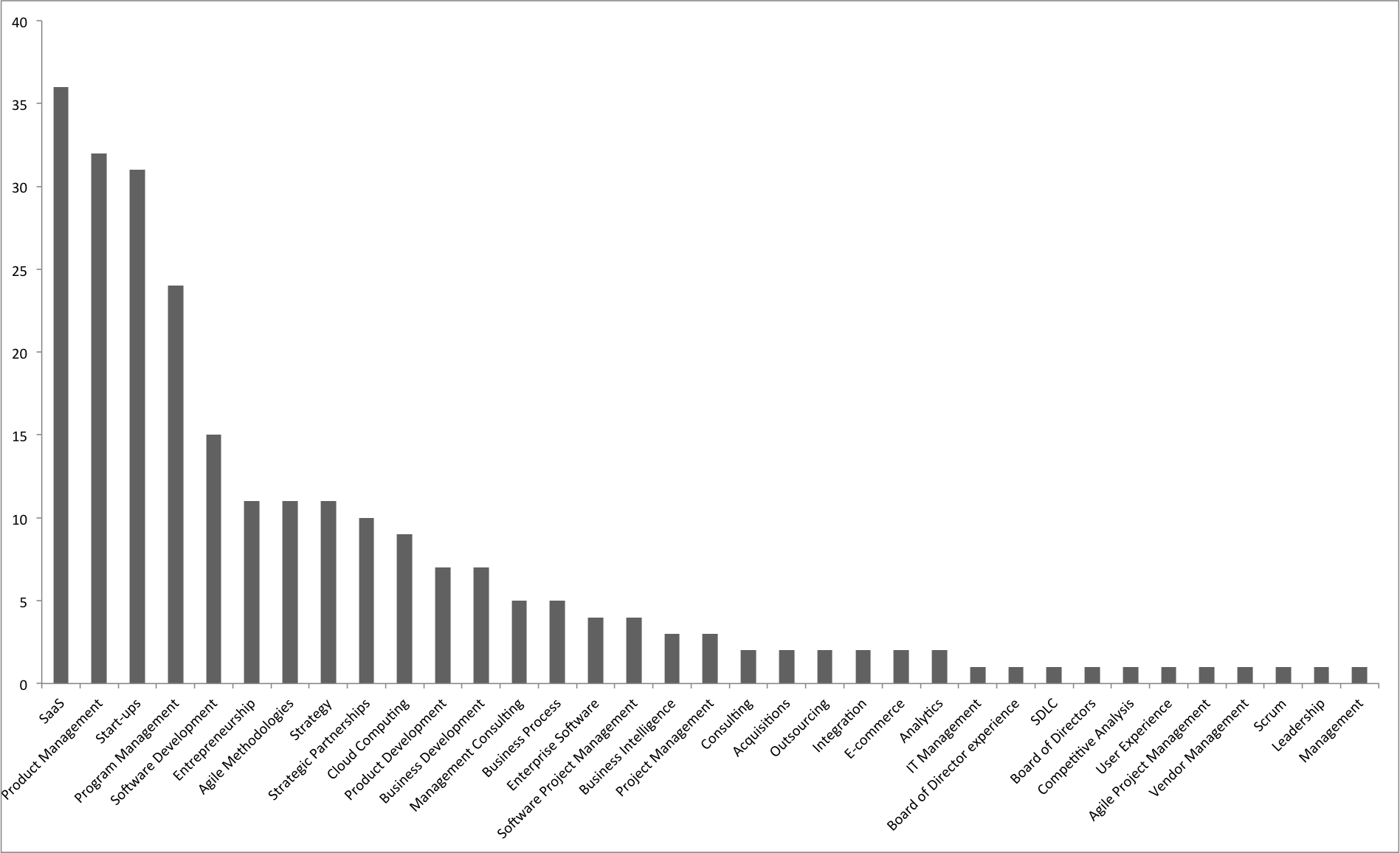
The other, more subtle problem with LinkedIn’s endorsements is that the data appear highly structured but are, in fact, not really normalized. Take a look at this graph which shows the endorsements given to Kerika’s CEO (Arun Kumar):
Arun Kumar’s LinkedIn endorsements
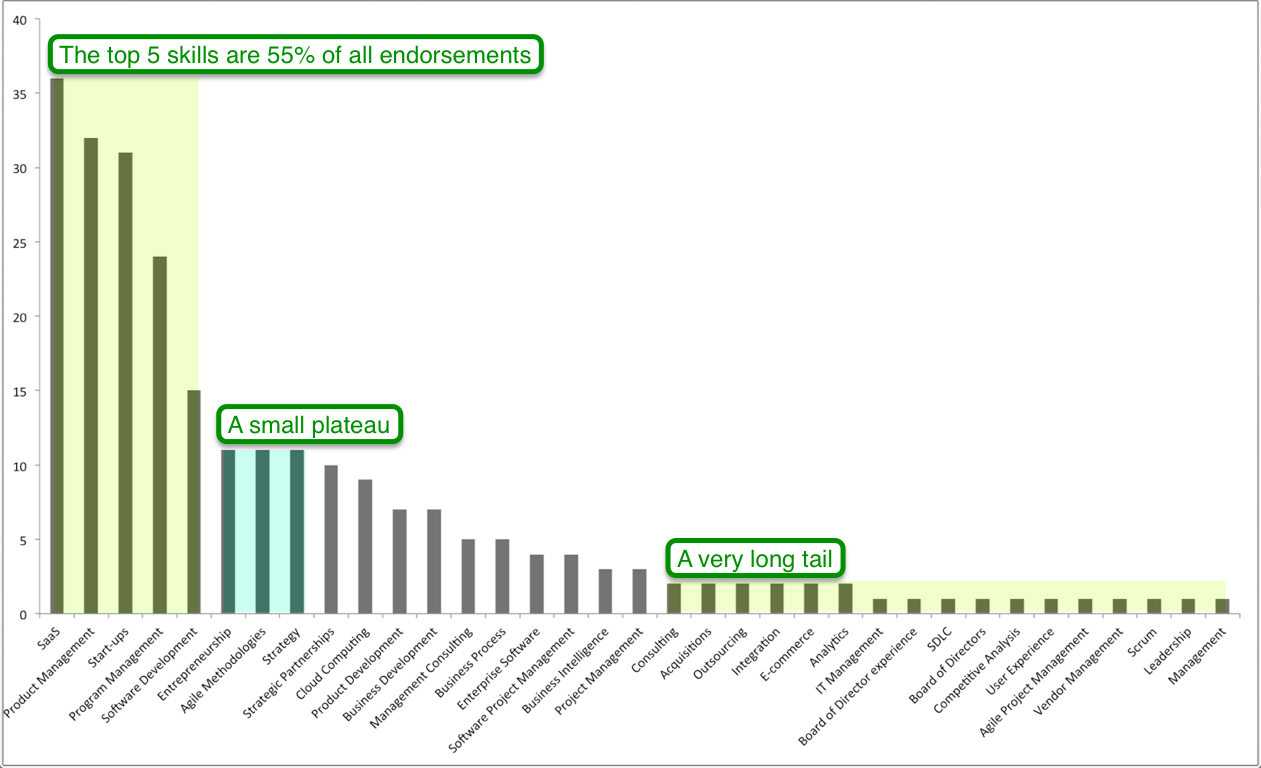
The long tail is immediately apparent: of the 35 categories of skills representing a total of 251 endorsements, the top 5 skills provide 55% of all endorsements.
The long tail of LinkedIn endorsements
Several categories could be combined quite easily: for example, Board of Directors and Board of Directors Experience are surely the same thing?
What should we do with this long tail: a tail that grows longer by the week?
Yes, another update to Kerika! You can now set Due Dates on cards, and get a personalized email summary each morning of all the work items assigned to you that are due today, tomorrow and are overdue.
We implemented Due Dates in a smart way, in keeping with our focus on distributed teams: the system automatically adjusts for people working across multiple timezones. You can read more about this on our blog.
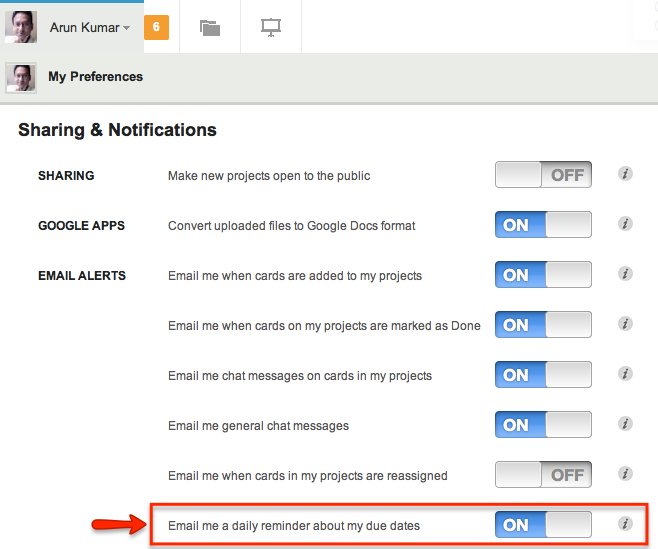
Your personalized work summary is sent at 6AM every day, adjusting automatically for your timezone, to help you organize your day. We think it is a really handy feature, but you can turn it off if you like by setting your user preferences.
Managing your Inbox and your Sentbox (all the invitations and requests that you have sent out, that haven’t been acted upon yet) are both simpler now: there’s a separate blog post describing that as well.
There are a bunch of other usability improvements as well: you will continue to see more over the next few weeks. Thanks for your support: please continue to help us improve Kerika by providing your feedback!
We are improving our “smart display” of dates and times, to make sure they are as easy for users to comprehend as possible.
(At this point you might well be wondering: “why is this a problem in the first place? Don’t people know how to read dates or times?”)
The underlying problem we are trying to solve is that “relative time” is more useful than absolute time, if you are dealing with a short time span.
For example, the word “Yesterday” has much more cognitive value than July 19, 2013 (which is also “yesterday”, as of the time this blog post is being written). “Yesterday”, “today”, “tomorrow”, “two hours ago”, “recently”, etc. are all very powerful ways to convey a sense of how far away a particular event is from the current moment.
But, as one of users – Carlos Venegas, from Lean Office Innovation – recently pointed out, this works best for short periods of time: for example, it is helpful to know something that happened “2 days ago”, but much less helpful to be told that something happened “12 days ago”. In the latter case, the cognitive advantage of using relative time disappears and quickly becomes a burden for the user: 12 days ago is too far in the past, and now the user has to do some mental calculation to arrive at the more useful value of “June 10, 2013”.
This issue became more pressing when we built the Due Dates feature, because time doesn’t have an absolute value when you are dealing with a distributed team. For example, the Kerika team is distributed between Seattle and India: a time difference of 12.5 hours in the summer, and 13.5 hours in the winter.
This time difference is large enough to make terms like “today” ambiguous: depending upon when you are talking with your cross-border colleagues, you may have very different ideas of when “today” ends.
To address this, we made our Due Dates feature smart: it automatically adjusts for timezone differences, so that when someone in India marks an item as due “today”, Kerika ensures that people in Seattle understands what that means in terms of Pacific Time.
We also are improving our display of relative time, using a more detailed algorithm:
First of all, any time reference that is more than 3 days away is shown in absolute values: e.g. “July 15”, rather than “7 days ago”.
The concepts of today, tomorrow, and yesterday are preserved: the system figures out what timezone you are located in, and uses these terms in a smart way.
If an item is due by the end of the day, the time is shown using your current timezone: e.g. “11:30AM PST” rather than just “today”, for an item that is supposed to be done by the end of that day in India. This removes misunderstandings that would otherwise exist across timezones.
As you get closer to a time, the display gets more precise: anything due within the next hour is displayed in minutes, e.g. “45 minutes”.
As you get very close, the display gets a little vaguer, because of the greater uncertainty about when something might actually happen. So anything that’s two minutes away is marked as recently.
All of this makes for a very smart display of time, while keeping the user interface very simple: users set dates using a simple calendar control, without having to worry about the details of where others on the team are currently located, and how they might perceive these values!
With our next release (next week), you will have the ability to set Due Dates on cards; this is how it’s done:
Example of setting a Due Date on a card
The concepts are very simple, yet very elegant and powerful:
By default, all cards are “Not scheduled”, which means no Due Date has been set. Of course.
When you open up a card, you will find a new menu/button that lets you set a Due Date.
Due Dates are presented using words where possible, e.g. “Due Today”, “Due 2 days” ago”, etc., since these are easier for people to grasp than actual numbers.
When you set a Due Date, Kerika automatically takes into account your location, so that coworkers in other timezones understand exactly what you mean by “Due Today” or “Due Tomorrow”.
For example, if someone in India sets a Due Date for July 19, they expect the task to complete by midnight, July 19, Indian Standard Time.
When someone in Seattle looks at that card, they will see that it is due by 11:30AM July 19, Pacific Daylight Time. In other words, Kerika automatically adjusts for the 12.5 hours timezone difference that exists (during the summer) between Seattle and India.
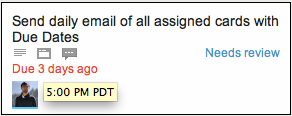
Due Dates are presented right on the card when you are looking at a task board, and hovering over the date with your mouse will show the exact time:
Seeing the Due Date time on a card
In this example, the card was due three days ago, at 5PM Pacific Daylight Time.
All of this is done automatically and behind the scenes, in keeping with Kerika’s unique focus on making collaboration easy for distributed teams.
Daily Email Summary
We are introducing a new user preference, set to ON by default, that lets you get a daily summary of your most pressing tasks:
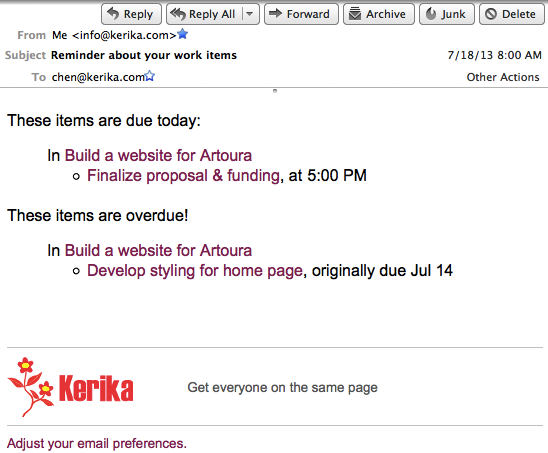
The daily email that you get looks like this example:
Example of a daily email summary of your tasks
This daily email summary will get sent to you at 6AM every day, no matter where you are: Kerika figures out which timezone you are in, and sends you the email so that it’s the first thing you look at when you wake up!
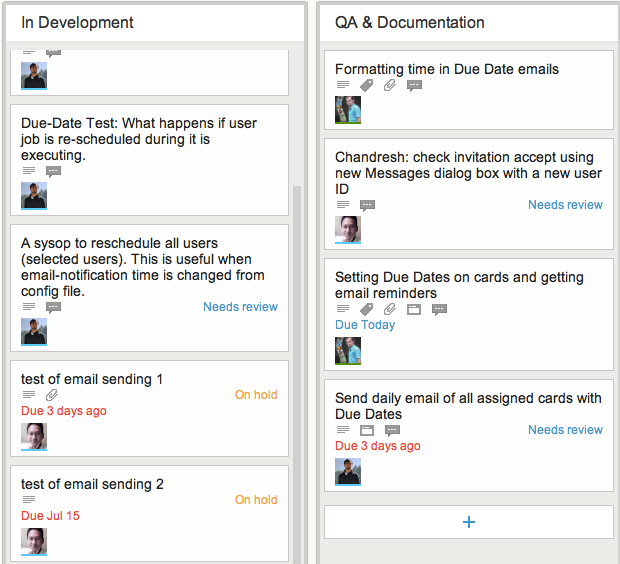
When you are looking at a task board, you can easily spot the cards that are overdue – they are marked in red – and the cards that are due today – they are highlighted in blue. Here’s an example:
Due Dates are highlighted on task boards
This next release is an important step on our way to implementing a Dashboard! Stay tuned…
We have built a simpler way to handle invitations and requests in Kerika, part of a continued (indeed, never-ending!) push to improve usability. A quick recap of what invitations and requests are all about:
Invitations
Invitations are the messages you receive when someone wants to add you to a project team. If you have never worked with someone before, you need to accept their invitation to join a project – to establish a working or “buddy” relationship. This simple mechanism reduces the possibility of you getting dragged onto projects that you have no interest in, or getting involved with people you don’t know.
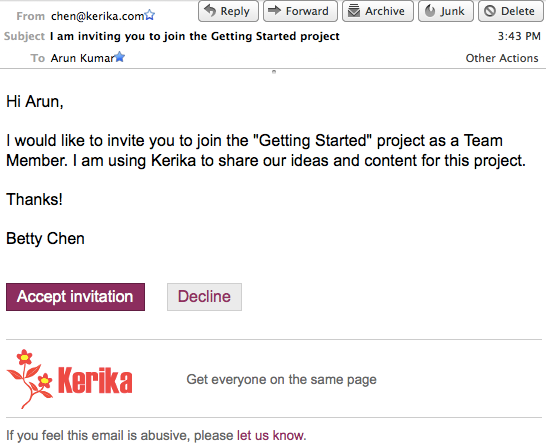
When you are invited to join a project, you get a (regular) email that looks like this example:
Example of an emailed invitation
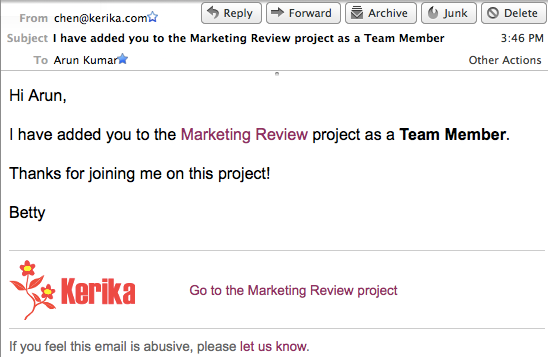
After you have accepted an invitation from someone, it becomes easier for that person to add you to other projects: we call this an “auto-add”, where they can add you to another project without waiting for your to accept yet another invitation. This makes it easy for you to work with the same set of colleagues and friends without having to wait for them to accept one invitation after another. So, if you are “auto-added” to a second project, you get a notification email that looks like this:
Example of an email sent when you are auto-added to a project
Requests
Requests can be made in a couple of different ways:
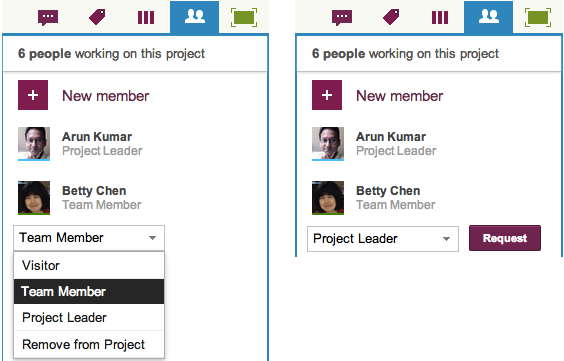
You might want to upgrade your role on a project, where you are not the Project Leader or Account Owner. For example, you might be a Visitor on a project, with read-only privileges, who wants to become a full-fledged Team Member. In that case you can easily request an upgrade in your role by using the Project Team dialog box, which is found in the upper-right corner of the Kerika application. Here’s an illustration of how that’s done:
Requesting an upgrade in role
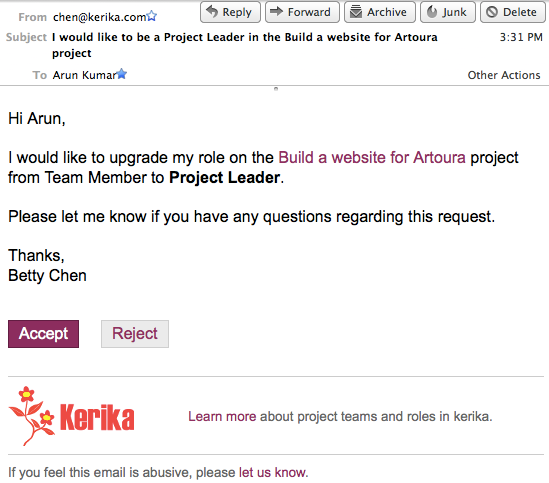
In this example, Betty is currently a Team Member on the project, and is requesting an upgrade to Project Leader. This request for an upgrade in role gets sent to whoever is currently a Project Leader, and the email sent looks like this:
Email sent when someone requests an upgrade in role
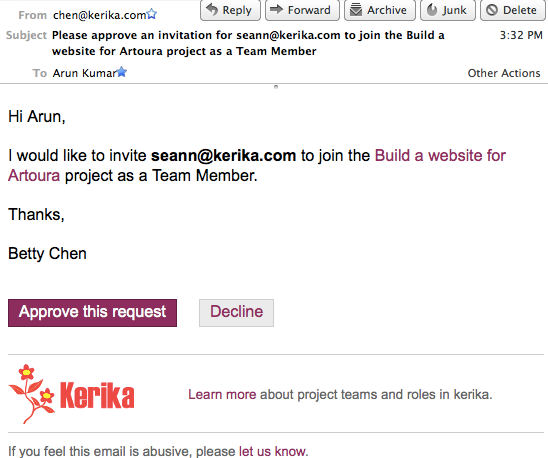
The other type of request is made when a Team Member wants to add someone else to a project team: this will automatically trigger a request sent to the Project Leader, who is asked for approval since it is Project Leaders who ultimately control who gets to be on the project team. The email sent to the Project Leader looks like this:
Email sent when a Team Member wants to add someone to a project team
What’s new: the Inbox
The email aspect of invitations and requests isn’t changing – although we are looking at ways to reduce the odds of these emails getting trapped by spam filters. What is changing is the way you can access invitations and requests from within the Kerika application itself: we have simplified the user interface to look like this:
The total number of invitations and requests you have outstanding
The old envelope icon is being replaced with an orange square that contains the total number of outstanding (pending) invitations and requests you have: in the example above, this is 6.
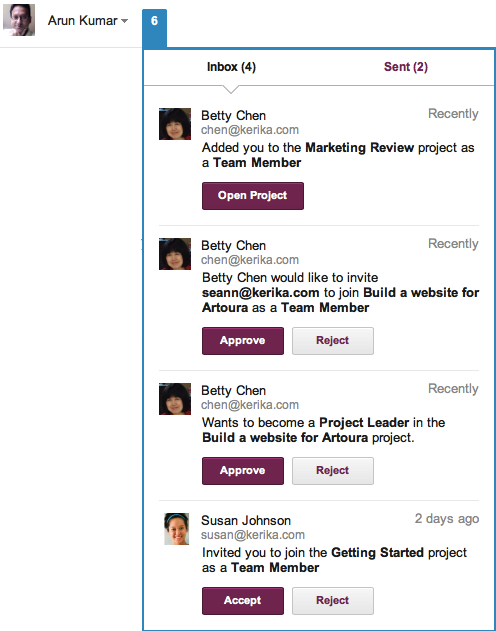
Clicking on the orange square will bring up a compact display of all your pending invitations and requests organized into an “Inbox” and a “Sent” list:
Example of Inbox
In the example above, there are 4 items pending in the Inbox; from top-to-bottom, they are:
Betty has “auto-added” Arun to the Marketing Review project; Arun’s gotten a notification to that effect. He can open this project by clicking on the Open Project button, which will remove this item from his Inbox.
Betty has a request to invite Sean to the Build a website project. Since Betty is only a Team Member, her invitation has triggered an request for the Project Leader (Arun, in this case) to approve her invitation. If Arun approves Betty’s request, her invitation to Sean will get sent automatically by the system.
Betty wants to upgrade her role in the Build a website project from Team Member to Project Leader; this request has gone to Arun who is one of the current Project Leaders. (Maybe Betty wants to be able to add people more easily to this project, without having to wait for Arun’s approval…)
Susan has invited Arun to join the Getting Started project as a Team Member.
What’s new: the Sentbox
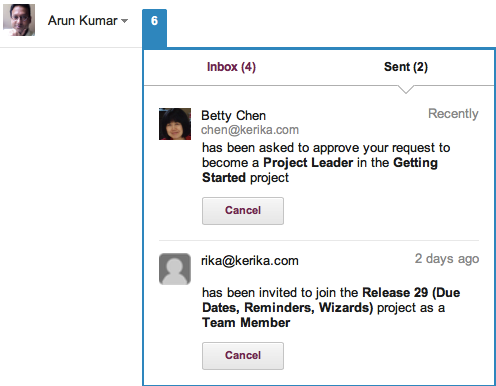
Clicking on the Sent link would bring up a list of all of Arun’s pending invitations and requests:
Example of Sentbox
In the example above, this includes:
A request made to Betty to upgrade Arun’s role in the Getting Started project from Team Member to Project Leader.
An invitation to rika@kerika to join the Release 29 project.
The great thing about the Sentbox is that it lets you pull back (i.e. cancel) an invitation or request that you may have made in error, or where you have subsequently changed your mind.
For example, you may have typed in someone’s email address incorrectly when you were adding them to your project – although Kerika’s seamless integration with Google Contacts makes that less likely! – and you would naturally want to cancel that invitation (quickly) before it gets accepted by the wrong person.
To learn more about people and roles in Kerika’s project teams, check out this video:
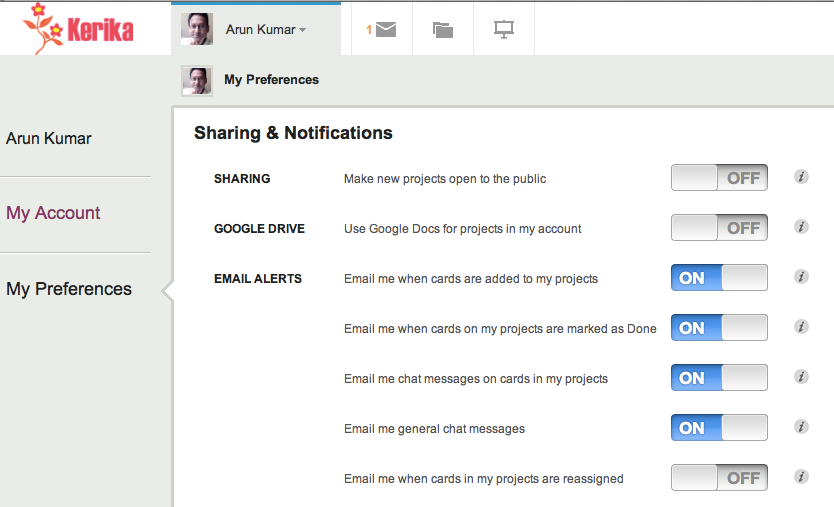
We have added email notifications for Project Leaders: you can now get email alerts sent when cards are added to your projects, reassigned, or marked as Done.
Easier ways to manage your tags and do quick filtering of your view of a project board.
Easier way to retrieve entire projects that you may have deleted.
Here’s Google Voice’s transcription of a voice-mail:
Hey, I wanted to. Sorry I was. I would call me when you called driving a satellite probably be in the popular half hour and, I pledge appointment if you’re around. Gimme a call. Otherwise, I think it later. The off and also from Iraq. Thanks. Bye
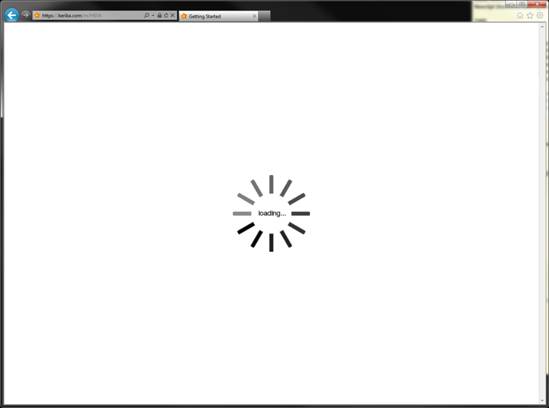
We finally tracked down a weird problem that had been affecting some Internet Explorer (IE9): Kerika wouldn’t load properly. This is what users saw:
Kerika not loading with IE compatibliity mode
The “loading…” image would just stay on the screen, forever.
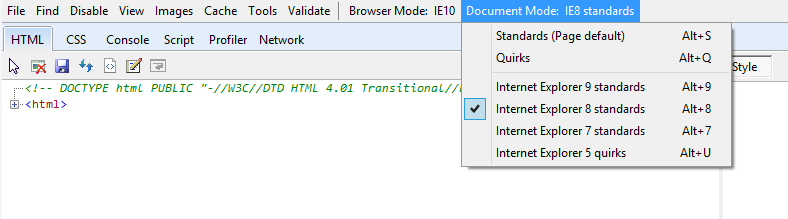
It really puzzled us when a few users started reporting the problem because we weren’t experiencing it ourselves, no matter how much we tried testing Kerika on Internet Explorer. Finally, one of our users reported the problem in a way that gave us a very valuable clue: for some reason he had inadvertently made his Internet Explorer 9 switch to “compatibility mode”. With Internet Explorer running in compatibility mode, Kerika won’t work, and neither will much of the modern Web.
Internet Explorer’s compatibility mode
The fix to this problem is simple: if any users have toggled their Internet Explorer browsers into compatibility mode by mistake (i.e. hit Alt+8 inadvertently), then please turn your IE9 back to “regular mode”.
How easy is it for users to inadvertently switch their IE browser to IE8 mode? Too damn easy! If you are trying to use the asterisk (“*”) key, you need to type Shift-8. A little carelessness on your part, and you will end up typing Alt-8 instead and switching to IE8 mode! Talk about bad UX design…
Meanwhile, we are going to make a change to Kerika in the next version that will redirect users to an explanation page on our website if the server detects that they are running in IE8 or older.
In case you are wondering what “compatibility mode” is all about, here’s the unhappy history: starting around Internet Explorer 5, which was launched in 1999 at the height of the dot-com boom and amid the fierce battle for browser supremacy with Netscape (remember them?), Microsoft adopted a strategy of getting their largest enterprise customers to create web sites that were based upon Microsoft standards, which differed substantially from what were already emerging as more open, global standards for web sites and browser behaviors.
This was based upon the old model of “owning the platform“: a strategy that had worked brilliantly for Microsoft for many years, helping them dominate one market after another, and for a long while it seemed to work well with browsers as well. Large enterprises built their pages using Active X and ASPX, and while these pages rendered just fine as long as you were inside Microsoft’s walled garden, they were not great long-term investments for these enterprises because the open Web moved onto standards like Javascript and other components of HTML5.
The walls of the garden started crumbling when Firefox came on the scene. At first, Firefox was considered an interesting hobby and Microsoft certainly paid it no attention at all — by around 2005, however, Firefox’s market share was very noticeably growing and Microsoft found that it had effectively dismantled its own browser team, having concluded prematurely that they had already won the browser war. In other words, they hung out the “Mission Accomplished” banner a little too soon.
By the time Firefox started gaining momentum, Microsoft’s IE team was down to a program manager and a couple of developers: in other words, it was the tiniest maintenance team you could imagine. Things did start to change in 2006 when Microsoft belatedly woke up to the Firefox threat, and scrambled to put the band back together again by transferring back all the old IE developers to build IE7. (The old IE team was now all over the place, with a bunch of folks having moved to Xbox which was a particularly hot place to work just then.)
When the newly reconstituted IE team tried to regain momentum in the browser market, they were stuck with Microsoft’s legacy: a large number of enterprises had built up Intranet sites and applications that were increasingly divergent from the emerging HTML5 standards. And so, the next few releases of Internet Explorer (IE7, IE8 and IE9) had to straddle the old, Microsoft-specific world and the new, HTML-5 compliant world.
Internet Explorer 8 never quite made it, but IE9 was definitely better. However, Microsoft still isn’t completely free of the past, as this chart shows:
Internet Explorer Market Share
There’s still a lot of old IE out there, which is scary when one considers that these old versions are not even getting security patches any more. (The 6.21% of the world that’s running IE6, for example, must be fueling all sorts of botnets!)
Until Microsoft can get free from its own past, “compatibility mode” is likely to stick around.
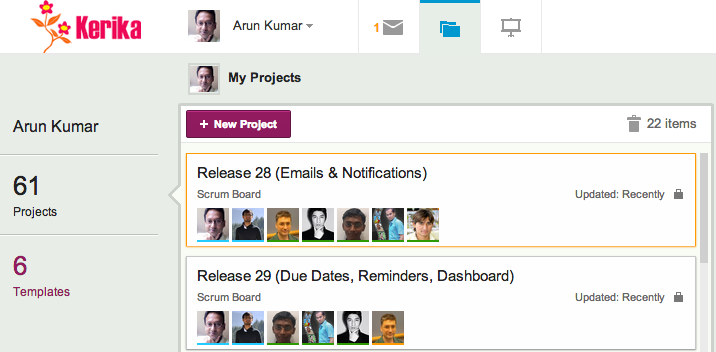
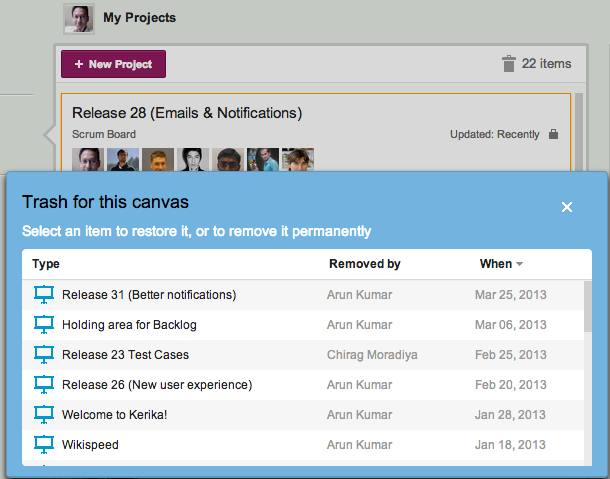
We have always had a Trash (or Recycle Bin) at every level of Kerika: anything that you delete goes into a Trash that’s associated with that view, so that if you make mistakes you can easily recover from them.
But, the way to retrieve deleted projects was not very clear: the functionality was there, but it was kind of buried so we are making that easier to find and use:
Projects Trash
The Trash icon shows you how many deleted projects you can retrieve: this includes all projects that you, or anyone else deleted, where you were a Project Leader or Team Member.
This means that you can retrieve projects that were deleted by mistake by other Team Members!
It’s a pretty neat feature, and it works as you would expect:
From the very beginning Kerika has been built to leverage the Google Apps platform, and today we are one of the most elegant apps in the Google Apps Marketplace! The Google Apps integration, however, has been something of a double-edged sword: folks who are already committed to using Google Docs and Google Drive love Kerika, but there are also folks who like Google Drive but not Google Docs, and these folks haven’t been too happy to lose the advanced formatting and other “power-user” features of Microsoft Office.
This has been particularly true for some of our consulting users who make extensive use of Word, Excel and PowerPoint in dealing with RFPs and client reports.
The fact that we have always converted files to the Google Docs format is really more a historical artifact than an integral part of the Kerika design and product vision, so now we are offering users the choice of using Google Docs or not, while retaining our integration with Google Drive. Here’s how it works:
There will be a new user preference that lets you decide whether you want to use Google Docs or not. By default, this will be OFF, which means that you will not be using Google Docs.
If the preference is OFF, then files that you add to your Kerika project boards — onto individual cards or canvases — will still be shared using your Google Drive, but the original Microsoft Office format will be preserved. This means, for example, Excel files will remain as Excel files even as they are getting shared across your project team using Google Drive.
This setting is on a per-user basis: it means that you are controlling whether projects in your own account are going to use Google Docs or not. Other Kerika users may have different preference settings, so on some projects you may find that the files have been converted to Google Docs because that account’s owner prefers that way of sharing files.