A new tutorial video, showing you how Kerika’s Chat combines the best of instant messaging and email, and lets you have very focused conversations on your Task Boards, Scrum Boards and Whiteboards:
A new tutorial video, showing you how Kerika’s Chat combines the best of instant messaging and email, and lets you have very focused conversations on your Task Boards, Scrum Boards and Whiteboards:
With our latest update, it’s become easy to keep track of sub-tasks for cards on a Task Board or Scrum Board; here’s an example:
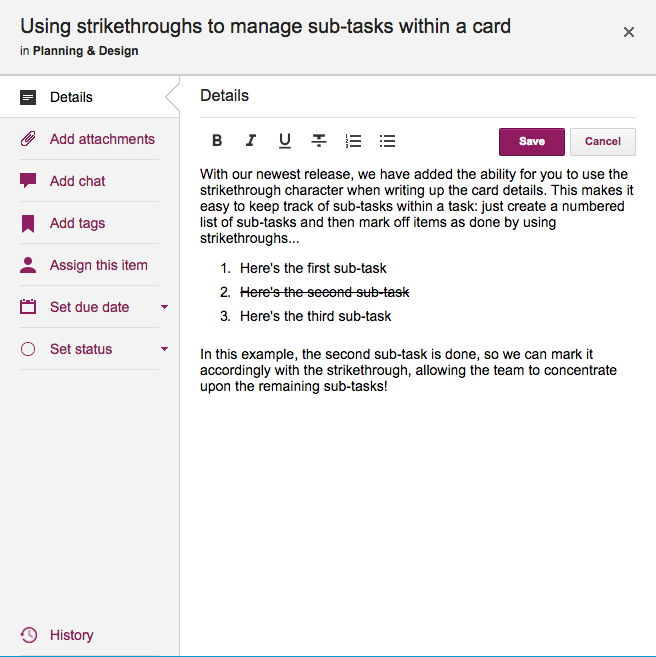
In the example shown above, the second item in the numbered list has been been taken care of, and so it has been struck-through, making it clear to the rest of the team that it isn’t an issue any more.
We have added the capability of marking text within card details with a strike-through, and this, combined with the easy way in which you can create numbered lists, makes it easy to track sub-tasks!
In a long, endless series of UI tweaks that are each small in themselves, but which we hope will collectively add up to a great user experience…
We made it easier for Account Owners to restore archived projects and templates:
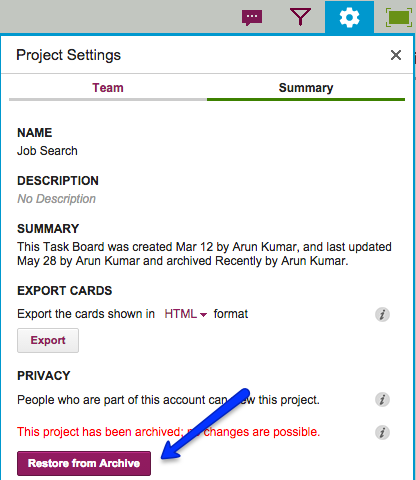
This button is shown only to Account Owners, since the power to archive a project or template, or to restore an archived item, is restricted to the Account Owner.
Every card, on every Kerika Task Board or Scrum Board, contains within it a full history: a log of all the changes that have been made to it.
(A few actions are ignored because they can occur so often, and are often inconsequential, e.g. moving a card up/down within the same column. In contrast, moving a card across columns is considered consequential, and is therefore logged in the card history.)
We recently made a usability improvement in the way the Card History appears: the log of changes is now shown in chronological order, rather than reverse chronological as was the case before.
This makes history look more like chat, and should make it more usable!
When a Team Member deletes a card, it just gets moved to the board’s Trash; it doesn’t get immediately deleted from Kerika’s database even though it disappears from your view right away.
That’s because the “delete” action in Kerika is really a “move to Trash” action: you are removing something from view, but not necessarily getting rid of it for good.
Any Team Member can delete a card, but only a Project Leader can completely and permanently get rid of it — in other words, “taking out the trash” is one of the privileges reserved for Project Leaders (and Account Owners).
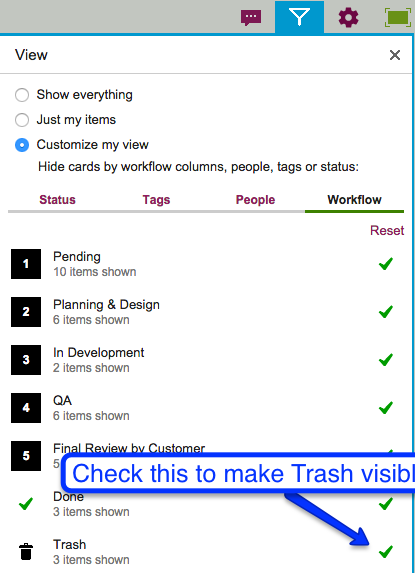
The Trash column is normally not shown on your Task Board or Scrum Board, but you can bring it view easily by clicking on the Filter button:
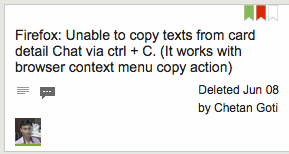
With our latest version, it’s easy to see who moved the card to the Trash: we show this right on the card itself.
We are adding “In Progress” as a new status tag for cards, on Task Boards and Scrum Boards, that we think will make it easier for everyone to see which items are actually moving along.
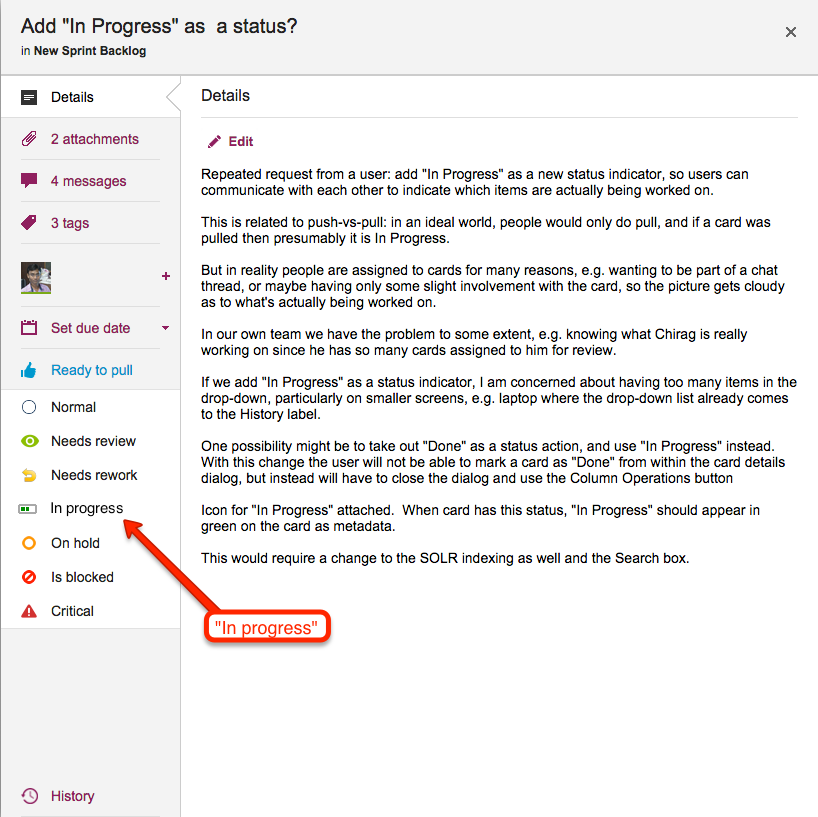
Couple of reasons why we did this:
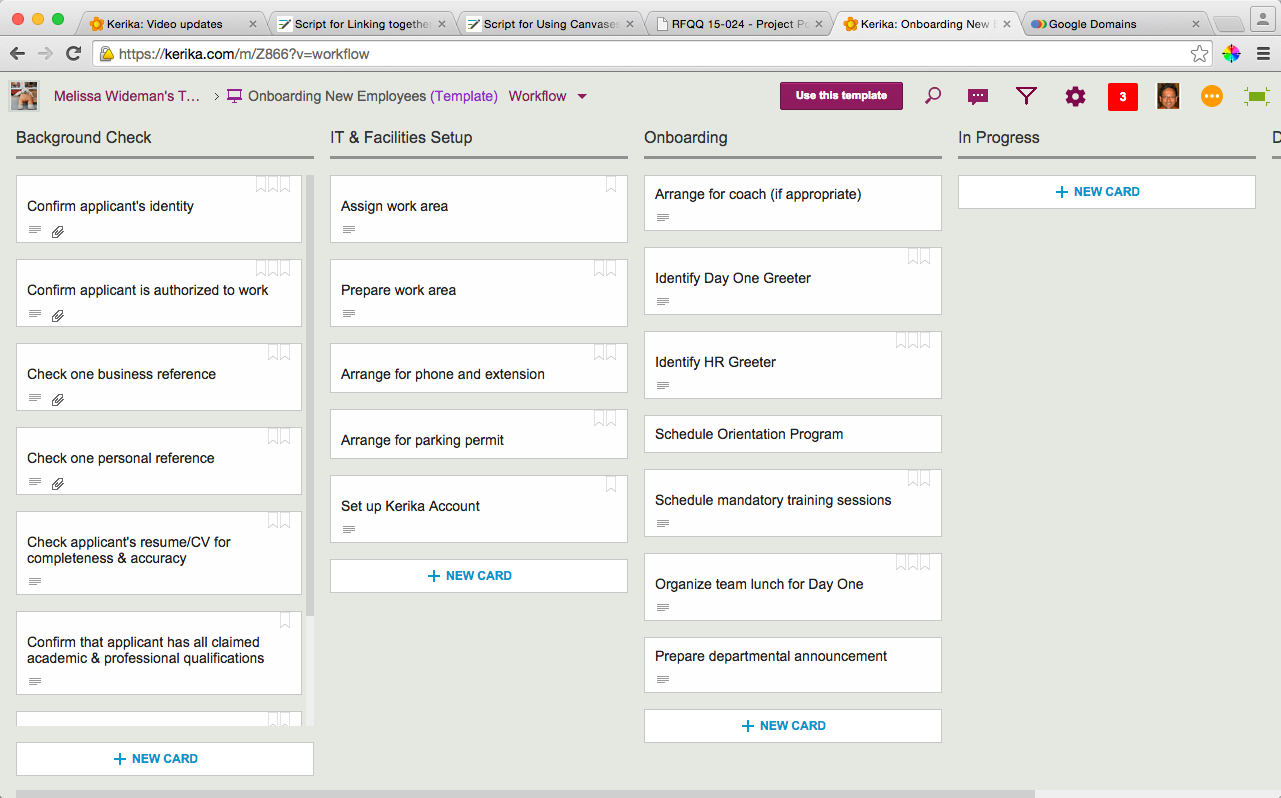
In this process template, we have three buckets of activities: Background Check, IT & Facilities Setup, and Onboarding, and we have a separate In Progress column that you could use to indicate which card is currently in progress.
But, with a “In Progress” status indicator on cards, you wouldn’t need that extra column: you could work on cards from any of those three buckets and indicate their status right there. And when the work gets completed, these cards can go straight to Done!
A Russian user kindly alerted us to a bug that we have now fixed: filenames that used Cyrillic characters were not getting uploaded correctly, because of an encoding problem.
The problem had to do with Kerika not using a sufficiently large character set, which resulted in some languages not being supported properly.
We have fixed that by moving away from the UTF8 character encoding to UTF8MB4, which is an encoding format used by MySQL databases.
UTF8 uses a maximum of 3 bytes per character, which limits the range of languages that can be supported. UTF8MB4, however, uses a maximum of 4 bytes per character which considerably extends the range of possible characters.
As we were “eating our own dogfood” with the new Planning Views feature, we increasingly found a need to distinguish between cards that had been scheduled for the first time, and those that were being rescheduled because they didn’t meet their original due dates.
This was probably a useful distinction for us to have made even before now, but the new Planning Views made it really important to tell which cards were slipping and which weren’t, and anyway, that’s the whole point of “dogfooding”: we use what we build, extensively, before we give it to our users, and that’s how we make great software :-)
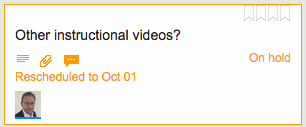
So here’s a simple enhancement that we think will help all teams: if a card on a Task Board or Scrum Board is rescheduled, i.e. given a new due date, the card will flag that like this:
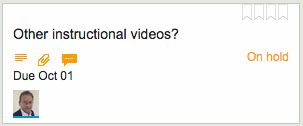
As soon as you click on the card, the orange highlight gets turned off, and the due date is shown like any other date:
We have an updated tutorial video on how real-time Search works in Kerika, across all your projects and templates:
When you are working with a large board and a large team, it’s often useful to see just those cards that are assigned to some people.
For example, you might want to just see those cards that are assigned to you, so that you can focus on getting your stuff done and not get distracted by everything else that’s going on.
With our newest release of Kerika, we have made this both possible and easy.
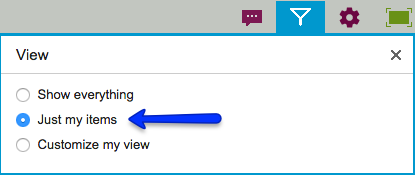
One quick menu choice, within our new Filter dialog, will make it possible for you to filter your view of a Task Board or Scrum Board to just see the items assigned to you:
If you are a Project Leader, you might want to filter your view of a board even further, and Kerika makes that easy:
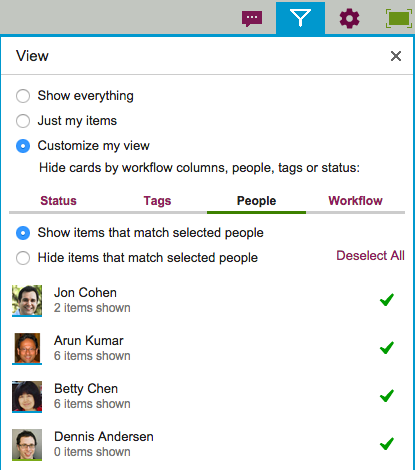
This view is particularly handy if you are trying to deal with staffing issues: for example, if one person has called in sick, you can first filter your view to show just the items assigned to that person, and then add more cards to your view to see how busy someone else on the team is, if you are thinking of offloading the sick person’s work to someone else.