Category Archives: Kerika

Posts about Kerika, the company and its people

A new user interface, with much improved usability

We are launching a brand-new version of Kerika, with a completely reworked user interface and a ton of new features including support for iPads and other full-sized tablets.

The new UI is different enough that we have put together a 2-minute video that we recommend you watch before you sign in next; it will really help you get the most out of the new software. The interface is new, but all your old projects and data are all intact!

The new interface is part of a larger transformation we are undertaking that will add project management capabilities to our existing collaboration features: we want to provide support for Kanban-style projects, Agile/Scrum projects, and customized workflows. We have finished designing the new features and if you would be willing to take a look at our mockups and give us your opinion, it would be greatly appreciated!

Meanwhile, please enjoy the new version, particularly if you have an iPad or other full-sized tablet. To access Kerika on your tablet, just log into the kerika.com site using your tablet’s browser: there is no need to download any app because we have rebuilt the user interface to work just fine inside your tablet’s browser.

How to tell if a file has been updated

The first version of Kerika was written as a peer-to-peer (p2p) application, so one challenge we faced was detecting when files that are being shared as part of a project were changed by a user, so that we could send the latest version to everyone else on the team.

Our first attempt at a solution was to simply examine the Last Modified time for files. However, this proved to be very unreliable for a rather odd reason: whenever you open a spreadsheet using Microsoft Excel, it automatically updates the Last Modified time to be the current time – even before you had made any changes.

And when you close Excel, without having made any changes, it resets the Last Modified time back to its original value. So, whenever you opened a Excel files for viewing, we would erroneously identify it as an updated file.

We then tried looking at the size of files, to see if these had changed since we last examined them. We knew, of course, that this would be error prone in its own way: if you change some text within a file such that it contains the same number of characters as before, the overall size of that file would not change.

But this approach failed for another reason altogether: Microsoft Word allocates disk space in chunks at a time, rather than as exact amounts. This means that any edits to Word files that do not require Word to grab another chunk, or give up a chunk, would never be reflected in the reported size of the file.

Eventually, we decided to take the MD5 hash of files, which is a more reliable way of detecting if a file has been modified. We were concerned about how much CPU overhead this would take, but it proved to not be a problem after all.

Our latest version: better integration with Google, and more UI coolness

You will have a new version of Kerika tomorrow, with a bunch of great new features. One big improvement is in Kerika’s integration with Google: we are upgrading to Google’s newer, better authentication system, so you will be asked to sign-in through Google again as if you were a brand new user — but don’t worry, none of your old projects or data are affected in any way by this change! The new sign-in process consolidates in one place all the permissions that Kerika requests with respect to your Google account; they include:

  • Access to your basic information: name, email address and photograph, which we use to make sure your Kerika account is set up properly. Now, the photo you use on Google will be used automatically for your Kerika projects as well.
  • Access to your Google Docs account, which, as before, we use to store the files you upload to your Kerika projects. Now, when you upload files to a Kerika project, they will be stored in the Google Docs account of the Account Owner. This makes it easier for Account Owners to manage all the content assets related to their projects.
  • Access to your contacts: this will be used in our next release (look for it in a couple of weeks) which will have auto-completion of names and email addresses when you invite people to join your projects.

There’s a long list of benefits that come with the new version of Kerika:

  1. When you add a URL to a Kerika page, that web site will show up as an embedded page within your Kerika page (i.e. as an IFRAME): you can customize the size and the display, so that only the content you are interested in is shown. Which means that Kerika lets you literally cut-and-paste the Internet.
  2. When you add Web content to Kerika pages, the system automatically gets the title of the Web content, so you don’t have to enter that by hand. And, of course, you can always rename it if you like.
  3. When you upload files to Kerika projects, they will now be stored in sub-folders within your Google Docs that are named for the Kerika projects. This means your Google Docs account doesn’t get cluttered with files in the same way as it did before.
  4. If you use Google Drive, you will find that your Kerika documents are available across all your computers. Kerika is well integrated with Google Drive.
  5. When someone joins a project that already has a bunch of Google Docs, they won’t get a bunch of emails any more from Google letting them know that they have access to each of these files. (These emails were kind of annoying ;-)
  6. If someone is removed from a project team, they will no longer have access to the Google Docs that were part of that project.
  7. On Firefox, Chrome and Safari (but not IE9), you will see thumbnails of the documents on your Kerika projects, which makes it easier for you to quickly distinguish between several files.
  8. When you make a project open to the public, its documents are available only to people who know the URL of the documents. We feel this is a better approach to privacy when you considering making a project open to the public.
  9. When you are uploading a large file to your Kerika project, you don’t have to wait for the uploading to finish in order to do other work inside Kerika.
  10. When you copy a project, or use someone’s public project as a template, you will get your own copies of all the documents in that project.
  11. Switching between different Kerika pages is now much faster since images are now retrieved from your browser cache instead of from the server.
  12. A long-awaited bug fix: when you have images (pictures) on your Kerika pages, they will be shown properly on Internet Explorer 9 and Safari. (We had to fix a problem with the way these browsers dealt with Google Docs.)
  13. Text blocks can now have a border color as well.
  14. The emails sent when you invite people have been improved.
  15. And, finally, the thumbnails of Kerika pages — which you can post to Facebook, LinkedIn, Google+, etc. — are much improved.

Thanks for your continued support of Kerika, and for providing feedback on how we can improve the product. There’s more good stuff coming your way, so keep collaborating…

A new version, with more goodies..

We have released yet another version of Kerika, packed with useful features and bug fixes that will improve your experience with the product.

A lot of the improvements we made are “under-the-hood”, but here are a few changes that you can benefit from directly:

  • Snap-to-grid will make it easier for you to lay out shapes, documents, pictures, etc. on your Kerika pages. You can turn this on or off as you like, and adjust the size of the grid spacing, by setting your preferences: while you are using Kerika, click on your picture near the top edge of the browswer window and you can get to your user preferences.
  • Google Docs will always open in a new browser tab: this change makes for a more consistent and better user experience for everyone. Different browsers handle Google Docs differently, so to provide a more consistent experience for everyone your Google Docs will now alway open in a new browser tab rather than inside the Kerika canvas.
  • Easier ways to invite people: based upon very useful feedback from one of our users, we have added an “auto-acceptance” feature to invitations, and also redesigned the emails that get sent when people are invited to join your projects. These changes make it easier for you to invite people, and handle situations where the invitation emails get caught up in spam filters.
  • Custom colors: mix and match colors as you like, if you don’t like the 84 colors that come with the Kerika palette. If you need to use specific colors, e.g. to match your company’s branding, you can use hex codes to get the exact shade you want.
  • Faster tab switching: we improved this in a several ways, and one of them is to make sure your tabs show the page exactly as you had been viewing it previously before you switched to another tab.
  • The old “Magic Plus” button is now split into two: separate buttons to add Web content and to upload files from your computer. These buttons remain as magicky as ever, in terms of figuring out what kind of content you are adding to your Kerika pages and taking care of all the details, but now the buttons are separated out to improve usability.
  • Upload multiple files with the Upload File button: you could always add multiple files to your Kerika pages by dragging and dropping them onto the canvas; now you can grab multiple files using the Upload File button as well.
  • Merging cells in tables: a cool new feature allows you to merge cells within tables that you create. This makes it even easier to create great-looking content on your Kerika pages, with our text formatting tools.
  • Select multiple cells within the same column and apply formatting to all of them: another cool new feature for those of you who like creating formatted tables. You can select multiple cells within a text table by simply dragging your mouse across them. And, then, you can apply formatting (e.g. text color) to all of them with a single action.
  • Removing multiple rows and columns is easier: drag your mouse across several rows and columns of a table and remove them all with a single mouse click.
  • Easier to navigate large Kerika pages: if you want to drag something into a new part of the canvas, away from the current view, the canvas scrolls automatically to give you more space.

Thanks again for all your useful feedback; we have tons of improvements and new features coming up: our next version will include a number of improvements to our integration with Google Docs.

A completely rebuilt text block capability in our latest version

We have been toiling away for the past 4 weeks on our latest version of Kerika, with the vast majority of time consumed with a complete rewrite of the Text Block feature. This is the feature that lets you place blocks of richly formatted text, including Web links, pictures and tables, onto your Kerika page. (What we termed, in an earlier post, “glassbox documents”.)

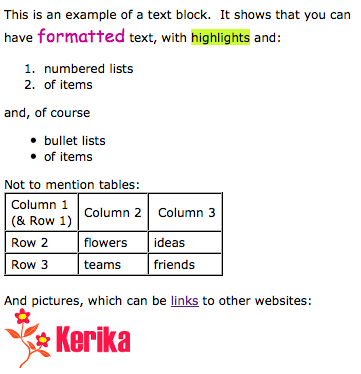
Here’s a simple example of a text block:

A simple example of a text block


Having realized just how important this feature is for our users, we decided to do a complete rewrite of all the code, abandoning the open-source library called Whyzziwig that we had been using previously in favor of our own implementation. We did all this work because it was clear that we needed to be in greater control of this particular feature’s destiny: something that’s impossible when you are using an open source library. As a result of all our hard work, you will now have a bunch of great new functionality!

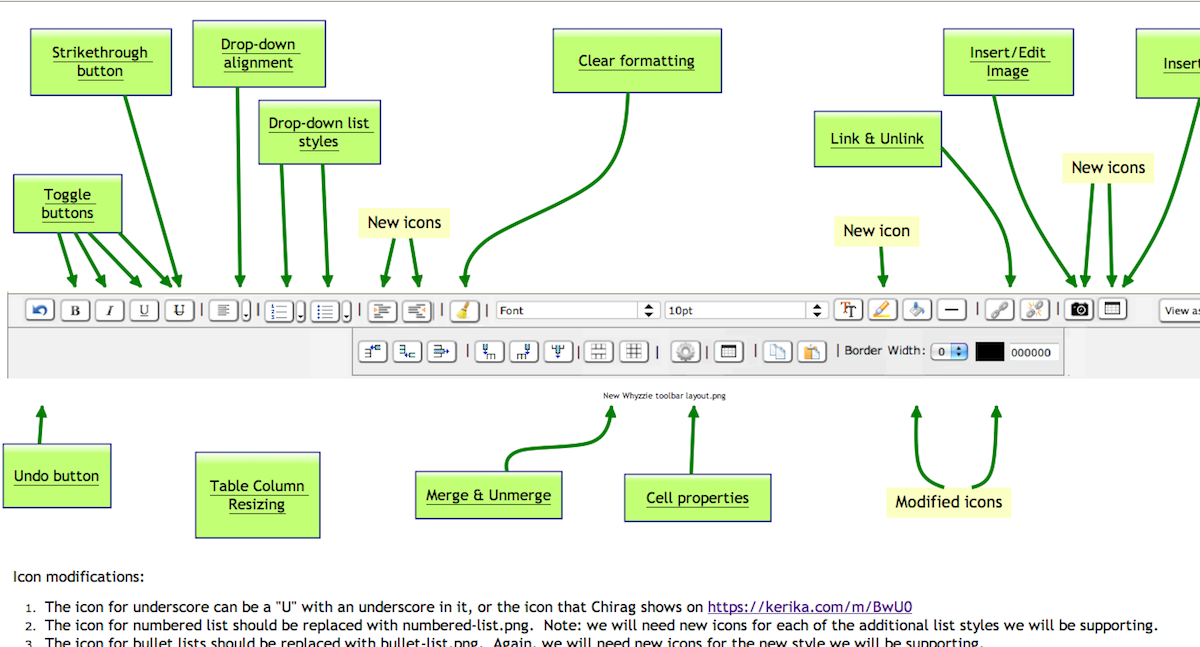
  • An Undo button: at long last! We still need to create a broader Undo function that works across all of Kerika’s operations, but this particular button works nicely when you are editing a text block.
  • A strikethrough button: great for marking up requirements and discussions.
  • A new color picker: a simple palette of 84 colors with a cleaner user interface. Along with this comes an easier way to set the font, highlighting and background colors.
  • More options for numbered lists: including using alphabetic and Roman numerals.
  • More options for bullet lists.
  • A clear formatting button: this can be particularly helpful if you are importing content from Microsoft Office. (See our earlier post on just how much junk HTML is carried over if you copy material from a Microsoft Office document.)
  • Easier ways to add, edit and remove Web links: we have considerably simplified the user interface for attaching a Web link to some text (or to a picture that you have embedded inside your text block).
  • Easier way to embed pictures in text block: a simpler, cleaner user interface.

We also have reatly improved capabilities for creating and managing tables: this was where the bulk of the work was done! We have added a number of features that our users asked for, such as:

  • Setting Cell, Row and Column Properties: you can set horizontal and vertical alignment, as well as the background (fill color) for a single cell, an entire row, or an entire column.
  • Resizing column widths by dragging: something that we have wanted for a long time, and which took a lot of effort to build… Now you can re-size a column simply by dragging its edges, as you would with Word or Excel.
  • Copy and Paste: you can now copy and paste a single cell, an entire row, or an entire column. Great for moving stuff around inside tables!
  • Border color: easier to set, with our new Color Picker. And, to improve the usability and appearance of tables, we automatically make the outer border of tables twice as thick as the inner borders (that separate individual cells).

That’s not all that’s new in this release, but this particular blog post is long enough, so we will talk about other goodies in our next posting… Here’s a Kerika page that shows these changes: it’s open to the public to visit, so come on over!


The value of trademarks (and other intellectual property)

Not many startups seem to think that having a registered trademark, or a patent for that matter, can help real, tangible assets for the company. Most entrepreneurs seem to think that getting a “.com” domain name is all that’s needed to create their company’s identity.

While getting a “.com” domain name for your new company is undoubtedly valuable – and we don’t believe a “.net” or “.biz” or any other variant is nearly as worthwhile – getting a registered trademark, a registered service mark (if appropriate), and patents are all very important for startups.

Early on we registered “Kerika” and our distinctive flower logo as registered trademarks and registered service marks. Getting the registered status for a trademark is more expensive – although not prohibitively so, in our opinion – and certainly more time-consuming than simply slapping on a “TM” after your product or company name, but there are very valuable benefits from having the registration.

One simple benefit is that you can claim your registered trademark on social media platforms even if you weren’t the first to register that particular name. For example, we weren’t the first to register “kerika” as a username on Facebook or Twitter or YouTube, but we were able to get these usernames assigned to us because the word is a registered trademark, and that’s a very powerful lever to use with third-party companies.

There are other benefits, of course, particularly if your company or product name is a “made-up name” – which, incidentally, makes it a lot easier to get registered as a trademark or service mark – such as making sure that your competitors don’t try to get cute by using similar names. (Remember Jobster?)

And once you get a registered trademark, you need to remember to file additional paperwork after the first 5 years, and that’s what we finished doing recently. The US Patent & Trademark Office have improved their processes in recent years, so that when you file for an extension after 5 years of using a registered mark, you can apply for a “declaration of incontestability”, which gives you even greater rights to your product or company name.

(We just received our “declaration of incontestability” for registered trademark and our registered service mark.)

There’s a lot of value in getting a patent as well, although the cost of this can be very significant. If you have been truly innovative, and have really invented something new, you should get it patented. A patent reflects the hard work you put into your innovation: it isn’t granted lightly by the US Patent Office – despite what you may read in the press about “thousands of junk patents” being issued everyday. In our case, getting a patent for visual templates took years of waiting, hundreds of hours of effort, and cost a bundle.

But, we feel it was well worth the time and effort! If a competitor tries to copy Kerika, we will make our displeasure known!
Kerika’s blocks of richly formatted text: an example of “glass box documents”

Our next release will primarily focused around the text block feature, which is turning out to be perhaps the single most popular feature of Kerika.

When we first built Kerika, the ability to put formatted text on Idea Pages was viewed as an incidental feature: we figured that people would want to draw flowcharts, and in doing so they would need to put small bits of text on the canvas to use as labels and markers. Nothing more.

So, we considered a variety of open-source programs that provided HTML editing capabilities for our initial versions of Kerika , before settling on Whyzziwig which appeared to have more functionality than we thought we would ever need…

However, as we started using Kerika ourselves, and talked extensively to our helpful users, we slowly realized that text blocks were a very helpful feature indeed: perhaps the most important feature in Kerika’s bag of tricks.

We have dubbed this the “glassbox documents” phenomenon: if you are sharing user requirements or collaborating on a design, you don’t need the full capabilities that come with Microsoft Word or Google Docs. Instead, what you really need is the ability to quickly write relatively small bits of text, perhaps a few paragraphs long, with a table or some links and pictures, and use these to mark up an Idea Page.

Here’s an example of how we used these text blocks for developing the next version of Kerika, which will contain a hugely improved text block feature:

Example of using Kerika to design a user interface


This picture shows an Idea Page that we used to share ideas between the designers, users and developers about how the text block feature could be improved.

  • In the middle of the Idea Page, we have a mockup of a new text block toolbar, to replace the existing Whyzziwig toolbar.
  • Above it are various pages that define the working of each button: inside each of these sub-pages we have small blocks of text that provide the detailed requirements for a particular button, as well as design notes from the developers and test data from the QA team.
  • Towards the bottom you can see a larger text block contain additional notes about the design.

Using text blocks in this manner, to capture and share our ideas and designs, we have reached that ultimate state of perfect collaboration: even though the Kerika team is distributed between Bellevue and Issaquah in Washington State, and Gujarat and New Delhi in India, we have zero emails being sent within the team!

This is the power of a glassbox document: the ability to sharply increase productivity and shared understanding of requirements and design, by putting text directly on an Idea Page instead of hiding it inside a conventional document (which we would call a “blackbox document”).

We sell donuts. It would have been great if Google+ had let us advertise when they first launched.

Some numbers out today from comScore suggesting that Google+ users are spending just 3 minutes per month using the service have grabbed a lot of attention, mostly because of the direct comparison being made to how much time users spend on Facebook (6-7 hours per month). No word on how many hours people are spending on Lamebook.

Unfortunately, these numbers sound about right. Fellow entrepreneurs who were initially psyched about G+ seem to have turned much cooler about the service, and we think it may be because of our own bewilderment that businesses were banned from creating Google+ profiles when G+ launched.

To use a wonderfully succinct comparison of social media, startups sell donuts:

Source: douglaswray on Instagram


Google made a strategic error in actively prohibiting businesses from creating Google+ pages last summer when the service launched. (To quote a Google manager, “we are discouraging businesses from using regular profiles to connect with Google+ users. Our policy team will actively work with profile owners to shut down non-user profile.” In other words: get lost.)

So, what lies ahead? Not necessarily doom and gloom, if Google sticks with its long-term strategy as described by Bradley Horowitz in the Wall Street Journal today:

Google+ acts as an auxiliary to Google services — such as Gmail and YouTube — by adding a “personal” social-networking layer on top of them.

This comment is consistent with what we have heard from the Google rank-and-file as well in recent months; to quote one local Googler: “Now that we have built Google+, we need to rebuild Google around Google+.”

As of now, the WSJ article has approximately 1,000 Facebook “likes”; 337 G+s; and 3,210 Tweets. Go figure.

A new pricing structure, reflecting a mature product

Now that we are well and truly out of beta, we have updated our pricing structure to reflect the maturity and unique features of the Kerika software.

We still have the same great freebies as before:

  • Everyone starts with a free Standard Account, which lets them create an unlimited number of projects, and have an unlimited number of visitors to these projects, so long as they keep the overall Account Team size limited to the Account Owner and two other Team Members.
  • People working in academia, which includes schools, colleges, universities and research institutions get free Accounts, which can include up to 20 Team Members.
  • People involved in open-source or advocacy projects also get free Accounts, which can include up to 20 Team Members.

For people working in commercial settings, the new pricing is as follows:

  • Once your Account Team size gets past 3 (i.e. you Account includes more than just you and two of your colleagues or friends), you need to upgrade to the Professional Account, which give you an Account Team of 20 people. This now costs $66.67 per month, which works out to just $3.33 per user per month.
  • If your team grows even larger, you can upgrade to the Premium Account which gives you an Account Team of 200 people. This now costs $333.33 per month, which works out to just $1.67 per user per month.

If you are an enterprise customer, give us a call.

Why it took so long to get the Back Button working

We finally got the browser Back button working (along with the keyboard backspace key) to help you navigate back and forwards through your Kerika pages and other websites that you may be browsing at the same time.

You might be wondering why it took so long; after all, the Back button has existed in browser since the very beginning, and “breaking the Back button” is one of Jakob Nielsen‘s cardinal sins of Web usability.

The story is somewhat complicated, and it helps to understand two critical features of Kerika:

  • Kerika lets you have multiple projects open at any time, each within its own tab. In other words, Kerika lets you create tabs within a browser tab. Since all of these Kerika tabs are within a single browser tab, in some sense they all share the same URL as far as the browser is concerned. This makes things tricky for us, since each Kerika page actually has its own unique URL. So, how can we map several URLs, for several Kerika pages, to a single browser tab? Hmm…
  • Kerika offers super-fast updates when somebody on your project team makes a change to a project page that you are viewing: we aim for sub-second responsiveness in terms of letting you know that something has changed in your project. You don’t get that kind of speed using AJAX, which is what most people think means “real-time Web”. (That’s just so Web 2.0…) Instead, we use a newer technology called Comet, which is based upon the concept of “long polling”.

These constraints made it tricky for us to get the Back button working: we had to be able to “load” the browser’s Back button with a new URL every time you switch between Kerika tabs, and we had to do this fast enough to not compromise our exacting standards for delivering real-time performance.

We were finally able to do this because modern browsers are now offering Web applications easier ways to load the Back button stack in each browser tab. This is relatively new, and now supported across enough modern browsers for us to be able to offer this (seemingly routine) feature!