Our next update to the Kerika software, scheduled for release this weeekend, will have a bunch of minor styling updates — over a hundred styling changes, in fact.
Most of these are fairly subtle; it’s quite likely you will not notice over 90% of them at all, because this new release is really a UI cleanup effort rather than a big feature release.
Over the past couple of years Kerika had acquired some “UI crud”: little inconsistencies in the fonts, colors, and interactions that had build up over time as you release new features, and we have been releasing new functionality every 4-6 weeks for over 3 years now. It’s like barnacles on an otherwise beautiful wooden boat…
(Not us, but somebody else, polishing somebody else’s boat.)
For example, we found there were minor variations in shades of grey throughout the app: a light-grey shading in one place was off by an octect or two from a light-grey shading in another place. A tooltip was missing from one button here or there, or a tooltip wasn’t phrased as well as it could have been.
Taken individually, these are very trivial indeed — and, unless you examine the entire UI with a magnifying digital color meter, like we did, you wouldn’t have found these tiny inconsistencies, but they can have a cumulative effect that makes the UI seem vaguely fuzzy. (Just like barnacles, if left un-scrapped, can slow down even the most beautiful boat.)
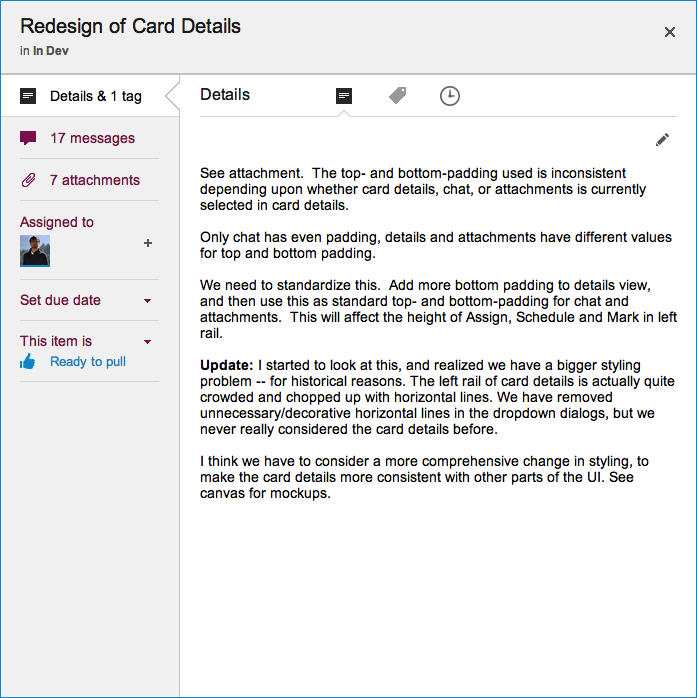
The most visible change we made is the card details display: what you see when you open up a card on a Task Board or Scrum Board
New Card Details dialog
This display is cleaner than what we used to have: it has a more consistent appearance with the rest of the Kerika user interface, and gives equal prominence to all the user interface elements within this dialog — because all of these elements are, in face, equally important to users. Our previous design gave undue prominence to Details, Attachments and Chat, which reflected nothing more than the historical evolution of the Kerika software; now, everything about a card is equally accessible.
The layout is also a lot cleaner: unnecessary decoration has been eliminated, and the overall style is more “flat” (i.e. in keeping with Microsoft’s Metro/Modern design styling, which even Apple has now adopted for iOS 7).
Since Kerika is built on top of Google Docs and Google Drive, any problems with Google Apps can affect Kerika.
This doesn’t happen very often, but today Google Apps did suffer an outages, and a total of 14 Kerika users were affected. (We have written to each person affected to apologize!)
This dashboard is a handy way to keep track of the health of Google Apps.
In an earlier blog post we noted that Google is making it increasingly hard for people to create and maintain distinct Google IDs, and this is creating more problems for Kerika users, forcing us to rethink our “cookie strategy”. Here’s the background:
Long-lived and short-lived cookies
When you sign in to Kerika, you do so using your Google ID: the Kerika server gets an authorization token from Google and places a cookie on your local computer so that you don’t have to sign in again, if you close and then reopen your browser.
We had been using what’s known as a “long-lived cookie”: one that doesn’t automatically expire when you close your browser. That made Kerika more like a news site than a banking site: when you login to a news site as a registered user, you get a long-lived cookie so that you don’t have to login again, even after you have closed your browser (or even restarted your computer).
Banking sites, on the other hand, use “short-lived cookies”: if you close your browser tab, open a new one and try to access your bank account again, you will be asked to re-login.
Short-lived cookies are generally used for more sensitive websites, like banking, because there is a big tradeoff in terms of user convenience. Kerika had previously opted for long-lived cookies because we wanted to make it really convenient for people to get back to their Kerika boards after having closed their browser.
The problem we face
The problem we are facing now is that it is increasingly more likely that your Kerika login is out of sync with your Google login. There are at least two ways in which this could happen, one of which was always a risk, and the other a new risk resulting in the shift in Google’s approach to user IDs:
The old problem: people with multiple Google IDs would frequently switch between them, without logging out of Kerika. For example, someone has two Google IDs: A and B. She may have signed up with Kerika while she was logged in as User A. Since we were using long-lived cookies, a Kerika cookie identifying her as “User A” will stay on her machine until she logs out of Kerika. But, in the interim she may have separately logged out of Google as User A and logged in as User B (perhaps to check her Gmail on a different ID). This would result in a situation where she is known to Kerika as User A, and currently logged into Google as User B. In this scenario, she would be unable to open any files attached to her projects because of the mismatch in IDs.
The new problem: Google is making it easier for people to be logged in as two different IDs, using the same Chrome browser. (Note: this is true only with the Chrome browser; not true with Safari, Firefox or IE as far as we know.) This considerably increases the odds that a user is currently logged into Kerika as User A, and simultaneously logged into Google as User B. Because the user never consciously logged out from Google – just switched IDs while on YouTube or Gmail or somewhere – she may be unaware that she isn’t who she thinks she is…
The short-term solution
We can mitigate this problem by switching over to short-lived cookies. This makes the user experience a little more annoying, in our opinion (because you have to login more frequently to Kerika, or remember to keep your browser alive), but it should help reduce the odds that your Kerika ID is out of sync with your Google ID.
The long-term solution
Allow users to sign up directly at Kerika, without using their Google IDs!
We are often asked to advise our users on workflow: it isn’t a primary business of ours – we prefer to build partnerships with process consultants who can provide great services – but the insights we garner from these brief, often unofficial engagements do heavily influence our product design and roadmap planning.
Recently, we have been helping a large industrial company rethink it how it processes requests that come into its various engineering teams, and as a result reorganize its workflow so that there is optimal flow of work across its various design and engineering teams.
Background:
The company is based in North America, and operates on a 24×7 basis all year around, which isn’t unusual in industries that need continual production in order to fully utilize their very expensive equipment. As a result, their “distributed team challenge” was a little unusual: the teams weren’t distributed by location, but by time.
Every aspect of the companies design and engineering functions – which involved highly specialized teams – needed to be replicated in a day shift and a night shift so that work could be handed off continuously throughout the 24-hour cycle. And, that extended to weekends as well: some folks got a “regular weekend” (i.e. Saturday and Sunday off), while others got “staggered weekends” (e.g. Monday and Tuesday off).
Challenges:
In many respects, these teams had collaboration challenges that match those of a US-India distributed team, e.g. a team based on the US West Coast trying to collaborate with a team based in India, and having to deal with a 12.5-13.5 timezone difference (the variation comes from Daylight Savings Time, which isn’t observed in India.)
This 24×7 challenge was relatively straightforward: we have a lot of experience with helping US-India distributed teams work efficiently – based on our own experience, of course.
A different challenge had to do with streamlining the work of the multiple design and engineering teams involved: work requests were coming in from all directions, some through official channels like project planning meetings, and others through unofficial channels like hallway conversations, and in the absence of a clearly defined process to triage new requests, the various teams were feeling randomized.
All these requests were coming in, unfiltered and without any prior review, into a combined backlog that was being used by multiple teams, each of which would normally work independently, often in parallel with each other, and sometimes sequentially (serially) with each other.
Solution:
The solution we proposed was to create another Kerika board that sat upstream of the main engineering board.
This board was used to capture ideas and triage them, and ensure that only complete, appropriate requests made it to the main board’s backlog. This upstream board also helped divert single-team requests to other boards that were created for handling work items that were not cross-team or cross-functional.
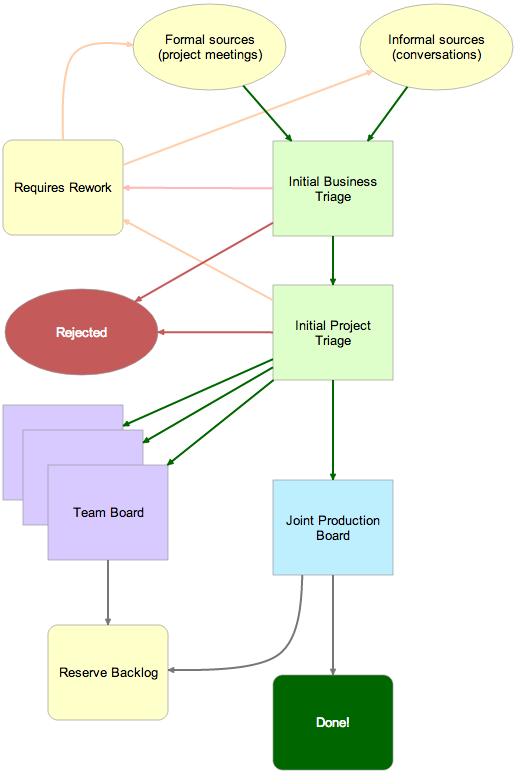
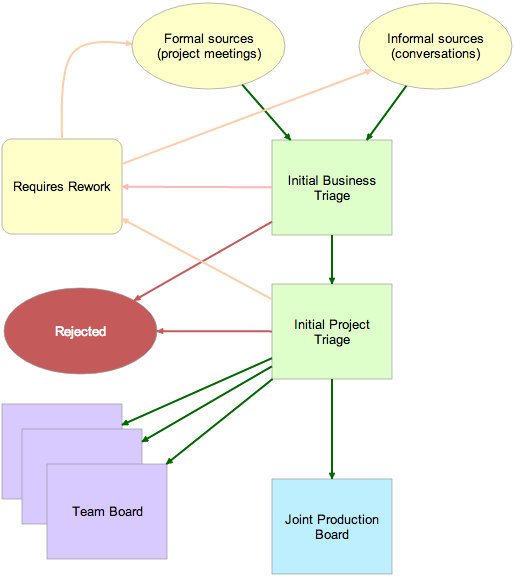
The entire process was captured as a Kerika Whiteboard, as illustrated below:
Workflow for a multi-team industrial company
Let’s take a look at this entire flow, piece by-piece:
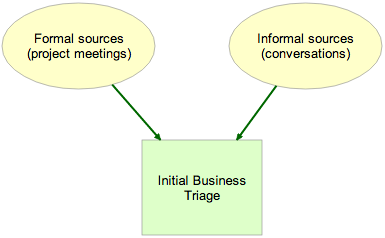
At the top, we have requests coming in: formal requests initiated at project planning requests, and informal requests that originated in stray emails, unexpected hallway conversations, etc. All of these are captured as cards on a Planning Board organized with these columns:
New items :: Under Review :: Accepted by Business :: Accepted by Project :: Needs Rework :: Rejected
We recommended that a single person be designated as Business Owner, and tasked with doing the initial Business Triage of new cards:
Initial Business Triage
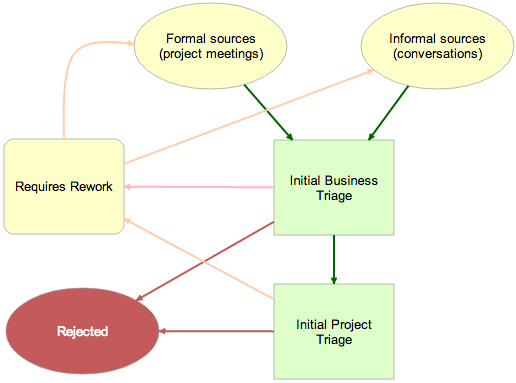
The scope of Initial Business Triage is fairly limited: the Business Owner was asked to examine each new card, on a daily basis, and determine whether it qualified as Accepted by Business, Needs Rework, or Rejected.
Enough new ideas came into the organization that a daily review was recommended, and, importantly, the Business Owner was asked to move cards from New Items to Under Review so that people visiting the board at any time (of the day or night!) could see that their requests were in fact being worked on.
And, equally importantly, people could see the overall volume of requests coming into the organization, and adjust their expectations accordingly as to how promptly their own requests might be processed.
To further emphasize transparency and build support for the engineering teams, we recommended that the Planning Board include as many stakeholders as possible, added to the board as Visitors.
As noted above, the goal was to determine whether a card could be Accepted by Business or not, and for this the card needed:
A sufficiently complete description for the work to be handed off to the engineering teams;
To be within the plant’s overall scope and mission (as with most industrial companies, there were several large plants, each with a distinct mission);
Have budget clearance.
This arrangement helped us achieve two important goals
Encourage the promiscuous sharing of ideas, while simultaneously
Ensuring new ideas met a minimum standard of completenessand relevance.
If an idea was within the organization’s scope/mission, but lacked sufficient detail or the appropriate budget approval, it was marked as Needs Rework. And if an idea was clearly outside scope, or had no chance of being funded, it was Rejected.
Another key consideration was to discourage people from setting Due Dates on cards early in the process: delaying the setting of deadlines, until the work reached the teams that would actually commit to delivery, helped preserve flexibility in scheduling and allocating resources.
Once the Business Owner did her initial triage of new work, cards were picked up by the designated Project Manager:
Initial PM Triage
The Project Manager worked off the same Planning Board as the Business Owner; she picked up cards that were Accepted for Business. Her goal was to determine the likely impact of each work item, and, critically, to channel the work to either one of the single-team boards, or to the Joint Production board:
Channeling work to the appropriate boards
The Project Manager’s review focused not on business utility (since that was handled earlier by the Business Owner), but rather on identifying whether the work request was likely to affect a single team, or multiple teams.
If the work was likely to affect only a single team, the card was moved to that team’s Kerika board using a simple Cut-Paste operation.
If the work was likely to affect multiple teams, it was moved to the Joint Production Board, which was organized with these columns:
Backlog :: In Progress :: This Week :: Today :: Commission
Tags were used to identify the team involved; since the Joint Production Board typically had hundreds of cards at any point in time, and dozens of team members, this was essential for quick reviews by individual Team Members who wanted to filter out their team’s work items.
As team members became available, they looked first to the Today column to see if anything was marked as Ready to Pull.
If there was nothing in the Today column that was appropriate for the individual person’s skill sets, the person then looked to the This Week column for items that were Ready to Pull.
As an item was taken up by an individual Team Member, she would put her face on the card, to signal to the rest of the team that she had taken ownership of the work.
As work got done, the work product (design documents, engineering plans, etc.) were attached to the cards.
As questions arose, or handoffs were made between team members or entire teams, Kerika’s integrated chat was used to communicate on the cards themselves. (And this is where the 24×7 operation really started to hum!)
Where appropriate Due Dates were set. We had noted earlier that we discouraged people from setting Due Dates at the time they requested new work, to preserve flexibility for the production teams; at this stage it was now appropriate for the teams to make date commitments.
Since all the work that reached the Joint Production Board involved multiple teams (by definition), the card details were updated to reflect the interim deadlines, e.g. the deadline for the Design Team to hand-off something to the Electrical Engineering team.
Once work was completed on a card, it was moved to the Commission column where the final deployment was handled. After that, the card would be moved to Done, and periodically (once a week) the Done column was swept off to another ProjectArchive board.
Occasionally, work would be shunted off to Reserve Backlog: this contained ideas and requests that were plausible or desirable in general terms, but had no realistic chance of being implemented in the short-term.
Workflow for a multi-team industrial company
Key Lessons Learned
Some aspects of this workflow design should be of interest to teams in other industries and sectors:
The use of a Planning Board to act as a way station for ideas and work requests, so that the main boards of the individual teams, as well as the Joint Production Board were not disrupted.
The way station helped ensure that only complete work requests went on to the engineering boards.
The way station encouraged people to contribute ideas and improve them before they were sent to engineering.
Encouraging people to contribute ideas, by making the Planning Board open to a wide group of people who were given Team Member rights (i.e. the ability to add and modify cards).
Separating the roles of Business Owner and Project Manager, so that the business evaluation was distinct from the implementation evaluation.
Separation of individual team boards from the joint production board, so that single-team requests could get processed faster than they would have, if everything had gone through a single pipeline, on a single joint production board.
The user of a Reserve Backlog, to hold on to ideas that the teams might wish to revisit in the future.
What do you think?
We would love to hear your thoughts on this case study!
Global, distributed, agile: words that describe Kerika, and WIKISPEED.
WIKISPEED is a volunteer based green automotive-prototyping company that’s distributed around the world and coming together on a Kerika board to design and build safe, low-cost, ultra-efficient, road-legal vehicles.
We first visited WIKISPEED in the summer of 2012, as part of our research into the needs of distributed, agile teams.
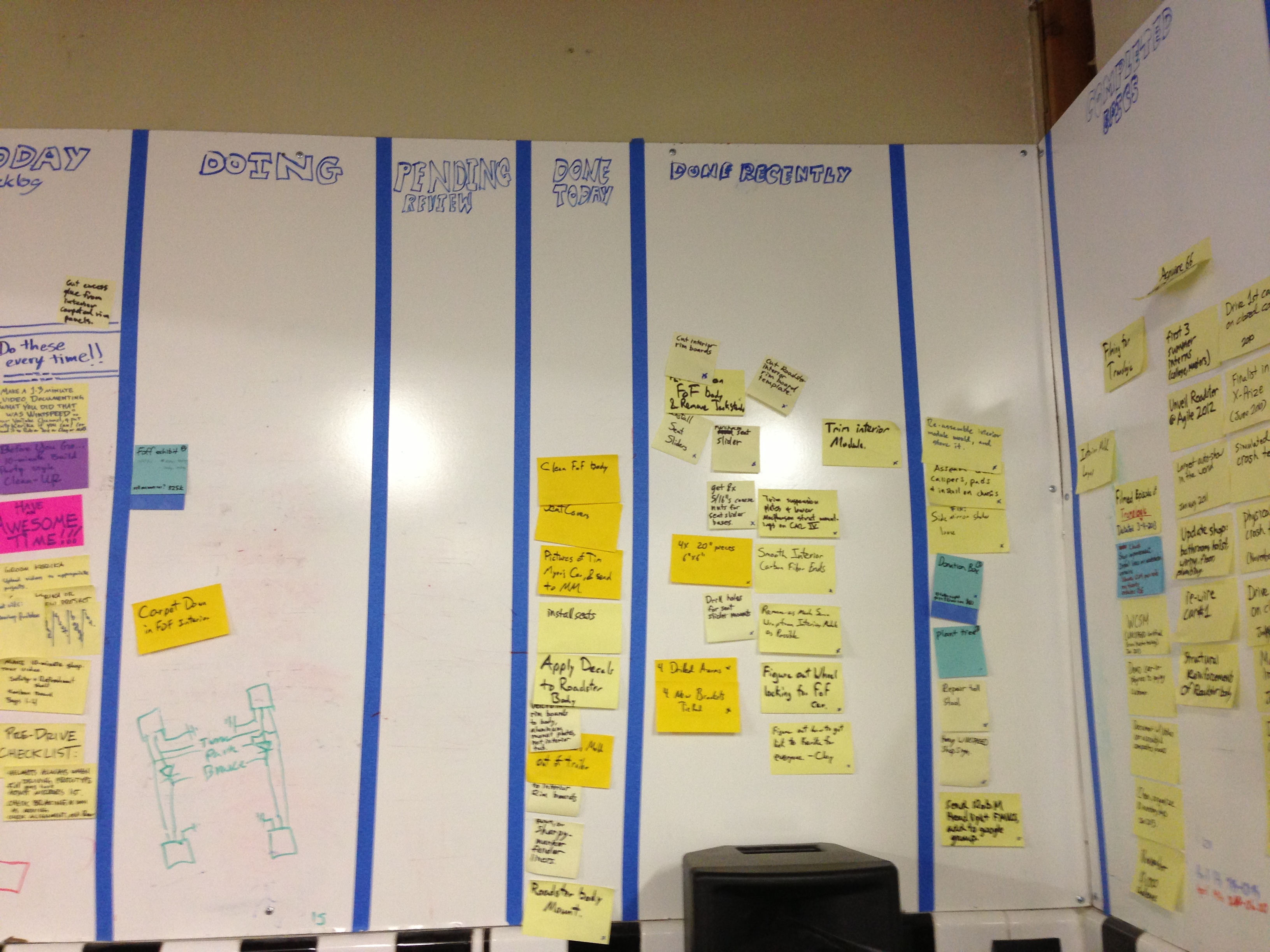
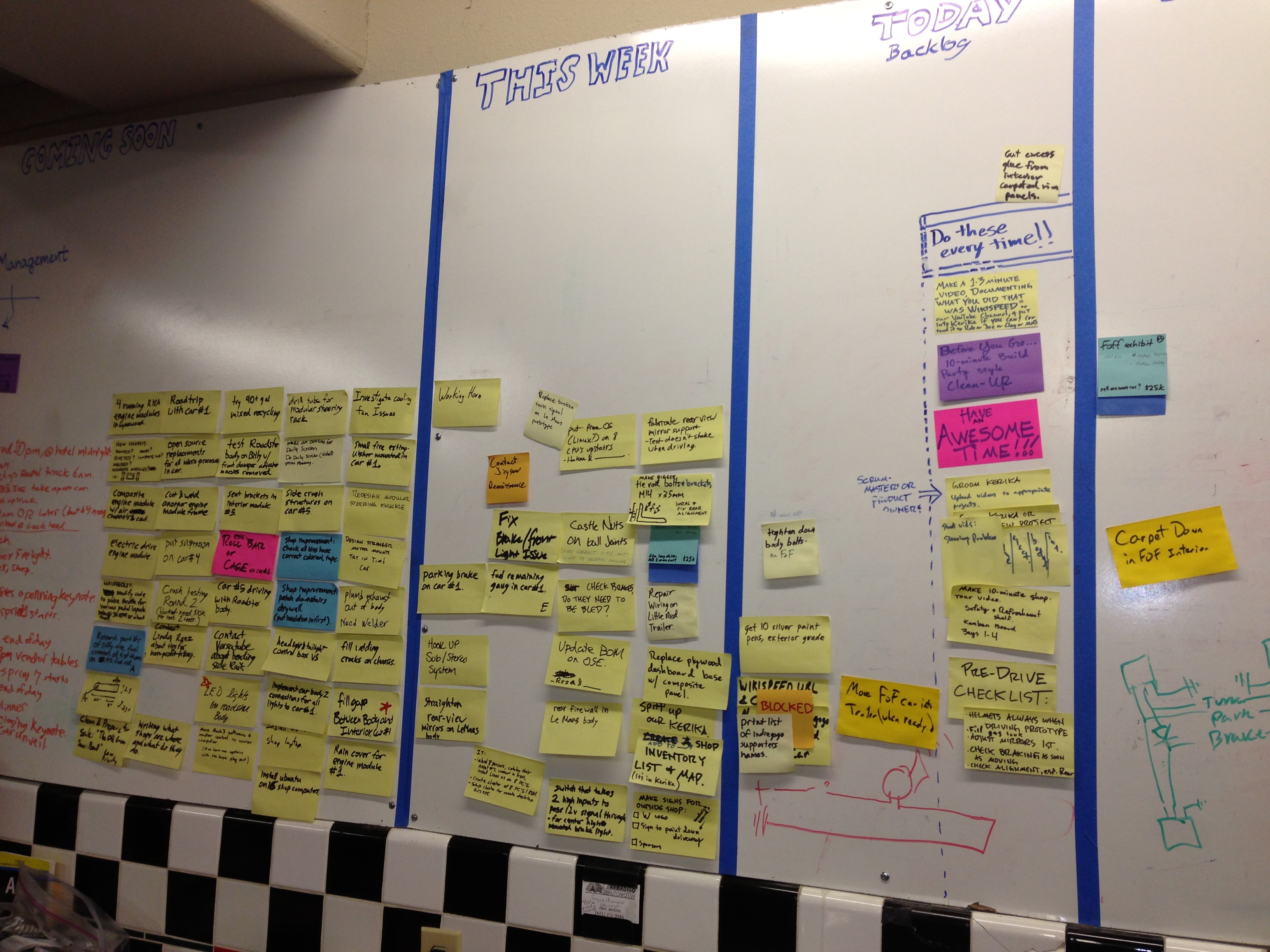
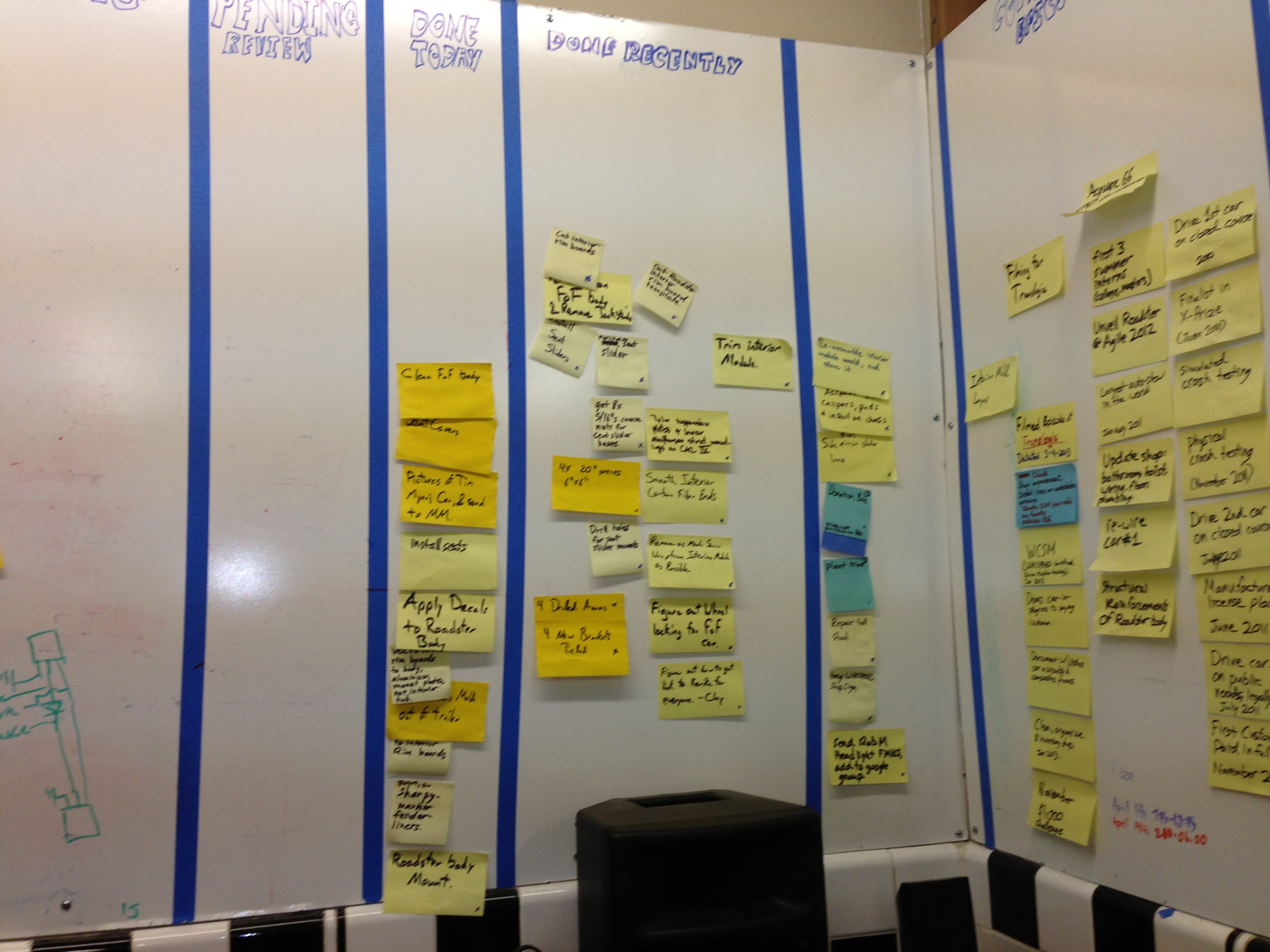
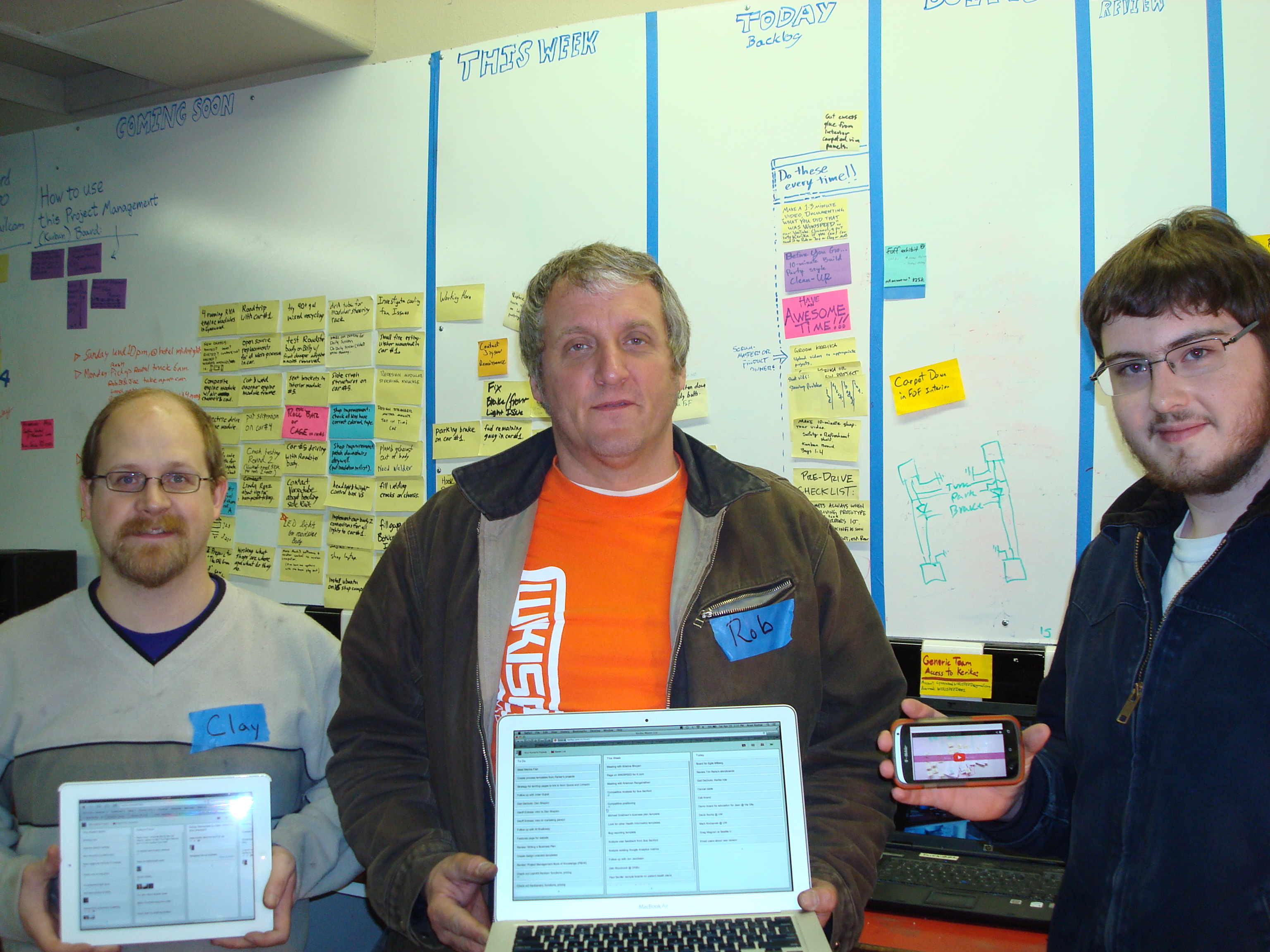
We found huge walls covered with sticky notes:
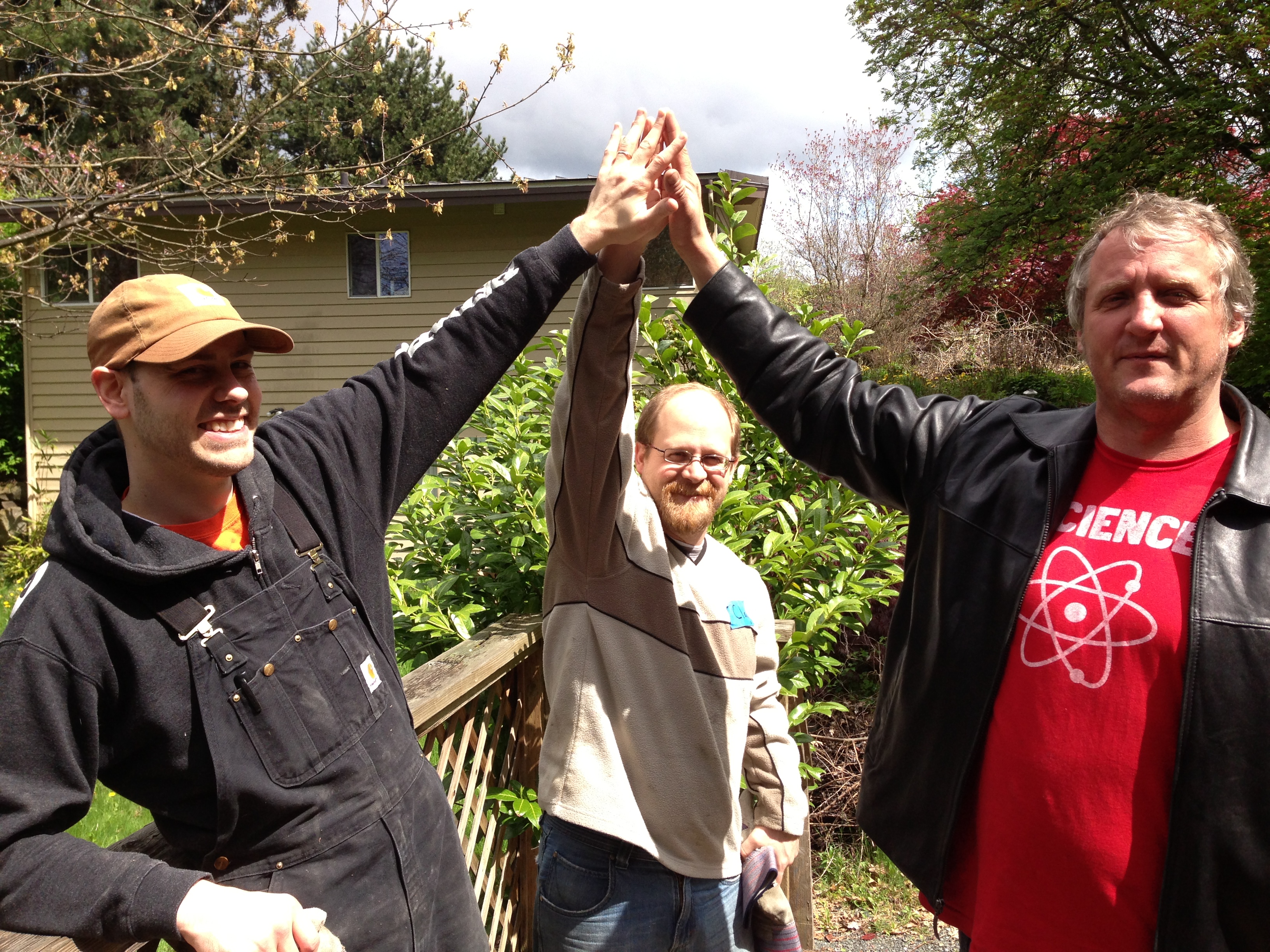
Dedicated volunteers….
And the irrepressible Mr. Joe Justice himself:
Today, WIKISPEED uses Kerika’s Scrum Boards to organize itself (you can see them at kerika.com/wikispeed):
This transformation has helped knit together folks from around the world: the Kerika boards are now used by WIKISPEED volunteers in the United States, Canada, Europe and New Zealand to communicate and collaborate. A great example of how Kerika can help bring together a globally distributed agile team!
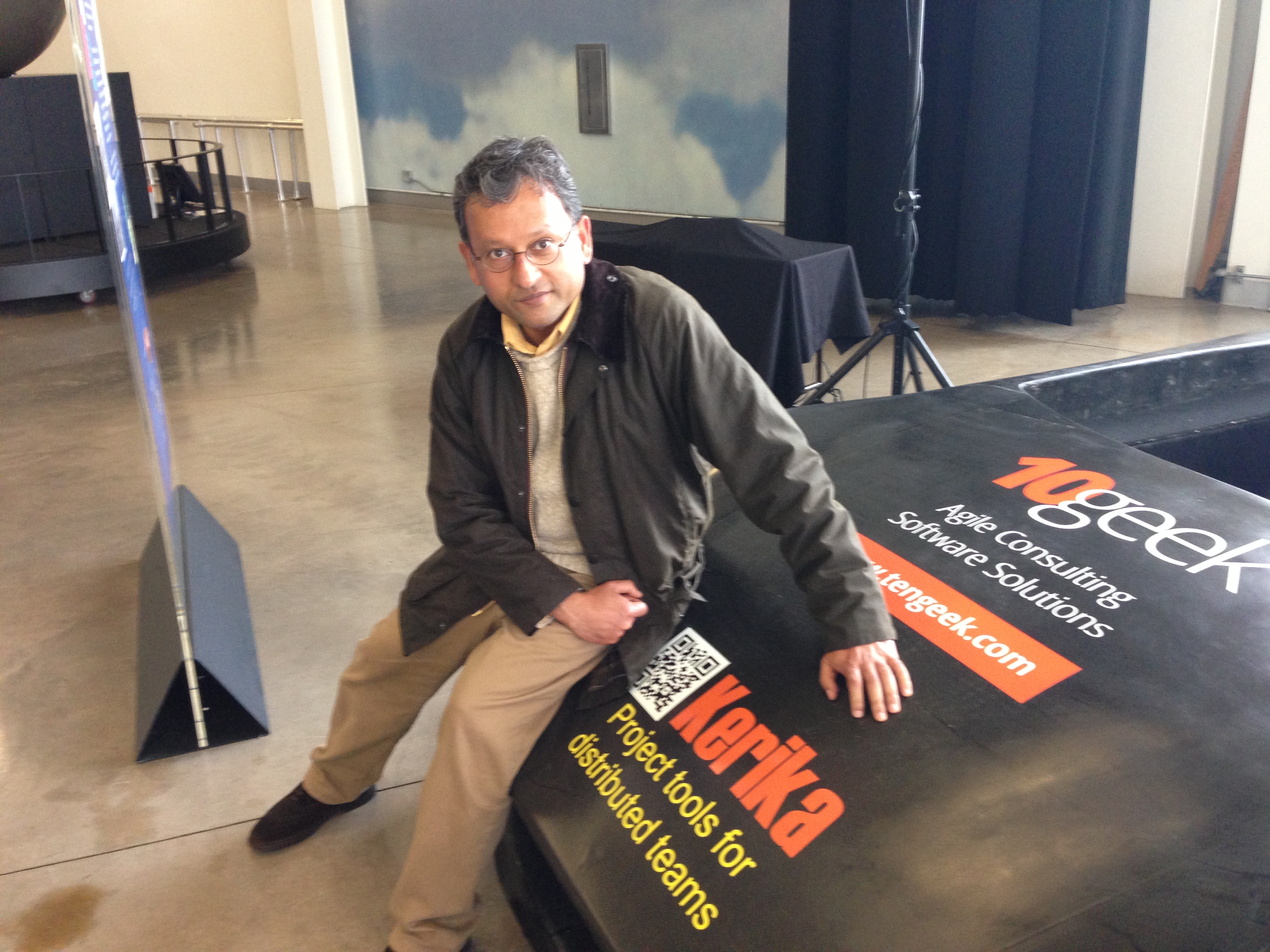
(And, by the way, Kerika was a proud sponsor of the WIKISPEED car that was built for the Future of Flight Aviation Center in Everett, Washington ;-))
We currently have a function to let you Cut/Copy and then Paste a project from one account to another, but it’s starting to look like this is a bad idea because it is very difficult to implement cleanly.
The underlying problem is that a project is more than a collection of cards: it is also part of a network of people relationships, connections to other projects, etc., and these can’t all be moved cleanly from one account to another.
For example, consider a series of projects that are organized as Scrum Boards, linked to a shared Backlog within one account. If we copy and paste one of these projects to another account, what exactly should happen to that Backlog? It’s not an easy matter to simply copy the entire Backlog over as well, to the new account — that may not be the most sensible outcome in all, or even most, circumstances.
Consider an even more basic problem: a project has a bunch of folks working on it today. If you copy and paste the project to another account, what should happen to this team? These folks may not have previously been part of the new account’s team: they would have to get invited to join projects in that account, and very likely the new account’s owner would have to upgrade her account to support the larger team size.
There a bunch of conundrums like this to work through, and it’s not clear that this is even worth the considerable effort it would take to create a bullet-proof solution – how often, after all, do people need to move a project from one account to another?
If the answer is “not very often”, then it’s probably better for us to remove this functionality, rather than leave users with a less-than-great experience…
We just spent an hour trying, fruitlessly, to set up a “Google Hangout on Air”, and about the only thing we can conclude is that all those folks who are worried about Google’s plan for world domination can relax: Google isn’t close to having a single ID to track everyone.
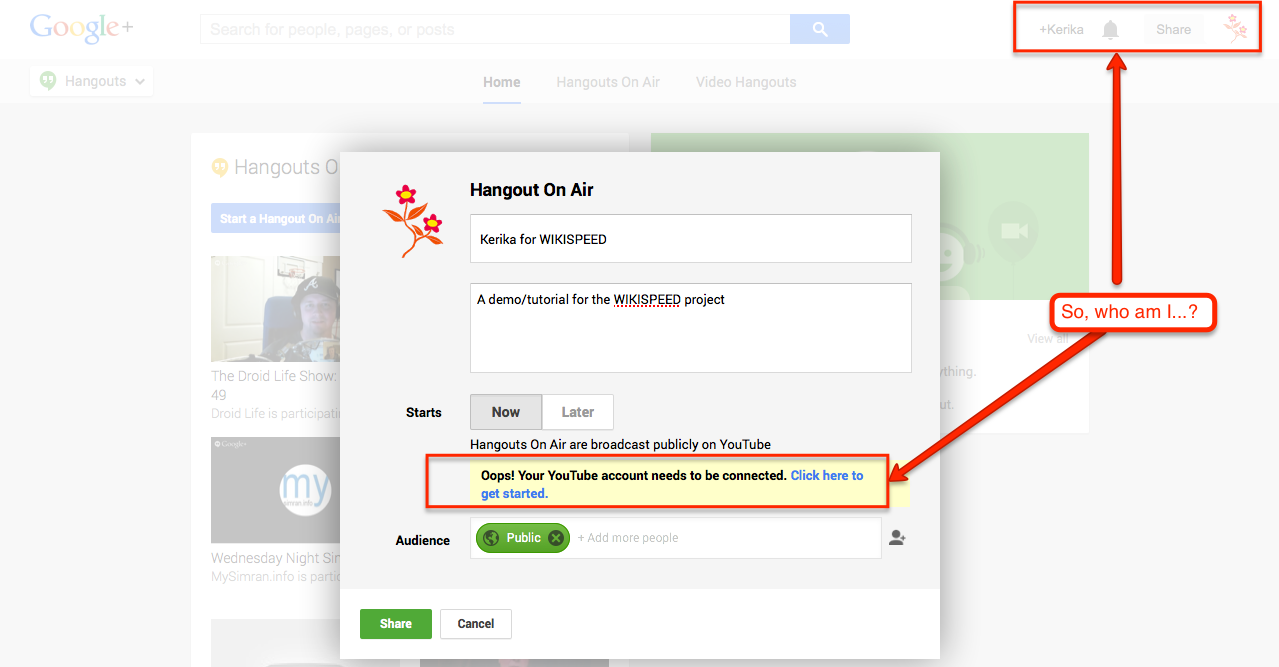
In order to do a Hangout on Air (a public Hangout, that up to 10 people? can view), you need to have a YouTube channel connected to your Google+ account.
Well, we do have a YouTube channel for info@kerika.com, and Google+ account, also for info@Kerika.com, but that’s not good enough for Google which keeps providing this singularly unhelpful message:
Trying (and failing) to start a Google Hangout
Clicking on the “Click here to get started” link, which you might reasonably expect to take you to a control panel screen of some sort, just takes you down a wild-goose chase of outdated help pages from Google. These help pages have clearly not kept up with UI changes at YouTube, nor even with UI changes on Google+ itself.
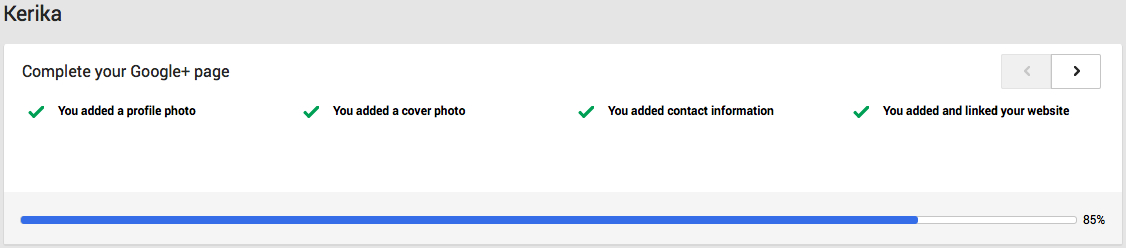
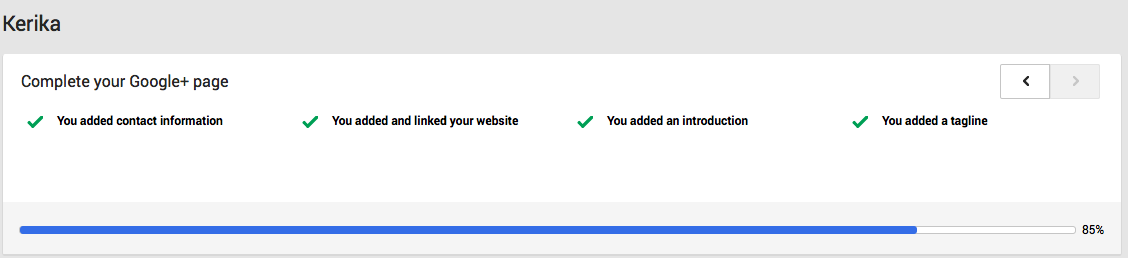
Trying to make sure our Google+ profile is complete doesn’t help either: Google+ tells us that our profile is 85% complete, and that we have done everything we need:
Stuck…
at 85 percent
Pretty painful experience; we are going to stick with GoToMeeting for now.
System that Captures and Tracks Energy Data for Estimating Energy Consumption, Facilitating its Reduction and Offsetting its Associated Emissions in an Automated and Recurring Fashion
Here’s a quick primer on how to delete projects you are no longer working on, and how to retrieve them later from your Trash (think “Recycle Bin” if you are a PC user) if you change your mind.
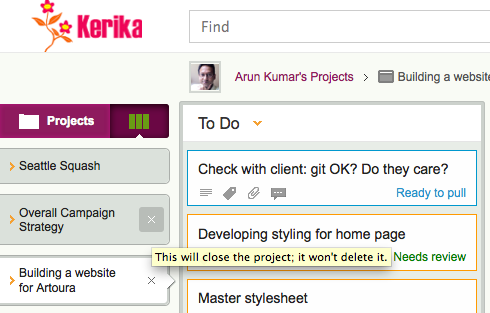
The first point to note is that closing a project is not the same as deleting it: when you are looking at your Boards view, you can have several projects open, each in its own tab. If you hover over any of the project tabs, you will see an “x”: clicking this will close the project.
Closing a project tab
This is a lot like closing a browser tab: it doesn’t kill the website that you were viewing; it just means you are no longer viewing it yourself. In the same way, closing a project tab doesn’t delete the project.
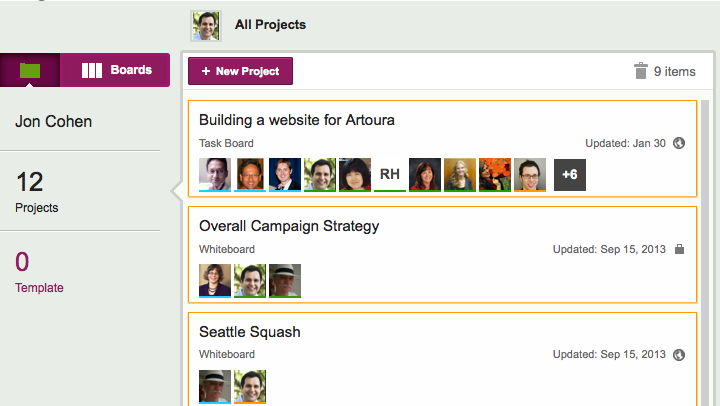
If you actually want to delete a project, click on the “Projects” button, in the top-left corner of the Kerika app (as shown above), and you will see a list of all your projects:
Viewing all your projects
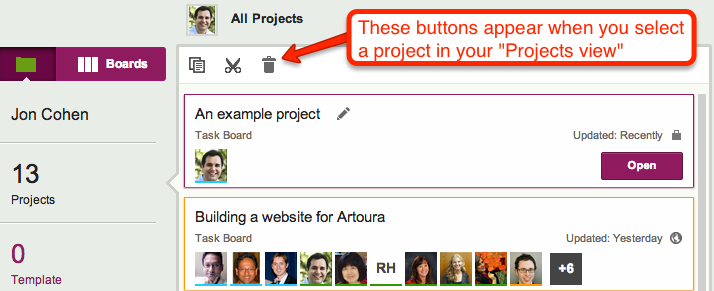
Here, you can select an individual project, and then Cut, Copy, or Delete it:
Project operations
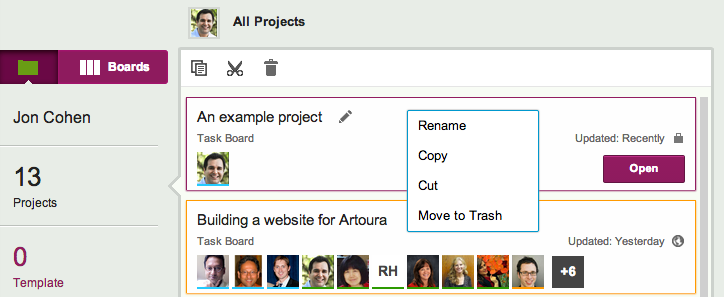
These buttons also appear when you use your right-mouse button, while working on a desktop or laptop:
Right-click menu
If you click on the Trash button (or select “Move to Trash” from the right-click menu), your project will get deleted.
Deleted projects go into a Trash, which is like a Recycle Bin: you can retrieve it later if you change your mind or make a mistake.
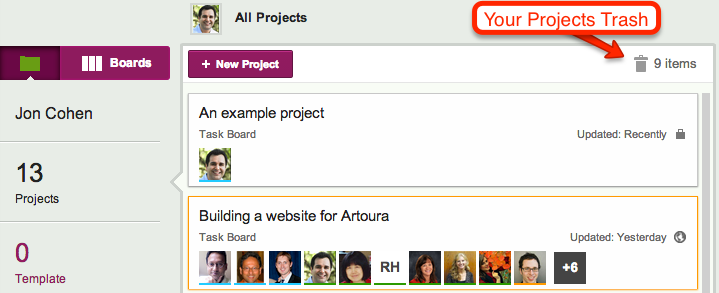
The Projects Trash appears just above your list of projects:
Projects Trash, in the Projects View
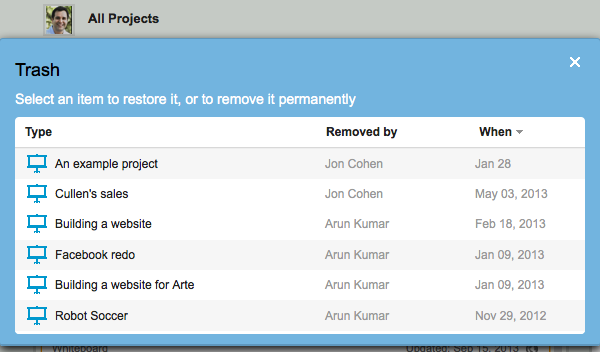
Whenever a project is moved to the Trash, the Project Trash button glows orange, briefly, to alert you. Click on the button and you will see a list of all the projects that are in your Projects Trash:
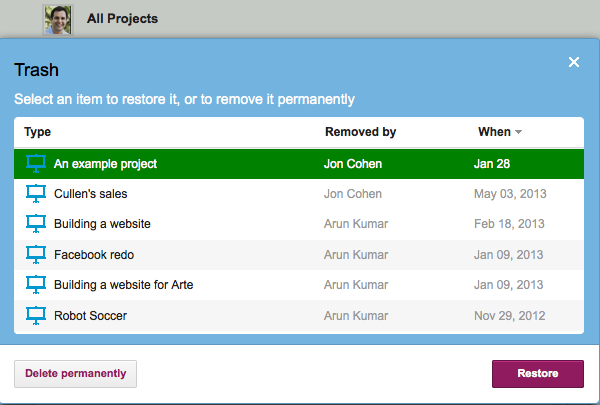
Viewing the Projects Trash
You can now select an individual project, and choose to either restore it, or delete it permanently:
Restoring a project
So, that’s it: a simple way to delete projects, and retrieve them later if you made a mistake.
Every card, every canvas, every board in Kerika has a unique URL.
This makes it really easy to link items together, by using the URL in a card’s chat or description. And, with our latest version, Kerika makes this even easier by showing the title of the other card. Check out this quick tutorial video: