There has long been a way to reference a particular team member in chat, on a specific task card or the entire board, by using the standard “@” symbol which would bring up a list of everyone who was part of the board team, as well as an “All” option to include include everyone.
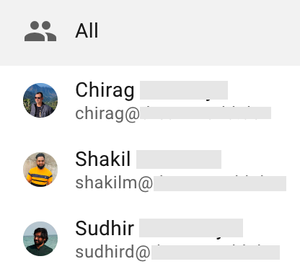
(Our team members value their privacy, so their names and emails have been obscured.)
Using the Search Function
Now the “@” symbol can do so much more: it not only shows a list of people on the board team, there’s also a Search bar at the top that will help you find anything in Kerika that you may want to include in your reference. Here’s an example:
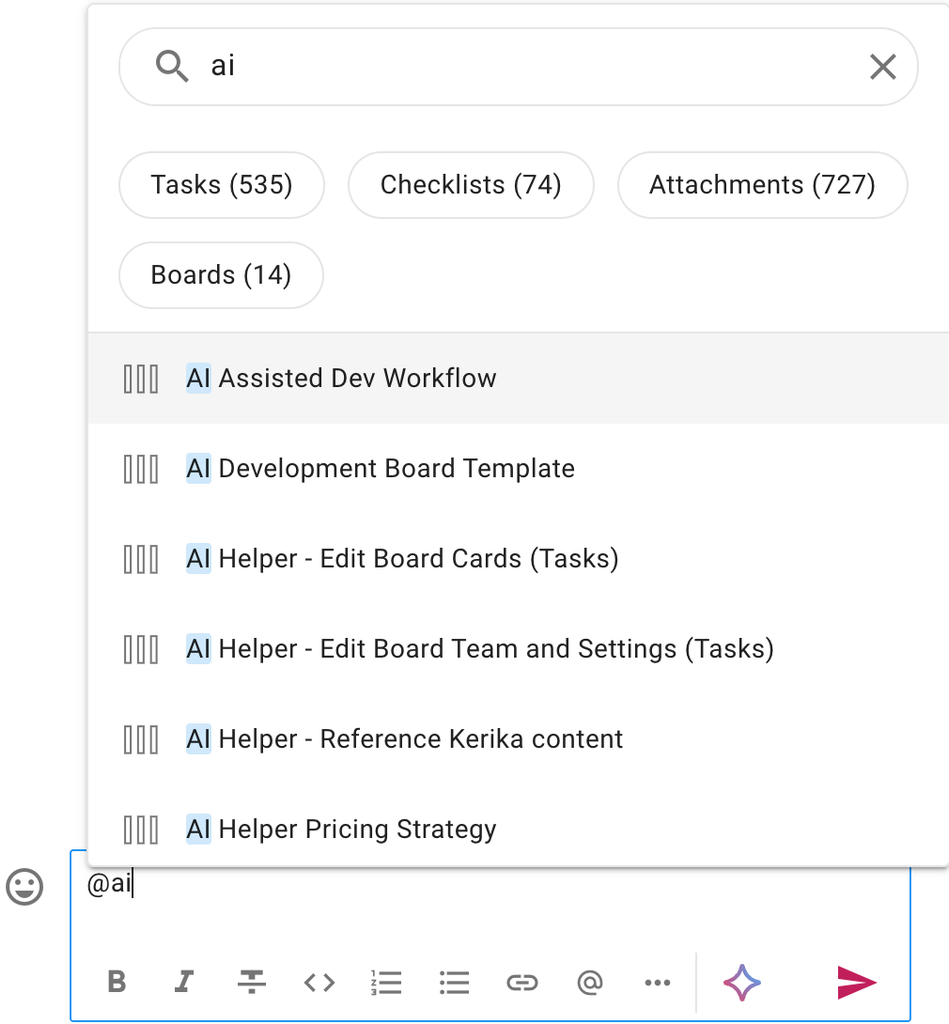
The Search results appear immediately, and are comprehensive. In the example shown above, the user typed the word “ai” and Kerika found there are 535 task cards that contain this text, 74 checklist items, 72 attachments, and 14 boards. (That’s a lot!)
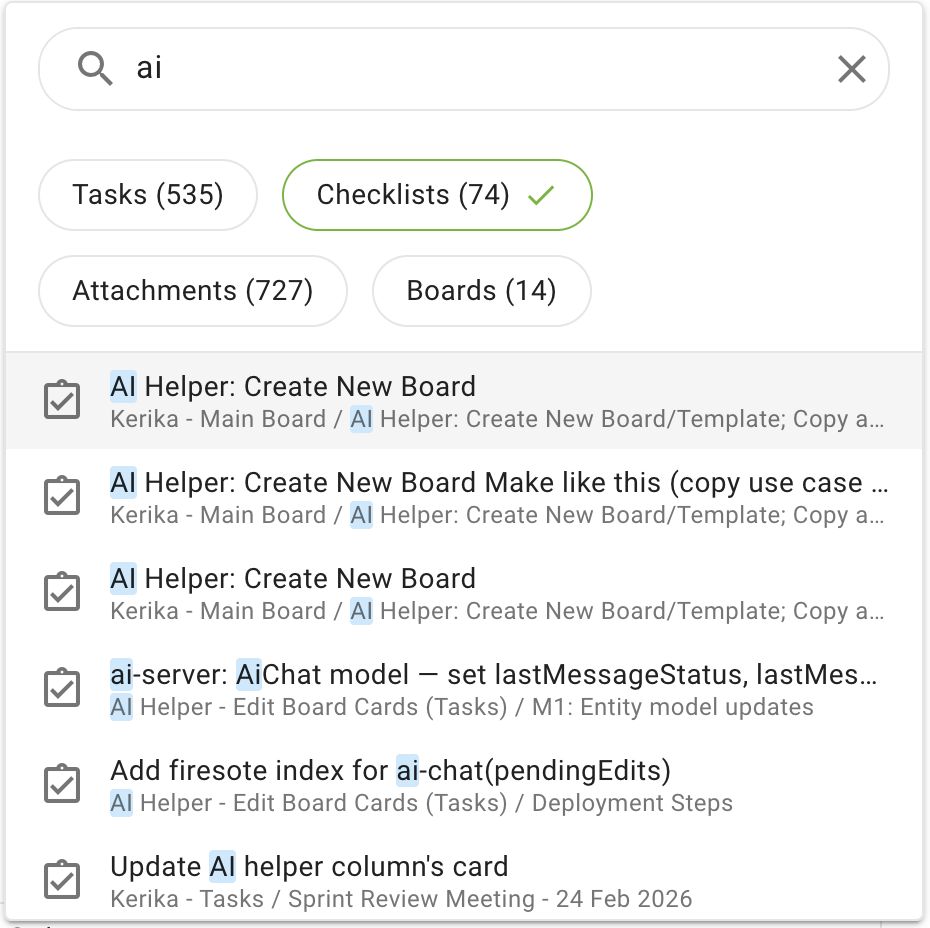
Filtering the Search Results
The results are shown with boards first, followed by tasks. The grouping shown at the top of this pop-up dialog can be used to quickly filter the complete list to show, for example, just checklist items:
Referencing Tasks from inside Chat
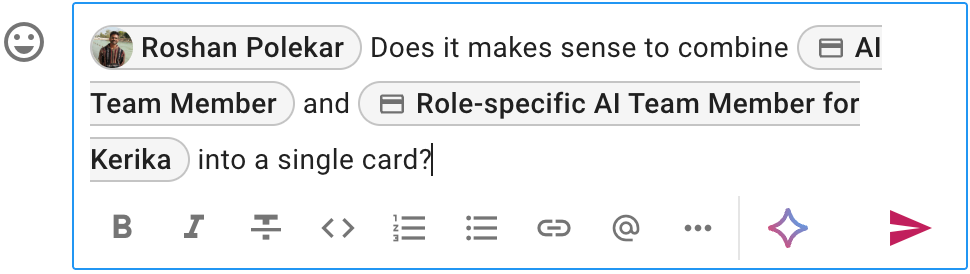
Here’s an example of a chat message being composed that includes references to a board team member and two task cards:
When it is sent, the chat message shows up with live links to the referenced task cards:
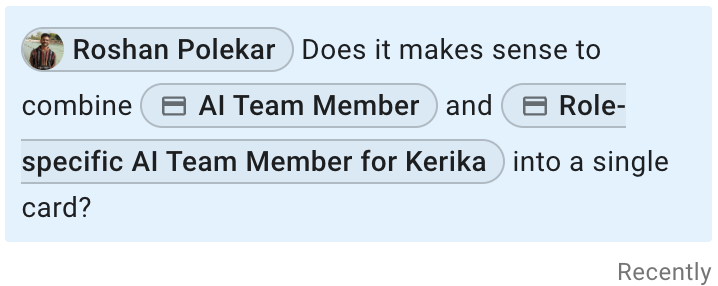
Hovering your mouse over a reference will bring up a small display telling you more about the object it is pointing to, so you can confirm that it is what you think it is, before clicking on the link:
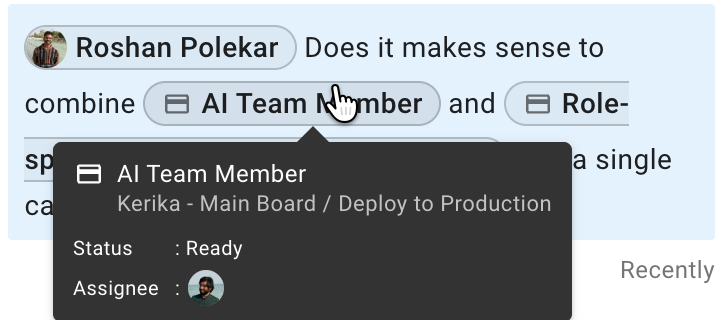
We can see at a glance that this embedded reference is to a task card on the “Kerika – Main Board” that is currently in the “Deploy to Production” column; it’s status is READY, and we can also see who it it is currently assigned to!
Click on the reference, and that task card will immediately open so you can deal with it in depth.
Adding References to Task Details
It’s not just task and board chat where this new “@” functionality is available: you can also use to make references to people, tasks, checklists items, attachments, and boards when you are writing in the Task Details tab that appears after you open a task card:
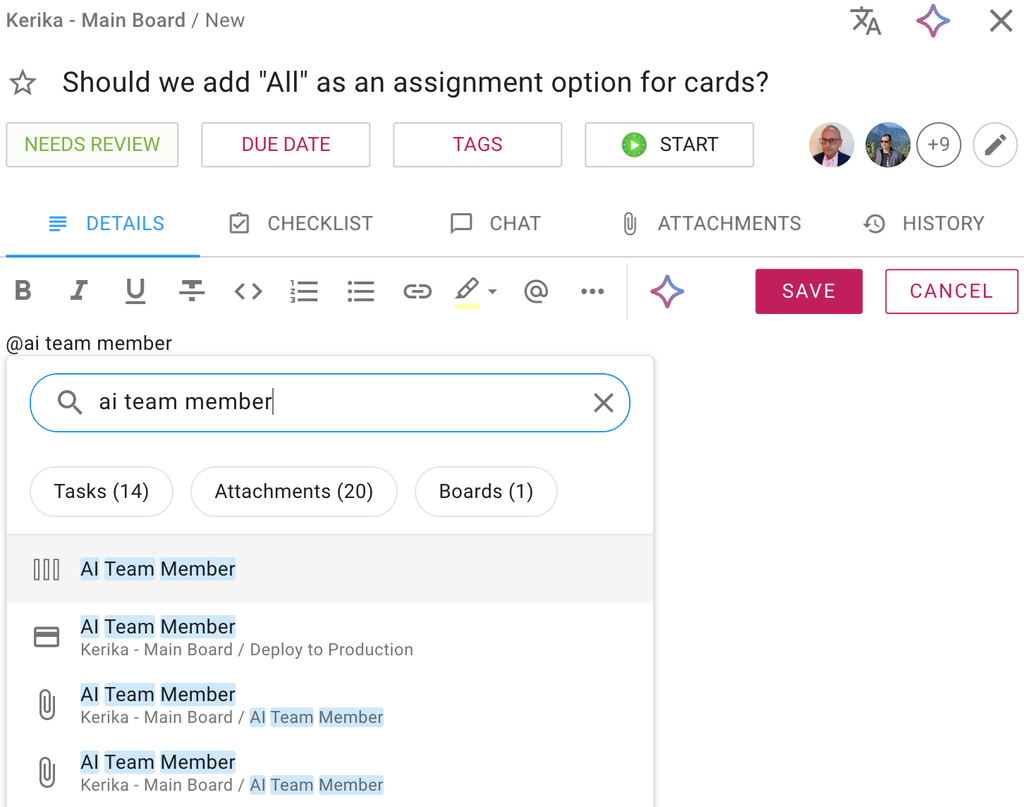
Try out this very cool new feature, which helps you link together related work items, content, and entire projects, and let us know what you think!