We have added more ways for you to easily format your task details and chat messages. Now, when you are editing a task’s DETAILS tab, you will see an extended formatting bar appear:
Editing Task Details
Here’s an example of a Task Detail:
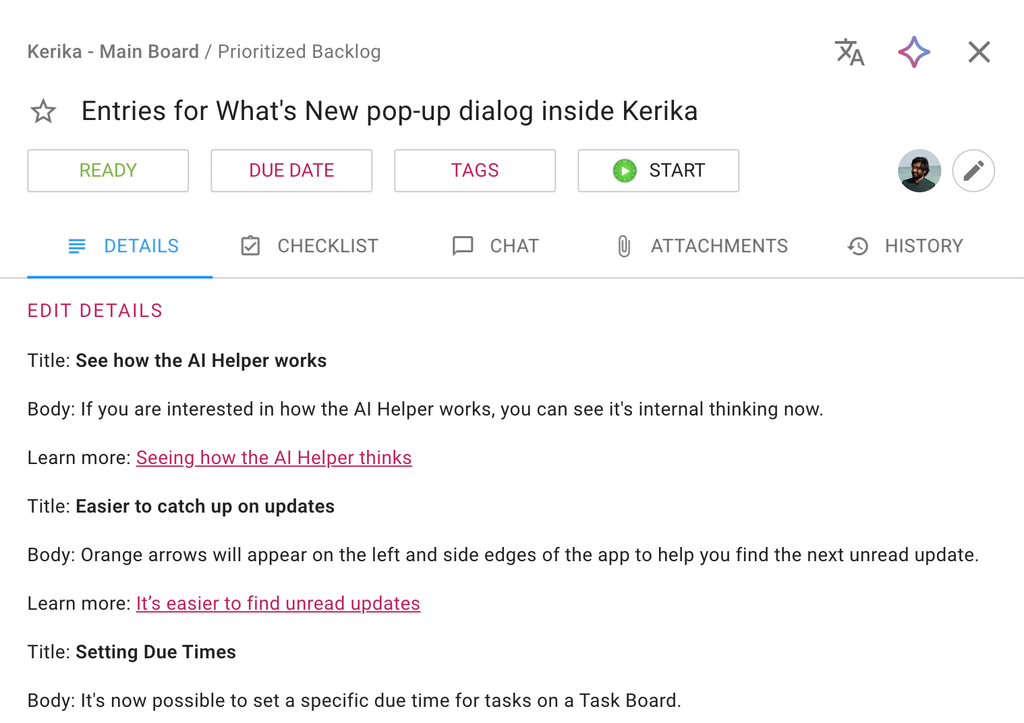
You can edit a Task Details by clicking on the EDIT DETAILS link, or simply clicking on the existing details to enter the Edit mode:
This shows the extended formatting bar that’s now available:
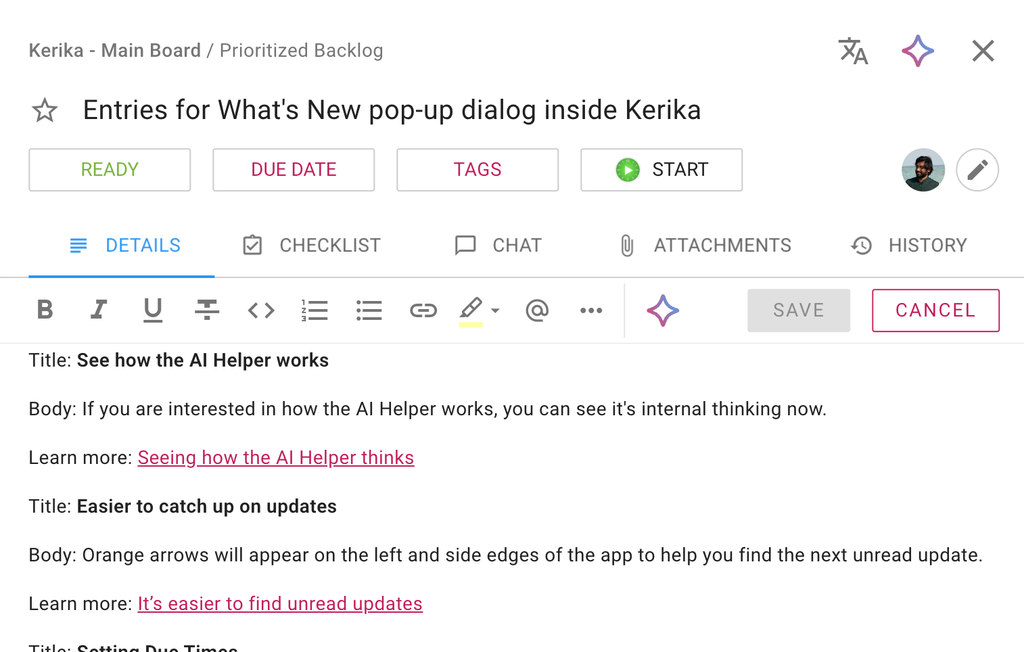
In addition to the old buttons for Bold, Italic, Underline, Strikethrough, Numbered, and Bullet Lists, you now have buttons for:
- Marking parts of the text as code (which would result in that text appearing differently when you leave Edit mode): this is for our technical users.
- Selecting a piece of text and making that a link: Kerika will fetch the title of the referenced URL, and display that when you leave Edit mode.
- Highlighting text, using one of our 5 light pastel colors.
- Creating a reference to another task, checklist item, attachment, or board. (Follow that link to learn more about how that works.)
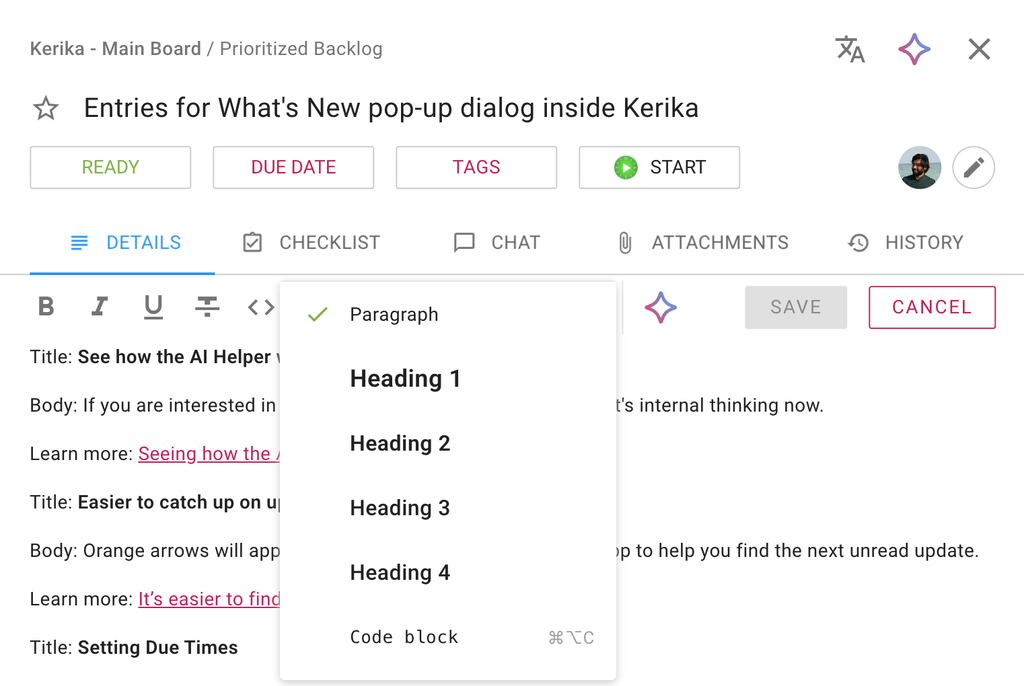
- Setting a style for the selected text; here are your options:
Editing Chat Details
The same extended toolbar is available when you are composing task chat or board chat:

Try it
We think this will help you write more precise task details and chat messages, using more nuance and better organization of your thoughts, which will directly help with improving your teams’ overall productivity. Give it a try and let us know what you think!