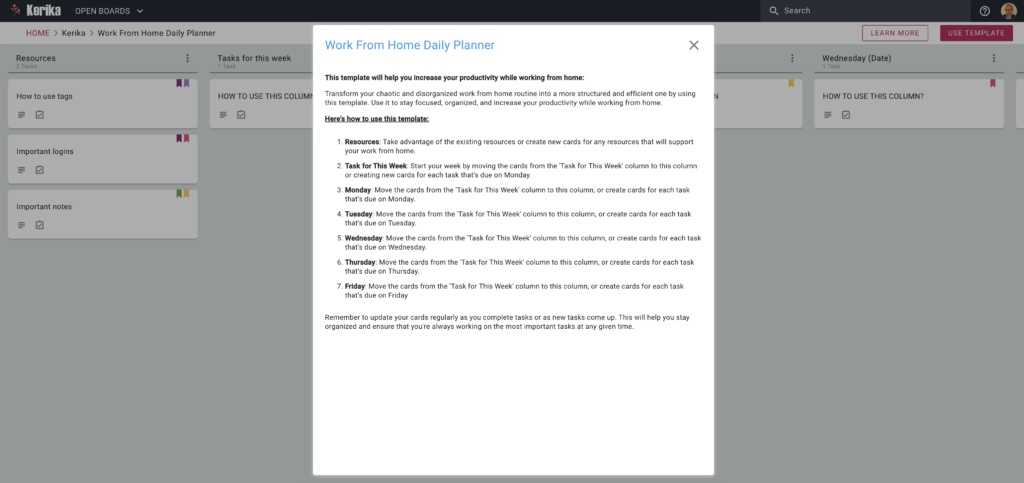
This template will help you increase your productivity while working from home:
Transform your chaotic and disorganized work from home routine into a more structured and efficient one by using this template. Use it to stay focused, organized, and increase your productivity while working from home.
Here’s how to use this template:
Resources: Take advantage of the existing resources or create new cards for any resources that will support your work from home.
Task for This Week: Start your week by moving the cards from the ‘Task for This Week’ column to this column or creating new cards for each task that’s due on Monday.
Monday: Move the cards from the ‘Task for This Week’ column to this column, or create cards for each task that’s due on Monday.
Tuesday: Move the cards from the ‘Task for This Week’ column to this column, or create cards for each task that’s due on Tuesday.
Wednesday: Move the cards from the ‘Task for This Week’ column to this column, or create cards for each task that’s due on Wednesday.
Thursday: Move the cards from the ‘Task for This Week’ column to this column, or create cards for each task that’s due on Thursday.
Friday: Move the cards from the ‘Task for This Week’ column to this column, or create cards for each task that’s due on Friday
Remember to update your cards regularly as you complete tasks or as new tasks come up. This will help you stay organized and ensure that you’re always working on the most important tasks at any given time.
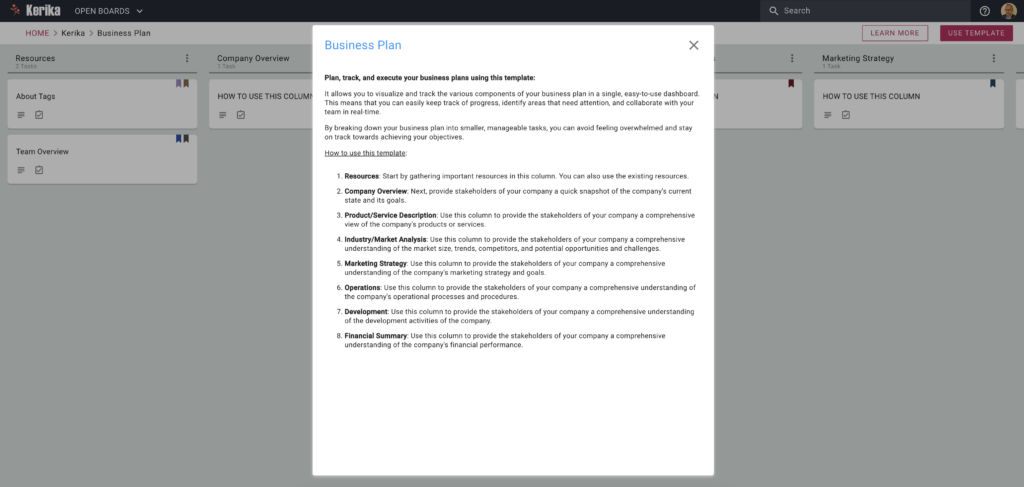
It allows you to visualize and track the various components of your business plan in a single, easy-to-use dashboard. This means that you can easily keep track of progress, identify areas that need attention, and collaborate with your team in real-time.
By breaking down your business plan into smaller, manageable tasks, you can avoid feeling overwhelmed and stay on track towards achieving your objectives.
How to use this template:
Resources: Start by gathering important resources in this column. You can also use the existing resources.
Company Overview: Next, provide stakeholders of your company a quick snapshot of the company’s current state and its goals.
Product/Service Description: Use this column to provide the stakeholders of your company a comprehensive view of the company’s products or services.
Industry/Market Analysis: Use this column to provide the stakeholders of your company a comprehensive understanding of the market size, trends, competitors, and potential opportunities and challenges.
Marketing Strategy: Use this column to provide the stakeholders of your company a comprehensive understanding of the company’s marketing strategy and goals.
Operations: Use this column to provide the stakeholders of your company a comprehensive understanding of the company’s operational processes and procedures.
Development: Use this column to provide the stakeholders of your company a comprehensive understanding of the development activities of the company.
Financial Summary: Use this column to provide the stakeholders of your company a comprehensive understanding of the company’s financial performance.
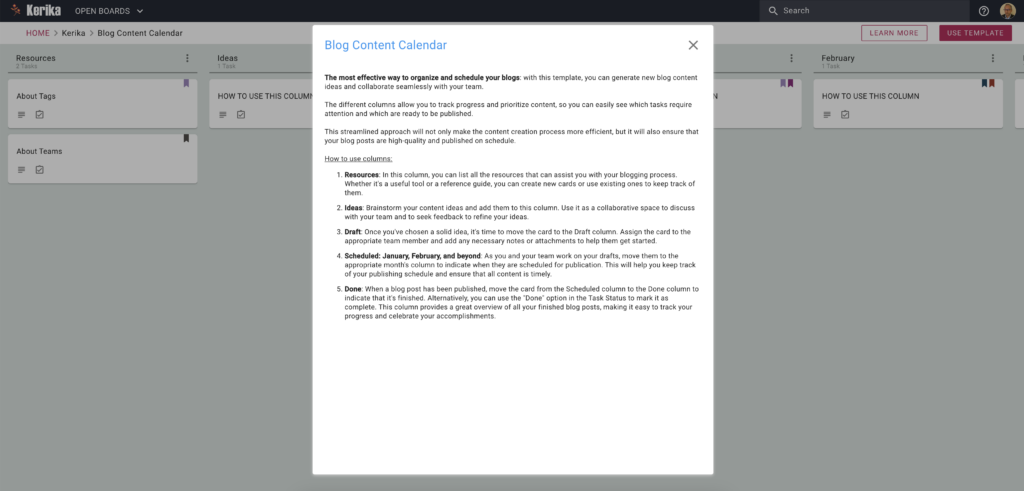
The most effective way to organize and schedule your blogs: with this template, you can generate new blog content ideas and collaborate seamlessly with your team.
The different columns allow you to track progress and prioritize content, so you can easily see which tasks require attention and which are ready to be published.
This streamlined approach will not only make the content creation process more efficient, but it will also ensure that your blog posts are high-quality and published on schedule.
How to use columns:
Resources: In this column, you can list all the resources that can assist you with your blogging process. Whether it’s a useful tool or a reference guide, you can create new cards or use existing ones to keep track of them.
Ideas: Brainstorm your content ideas and add them to this column. Use it as a collaborative space to discuss with your team and to seek feedback to refine your ideas.
Draft: Once you’ve chosen a solid idea, it’s time to move the card to the Draft column. Assign the card to the appropriate team member and add any necessary notes or attachments to help them get started.
Scheduled: January, February, and beyond: As you and your team work on your drafts, move them to the appropriate month’s column to indicate when they are scheduled for publication. This will help you keep track of your publishing schedule and ensure that all content is timely.
Done: When a blog post has been published, move the card from the Scheduled column to the Done column to indicate that it’s finished. Alternatively, you can use the “Done” option in the Task Status to mark it as complete. This column provides a great overview of all your finished blog posts, making it easy to track your progress and celebrate your accomplishments.
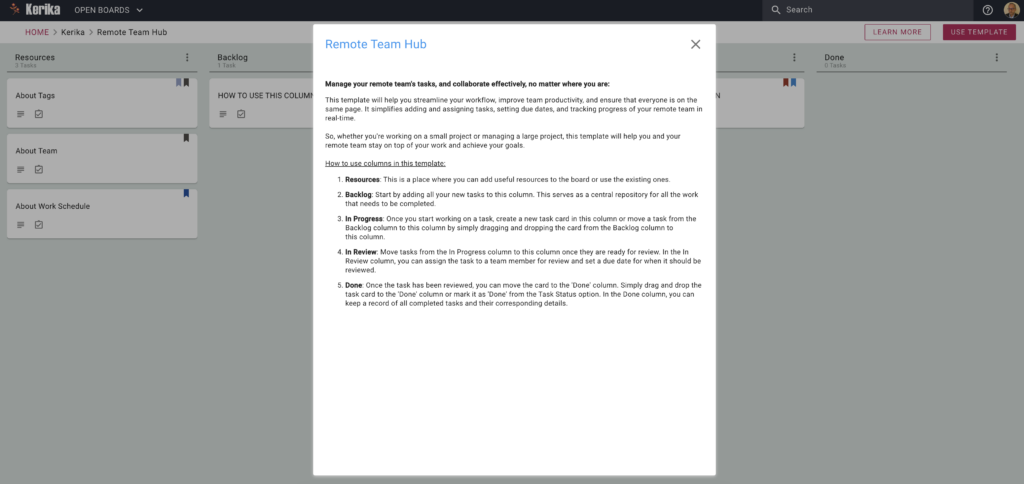
Manage your remote team’s tasks, and collaborate effectively, no matter where you are:
This template will help you streamline your workflow, improve team productivity, and ensure that everyone is on the same page. It simplifies adding and assigning tasks, setting due dates, and tracking progress of your remote team in real-time.
So, whether you’re working on a small project or managing a large project, this template will help you and your remote team stay on top of your work and achieve your goals.
How to use columns in this template:
Resources: This is a place where you can add useful resources to the board or use the existing ones.
Backlog: Start by adding all your new tasks to this column. This serves as a central repository for all the work that needs to be completed.
In Progress: Once you start working on a task, create a new task card in this column or move a task from the Backlog column to this column by simply dragging and dropping the card from the Backlog column to this column.
In Review: Move tasks from the In Progress column to this column once they are ready for review. In the In Review column, you can assign the task to a team member for review and set a due date for when it should be reviewed.
Done: Once the task has been reviewed, you can move the card to the ‘Done’ column. Simply drag and drop the task card to the ‘Done’ column or mark it as ‘Done’ from the Task Status option. In the Done column, you can keep a record of all completed tasks and their corresponding details.
The transition to remote work has been swift, and digital tools have become the backbone of modern workplaces. However, the landscape of remote work is still fairly new and many teams are still far from their greatest potential. Still, if they polish their processes, remote teams can be as productive as they would on-site, and even more. This article will present digital tools essential to optimize digital workplace workflows and productivity.
Project Management Tools
Project management tools are the backbone of any team’s workflow. Project management tools centralize your team’s tasks and projects, enabling employees to manage tasks, deadlines, and resources.
Use a project manager to track progress and identify any bottlenecks. Likewise, logging tasks and project information adds a layer of transparency and accountability to project management tools.
In any case, your workflow can only be as good as the project management software you use allows you to. Some of the most popular project management tools available include Asana, Trello, and Basecamp. However, Kerika stands out from the rest by its own merits.
Kerika: The Ultimate Management Tool for Remote Teams
Kerika is a powerful project management tool that helps teams work efficiently and collaboratively. It offers a variety of features to meet the requirements of the most demanding users. Here are some of the features that make Kerika a must-have tool for any digital workplace:
Visual Boards. Whiteboards and task boards from which users can see the big picture of a project. Visualize the workflow and identify any bottlenecks at a glance.
Integrated Chat. This feature eliminates the need for external communication tools to collaborate since team members can communicate in real-time without leaving the platform.
Task Assignments. Easily assign tasks to team members and track their progress in a complex yet intuitive tasks board. Ensure that everyone is aware of their responsibilities and deadlines, making it easier to complete projects on time.
Customizable Templates. Kerika offers customizable project board templates that can be used for different types of projects. Save time and ensure that all team members are on the same page. Plus, templates are handy for onboarding new employees into your workflow.
User-Friendly Interface. Kerika’s user-friendly interface makes it easy to navigate and use, so everyone on the team can use the tool without any training or technical expertise.
File Sharing and Collaboration Software
File-sharing software enables employees to store and work with files no matter where they are located and from multiple devices. Such flexibility reduces the time and effort needed to search for documents or to track down the latest version of a file, something methodic and disorganized employees enjoy alike.
File-sharing tools such as Google Drive also enable multiple people to collaborate on the same document simultaneously, opening the possibility of real-time feedback and faster completion of tasks. In like manner, users can easily leave comments and make suggestions.
Administrators can easily control who has access to specific files or folders, ensuring that confidential information is kept secure. Permissions can be set to allow different levels of access to different users, making it easy to share files with only those who need to see them.
Communication Platforms
Effective communication is key to a successful digital workplace. With communication platforms such as Slack, Microsoft Teams, and Zoom, team members can stay connected and work together seamlessly through video and audio calls, and screen and file sharing.
On the other hand, video conferencing tools with virtual reality (VR) technology are a more cutting-edge option. VRth finds industrial applications in industries such as architecture and engineering by allowing teams to visualize and interact with 3D models Yet, VR can also work as a space for brainstorming, meetings, and events. To know more about VR meeting platforms, check Virbela and NextMeet.
Cybersecurity Tools
Cybersecurity tools such as firewalls, and intrusion detection systems help businesses to protect their data from cyber threats. On the other hand, these tools also help businesses to comply with data protection regulations such as the General Data Protection Regulation (GDPR) and the California Consumer Privacy Act (CCPA).
Additionally, virtual private networks (VPNs) are essential for any business that values data privacy and security. VPNs create a secure and encrypted connection between a business’s network and the internet, preventing unauthorized access to sensitive information. VPNs are especially important for remote workers who need to access company resources from outside the office. Here is a list of some of the cheapest VPNs.
Process Automation Software
Business process management software can help businesses streamline their operations by automating repetitive tasks and workflows, including data entry, invoice processing, and customer service.
Besides, artificial intelligence (AI) technology is increasingly being used to improve productivity in the digital workplace, taking care of complex tasks and clearing humans from them. AI-powered productivity tools can help automate tasks, provide personalized insights and recommendations, and analyze data to identify opportunities for improvement. Tools of this kind include beautiful.ai, for coming up with presentations, and Mem made to organize information.
Mind Mapping Software
Mind mapping software can help teams visualize and organize complex ideas and concepts through brainstorming, planning, and collaborating. Among popular mind-mapping tools, we find MindMeister, MindManager, and XMind.
On the other hand, digital whiteboards can help teams collaborate and brainstorm more effectively, especially in remote settings: Visualize ideas by drawing or writing them, or share them with others and receive feedback. Popular digital whiteboard tools include Miro, Google Jamboard, and Microsoft Whiteboard.
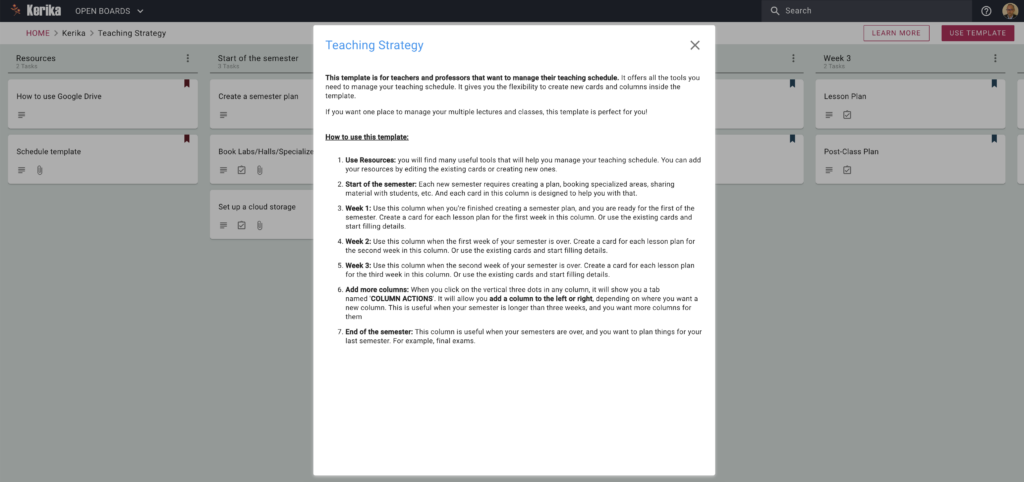
This template is for teachers and professors that want to manage their teaching schedule. It offers all the tools you need to manage your teaching schedule. It gives you the flexibility to create new cards and columns inside the template.
If you want one place to manage your multiple lectures and classes, this template is perfect for you!
How to use this template:
Use Resources: you will find many useful tools that will help you manage your teaching schedule. You can add your resources by editing the existing cards or creating new ones.
Start of the semester: Each new semester requires creating a plan, booking specialized areas, sharing material with students, etc. And each card in this column is designed to help you with that.
Week 1: Use this column when you’re finished creating a semester plan, and you are ready for the first of the semester. Create a card for each lesson plan for the first week in this column. Or use the existing cards and start filling details.
Week 2: Use this column when the first week of your semester is over. Create a card for each lesson plan for the second week in this column. Or use the existing cards and start filling details.
Week 3: Use this column when the second week of your semester is over. Create a card for each lesson plan for the third week in this column. Or use the existing cards and start filling details.
Add more columns: When you click on the vertical three dots in any column, it will show you a tab named ‘COLUMN ACTIONS‘. It will allow you add a column to the left or right, depending on where you want a new column. This is useful when your semester is longer than three weeks, and you want more columns for them.
End of the semester: This column is useful when your semesters are over, and you want to plan things for your last semester. For example, final exams.
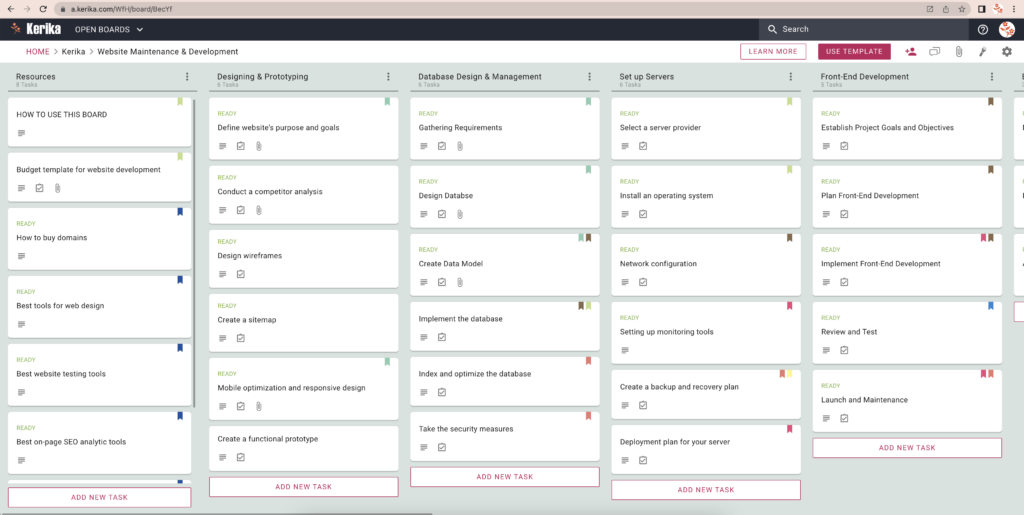
This template can be used by software and IT teams to handle website development and maintenance projects.
It comes with helpful resources and suggestions, and all the tasks that are typically needed in such projects.
How to use this template:
The first column on this board is Resources: the cards in here are not tasks, but instead contain helpful resources.
Start with the Resources column and open the cards. If the card’s suggestions and tips seem helpful, leave the card here for future reference; otherwise move the card to the Trash column.
Next, start with the Design column and open the cards one-by-one, starting with the topmost.
Cards can be assigned to people and scheduled; as work gets underway, make sure the tasks are properly assigned so everyone knows who is doing what, and when to expect deliverables.
While work is underway mark the card as IN PROGRESS (using the Task Status): this will let everyone on the team know that someone is working on the task.
If a card needs to be reviewed by someone, assign the card to that person (or persons), and mark the Task Status as NEEDS REVIEW. This will make it easy for everyone on this board’s team to know what’s going on. The people who were assigned the task will get notified.
Sometimes tasks will need rework; in that case use the NEEDS REWORK task status to indicate that. When someone discovers that a task needs rework, it’s a good practice for that person to document their concerns using the task’s chat tab before assigning it to the people who need to rework it.
Other useful task status are:
ON HOLD: this conveys to the team that work has been temporarily been stopped on a particular task, usually because the people involved got pulled away to work on something more urgent.
BLOCKED: this conveys that work on the task is blocked. It’s best practice for the team to unblock cards as soon as possible. When marking a card as BLOCKED, make sure you document the reason why, using the task’s Chat tab.
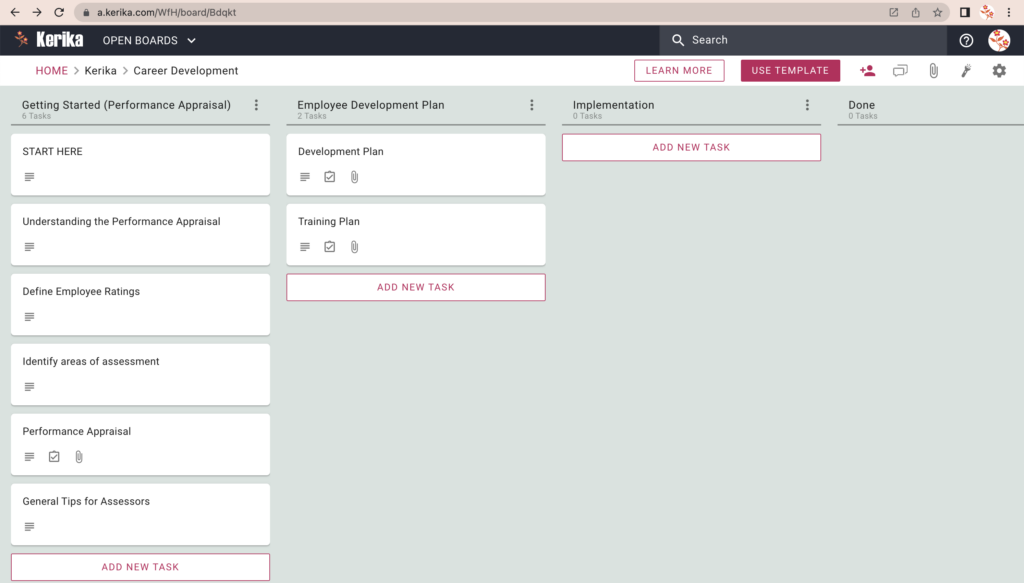
This template can be used to set goals and deliverables, assess performance, manage career growth, and get needed training to master knowledge and skills.
Performance management and career development is an ongoing process: it’s not done just once a year; it requires continuous follow-up, adjustment when needed, and giving feedback.
Your main deliverables:
Matching an employee’s performance to desired objectives
Identifying and addressing performance gaps
Implementing personal development plans
Assessing the employee’s performance after implementation
How to use this template:
Click on the USE TEMPLATE button on the top-right of the app and create your own Task Board; Kerika will set it up as using this template.
If you are going to do it with others, add the people to this board’s team as Team Members. (Use the Board Team button on the top-right of the board.)
If you have other stakeholders, e.g. management, add them as Visitors to this Board Team: they will be able to see what’s going on, but not make any changes.
Start with the leftmost column, and pick up tasks one by one:
The tasks are in order, so start at the top.
Set the status of the task to IN PROGRESS so everyone knows that it has started.
Assign the task to yourself or your Team Members: you can assign tasks to more than one person.
Set a due date! This really helps in getting stuff done; Kerika will then alert you when things are slipping.
As work proceeds, use the chat feature to communicate within the team.
As you take photos or create contracts, be sure to add them to the tasks as attachments; Kerika will make sure they stay with the tasks so they are always easy to find.
Once a task completes, move it to the Done column.
To succeed on social media, you need to create content that people will find interesting and engaging. But making good content takes a lot of time and effort, and a great workflow can make all the difference. A workflow helps you be more efficient and make sure everything you’re doing is in the right order, and that you’re not overlooking anything important.
Kerika can get you started in seconds with a great workflow for managing your social media content.
Let us show you how you can use this template to create content that connects with your audience and helps you grow your business or personal brand.
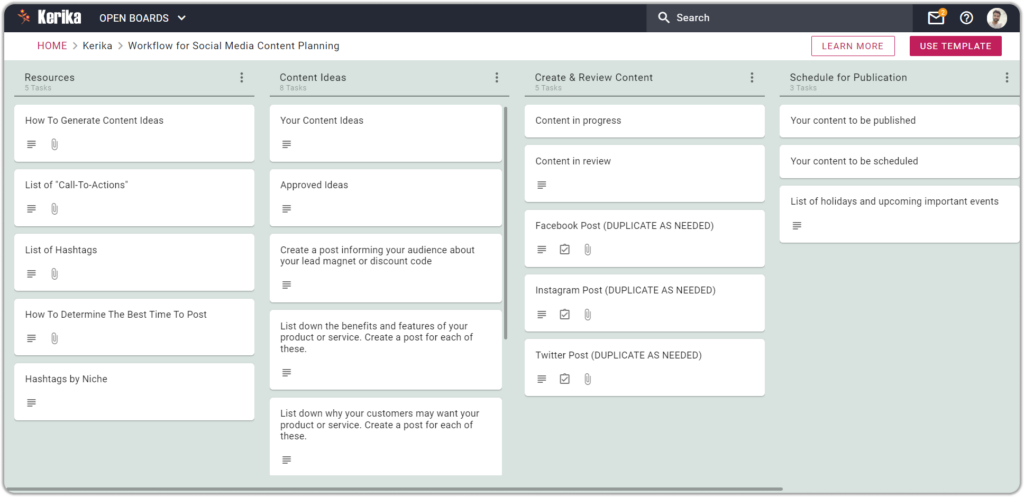
This template organizes your workflow using cards and columns. Each column represents a different step in the workflow starting with Resources on the left edge of the board, and ending with Done on the right edge.
Let’s learn how you can use these columns for your Social Media content creation process:
Resources: If you want to create content quickly, you need to make sure your resources are easily available. This might include things like pictures, videos, or documents.
You can add more resources in this column too by creating a new card or adding more information to the existing cards. By taking the time to build resources, you’ll create quality content easily and quickly.
Content Ideas: While creating content for your social media channels, you may struggle to come up with new ideas. A good solution for this problem is to have a list of ideas you can work on anytime.
This is why this column is useful to list down your content ideas, discuss them with your team, and see which content idea is the best to go ahead with.
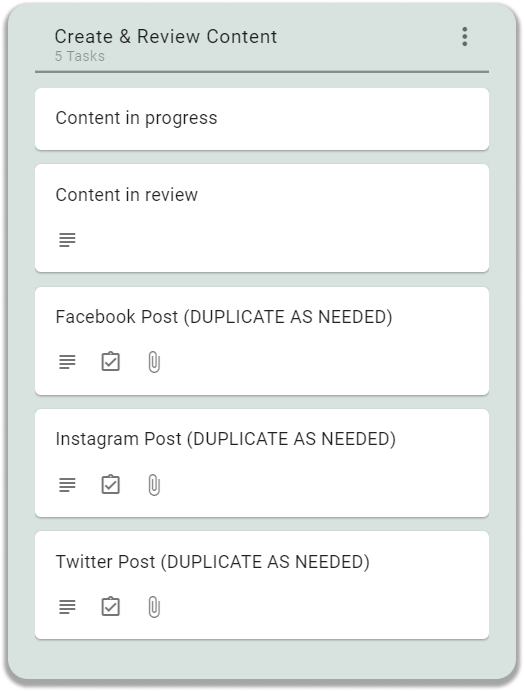
Create & Review Content: The success of your content depends on how well you manage and review it before posting, and this column is to manage your social media content and review it before posting.
You can mark your content as READY, IN PROGRESS, NEEDS REVIEW, and more. The status flags help to keep everyone on the same page, especially folks who may be working remotely.
Schedule for Publication: You want to use the best time to post so that you can get the most engagement from your audience. You also want to be able to track when you are publishing and scheduling your posts. Use this column to schedule when you will post your content on social media. By planning the timing of your content’s release, you can increase its visibility and performance.
Best Practices of Great Teams
If you are working just by yourself, you are ready to go. But if you are working for an agency or the Marketing department of a company, there will be others you need to get involved in this project.
Set up your Team Members
Kerika makes it really easy to organize your team: if there are people who will be actively involved in the video production, e.g. photographers or content writers, add them as Team Members on this board.
They will be able to make changes to this board in real-time, as they get their pieces ready, and everything that they do will be instantly accessible to everyone else that’s on this board’s team.
Set up your Visitors
There are often people who need to be informed but aren’t necessarily going to contribute in an active way. For example, there may be a product owner who needs to keep track of videos that are relevant to their product, or a senior manager who wants to be kept in the loop.
Add these stakeholders as Visitors to this board team: they will always have a real-time view of what’s going on, but they won’t be able to move any cards or make any changes (in other words, mess up with your careful workflow!) and you won’t have to keep giving status reports. That’s a double-win.
Oh, and Visitors are always free. So let’s call that a triple-win.
Understand the Workflow
In a Kerika board, every column represents a particular stage in a workflow, and every card represents a specific task (e.g. a video that needs to be produced).
Start at the top-left:
Open the first card in the first column
Read the instructions inside
Check out any resources that are attached to the card
Take action.
Some tasks are best handled by you, and others should clearly be handed off to coworkers.
Update the cards as work gets done
A card can be assigned to one or more people, and this can change throughout the course of the project: something is initially assigned to you and then gets handed off to someone else.
As cards get worked upon, update the status of each card: start with READY, then IN PROGRESS, and so on. This makes it easy for everyone to always have a clear idea of where things stand.
Set due dates. This will help you make sure nothing slips.
Use Kerika’s chat instead of email: this will keep your communications quick and focused.
Move cards along the columns as the work progresses.
Get to Done
The team’s goal is to get all your cards all the way over to Done, on the right end of the board.
Sometimes things that were initiated need to be discarded: maybe something turns out to be a bad idea? In that case, the card should be moved to the Trash column. (If you change your mind later, you can always retrieve items from the Trash.)
Start with Resources
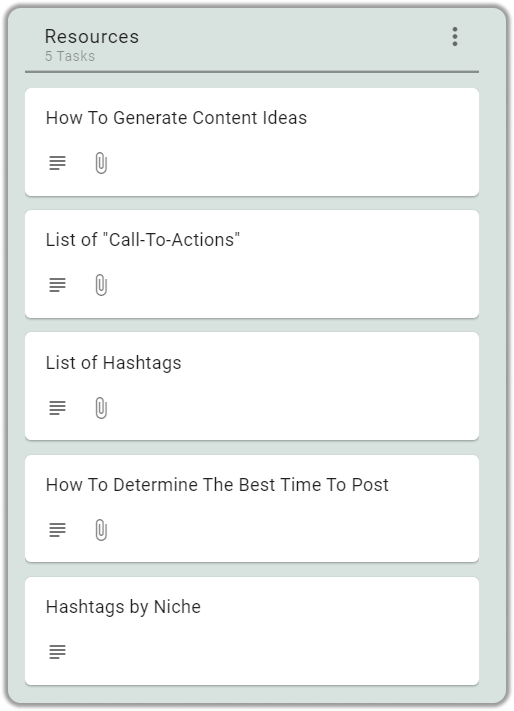
The Resources column, which is the leftmost column in this template, contains five cards:
Resources
How To Generate Content Ideas: If you’re struggling to create interesting and compelling content, this card has some useful tips and insights to help you overcome this challenge.You will also find articles and videos about how to make a good post and learn how to create engaging content that captures the attention of your audience.
List of “Call-To-Actions: CTAs, or calls to action, are important in social media posts because they help guide your audience towards taking a specific action, such as signing up for a newsletter, visiting a website, or making a purchase.In this card, you can find useful articles, videos, and some great examples of CTAs that will help you get started!
List of Hashtags: Hashtags are a great way to help your audience find your posts on social media. They are also used to create a community around a topic or event.In this card, you will find useful articles, and videos, that will help you find relevant hashtags! You can also use this card to list down your hashtags for later use.
Hashtags by Niche: To help you get started with hashtags, we have listed some of the most useful hashtags in this card. Please feel free to use relevant hashtags in your social media posts and increase the chances of your posts being seen by your audience.
Generate Content Ideas
The Content Ideas column, the second in this template, contains five cards:
Content Ideas
Your Content Ideas: Coming up with content ideas is a time-consuming process. That is why it is important to list down whenever you come across a good content idea.In this card, you can list all of your content ideas. And when it’s time to create content, you can simply open this card and pick the idea you like.
This will help you avoid feeling stressed out about trying to come up with something to create on the spot.
Approved Content Ideas: Sometimes, before you can share something online, you need to make sure it’s okay with your boss or the copyright team to make sure everything is legal.
In that case, you can list your approved ideas in this separate card.
Tips for post: It’s important to know what kind of post to create because different types of posts can have different effects on your audience. For example, a lead magnet post will attract more new visitors and customers.
This card will help you identify the type of content that will be most beneficial to your business.
Create & Review Content
The Create & Review Content column, which is the third column in this template, contains eight cards:
Create & Review Content
Social Media Guidelines, Policies, and Community Standards card: When you use social media platforms to promote your business, it’s important to follow their rules, also known as “community guidelines.”
You have to follow these community guidelines to avoid getting into trouble or getting banned from their platforms.This card has some main key points and useful links for you to keep in mind while posting on social media platforms.
Why is it important to review content?: It’s important to review your content before publishing it on social media for the quality and integrity of your social media presence.In this card, you will learn the importance of reviewing your content to help you be careful while publishing your content.
Facebook Post Template, Instagram Post Template, and Twitter Post Template cards: These three cards offer very useful templates to create posts for their respective social media platforms. These templates are useful for social media posts for several reasons. They can save time, provide inspiration, overcome creative blocks, maintain a consistent brand image, and create professional-looking posts.
(Example) Facebook Post For Christmas, (Example) Instagram Post for Black Friday, and (Example) Twitter Post for Father’s Day card: These cards are great examples of how you can create social media posts using each template. Open these cards to see how we’re using these templates to create social media posts for Christmas, Black Friday, and Father’s Day.
Schedule for Publication
The ‘Schedule for Publication’ Content column, which is the fourth column in this template, contains two cards:
Schedule for Publication
How To Determine The Best Time To Post card: When you share things on social media, you want as many people as possible to see them. One way to make sure more people see your posts is to share them when lots of people are online and using social media.
In this card, you will find an article and a video that can help to decide which time is for you to schedule and post your content.
List of holidays and upcoming important events card: Holidays and events can provide a great opportunity to connect with your audience and create a sense of community. By creating posts that relate to these events, you can show that you are in tune with their interests and values.
You can refer to this card whenever you are wondering when the next important public holiday or event is.
This card will make sure you don’t miss them.
Like what you just read?
Here’s the template: just one click, one the USE TEMPLATE button, will set you up with a new Kerika account and your first board, in just seconds.
You can try everything free, with your entire team, for 30 days.
Producing great video content is essential to a successful YouTube channel, but it can be a time-consuming task if you don’t have a proper process and workflow.
A very helpful tool for planning your content workflow is the Kanban board.
Kanban boards, like Kerika’s Task Boards, can help you plan and execute your video production process, ensuring that each step is completed in a timely and efficient manner.
In this article, we will show you how you can use Kerika to set up a great workflow and process for your YouTube video production.
A Workflow for You
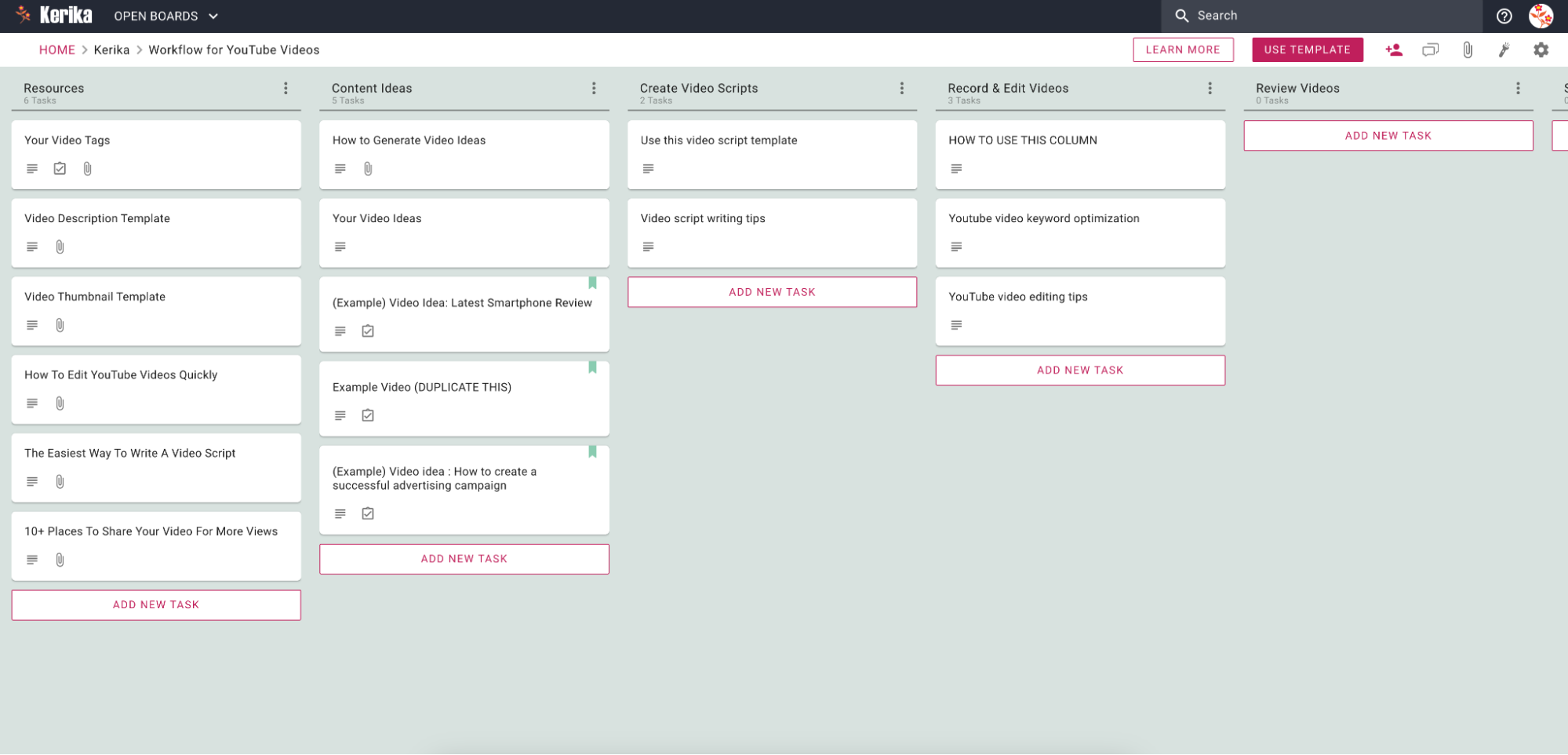
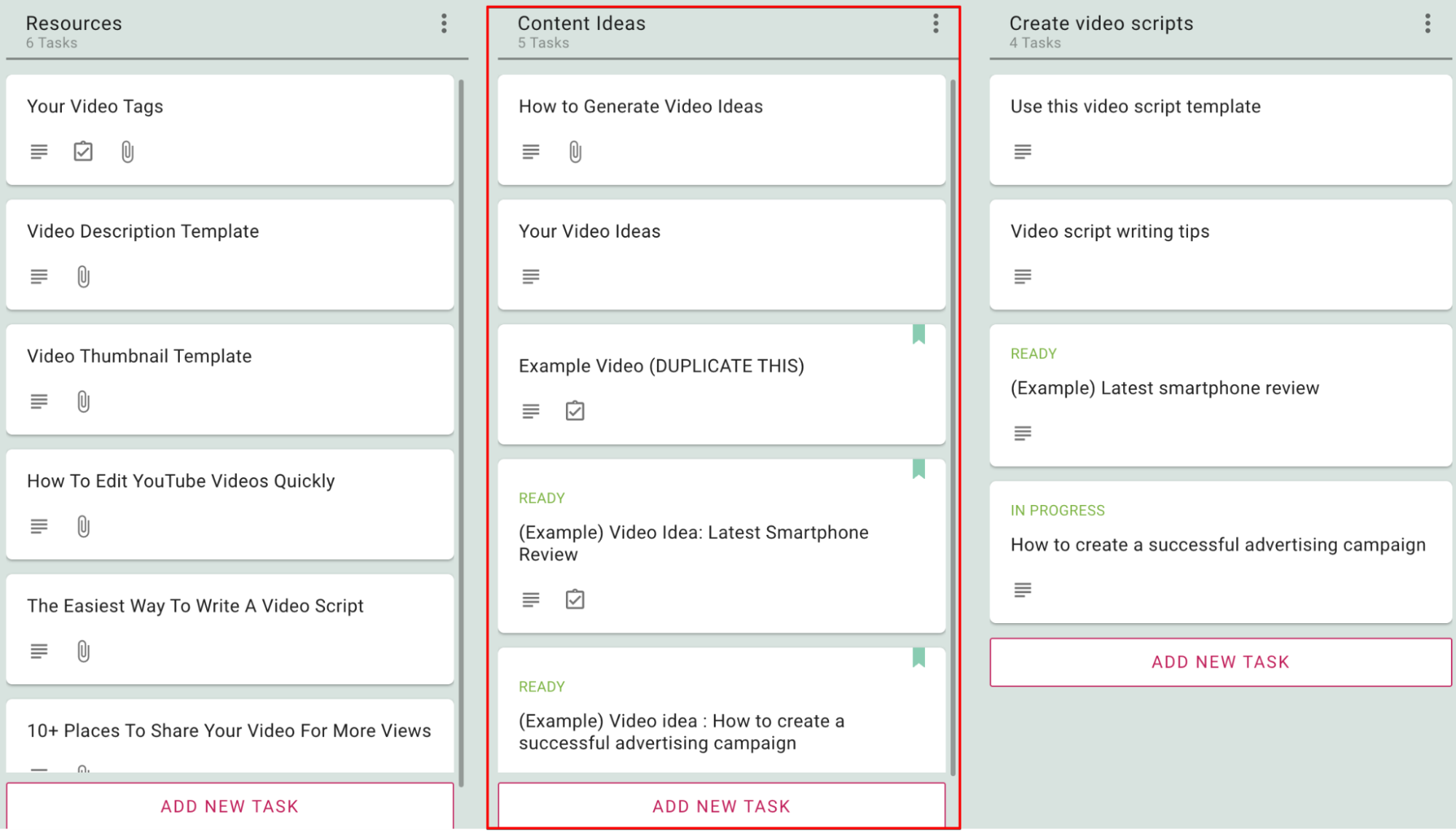
This template will set you up with a good workflow. Each phase of this workflow is represented by a column; let’s take a look from left to right:
Click to view this Template
Resources
The cards in this column contain helpful resources for you to get started with. The first card, for example, helps you understand how to use video tags; the second card provides a guide for how to write a good video description. And so on.
Content Ideas
This is where you start to gather all your ideas for different videos. If you are having trouble coming up with ideas, take a look at the first card in this column.
Create Video Scripts
When you have decided a specific topic you want to work on, move its card from Content Ideas to this column and start writing your script. (And there’s a card in this column with some really useful tips on writing a template for a script.)
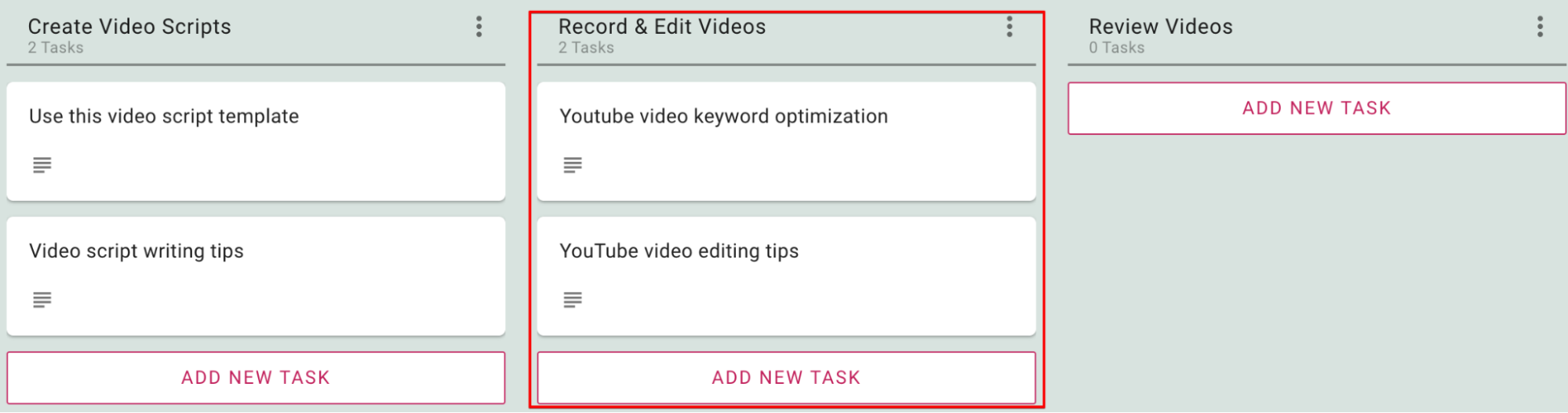
Record & Edit videos
Use this column to track the videos you are currently working on: once your script is ready, move the video’s card from the Create Video Script column to this column. This helps you keep track of the videos that are currently in production.
Review Videos
Once everything related to a particular is done, move its card to this column. This will help you track videos that are finished, but you haven’t published them yet.
Schedule / Publish Videos
When you have decided when to publish a video, move its card to this column. This way you and your teammates know which video is when going live. Kerika will remind you if you scheduled a video but forgot to publish it.
Promote Videos
Promoting videos is essential to growing your YouTube channel: once a video is published, move its card to this column and create a checklist of where your videos should be shared and promoted.
Best Practices of Great Teams
If you are working just by yourself, you are ready to go. But if you are working for an agency or the Marketing department of a company, there will be others you need to get involved in this project.
Set up your Team Members
Kerika makes it really easy to organize your team: if there are people who will be actively involved in the video production, e.g. photographers or content writers, add them as Team Members on this board.
They will be able to make changes to this board in real-time, as they get their pieces ready, and everything that they do will be instantly accessible for everyone else that’s on this board’s team.
Set up your Visitors
There are often people who need to be informed, but aren’t necessarily going to contribute in an active way. For example, there may be a product owner who needs to keep track of videos that are relevant to their product, or a senior manager who wants to be kept in the loop.
Add these stakeholders as Visitors to this board team: they will always have a real-time view of what’s going on, but they won’t be able to move any cards or make any changes (in other words, mess up with your careful workflow!) and you won’t have to keep giving status reports. That’s a double-win.
Understand the Workflow
In a Kerika board, every column represents a particular stage in a workflow, and every card represents a specific task (e.g. a video that needs to be produced).
Start at the top-left
Open the first card in the first column
Read the instructions inside
Check out any resources that are attached to the card
Take action.
Some tasks are best handled by you, and others should clearly be handed off to coworkers.
Update the cards as work gets done
A card can be assigned to one or more people, and this can change throughout the course of the project: something is initially assigned to you and then gets handed off to someone else.
As cards get worked upon, update the status of each card: start with READY, then IN PROGRESS, and so on. This makes it easy for everyone to always have a clear idea of where things stand.
Set due dates. This will help you make sure nothing slips.
Use Kerika’s chat instead of email: this will keep your communications quick and focused.
Move cards along the columns as the work progresses.
Get to Done
The team’s goal is to get all your cards all the way over to Done, on the right-end of the board.
Sometimes things that were initiated need to be discarded: maybe something turns out to be a bad idea? In that case, move the card to the Trash column. (If you change your mind later, you can always retrieve items from the Trash.)
Kerika gives you Resources
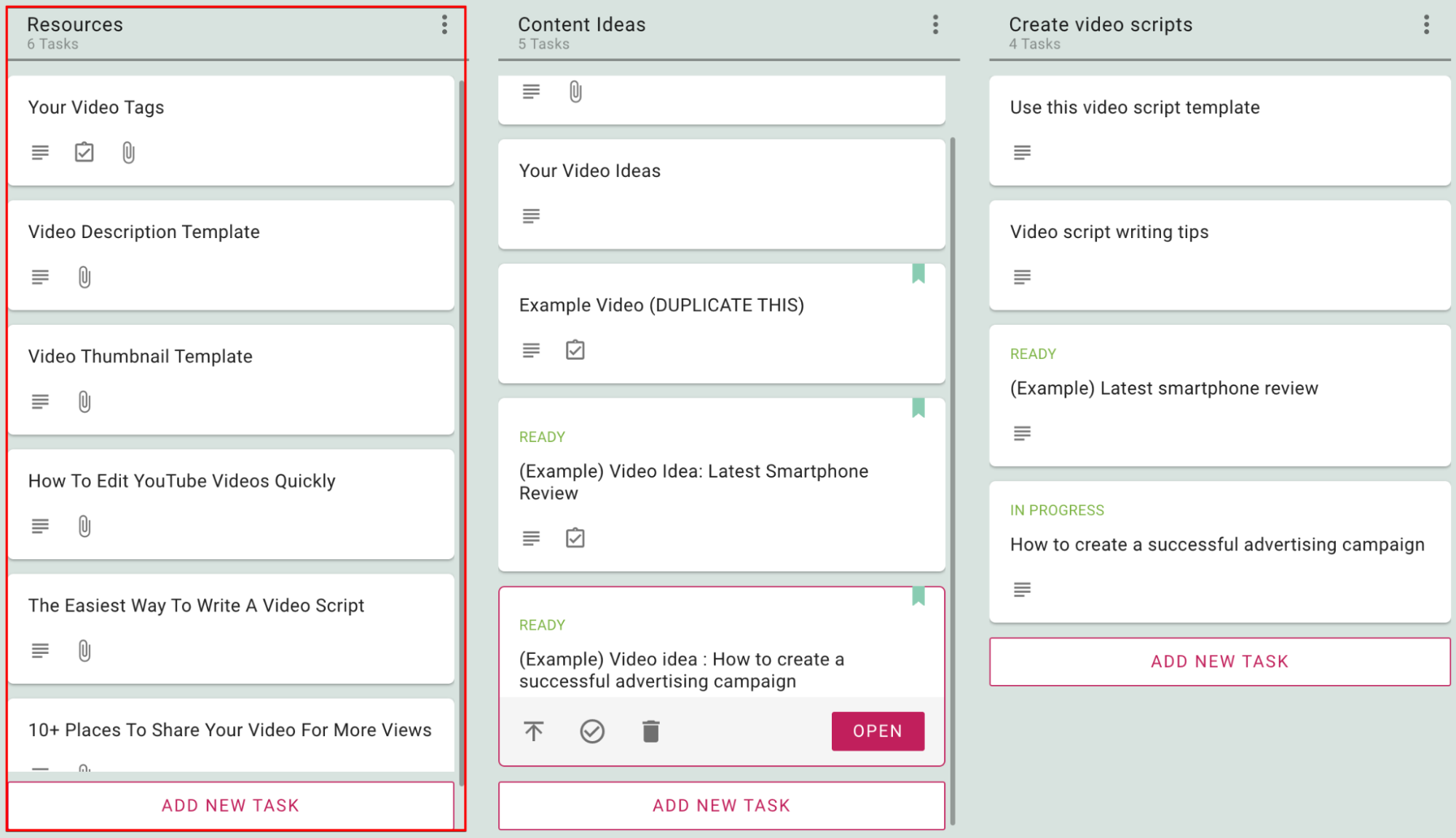
The Resources column, the first in this workflow, contains six cards to help you get started:
Kerika provides you with resources
Video Tags: Tags are important as they help YouTube algorithms understand what your video is about. This influences when your video appears in search results.
Video Description Template: one of the most important things you can do is create descriptive, keyword-rich video titles and descriptions. This will help your videos rank higher in search results and give your audience a better idea of what your video is actually about.
Video Thumbnail Template: Your thumbnail is what appears first on your YouTube channel and in the search results, so it needs to be eye-catching and representative of your video content.
How To Edit YouTube Videos Quickly: All successful YouTubers put a lot of time and effort into their editing because that is what helps them stand out from the crowd. This card has useful links, including some of the best video editing tools.
The Easiest Way To Write A Video Script: Writing a video script for YouTube can be as easy or as difficult as you make it. If you have a clear idea of what you want to say and how you want to say it, the process can be relatively straightforward.
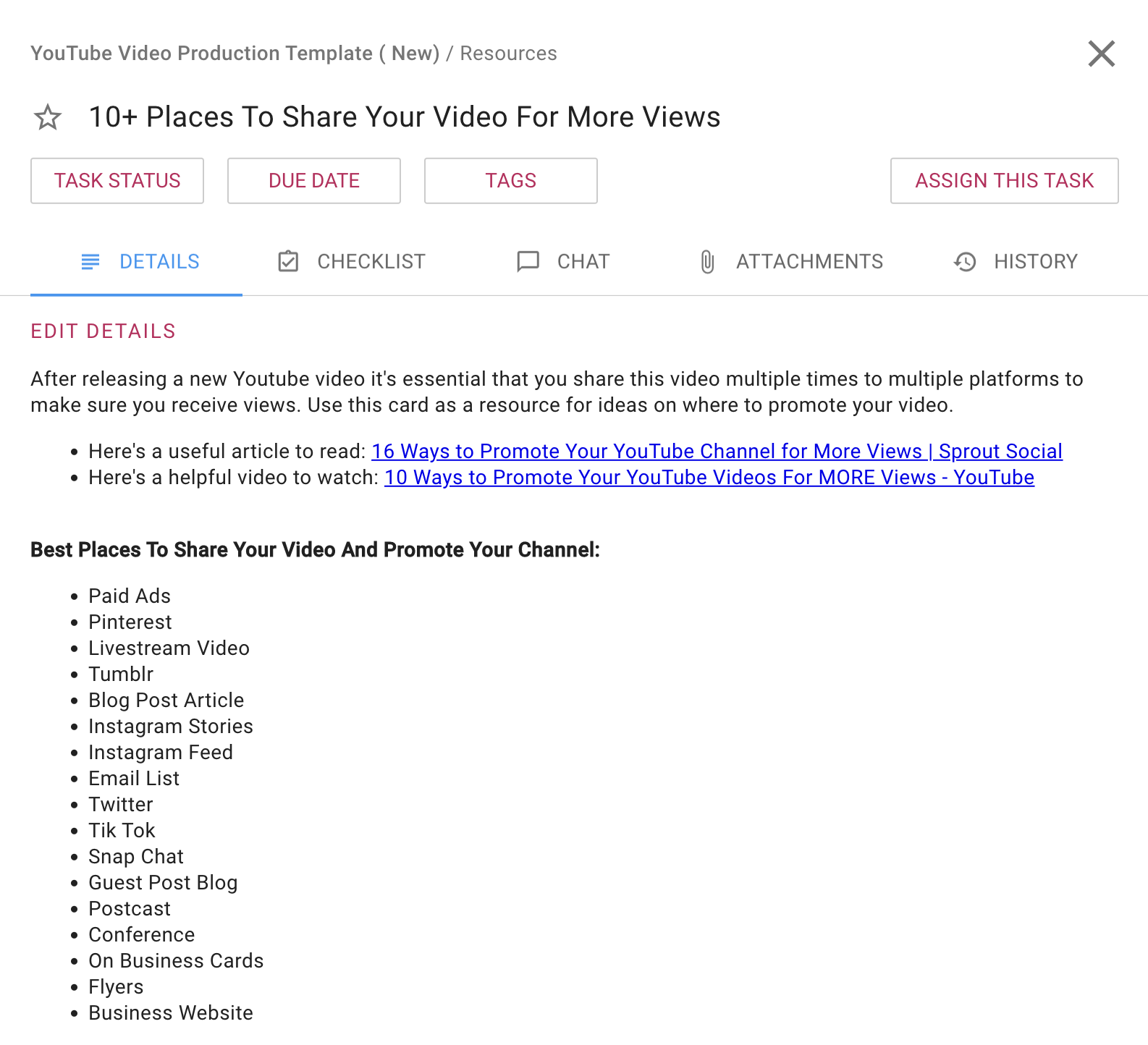
10+ Places To Share Your Video For More Views: Sharing your videos on other platforms lets you borrow their audience and show your content to people who might not have found it otherwise. This helps get more views and subscribers on your channel, which leads to more success on YouTube.
Start Generating Content Ideas
The second column is Content Ideas and it contains five cards:
How to Generate Video Ideas: content ideas are the basis for your YouTube videos, and without a clear idea, it is hard to plan, make, and edit videos that are engaging and effective.
This card will help you generate good video ideas. It gives you useful resources and a list of content ideas that you can use for your videos.
Your Video Ideas: Use this card to keep a list of video content ideas. Remember, no idea is too specific or too vague! Refer to this card when you need a content idea to work on.
Example Video (DUPLICATE THIS): This card will come in handy while writing your video script: it contains a template for writing content that you can duplicate for each of your content ideas and a checklist that divides the script writing process into smaller tasks.
(Example) Video Idea: Latest Smartphone Review is an example of a video idea that discusses the latest smartphones. This video needs a script to educate the viewers about the pros and cons of the latest smartphones launched this year.
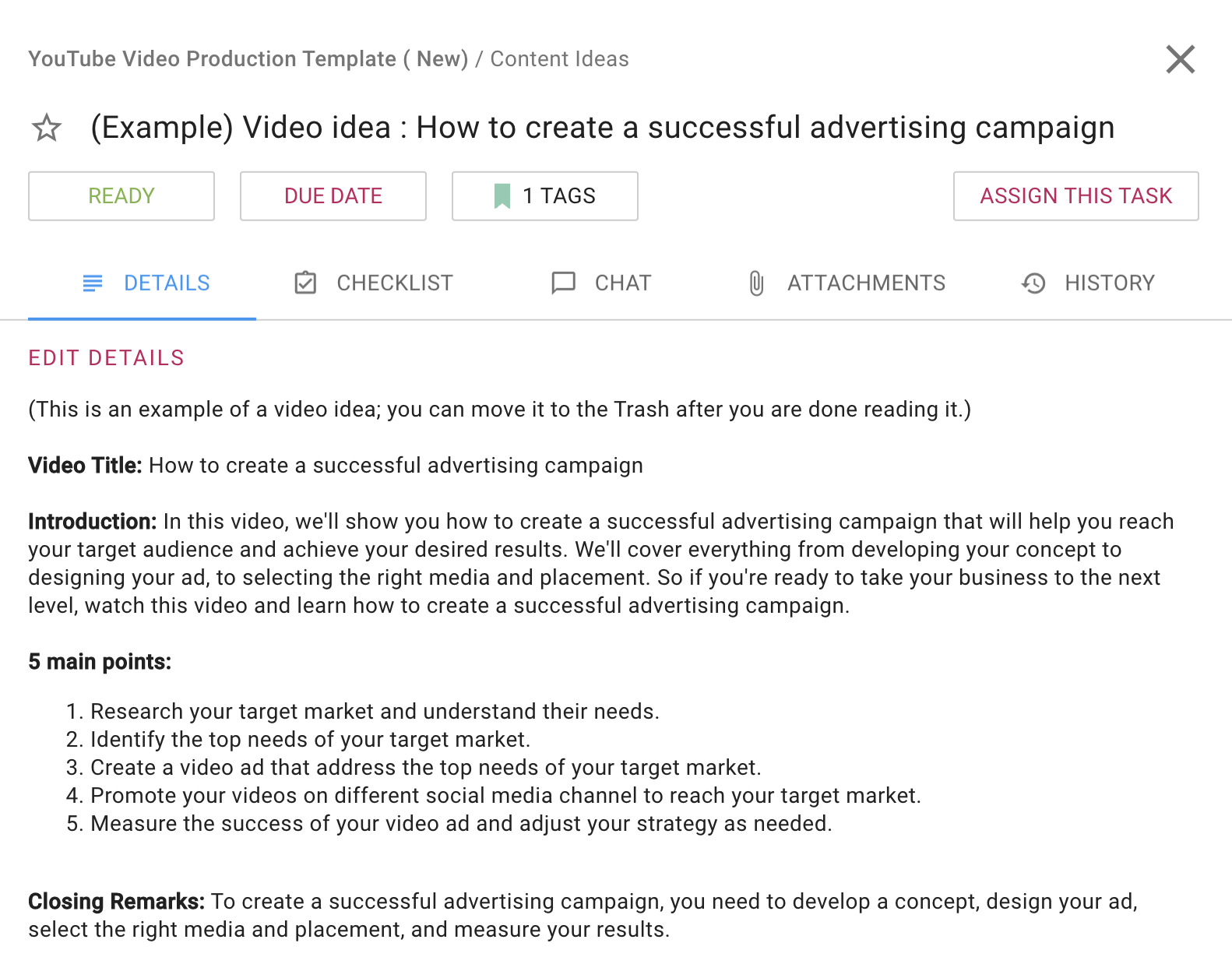
(Example) Video idea: How to create a successful advertising campaign is another example of a video with tips on how to create an advertising campaign:
Create Video Scripts
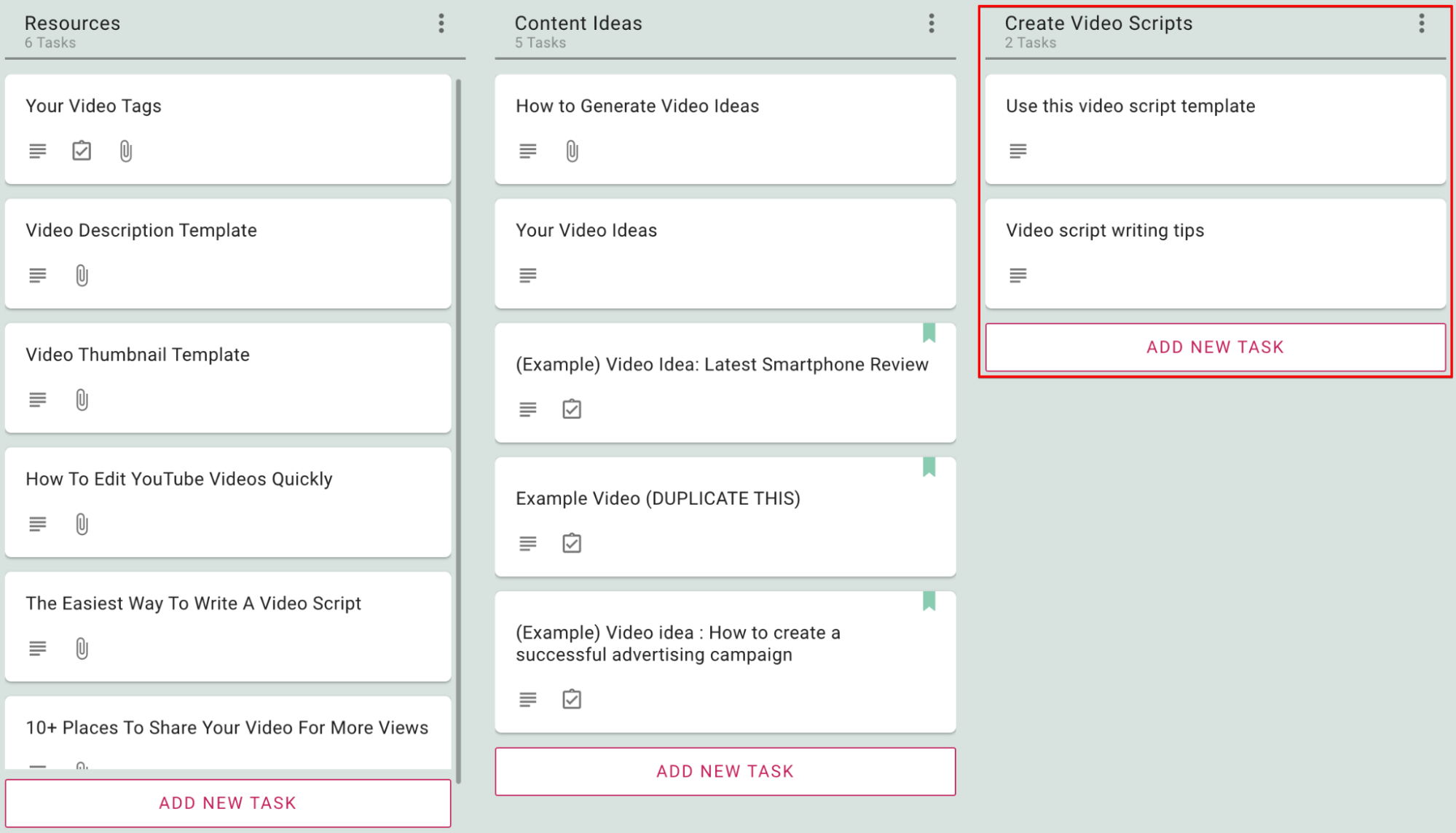
This column contains two cards:
Create Video Scripts
The first card will save you time by giving you a ready-made format for scripts. It offers a clear and consistent structure for you to follow, which can help organize your script ideas and ensure that you tell the story in the most compelling way possible.
The card also includes guidelines for things like video titles, introduction, body, conclusion, and call to action. It will help you follow industry-standard conventions and make it easy for you to read and follow later on.
The second card will help you write a script that keeps your audience interested and engaged in your content, and this card shares some of the most useful tips to help you with it.
Record & Edit Videos
This column contains two cards:
Record & Edit Videos
The first card helps you understand keyword optimization, which is an important aspect of creating and promoting YouTube videos.This will increase the number of views on your videos, ultimately leading to more engagement.
The second card has useful tips to improve the overall quality of your videos and make them more professional-looking.This will increase the chances that viewers will watch your videos all the way through and even share them with others. Overall, video editing is an important part of creating successful videos on YouTube.
Review Videos
As videos are ready, drag the video card here and assign them to the folks who will be reviewing them, and change the status of the card to NEEDS REVIEW. If you need feedback by a certain date, set the Due Date on this card so people understand its urgency relative to everything else that’s going on.
Schedule & Publish Videos
When a video is ready to be scheduled for publication, move its card here. This makes it easy for everyone to know what the publishing queue looks like.
Finally, Promote Your Video
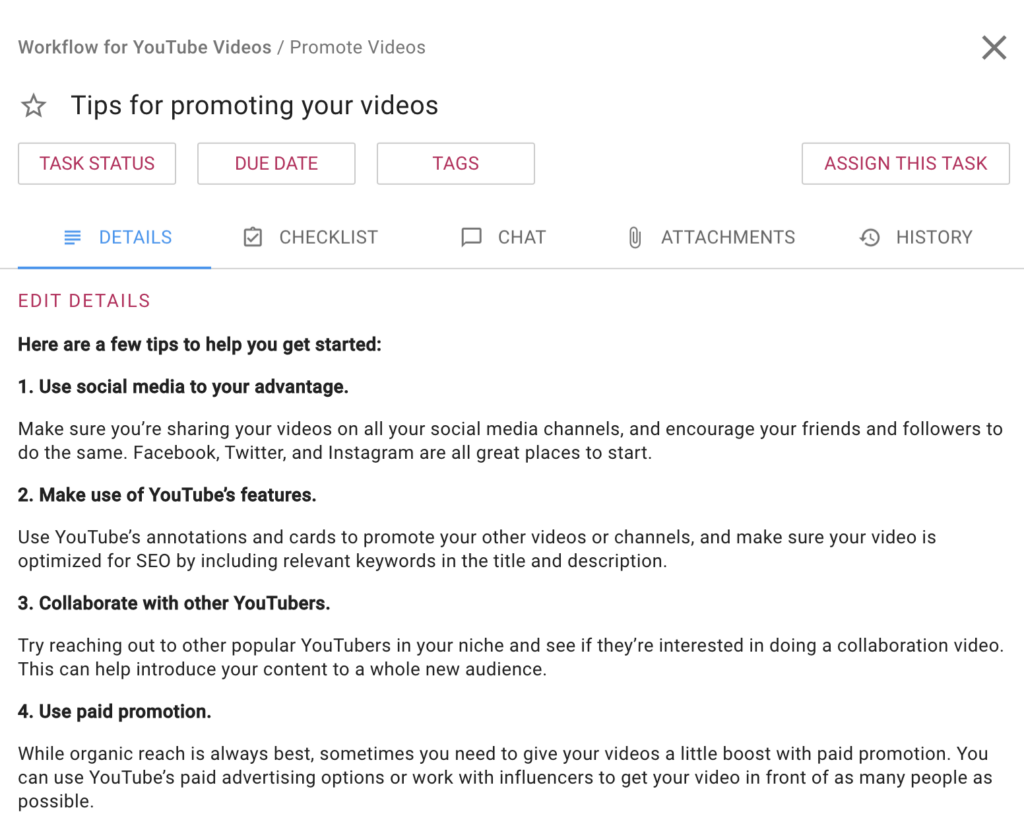
When you promote your videos, you are essentially making people aware of its existence and inviting them to visit and subscribe. This can help attract more viewers and subscribers, which can in turn help your channel grow and become more successful.
We have some tips for you in this template.
Tips for Promoting Videos
Like what you just read?
Here’s the template: just one click, one the USE TEMPLATE button, will set you up with a new Kerika account and your first board, in just seconds.
Click to view this Template
You can try everything free, with your entire team, for 30 days.