Tag Archives: Account
Adding Temple University to our list of supported schools & universities
We have added temple.edu to the list of domains that automatically qualify for free Academic Accounts — just sign up with your @temple.edu email and you can have up to 10 Team Members working on the Task Boards, Scrum Boards and Whiteboards owned by your account.
Enjoy.
Free Kerika Accounts for the Open Window Institute in South Africa
We have added @Open Window in South Africa to the list of schools we support with free Kerika Accounts. Sign up with an openwindow.co.za email and you will automatically qualify.
Enjoy.
We are offering free Academic Accounts to users at Universitat Oberta de Catalunya
Following a request from a student at the Universitat Oberta de Catalunya in Barcelona, Spain, we have decided to add UOC to the list of universities and schools where users automatically get free Academic Accounts.
A free Academic Account is intended to help students and educators get more done with their teams: a free Account has all the features of Kerika, but is limited to a maximum of 10 Team Members working on boards owned by that Account.
Every user can set up their own Account, so effectively it is possible for a very large group of students and educators to use Kerika free for their academic work!
If you are interested in getting Kerika for your (nonprofit) school or college, please get in touch!
Teams and Privacy in Kerika: a new tutorial video
And another video in our revamped tutorial series: how you can manage your teams and privacy in Kerika.
https://youtu.be/k6-3f1Nlhh4
We hope these tutorials are useful; let us know what you think.
A tutorial video on using Kerika with Box
OK, another tutorial video done: this time on how to use Kerika with Box.
Kerika works seamlessly with Box for secure storage of all your project files: just sign up as a Kerika user with your Box ID, and all your Kerika files will be stored in your own Box Account, where they will always be under your control.
This tutorial video shows you how.
Intended audience for this video: new Kerika users who want to leverage Box.
An updated set of tutorial videos is coming
We are (finally!) getting around to updating the Kerika tutorial videos; what we have on our YouTube channel has definitely gotten stale.
Here’s the first in the new series:
https://www.youtube.com/watch?v=McoUZ5vFvcA
This video is intended for new users: people who discover Kerika and sign up to start new accounts.
For people who sign up by clicking on an invitation email sent from a coworker, we have a different video that is more focused around their needs:
https://www.youtube.com/watch?v=NC8FI10PT-Y
And, finally, for people who sign up to use Kerika with Google Apps — and this is the vast majority of Kerika users, worldwide — we have this video:
https://youtu.be/QW7I3IrEfd8
There’s a lot more coming.
Checking email addresses when you add someone to a Board Team
One of our users had a problem recently when they mis-typed an email address while adding someone to a Board Team: the mistake was essentially a typo of “.com”
The user didn’t notice their error, but our system did: when Kerika tried to send the email invitation to the mis-typed address, the email bounced (naturally).
And while the user didn’t notice or complain, we want help our users avoid these mistakes by including some email checking when someone is being added to a Board Team.
Kerika now tries to see if the email address looks incomplete or malformed, and alerts you if you made a typo.
Adding Talladega University to our free account list
We have added Talladega University, located in the city of Talladega, Alabama, to the list of schools and colleges where users can automatically get free Academic Accounts from Kerika when they sign up.
This means that anyone with a talladega.edu email address who signs up for Kerika will automatically get a free Academic Account, allowing them to have up to 10 people working as Board Admins and Team Members on their boards.
Enjoy.
Managing your Account Team
Your Account Team consists of everyone who is working as a Team Member or Board Admin, across all the boards owned by your Account.
Visitors don’t count, and no one is double-counted: if the same person is working on several boards owned by your Account, that person is counted just once.
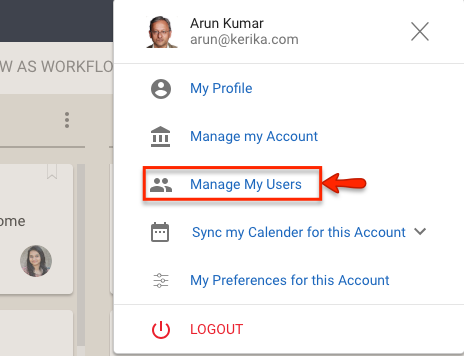
We have made it a little easier to manage your Account Team, by making the menu option for this screen a little more prominent:

This feature is part of the Manage My Account function, but given the fact that this is one of the most important and commonly used features in accounts, we wanted to make this easier to find and access.