Kerika’s AI Helper just got better: you can now import a variety of files that contain the tasks you want to include in building a new Task Board.
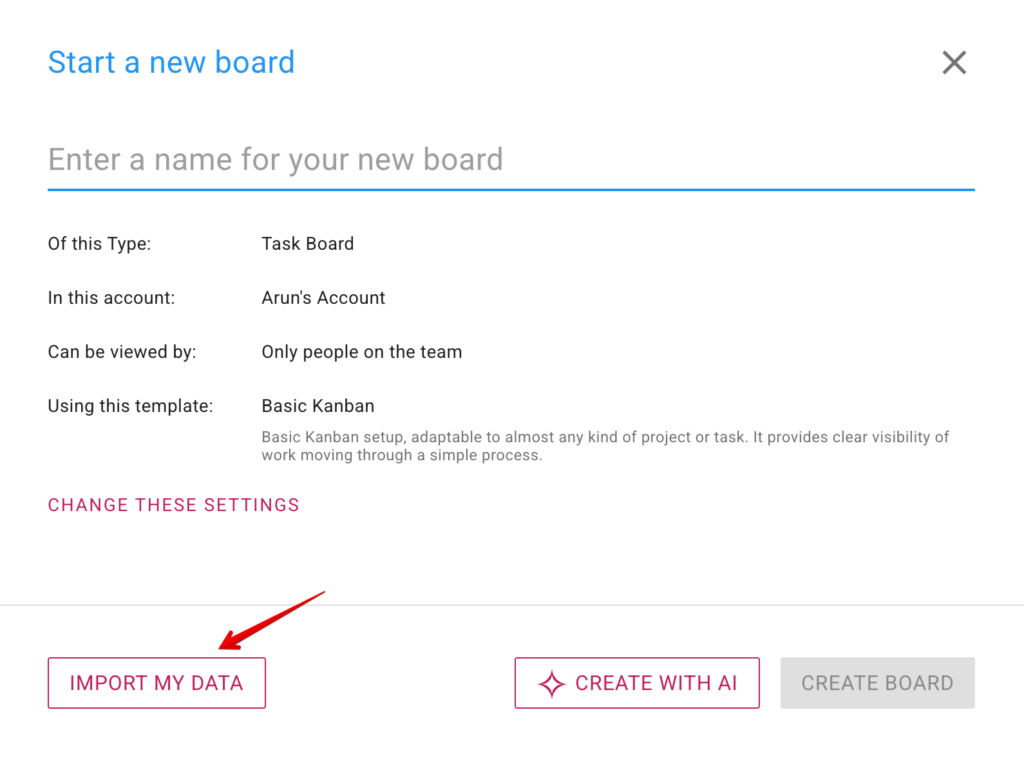
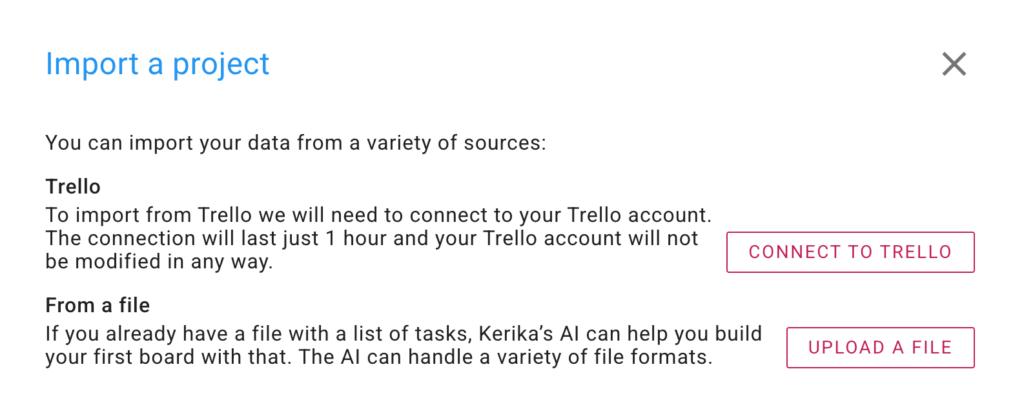
What had previously been an IMPORT FROM TRELLO button is now a more general IMPORT MY DATA. Clicking on it brings up your import options: from Trello, as before, and now also by uploading a file:
For refugees from Trello, the CONNECT TO TRELLO option is the best way to bring all, or just some, of your Trello boards into Kerika. Pressing this button results in Trello asking if it is OK for Kerika to have access to your Trello account for an hour. (Actually, we just need a few minutes, but Trello’s minimum access is 1 hour.)
If you have tasks in a Microsoft Word or Excel document, the UPLOAD A FILE option is best for you: pick a file and Kerika’s AI Helper will read it and figure out how to make a board with its contents.
Our AI Helper just got better at creating new boards and templates: although it looks the same as before, behind the scenes it now can do Web searches to find relevant material to use for building what you need.
This means that you can now make more general requests to the AI Helper, like “make a board for me to learn about AI agents”. To build this board, the AI Helper will automatically do a Web search to find the best articles out there that cover AI agents, and then build a learning board for you.
We have made substantial improvements to the previously released AI Helper to make it more useful for anyone who wants to start a new Task Board or Template.
Creating New Boards
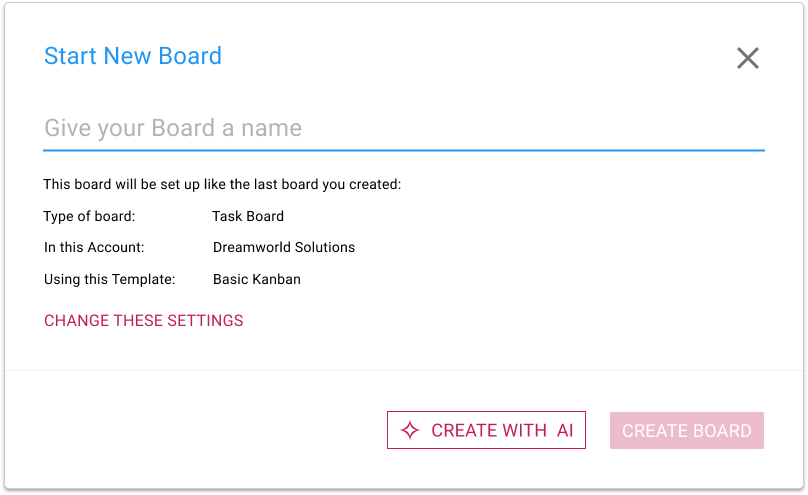
The AI Helper is always available when you want to start a new Task Board:
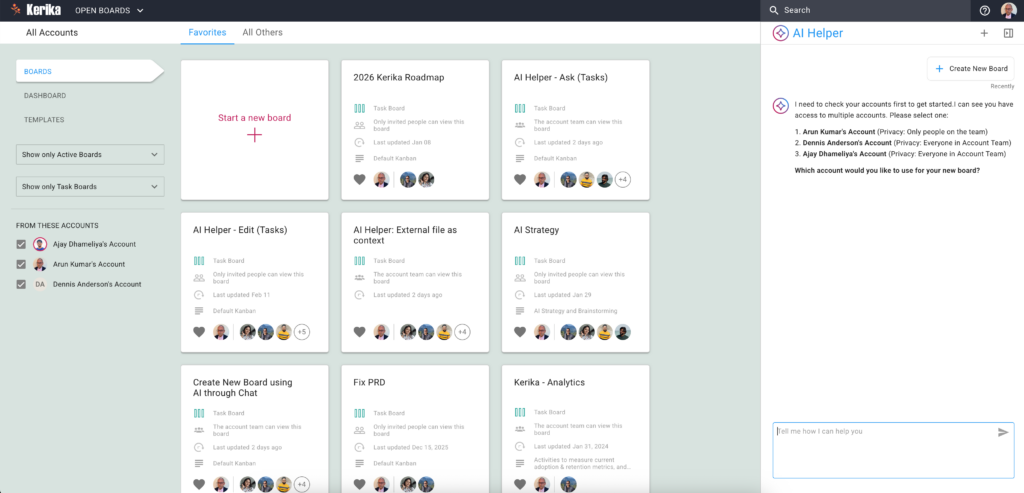
What’s different now is that clicking on the CREATE WITH AI button will open a new AI Helper pane on the right side of the window:
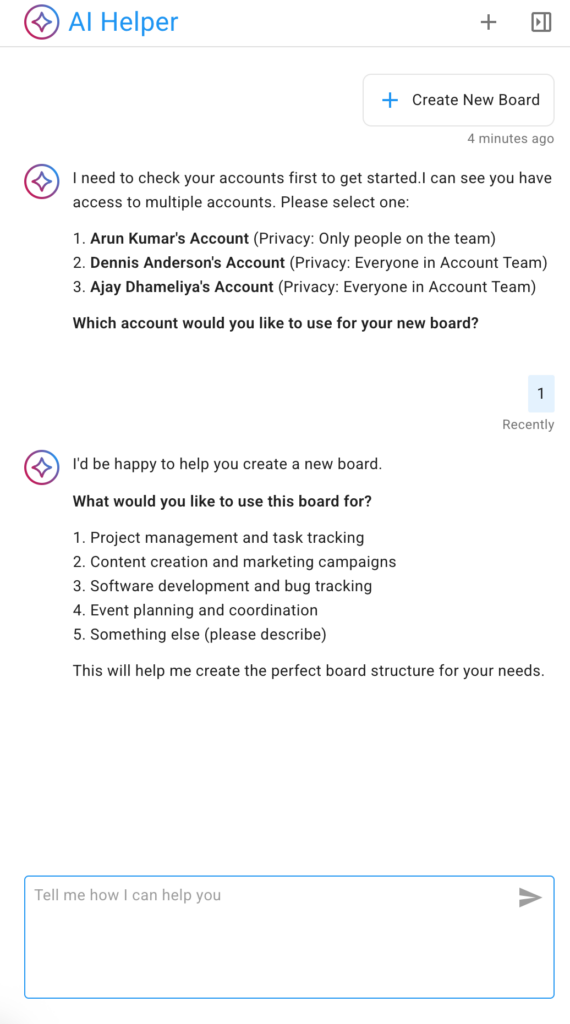
If you have access to multiple accounts — for example, if you are working with different organizations or companies that all have their own Kerika accounts — the AI Helper will first ask you which account you want to create the new board in.
(If you are working in a single account, which is true for the vast majority of Kerika users, the AI Helper skips this step.)
The AI Helper offers some suggested areas, as shown above. You can choose one, or simply provide more specifics about the kind of board you want to create.
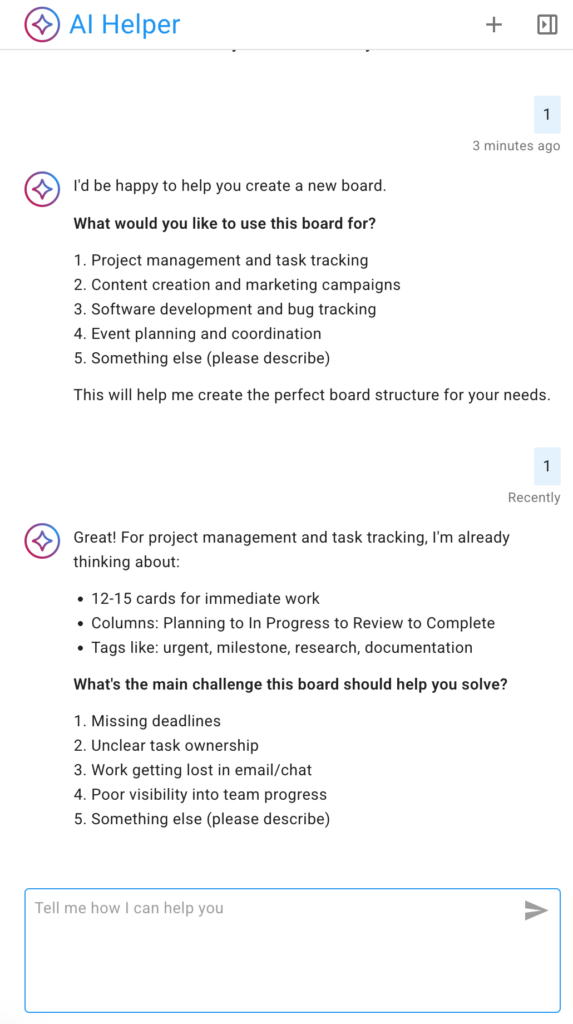
In the example below the user selects the first suggested category: project management and task tracking:
Unlike our first (experimental) version of an AI Helper, the new version is much more interactive: it provides suggestions and prompts to help the user think about what the new board should do, and, in particular, what kinds of management and collaboration problems they are currently facing.
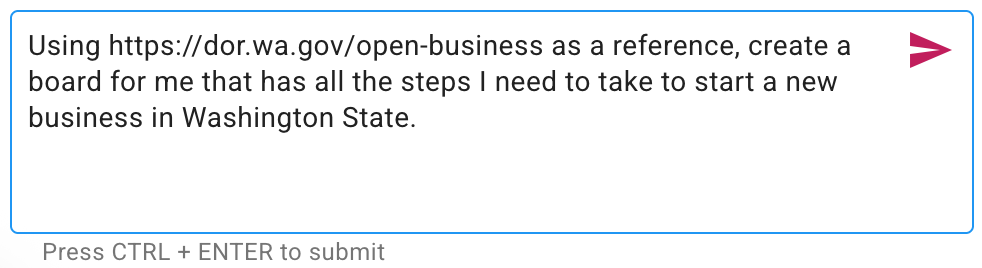
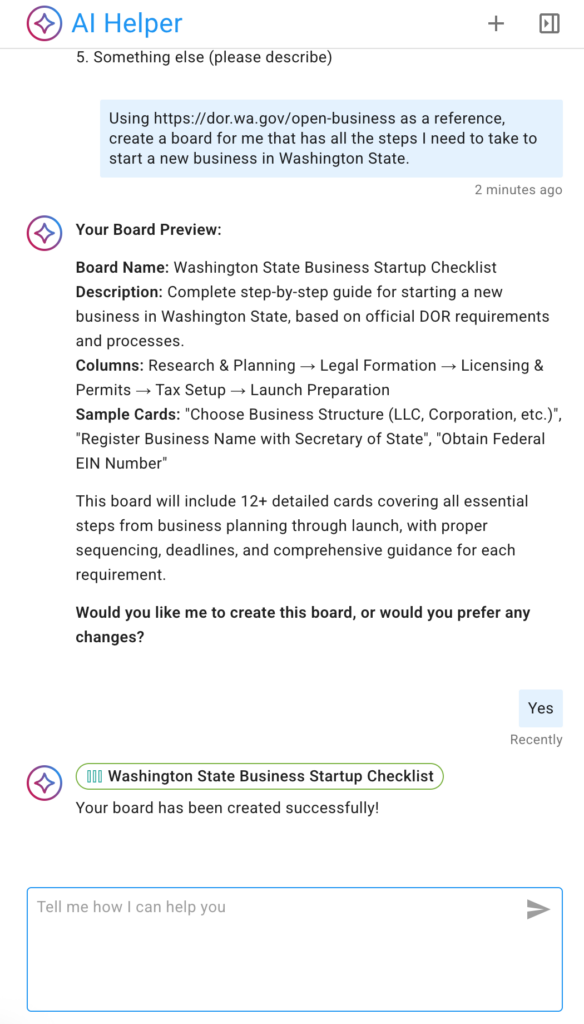
If you have something very specific in mind, you can skip the back-and-forth with the AI Helper and provide a specific request, like this example for a board that contains all the steps necessary to start a new business in Washington State:
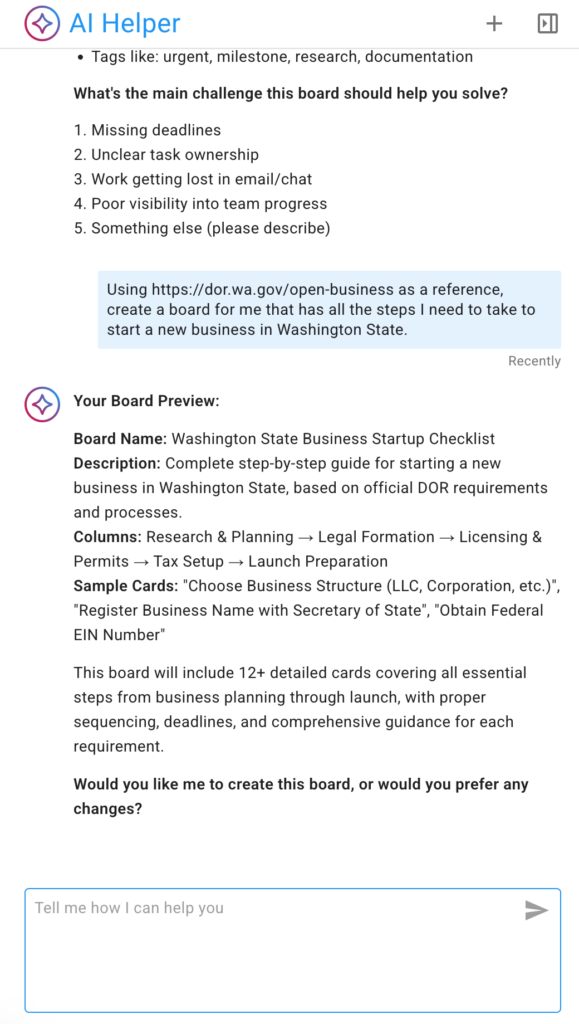
Given a specific enough request, the AI Helper can quickly suggest a board that will meet the user’s needs:
The AI Helper doesn’t immediately create a new board; instead, if first offers a preview so the user can confirm the new board will meet their needs.
If the preview looks good, the user can ask the AI Helper to make the new board (this step can take a little time):
Once the new board is created, the AI Helper give a quick link to it:
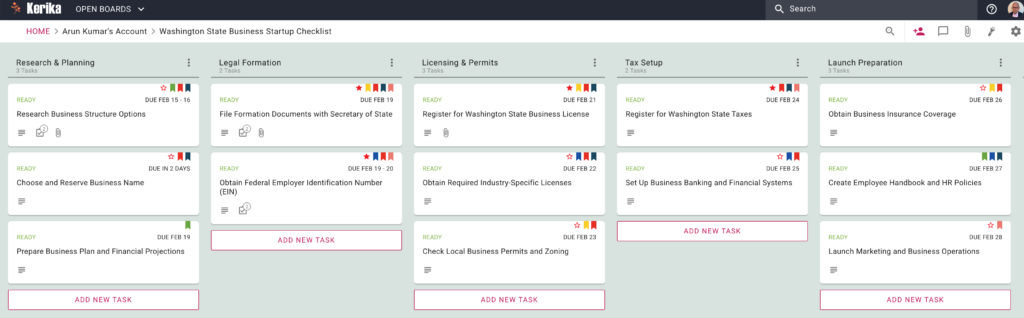
Here’s the new board created by the AI Helper: as you can see, the AI has also created appropriate and helpful tags, assigned the work to the user (since the user hadn’t said anything in their request about working with a team), and even estimated how long each task might take and assigned due dates accordingly.
Click to see a larger image
Creating Templates
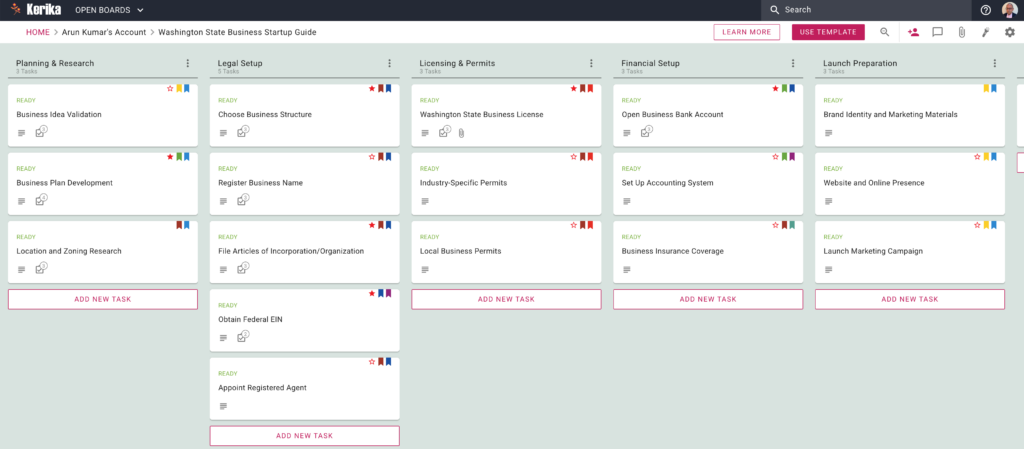
Creating templates works in the exact same way: for example, the user could have asked for a template to be created using the same reference source (Washington State’s Department of Revenue Guide for Starting Businesses).
This is what the output looks like:
Click to see a larger image
Mobile & Tablet
The AI Helper is available on phones and tablet as well; the user interface is, naturally, a little different to accommodate the more limited screenshot
Please give this a try and let us know what you think!
At Kerika we have been experimenting with using AI for software development for some time now: Microsoft’s Copilot has been used by our developers to help with their coding, and it has definitely proven helpful. We are now adding AI to some of parts of our user interface.
Using AI help build a new board
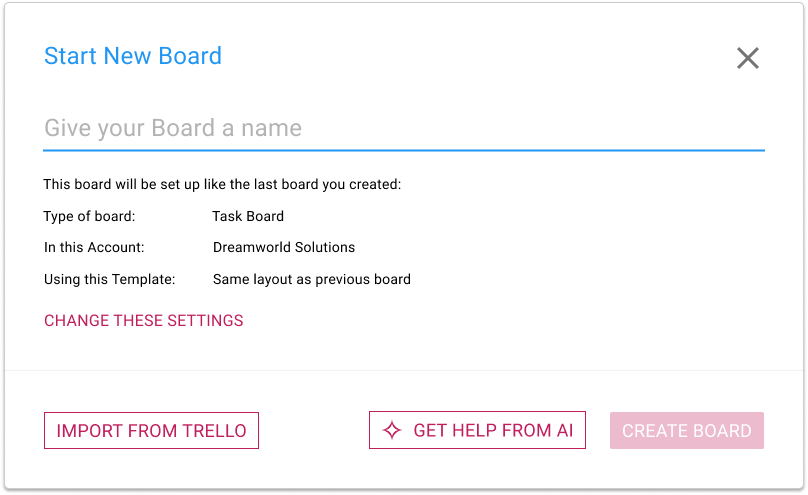
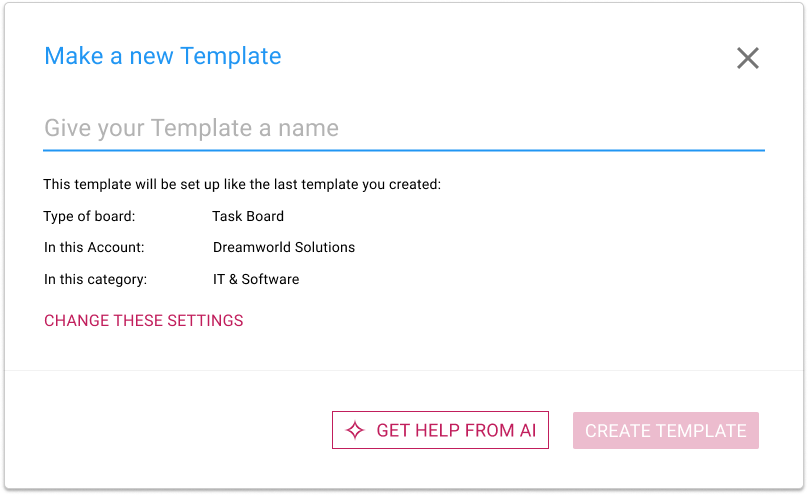
When you want to start a new Kerika Task Board, you will see that there’s a new option for GET HELP FROM AI:
AI Helper in Start New Board
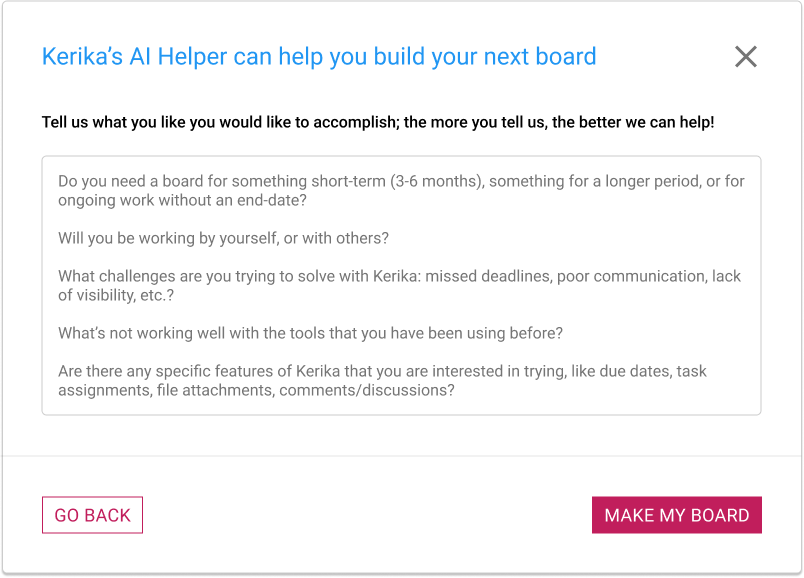
Clicking on this button brings up a dialog where you can tell our AI what you want your new board to do:
How you can specify what the new board should do
It’s very important to provide as much detail as possible! The more you tell about Kerika’s AI about what you want your board to do, the better it can help. Some suggestions for what you should tell the AI:
Do you need a board for something short-term (3-6 months), something for a longer period, or for ongoing work without an end-date?
Will you be working by yourself, or with others?
What challenges are you trying to solve with Kerika: missed deadlines, poor communication, lack of visibility, etc.?
What’s not working well with the tools that you have been using before?
Are there any specific features of Kerika that you are interested in trying, like due dates, task assignments, file attachments, comments/discussions?
Using AI takes some time, typically 1-2 minutes to build your board. You can do other things with Kerika in the meantime; you will be notified when your board is ready. You can also cancel your request if you change your mind.
Using AI to help build a new template
Similarly, you now have the option of getting help from Kerika’s AI in making new templates:
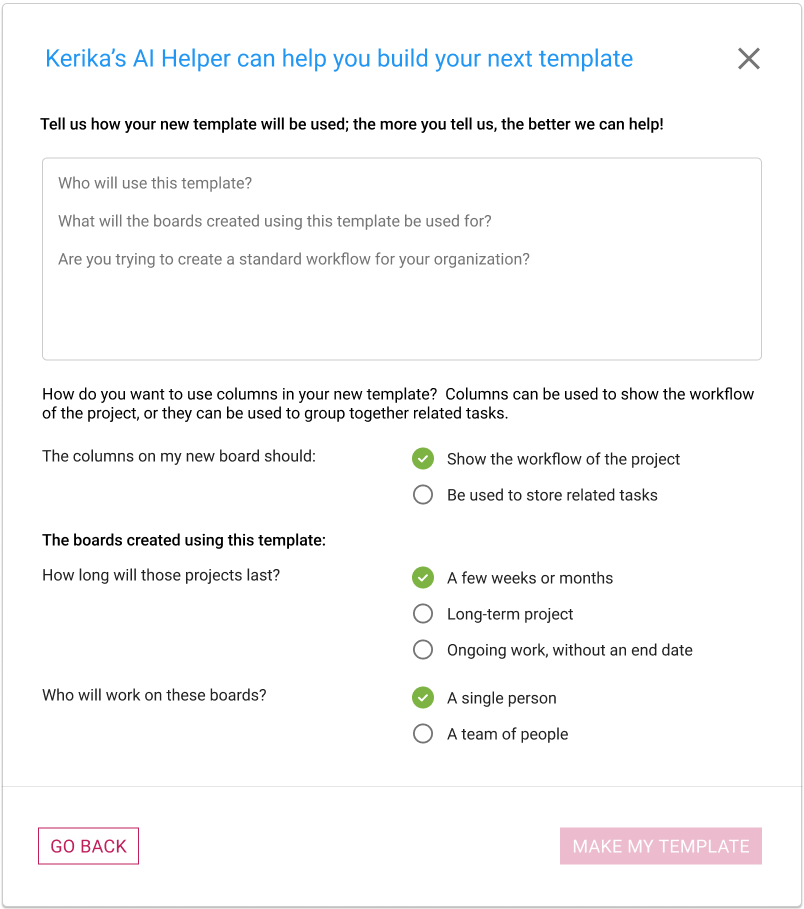
If you choose to get help from AI, you are asked to provide details about what your new template should do, and how it will be used:
With templates there’s a little more detail that we ask for, and as with using AI to create new boards, the amount and quality of the instructions you provide to Kerika’s AI will make a big difference to how well the AI can help you make a new template.
Making a Board similar to a Sample Board
This last one is for new users only: when people sign up as Kerika, they are given the option of browsing our many sample boards (which are organized by job function) so they can get an idea of what Kerika can do before they start their first board.
Ever since we build our sample boards we have observed that they are very popular, and that people would make copies of them to either play with, or use as a basis for building their own boards.
Making a copy to play with is fine, but making a copy to create a starting point for your new board is not very effective.
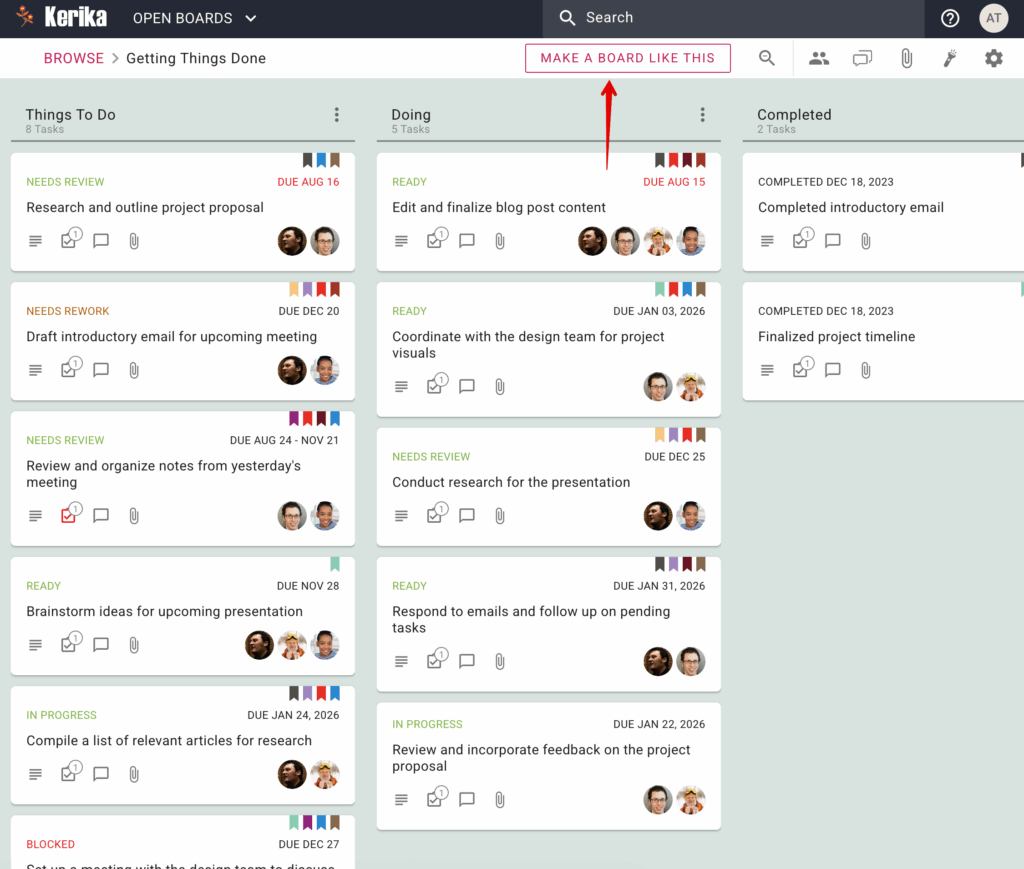
To make it easy for people to handle both needs, we now include a MAKE A BOARD LIKE THIS button that’s shown whenever a new user is viewing a sample board.
The MAKE A BOARD LIKE THIS option shown to new users when they are viewing a sample board.
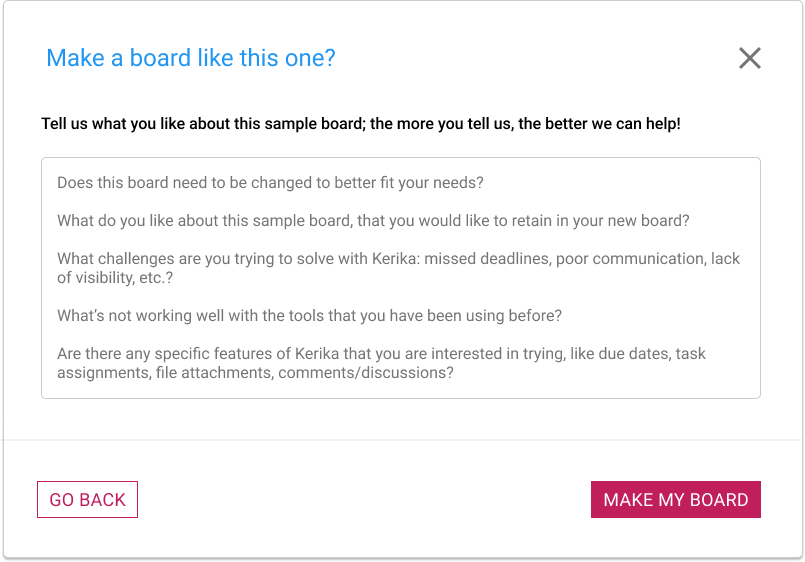
Clicking on this button brings up a dialog where the new user is asked what they would like to do with their version of this sample board:
Make a board like this
If all you need is a copy, just tell that to the AI: “Make a copy of this board”. But if you want a version of the board that’s personalized to your needs, make sure you give plenty of input to the AI!