The rollout of our new billing system seems to have been smooth — so far, fingers crossed! — and with this you now get better controls over who is part of your Account Team:
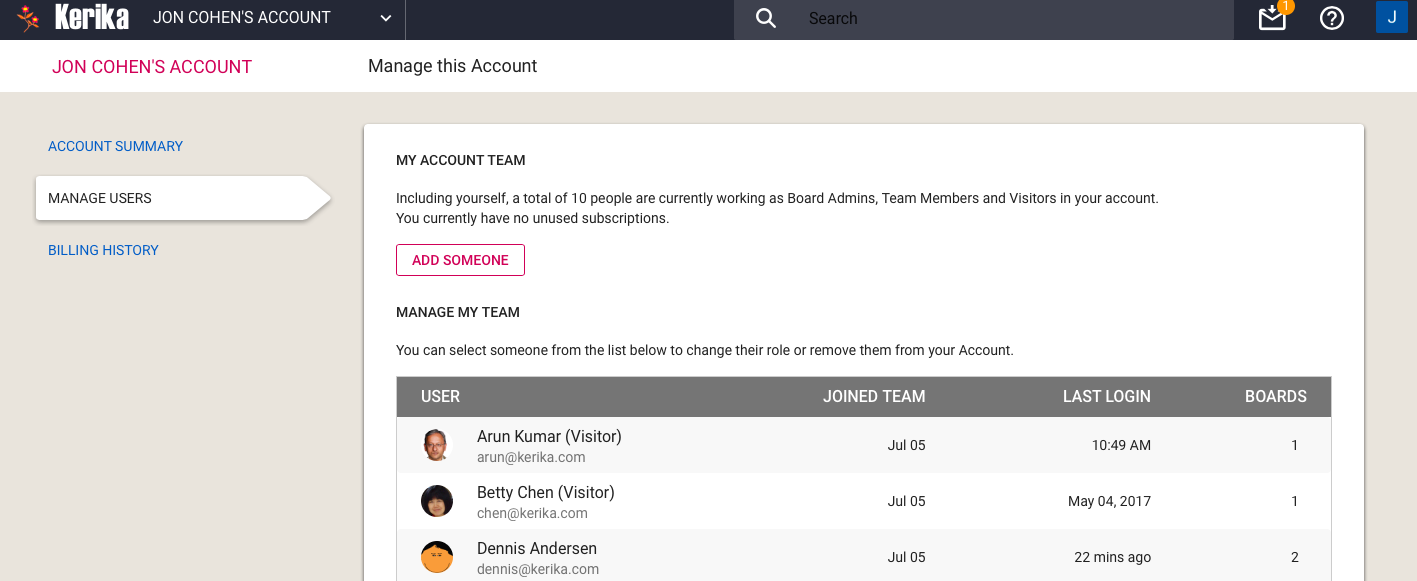
Manage Users
Please note that you don’t get charged for Visitors: if someone is only a Visitor on your boards — i.e. is not a Team Member or Board Admin on any board you own — you don’t need to pay for this person.
It doesn’t matter how many boards this person “visits”.
Visitors do show up on your Manage My Team list in the Manage Users tab, so you are reminded that they have access to some, possibly all, of your boards, and you can remove a Visitor entirely from your Account in the same way that you might remove a Team Member or Board Admin.
With the new billing system that we will be rolling out next week, Kerika will also be adding a slew of account management features that will make it much easier to purchase subscriptions, manage teams and handle your payments.
Manage Account options
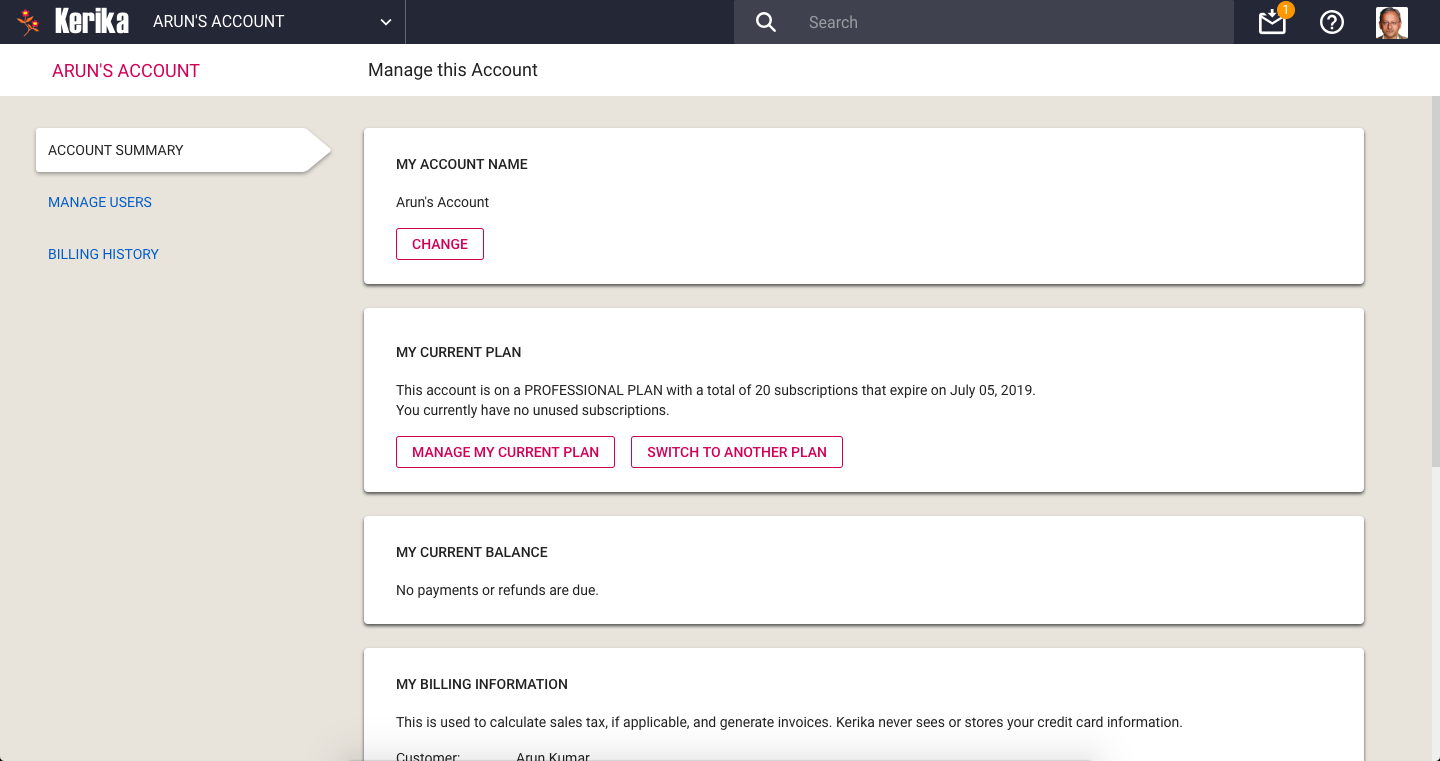
The Manage Account screen has a new layout, with three tabs on the left: Account Summary, Manage Users, and Billing History.
Account Summary
This page has several sections, starting with your Account Name at the top. When you create an Account, you can give it any name that you like, and on this page you can change it if needed. Changes to the Account Name are shown instantly to everyone who is viewing boards owned by your Account.
Next is a section that lets you manage your Kerika subscriptions. You can see which plan you are currently on — Individual, Nonprofit or Professional — and switch to a different plan if needed.
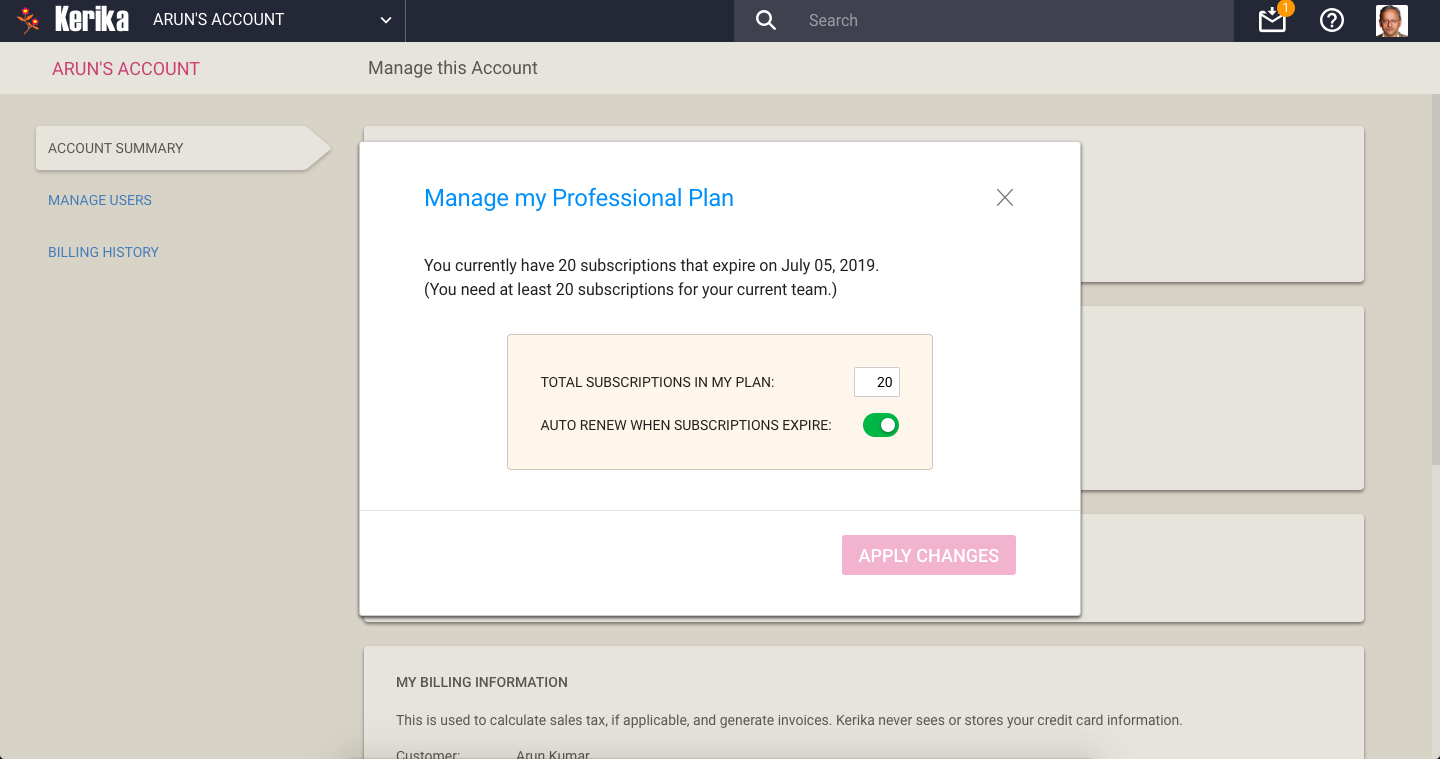
People on a paid Professional Plan can manage the number of subscriptions they currently have (you need enough to cover your current Account Team, which consists of everyone who is currently a Board Admin or Team Member on the boards owned by your Account.)
Managing your Professional Plan is easy: you can increase the number of subscriptions you have, or decrease them.
Manage Professional Plan
All subscriptions have the same end-date: this makes annual reviews and renewals easy for Account Owners. You can also decide whether you want to turn on, or off automatic renewals of your subscriptions.
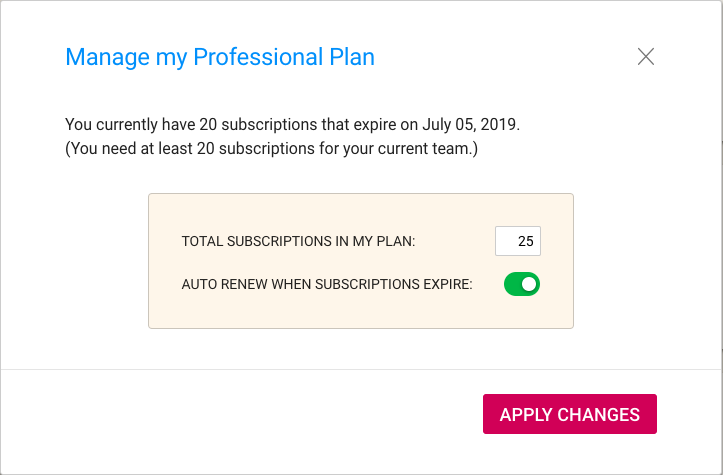
Changing number of subscriptions
In the example shown above, the user is increasing the number of subscriptions from 20 to 25. The system reminds the user that he needs at least 20, for the size of his current Account Team.
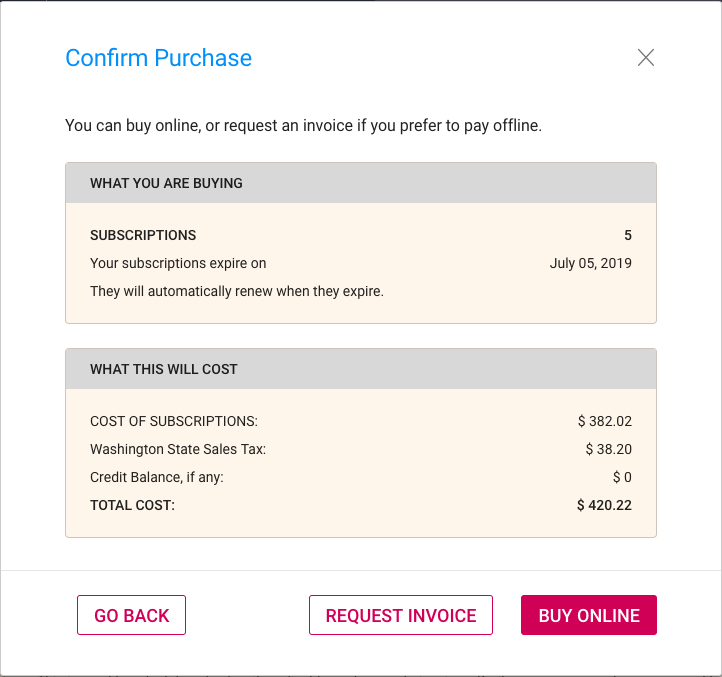
Confirm purchase
With our new billing system, it’s easy to make purchases online, or request that an invoice be sent to you.
Online purchases are handled by Stripe, so Kerika never sees your credit card information.
If your Account currently has a credit balance, because you had reduced the number of subscriptions, this is reflected in your purchase: by default a credit balance is applied to future purchases, but you can also request a check be mailed to you if you don’t plan to use your credit balance.
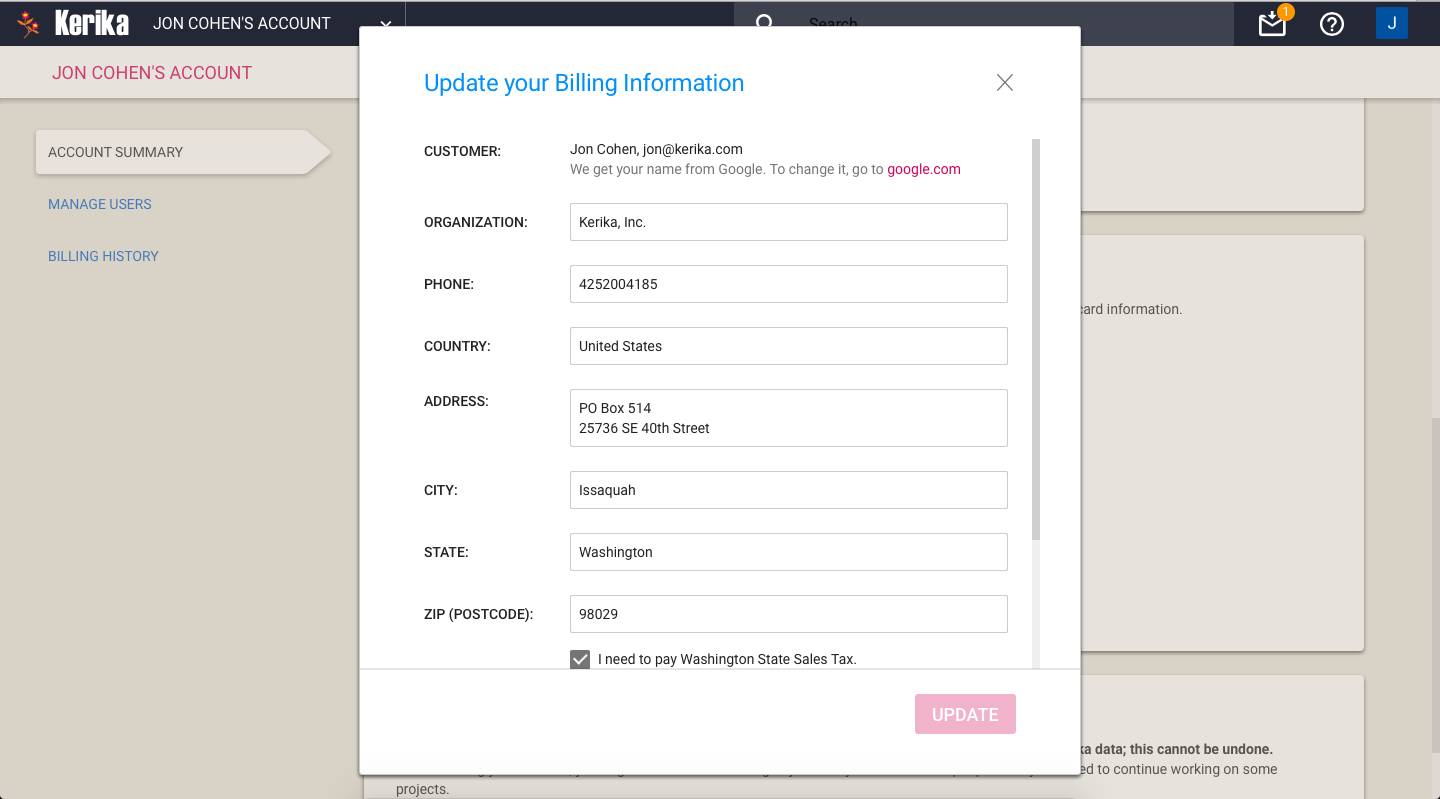
If you are located in Washington State (in the USA) we may be required to charge you Washington State Sales Tax. You can specify whether this applies to you by updating your BillingInformation:
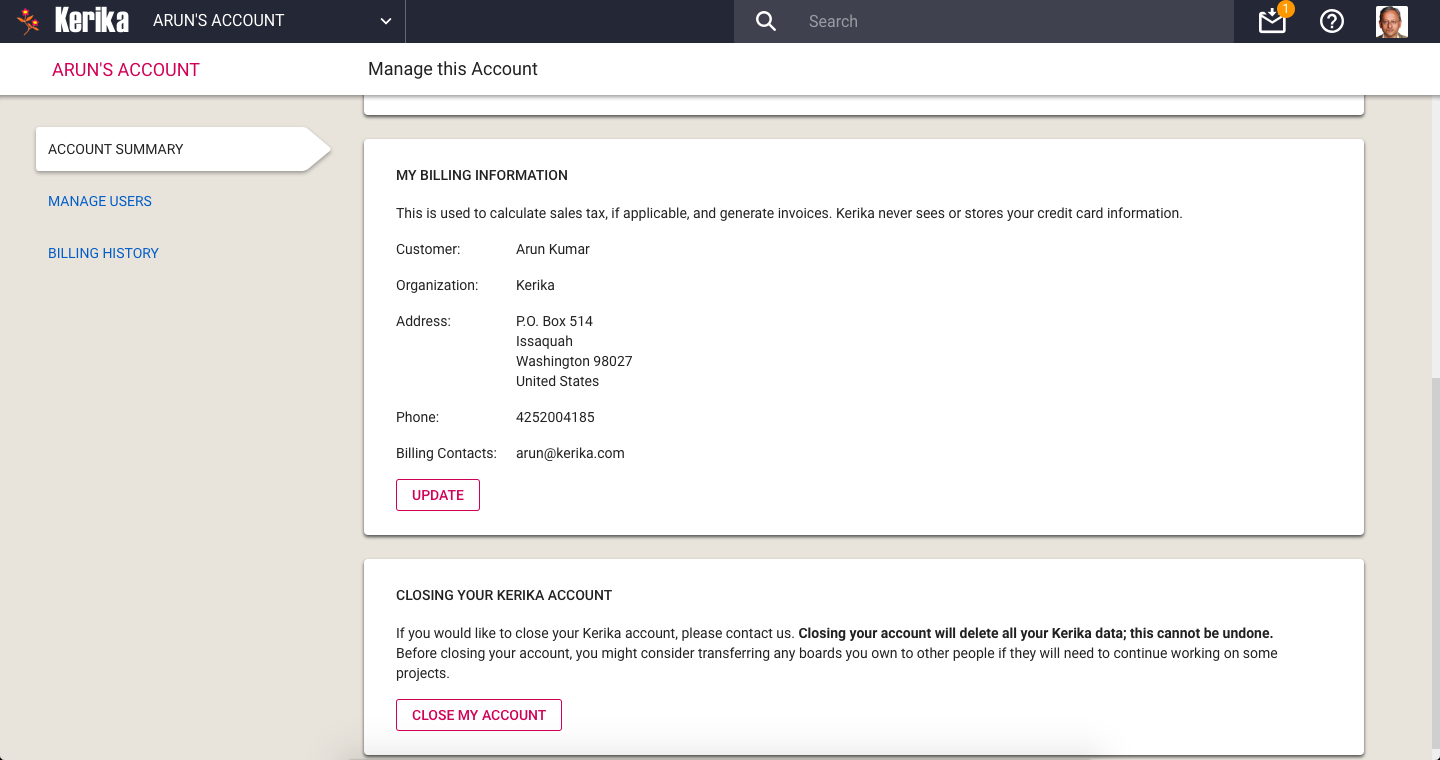
Billing Info
Your Billing Information contains just your address and phone number; we never ask for, or store, your credit card or bank information.
Updating Billing Information
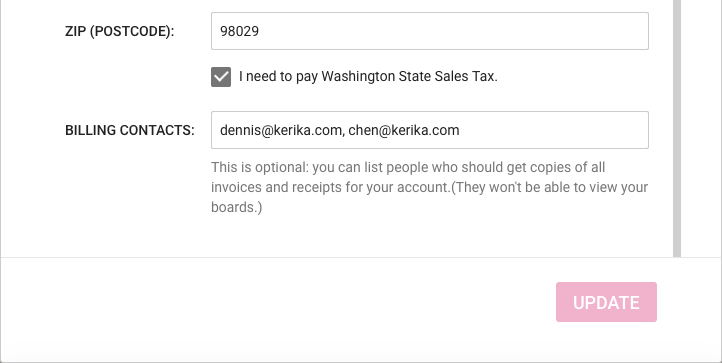
One useful new feature we have added is the concept of Billing Contacts:
Billing Contacts
Billing Contacts can be any set of people who need to get copies of all your Kerika transactions, e.g. your manager or Purchasing Department. Every purchase will generate a PDF for the transaction which will be automatically emailed to all the Billing Contacts for the Account.
Billing Contacts can include people from outside your organization, e.g. if you use a bookkeeping service from another company. Billing Contacts only get copies of your receipts and invoices; they don’t have access to your boards, and are not considered part of your Account Team.
Manage Users
The Manage Users page has been enhanced as well: you can see at a glance who is currently part of your Account Team, and now it is possible to invite someone to join the Account as a whole: previously people could be invited to join only a specific board.
Manage Users
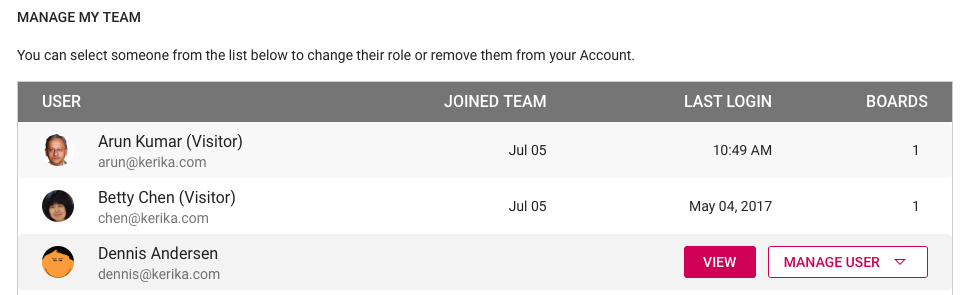
For each member of your Account Team, Kerika will list the date when they joined your Account, the date of their last login, and the total number of boards where they are currently a Board Admin or Team Member.
This makes it easy to see at a glance how active someone is, if you are wondering whether to continue paying for their subscriptions.
(Note: in some cases the “Joined Team” information may not be available if it was months or years in the past; we didn’t start tracking this information until we started building the new billing system.)
Selecting a member of your Account Team offers additional actions:
Account Team actions
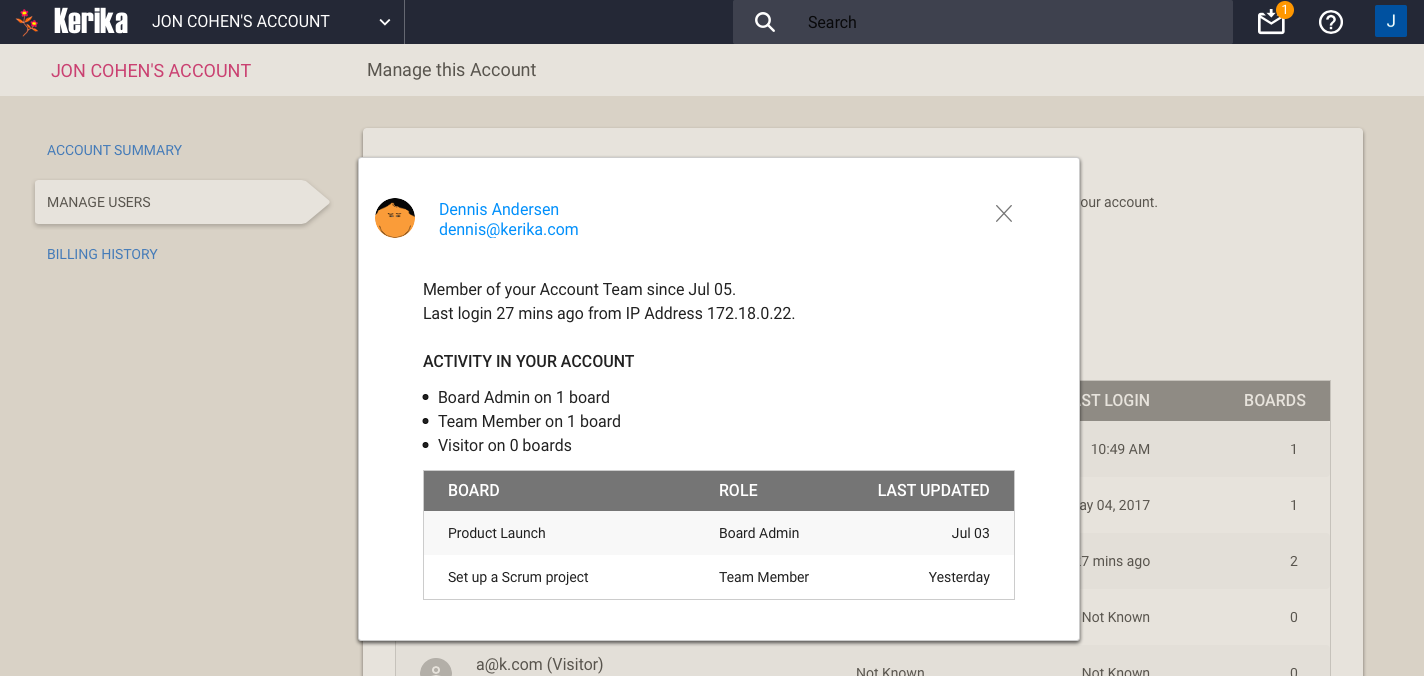
Clicking on the View button gives you a more detailed view of particular member of your Account Team:
Account Team Member detail
One new feature is you can see the IP address last used by the team member: this can be helpful in security reviews.
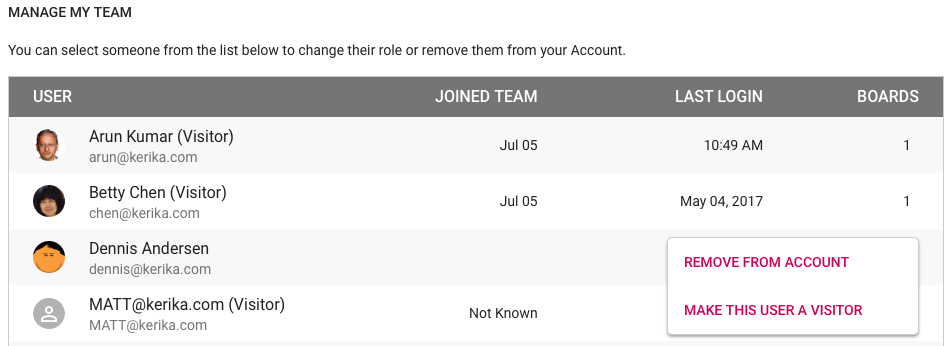
With the Manage User button, you can also remove someone from your Account Team altogether, demote their role to Visitor (across all boards owned by that account).
Remove from Account Team
Billing History
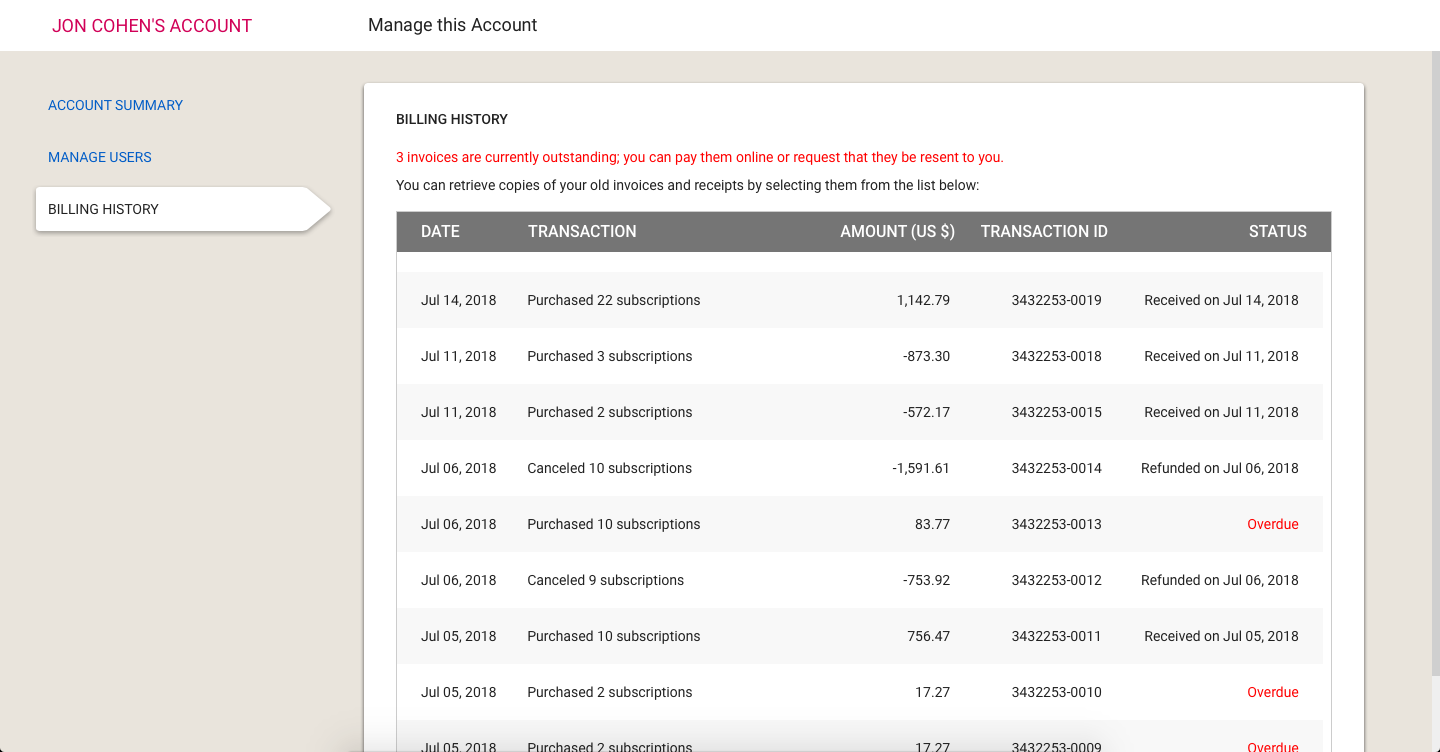
Going forward, all transactions — including online and offline payments — will be tracked automatically by the new billing system.
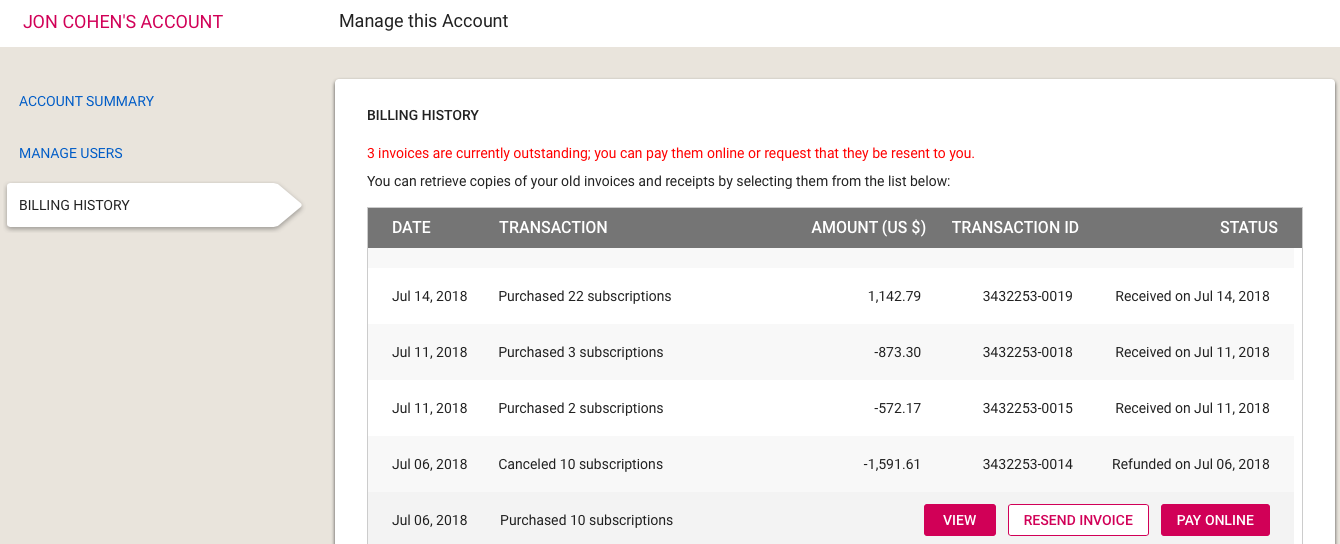
We will start keeping a history of your transactions going forward (we won’t have all the old transactions; sorry) and they can be accessed through the Billing History page:
Billing History
If you have an overdue invoice — and we sincerely hope you don’t! — you can pay it online, or request it to be resent to the billing contacts for the Account:
Overdue Invoice
Summary
The new billing system took a lot of work, over many months, but it was long overdue: our old billing process was largely manual, and somewhat error-prone.
Unlike some of our competitors, we understand that even though Kerika is software-as-a-service (SaaS), not everyone is set up to make online purchases. That’s why we have made it equally easy for people to receive invoices and make payments offline, e.g. by bank check or funds transfer, and have these transactions show up inside their Kerika account with the same flexibility as online purchases.
All of this should go live at the beginning of next week!
With our latest update, launched over the weekend, we have made some significant changes to how users access multiple Kerika accounts.
The motivation for all this is simple: our old billing mechanism was manual and error-prone. It was difficult to track which accounts had paid for subscriptions and to ensure that subscriptions were renewed in a timely manner.
So we are moving to an completely automated system that will allow our customers to manage their subscriptions more easily, make online or offline purchases, and manage their account teams.
We are about halfway there: we have done the changes to the account management piece, and have some more work before the billing system is ready.
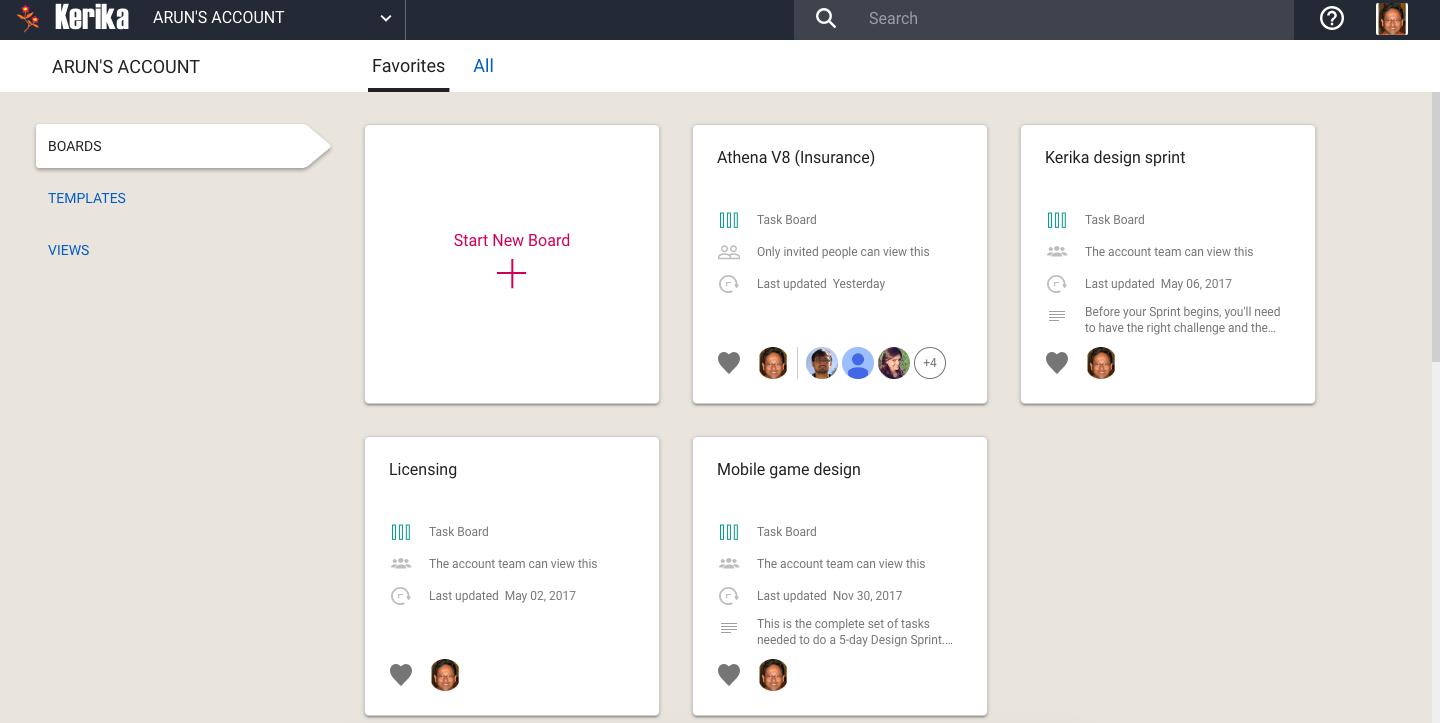
One consequence of this is the way you view your Home Page has changed: the Home will now always show the boards and templates that related to a single account, rather than across multiple accounts.
Home Board
(Previously there were three buckets: Favorites, Owned by Me, and Shared With Me.)
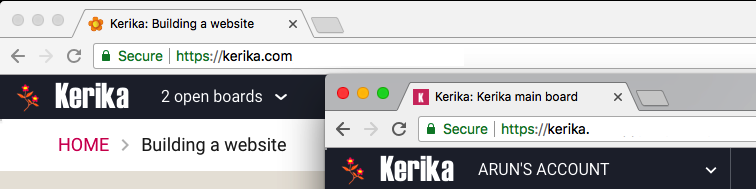
Switching between all your open boards, and all your accounts, has been consolidated into a single Account Switcher function that appears on the top-left corner of the Kerika app, where the old Board Switcher used to be:
Changes to Board Switcher
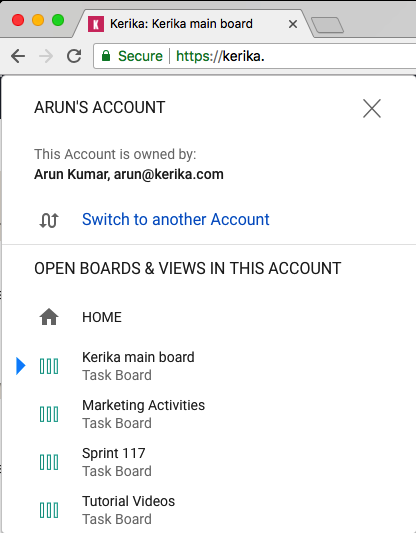
Clicking on the Account Switcher will let you switch between boards, and between accounts:
Board Switcher menu
Calendar syncing and Preferences are now applied on an account level, so if you are working in multiple accounts, you can choose to have different preferences for each account.
You can access your Calendar and Preferences settings by clicking on your face on the upper-right corner of the Kerika app:
Calendar and Preferences
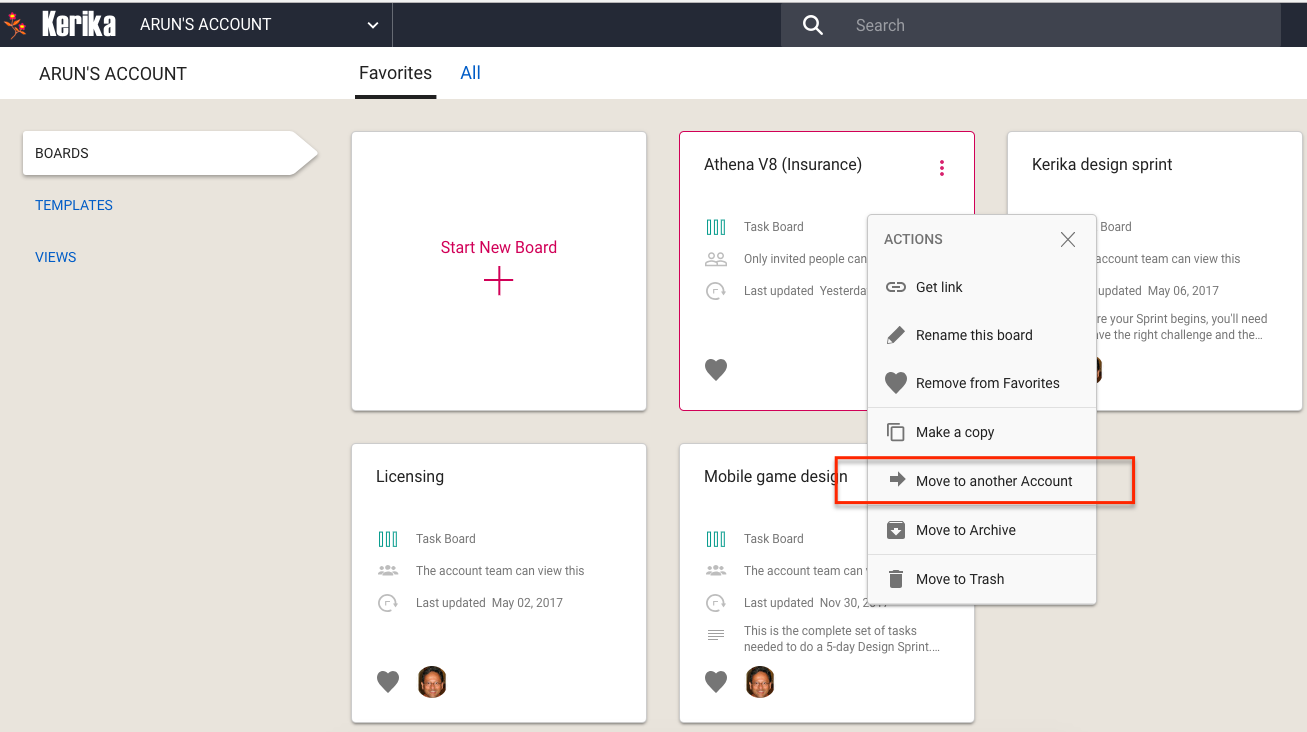
With this change, it becomes more important for organizations to consolidate ownership of all their boards within a single account. You can do this yourself, by selecting boards from your Home Page and using the Move to Another Account function:
Move to another Account
You can also let us do this for you: just contact us at support@kerika.com, and let us know which accounts you would like to consolidate and we can do all the work.
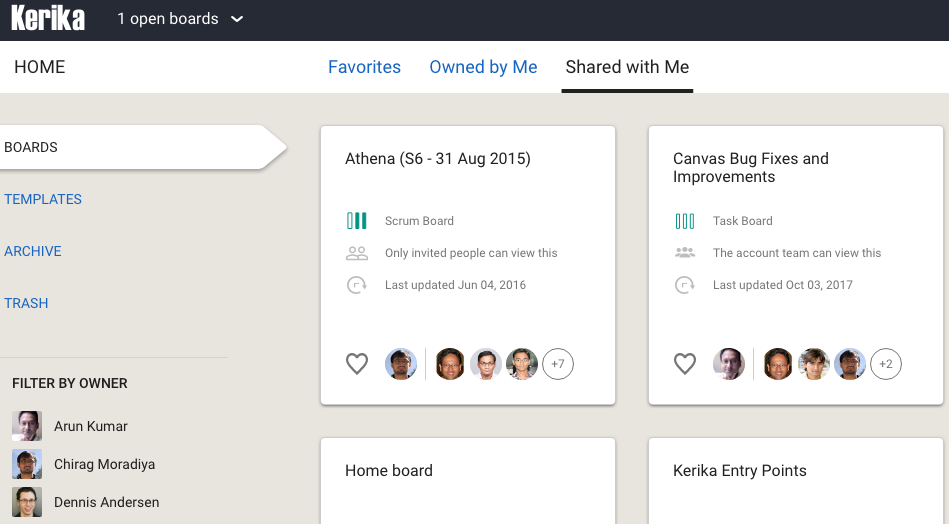
We recently discovered (and fixed) an annoying bug that was affecting the Shared With Me view of boards and templates that your colleagues shared with you.
Shared With Me
If a colleague created a new template that they intended to share with their Account Team, this new template wasn’t appearing correctly in this view. That’s been fixed now.
We found and fixed a bug that was kind of annoying, even if it affected only a small handful of users: if you transferred ownership of a board to someone else, that board wasn’t appearing correctly in the Shared With Me tab of your Home page.
We found and fixed a bug recently that was stopping Account Owners from inviting people to join a board team, unless the Account Owner herself had a specific role in the team (i.e. was a Board Admin or Team Member).
This isn’t how it is supposed to work: Account Owners have all rights to all boards that are owned by their accounts, which means they can change the board team on any board they own.
Don’t. The system is massively buggy and the company is completely unresponsive to complaints.
The web UI looks like it everything is nice and automated, but in reality you will end up doing a bunch of stuff by hand. Examples of bugs and/or dumb design that have already driven us crazy:
If you have a bunch of outstanding invoices that you want to cancel, the bulk select/action doesn’t work. No error or anything: it just doesn’t do anything, silently.|
They use lazy loading to show just a dozen or so invoices at a time, with the rest showing only after you scroll down (like Facebook, Twitter, etc.) If you try to do a search or filter, that works only on the invoices that are currently being displayed, not the full set: presumably resulting from a design decision to make the filter work within the client rather than the server.
Thanks to a flaky implementation of lazy loading itself, some invoices will appear as duplicates.
It’s pretty clear that Elon Musk has left the building.
This gave our users more choices in terms of how they signed up for Kerika, and which cloud service they used to store their project files, but we continued to resist offering a direct sign up mechanism:
We remained convinced that third-party signup and login, using OAuth, would dominate user preferences — under the theory that no one really wanted to remember yet another password for yet another web service.
Our technical architecture also restricted us from offering a direct sign up choice because we had tied together the issues of authentication and file storage: it was how our original integration with Google had been done, and we had simply duplicated that model when we added Kerika+Box.
This changed in 2015, when Box announced the Box Platform as a new service — although originally it was called the “Box Developer Edition” when it was unveiled at the BoxDev conference in April 2015.
Kerika was probably the first task management app to sign up to use the Box Platform; in fact, we were in the very first batch of beta users for the service.
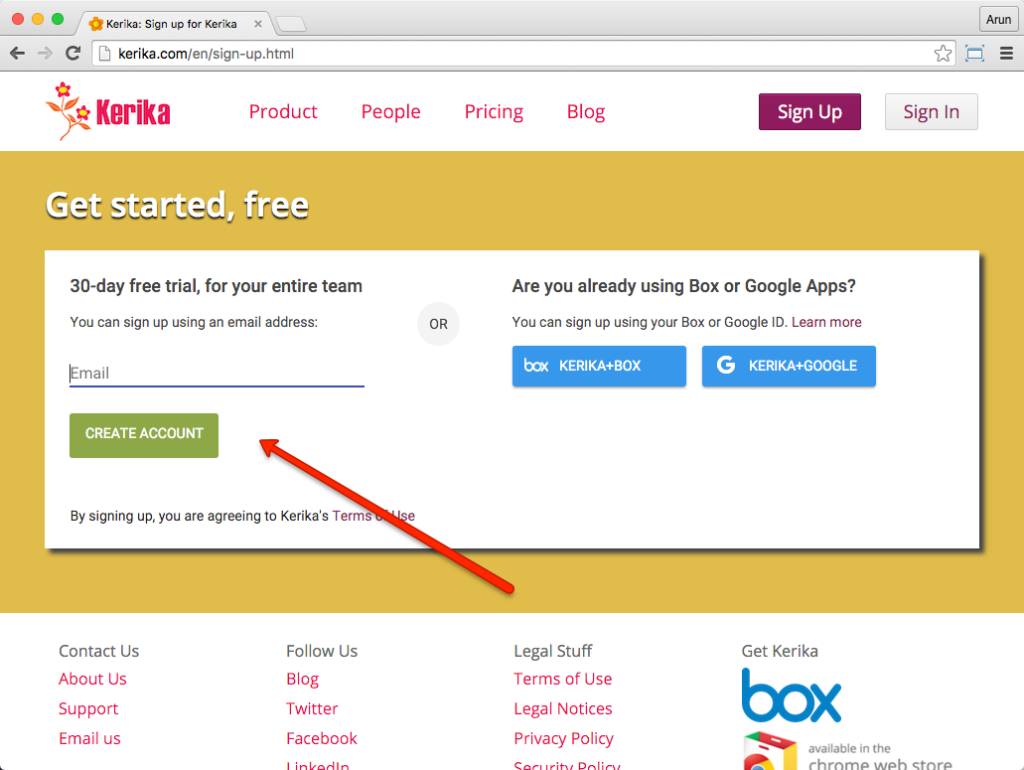
This new integration with Box allowed us to finally offer a direct sign up mechanism for new users:
Signing up directly with Kerika
Now, you can sign up with any email address: it could be a company email, a Yahoo email, a Microsoft Live email… even a Gmail address.
When you sign up directly with Kerika, we use the Box Platform to securely store your project files:
We create an account at Box that’s dedicated to storing your Kerika files.
We do this automatically and behind the scenes: you might never know that your files are actually being stored at Box, rather than on a Kerika-operated server.
While this seamless integration is great from a user experience perspective, it doesn’t mean that we want to hide our Box links: in fact, we would actually like to boast about our use of the Box platform because Box is so well regarded for the robustness, security and privacy of their cloud storage service.
So, now you know where your files are stored when you sign up directly as a Kerika user: inside the Box Platform!
We are continuing to provide free Academic & Nonprofit Accounts to a wide range of people, across many different countries.
It turned out we had an internal problem with routing requests for such accounts, when they were made from within the Kerika app itself, as a results of which we must have seemed very unresponsive to some folks who never heard back from us. Our apologies for this!
Anyway, if you would like to get a free Academic & Nonprofit Account, which lets you have an account team size of up to 10 people, please let us know by emailing support@kerika.com. That might be the most reliable way of getting in touch with us…
A new tutorial video that shows you how you can customize the layout of any Task Board and Scrum Board, and — more importantly — switch any board from being a Task Board to being a Scrum Board, or back.
Only Kerika lets you have several Backlogs within the same Account, and easily pull cards from different Backlogs into the same Scrum Board if you want to combine work items from several Backlogs into the same Sprint.