A user from Mexico recently wrote to us asking which technologies we currently use for the Kerika software, since he was in the early days of planning his own ERP product and was impressed with the overall speed and responsiveness of Kerika.
The question was hard to answer with a simple email in part because we use several technologies, and because we are in the middle of considering some significant changes for 2016.
So, here’s an overview of the current state, with a future blog post to talk about what we are planning to change in 2016…
Our own server software:
All of our server software is written in Java. That’s has worked well for us:
- We have a lot of in-house expertise with Java (and none with PHP, Ruby, etc.).
- Java is usually one of the first languages to be supported by other platform companies that decide to publish their APIs.
- There is a rich ecosystem of open-source code, well-written blog posts and other knowledge sources that help us get our work done.
Open-source server software:
We use a few, well-established open source technologies on the back-end of Kerika:
- We use the CometD protocol to provide real-time updates from the server to the browser client. CometD essentially works like a long-poll method, allowing for real-time updates to be pushed continuously from the server to the client without the client having to make new requests. We could, and probably should, switch over entirely to Web Sockets but there are still older browsers out there that don’t support Web Sockets. Hence, CometD.
- We use SOLR for our search engine. SOLR is an implementation of the Lucene search technology pioneered over a decade ago by Doug Cutting who has since gone on to do other great work in the software industry. SOLR is widely used by some very large SaaS services like Salesforce.
- We use Jetty for our web servers. Jetty is part of the Apache open-source projects, and is a well-established, robust web server that hasn’t given us any trouble in a long while. :-)
- We use open-source OAuth for our direct signup.
- We use the Java Spring and JBoss libraries for various features.
- We use Log4J for error logging.
- We use MySQL for our databases.
Platform Libraries
Given our close integration with Google and Box, we naturally use their Java SDK Libraries for authentication and file management.
We used to use Google Checkout, until Google yanked that service from the market (leaving us high-and-dry and more than a little pissed off…) as well as Google Contacts, until we realized this particular integration was scaring away potential users.
Client Software
All of our browser software is written in HTML5, which means a mix of (mostly) Javascript and (a little) SVG.
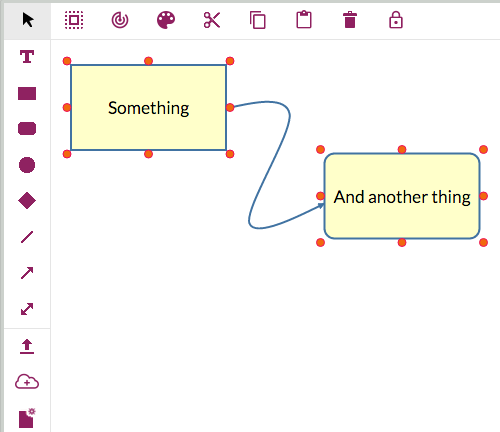
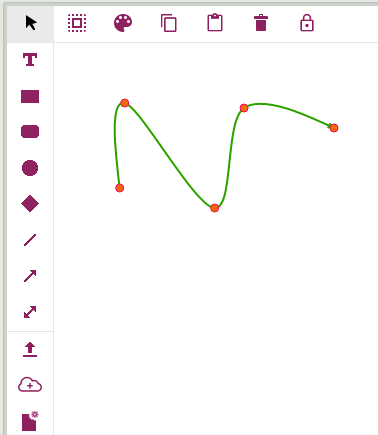
(Actually, the SVG is only used for the Whiteboards feature of Kerika. The rest is all Javascript and plain HTML.)
Open-source client software
The Javascript ecosystem is quite rich and well established, so there are a bunch of open source libraries we can make good use of:
- JQuery is used a lot. A lot.
- More recently, Backbone and Marionette have helped fill in the blanks left by JQuery.
- The i18n.js library helps with internationalization, although we haven’t actually offered any language other than English so far, for the user interface.
- Log4Javascript helps with error logging and debugging.
- Bootstrap is used mainly for our website, to make it responsive on tablets and phones.
What changes in 2016?
Quite a lot, probably, but we haven’t finished doing our re-architecture planning.
For one thing, we are planning to use microservices a lot more to make our overall system architecture less monolithic, and we are also planning to use container technology to make deployments faster.
We might consider switching away from SOLR, which we never really mastered, to another search engine which we have more familiarity with, but haven’t made a decision on that either.