You can attach as many canvases as you like to cards on Task Boards or Scrum Boards, and if you don’t need them anymore, you can delete the canvases.
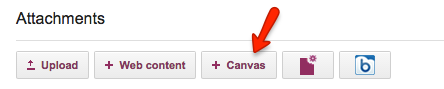
Here’s how you add a canvas to a card:
Adding a canvas to a card
By default, the new canvas is simply called “Canvas”, but like with any other attachments on a card, you can easily rename it by clicking on the pencil icon that appears to the right when you hover your mouse over it:
Renaming a canvas
Clicking on the “x” button at the far end will let you delete a canvas that you no longer need:
Deleting a canvas
If the canvas is empty — which means that there is nothing visible on the canvas, and nothing in the canvas’ Trash either — you see a simple confirmation message asking if you are sure you want to delete it:
Deleting an empty canvas (confirmation)
But, if the canvas is not empty, you see a Restore option instead:
Restoring a deleted canvas
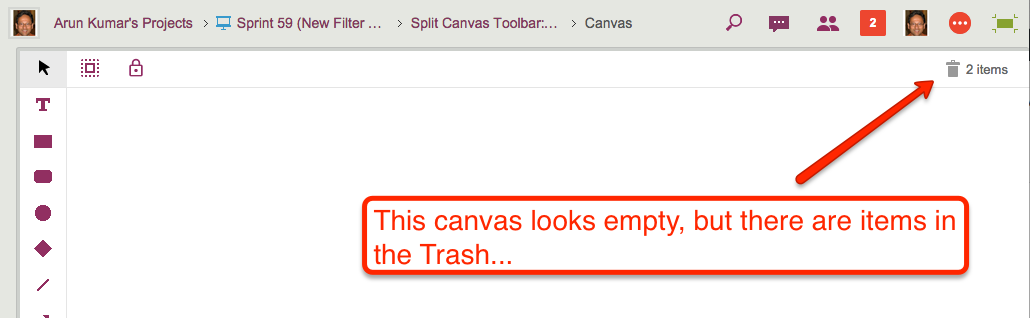
If it seems puzzling why a canvas that appears empty isn’t really empty, make sure you open the canvas and take a look at the Trash: there may be items there that you had previously removed from the canvas:
A canvas that looks empty but isn’t
In this example, above, the canvas looks empty but isn’t really: there are items in the Trash.
In situations like this, Kerika is careful to avoid losing all your work: until you empty the Trash on a canvas, the canvas isn’t considered to be truly empty, and until a canvas is truly empty, it cannot be removed from a card.
So, in this example, you see the Restore option rather than the Delete option:
Kerika makes it very easy for everyone within a distributed team to always have the same clear understanding of what’s most important, within any part of a project’s workflow.
With a Task Board or Scrum Board, simply drag cards up or down to show their relative importance: stuff that is on top of a column is more important than stuff that’s at the bottom.
This is a super-simple way of signaling priorities: it removes all ambiguity within a distributed team, because only one card can be at the very top of a column — i.e. only one item can be “highest priority” — and only one item can be in the second position within a column — i.e. only one item can be “next highest priority” — and so forth.
A great side benefit of this method is that it keeps managers honest: it is no longer possible for a point-haired boss to claim that a bunch of things are all “top priority”.
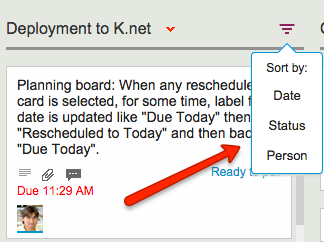
When working with Task Boards and Scrum Boards, you get a variety of options for quickly sorting a column of cards:
Sort options
Sort by Date is easy enough to understand, but what about sort by status?
Sort by Status organizes the cards in a column as follow:
Critical
Is blocked
Needs rework
Needs review
In progress
Normal
On hold
This sort order reflects the normal priorities of most projects: the most important stuff would ideally show up at the top of the column to get dealt with first.
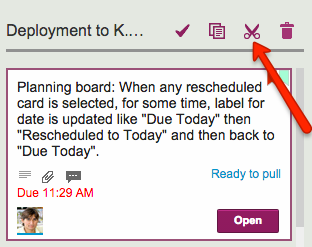
Cutting and pasting cards from one Task Board to another, or from a Task Board to a Scrum Board for that matter, is easy and simple with Kerika: just select the card, and then click on the “Cut” button that appears at the top of the column:
Cut button
You can cut several contiguous cards within the same column by shift-selecting them, and then clicking on the Cut button.
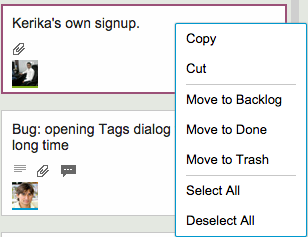
And, you can also access the Cut operation by using the right-click mouse menu:
Right-click menu
Cutting-and-pasting is effectively a move operation: it moves the card intact, along with its details, tags, attachments and chat, from one place to another.
You can cut and paste within the same board, of course, but this is pointless since it is much easier to drag cards from one column to another.
Cutting and pasting cards from one board to another is much more useful, and it doesn’t matter if the source is a Task Board or Scrum Board, and the destination is a board of different type — or even if the destination is a Template.
But what should you do if you click on the Cut by mistake? Well, that’s easy to undo: just click on the cut cards — which will appear slightly greyed-out — and the cut operation will be cancelled!
Kerika’s Scrum Boards look a lot like regular Task Boards (which you can use for Kanban-style) work; the main difference is that each Scrum Board can share a backlog with other Scrum Board.
We were doing some fairly complicated bookkeeping when people added tags to their Scrum Boards, and we decided it was getting messy both for the system and probably the users as well.
So, we are simplifying tags for Scrum Boards:
Every Scrum Board is connected to a shared Backlog. (And, if there was no backlog to connect to, Kerika will automatically start a new backlog for you.)
Cards on the Backlog may use a certain taxonomy for their tags, while each Scrum Board could add to this taxonomy, e.g. by adding a new tag that makes sense for a particular Scrum cycle (Sprint).
Now, whenever you add a new tag to a Scrum Board, this will automatically get added to the Backlog’s taxonomy as well, and to all the Scrum Boards that share that Backlog.
The effect of all this is to ensure consistency of your tags taxonomy across all Scrum Boards that share the same Backlog: this will make it easier to pull cards from that Backlog into any Scrum Board and know that you will automatically get all the right tags set up for you by the system.
Many of our users work in globally dispersed teams; our own team is spread out between Seattle and India.
With multiple timezones, particularly when they are widely spaced apart, commitments like “I will get this done today” become a little tricky to understand.
If someone in India says “I will get this done today”, is that India time or Seattle time? Well, that depends upon where you are, when you log into Kerika.
Kerika automatically factors in differences in timezones when showing due dates: someone who commits to getting something done “today” in India is actually committing to get it done by 11:30AM Pacific Standard Time, now that the US is in Daylight Savings Mode.
So, the due date is shown in a way that’s relevant to the user’s local time: our Seattle folks see an Indian’s commitment like this
Local time due date
These timezone differences automatically adjust for Daylight Savings Time: there’s nothing you need to do to see when a commitment is actually due.
Except, perhaps, notice that the item is now overdue, as indicated in red in the example above…
When working with a crowded Task Board or Scrum Board, you want to be sure that you haven’t missed any updates on cards that are out of view: for example, updates that are out of the scroll area because a particular column of cards is very crowded.
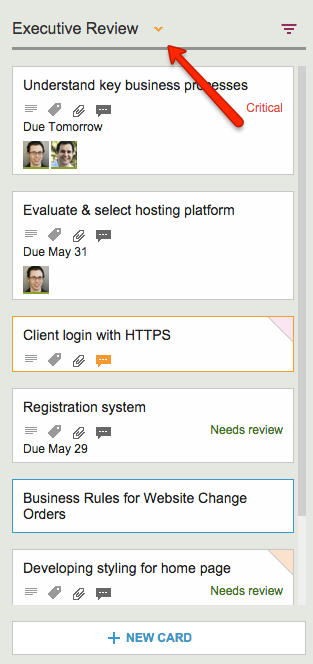
Kerika makes sure you don’t miss anything, and it does this will a handy little button in the form of a downward pointing caret that appears at the top of every column where there is at least one card that needs your attention:
Finding all the changed items in a long column
Clicking on this button will help you quickly find the next updated card in the column, and then the next, and so on.
The color of this caret (button) depends upon what sort of updates are present in a column:
If the column contains any overdue cards, the button is red, to alert you to the overdue problem. (We figured this is the most important information we could show you, particularly if the overdue card is out of sight.)
If the column contains any new cards, the button is blue. Unless, of course, the column also contains overdue cards, in which case the overdue condition is considered more critical than the fact that you have new cards, and so we show the red button.
If the column simply contains updated cards, and nothing that is new or overdue, the button shows in orange.
Regardless of the color, the button works the same way: clicking on it will help you find the next card of interest within that column, and then the next, and so on. The column will automatically scroll as necessary to show you updates that would normally be out of sight.
And when you have caught up on all the updates, the button goes away automatically. Neat, huh?
We found a scenario where your Scrum Board could end up with duplicate tags. Let’s say you had a Shared Backlog which had some tags, and you also had a Scrum Board Template that had some similar tags.
If you created a new Scrum Board using that Backlog and that Template, you could have ended up with some duplicate tags, which is not at all helpful.
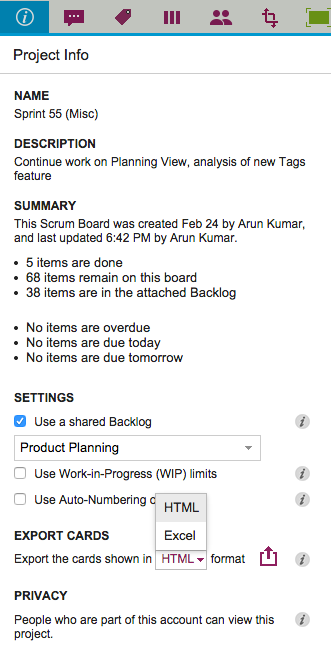
We used to have Export as HTML and Export as CSV as options for our Task Boards and Scrum Boards, and with our latest version we are tweaking the Export as CSV to become Export as Excel instead.
There are a couple of reasons we did this:
We now include chat and document links in the export: this was done specifically to help our many government users who need to respond quickly to Freedom Of Information Act (FOIA) requests.
(See our separate post on how Kerika makes FOIA-compliance one-click easy.)
Everyone who uses the CSV export wants the data to end up in an Excel file anyway, so why not put it in that format to start with? (After all, it’s easy to go the other way as well, from Excel to CSV…)
We are delighted to introduce Planning Views, a very innovative, very unique way to view your Kerika Task Boards and Scrum Boards! (Yes, it goes way beyond what simple calendar views, like those you might get from other tools, work :-))
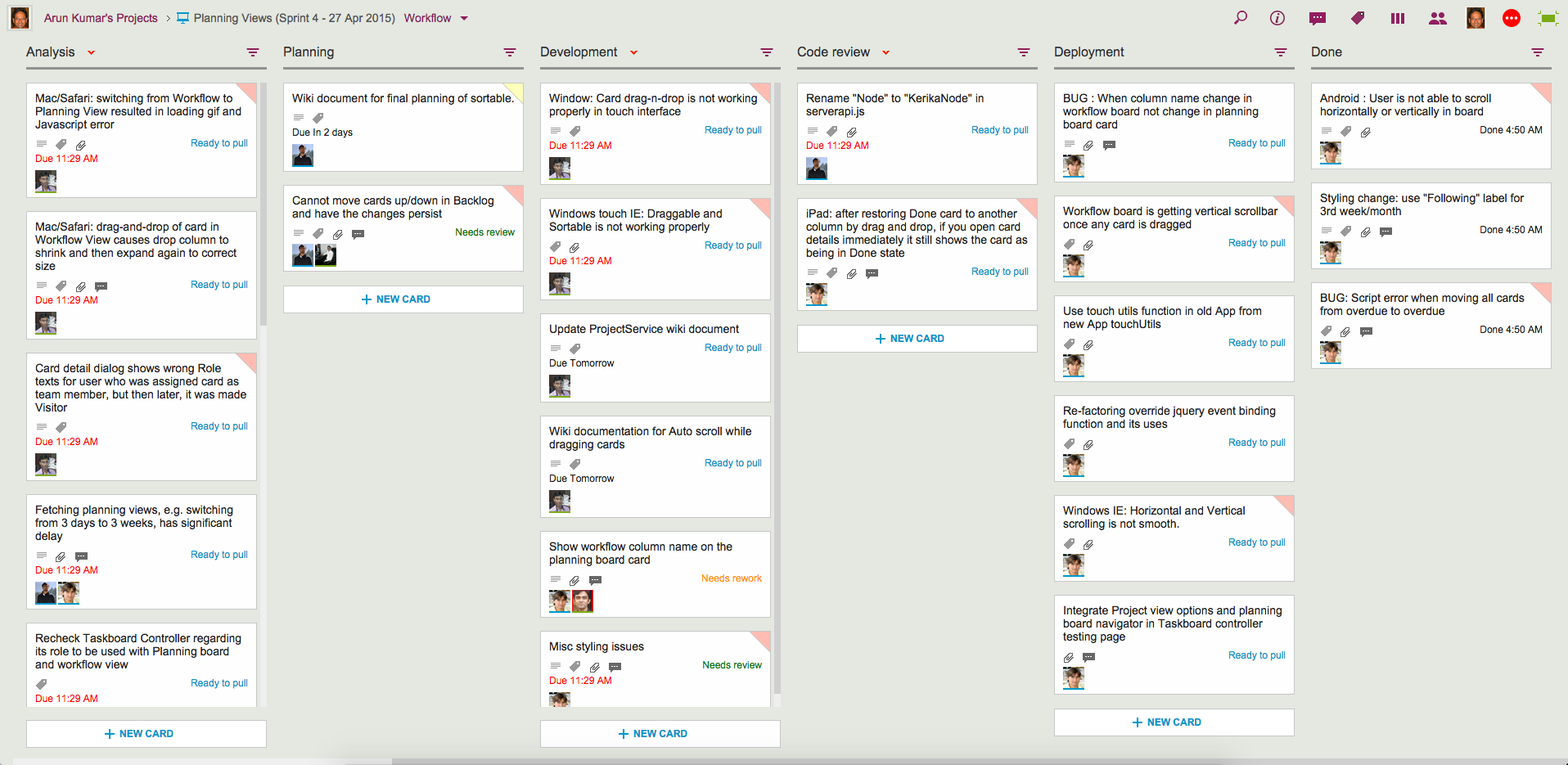
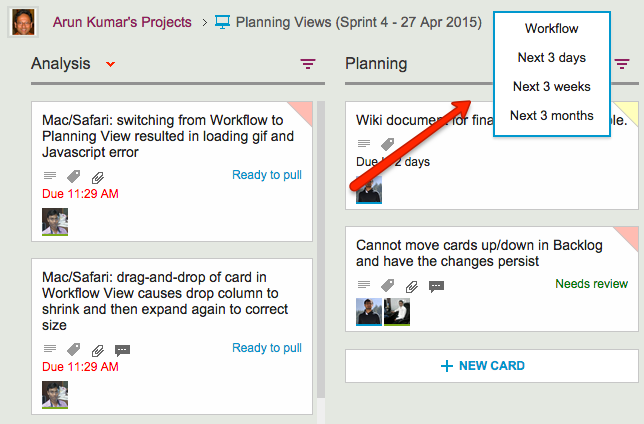
Let’s start with your familiar view of a Kerika Task Board or Scrum Board, which we will start calling the Workflow View from now on:
Example of Workflow View
There’s now a simple drop-down that appears on the breadcrumbs, letting you switch to one of the Planning Views:
Selecting a View
Your new viewing choices include:
Next 3 days: this will show you everything that’s Due Today, Due Tomorrow, Due the Day After, and beyond
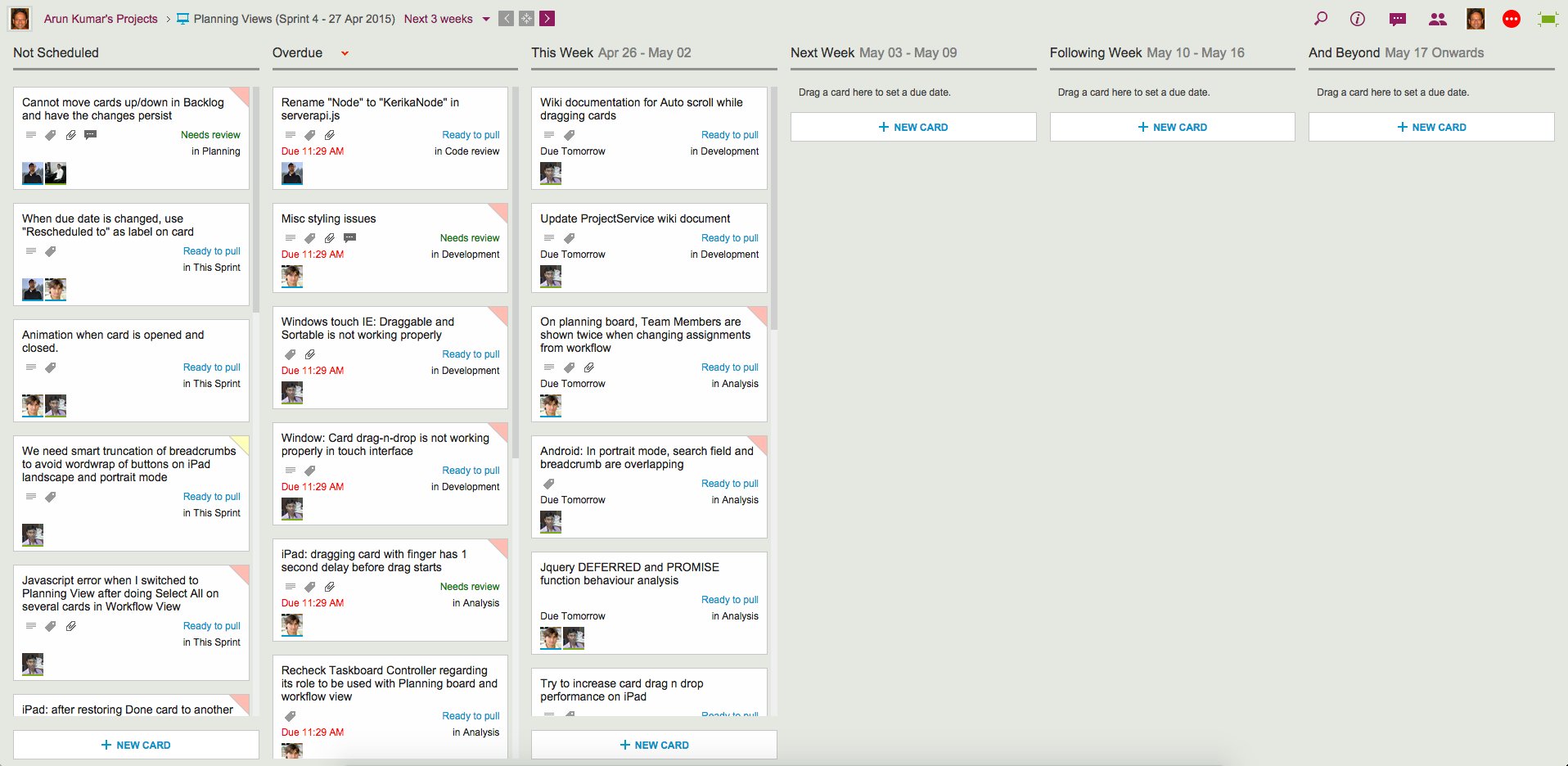
Next 3 weeks: everything that’s Due This Week, Due Next Week, Due the Following Week, and beyond.
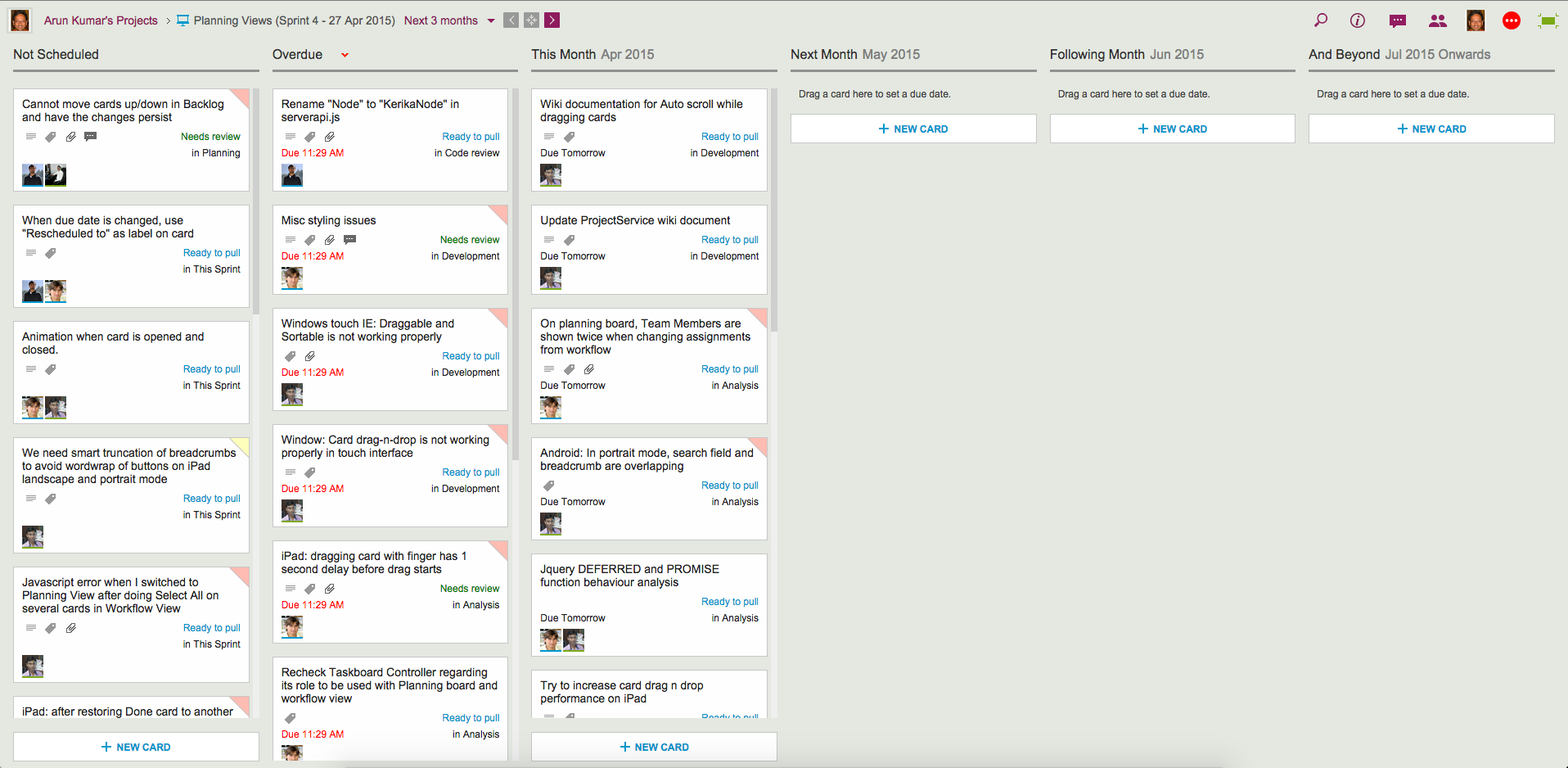
Next 3 Months: everything that’s Due This Month, Due Next Month, Due the Following Month, and beyond.
Planning Views provide a date-oriented view of your Task Boards and Scrum Boards: a Planning View takes your cards and rearranges into time-oriented columns.
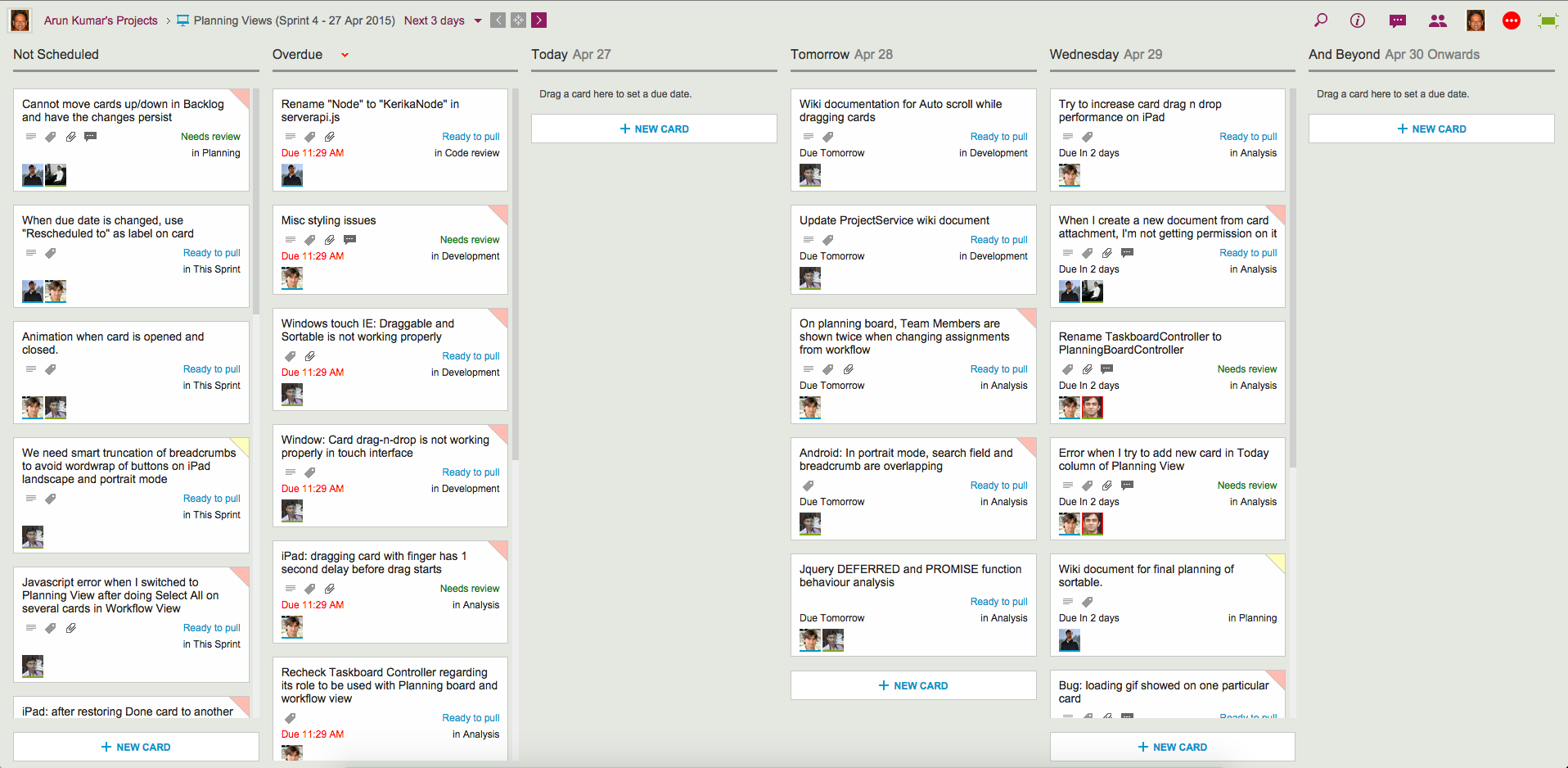
Here’s an example of a Next 3 days view:
Example of 3-day View
Our Workflow view got neatly (and quickly!) pivoted to arrange all the cards in terms of when they are due:
All cards without any due date are shown first, in the Not Scheduled column.
Next, any Overdue cards are always shown in a special column by themselves, so they can be easily rescheduled.
Beyond this are columns for Today, Tomorrow and the Day After.
And finally, there is the And Beyond column, which summarizes all the cards that have due dates beyond the day after tomorrow.
Here’s the same board, but viewed in terms of the Next 3 weeks:
Example of 3-week View
Switching between these views is super-fast, and these views update in real-time: if a due date for any card is changed by anyone on your project team, no matter where they are located, this change is instantly reflected in your view.
The Next 3-months view is an even higher-level view of the board:
Example of 3-month View
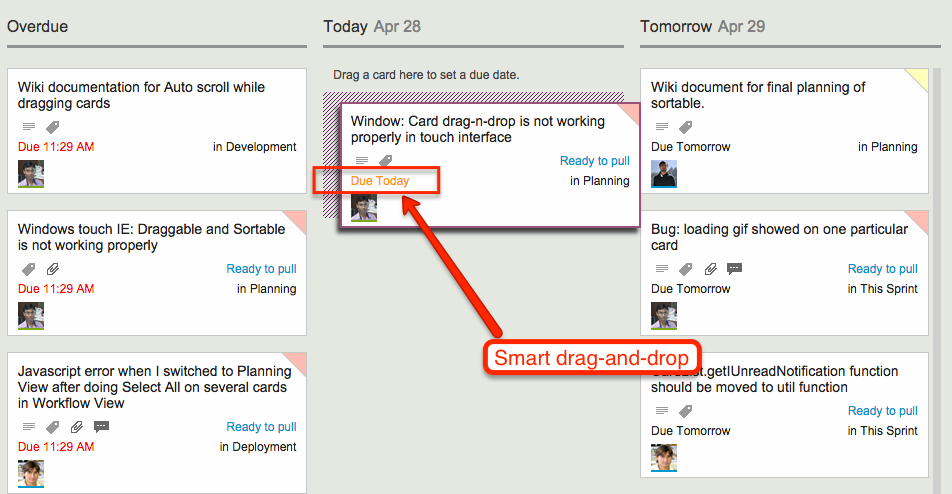
All these views support smart drag-and-drop of cards: if you drag a card across, or up/down a column, the Due Date is automatically changed to reflect the new date. As you move the card, the new date is shown in orange so you know exactly what will happen next:
Smart drag and drop
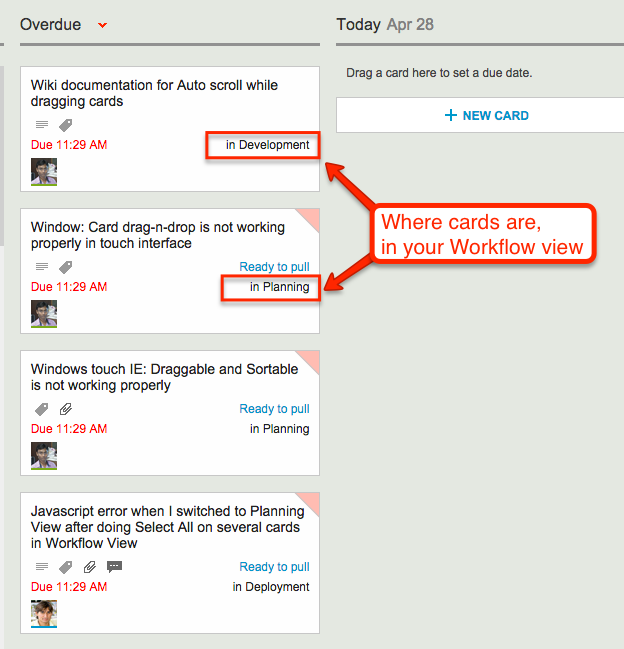
Since your Planning Views aggregate cards that may be in different columns on your Workflow View, we made it really easy for you to see at a glance where each card is in terms of your workflow:
Where cards are in your Workflow view
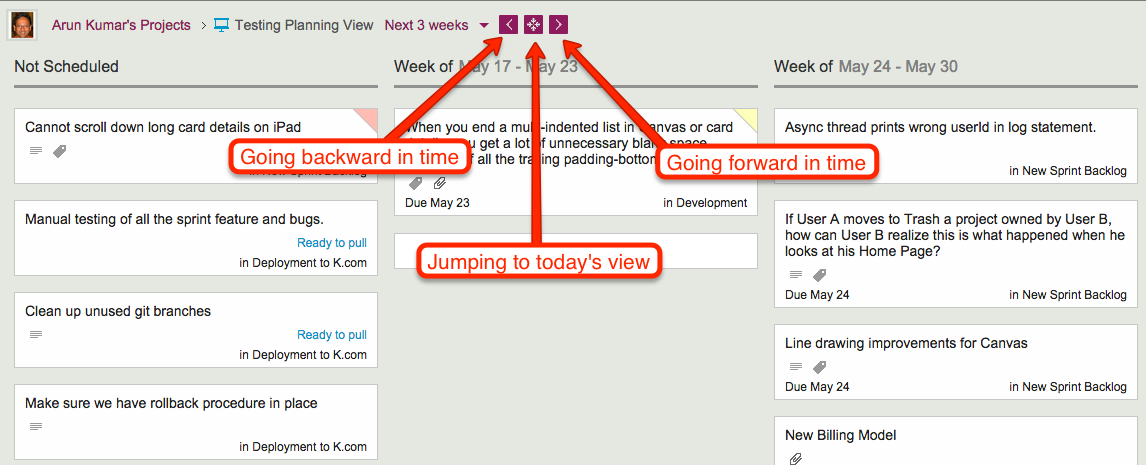
Navigating forward and backward in time is also easy, as is jumping to “today’s view” if you have navigated too far into the future:
Navigating the Planning Views
As you navigate forwards or backwards, the “And Beyond” column magically adjusts to show you just what’s out of your current view!
Planning Views work just as well with Task Boards (if you are using Kanban) and Scrum Boards (if you are using Agile).
Check out Planning Views — it’s exactly the kind of great design and innovation that you have come to expect from Kerika…