At this year’s Lean Transformation Conference in Tacoma, Washington, Arun Kumar spoke on the subject of “Virtual Teams: How to Make Them Succeed”.
A synopsis of the presentation:
Virtual teams can be as successful, even more so, than traditional (collocated) teams – but you need to understand how the project dynamics change when everyone can’t be in the same room at the same time. In this session we will cover the key success factors to building a high-performing virtual teams: how you can plan your work, run your daily standups, communicate, and share content. We will discuss the different roles and expectations of Project Leaders, Team Members and Visitors, and how people can juggle multiple projects at the same time.
The presentation was an hour-long, including Q&A; here’s an edited version of the talk (about 45 minutes long.)
One of our users had a problem recently when they mis-typed an email address while adding someone to a Board Team: the mistake was essentially a typo of “.com”
The user didn’t notice their error, but our system did: when Kerika tried to send the email invitation to the mis-typed address, the email bounced (naturally).
And while the user didn’t notice or complain, we want help our users avoid these mistakes by including some email checking when someone is being added to a Board Team.
Kerika now tries to see if the email address looks incomplete or malformed, and alerts you if you made a typo.
Visitors don’t count, and no one is double-counted: if the same person is working on several boards owned by your Account, that person is counted just once.
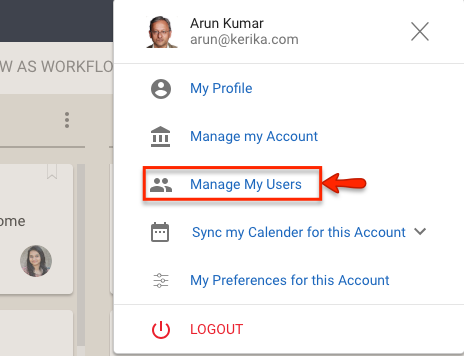
We have made it a little easier to manage your Account Team, by making the menu option for this screen a little more prominent:
Manage My Users
This feature is part of the Manage My Account function, but given the fact that this is one of the most important and commonly used features in accounts, we wanted to make this easier to find and access.
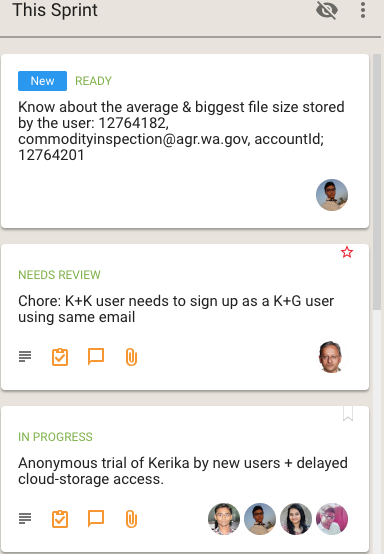
We have made it easier for Visitors to keep up with changes on the boards they are involved with, by extending our unique “heads-up” notification highlights to include Visitors. (Previously, this feature worked only for Team Members and Board Admins.)
Heads-up notifications
These heads-up notifications are customized for each Board Admin, Team Member and Visitor: they show you exactly what’s new or changed on every card on a Task Board or Scrum Board.
(The term “heads-up” comes from the helmets used by fighter pilots, who need to see critical data all the time, without having to turn their heads.)
Views are unique to Kerika: no other work management system provides such an easy way to see what matters, across all the boards you are working on.
These Views make it easy for organizations to really scale up their use of Kerika across multiple projects and many ongoing projects at the same time.
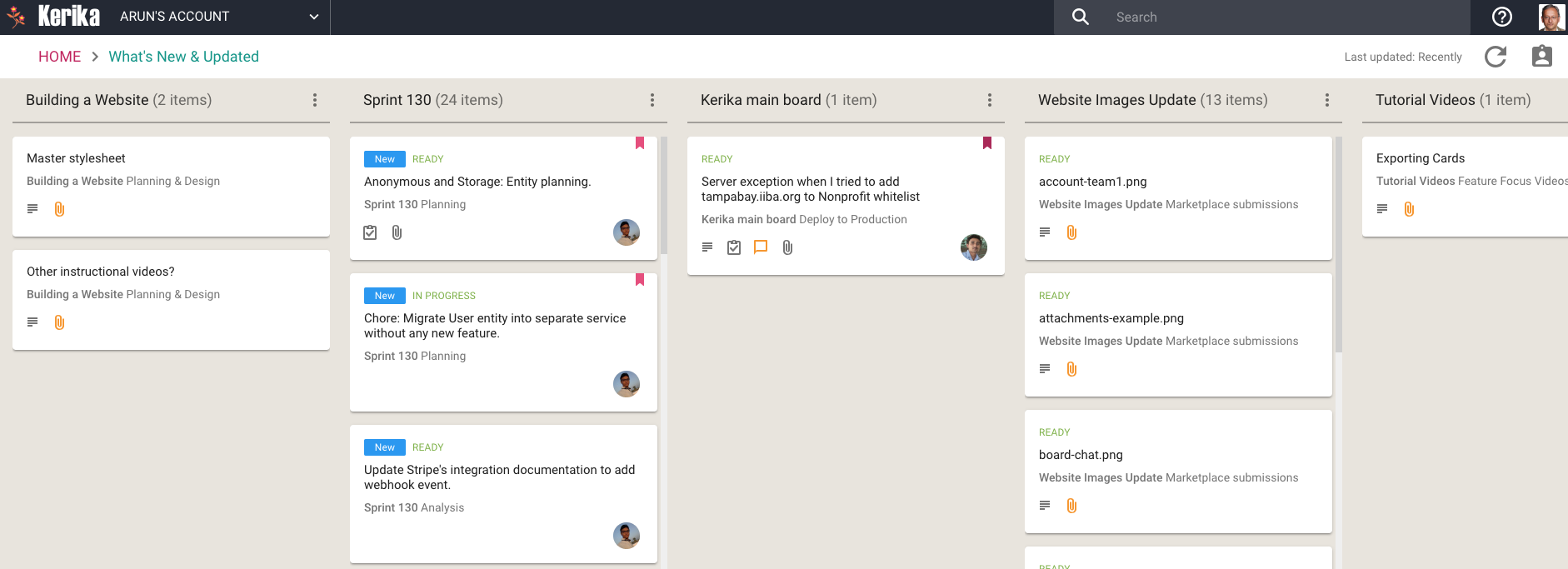
We have now added a very useful new View: What’s New and Updated. As you might guess from the name, this View lets you catch up on everything that’s new and changed, across all the boards you are working on — as a Board Admin, Team Member or Visitor.
What’s New and Updated (click for a larger image)
This View can work very effectively as a Dashboard for managers who need to keep track of many different boards, all working at the same time: instead of constantly revisiting each board one-by-one, this View is a simple, comprehensive way to see everything that’s changing across all your boards.
The updates are shown in Kerika’s unique “heads-up” notification style: the blue New tags highlight cards that have been newly added to your boards (that you haven’t opened yet), and the orange highlights show you precisely what’s changed on your old cards.
The new and changed cards are sorted into columns, with each column containing all the new and changed items within a particular board. The newest changes appear at the top of a column, and if a board has nothing new to report, the corresponding column is not shown (so your View doesn’t get cluttered up.)
(Cards that are moved to the Done or Trash columns on a board are not included in the View, to help avoid getting the View cluttered.)
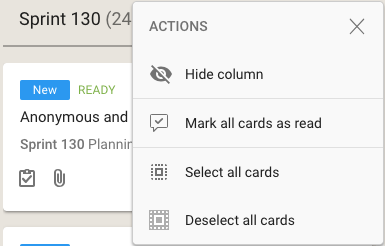
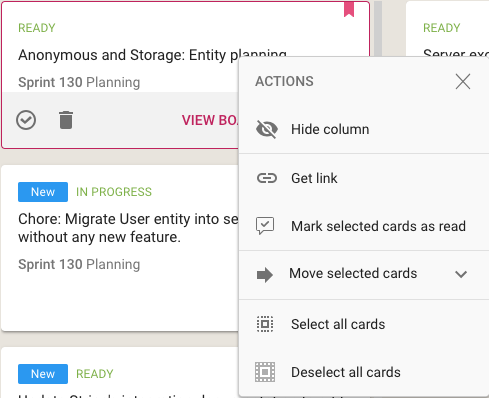
As with all Views, it’s easy to operate on all the cards within a column, by selecting the Column Actions button that appears on the top of each column:
View options
The Mark All Cards As Read action is useful if you want to ignore everything that’s going on in a particular board, e.g. when you have just returned from a status meeting where you got fully briefed on what’s happening on a particular board.
Another way to temporarily ignore individual boards is to Hide Column: this collapses the column from the View, and let’s you focus more intently on the handful of boards you care most about.
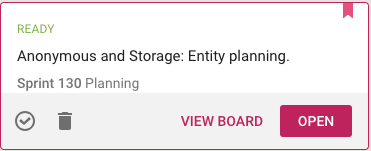
Selecting a card in this View lets you open the card within the View itself, or to open it on the board where the card actually sits:
View card
(Sometimes it’s easy to deal with cards just by themselves; sometimes the View Board action is more helpful, if you want to be sure you understand the full context in which a card changed.)
Using your mouse’s right-click action will also bring up a bunch of useful actions for that card:
Mouse actions
In addition to all the other actions you can perform on cards, you also have the option to get the URL (address) of card using the Get Link action. Every cards, every canvas and every board in Kerika has a unique address, and using these URLs anywhere on a board, e.g. in the board’s details or chat, will automatically set up a link between the two cards.
When you mark a card as “read” on this View, it remains on the View until you click on the Refresh button (shown at the top-right corner of the View).
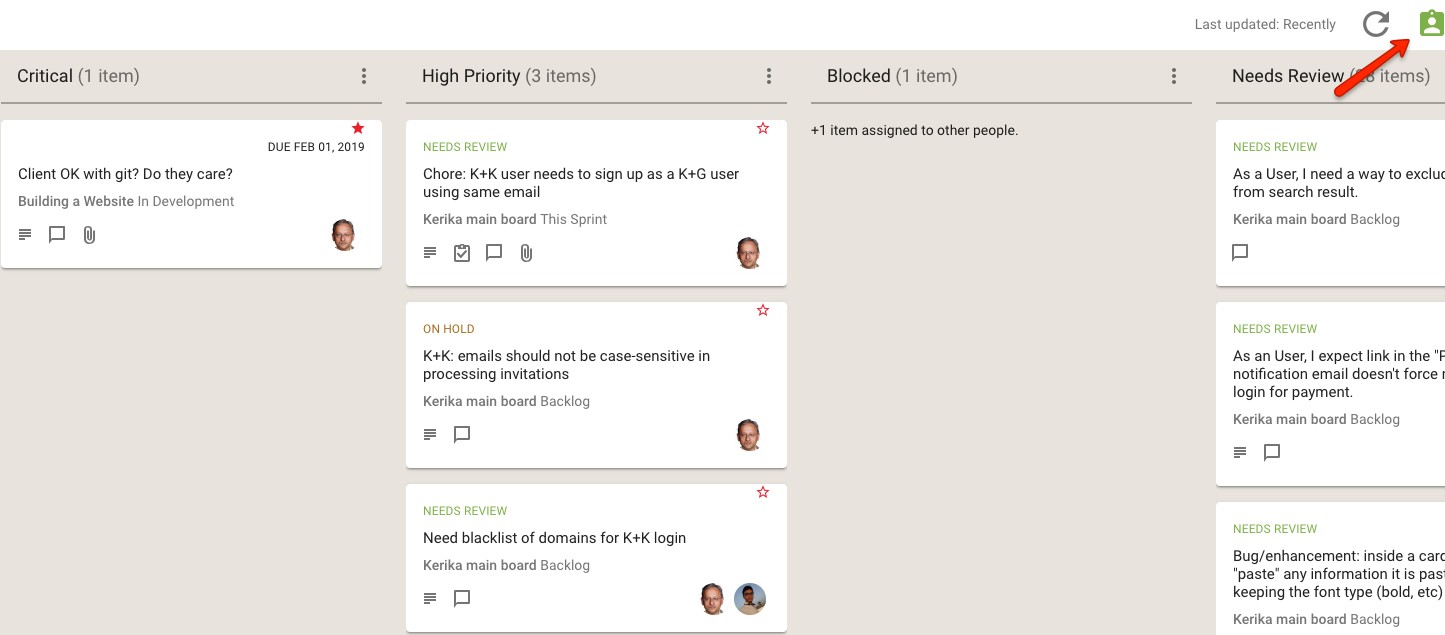
And, as with all Views in Kerika, the What’s New and Updated View includes the “For Me” toggle button on the top-right corner: clicking this will quickly filter the View to show you just those items that are personally assigned to you.
For Me toggle (click for larger image)
This feature is available to all our users, just like every other feature in Kerika: it doesn’t matter whether you are still in your 30-day free trial, you are working on the free Individual Plan, or are benefiting from Kerika’s free Academic and Nonprofits Accounts. Everyone always get the same Kerika goodies :-)
We have improved our Views feature to include a simple toggle that lets you filter the entire View to show just those items that are assigned to you.
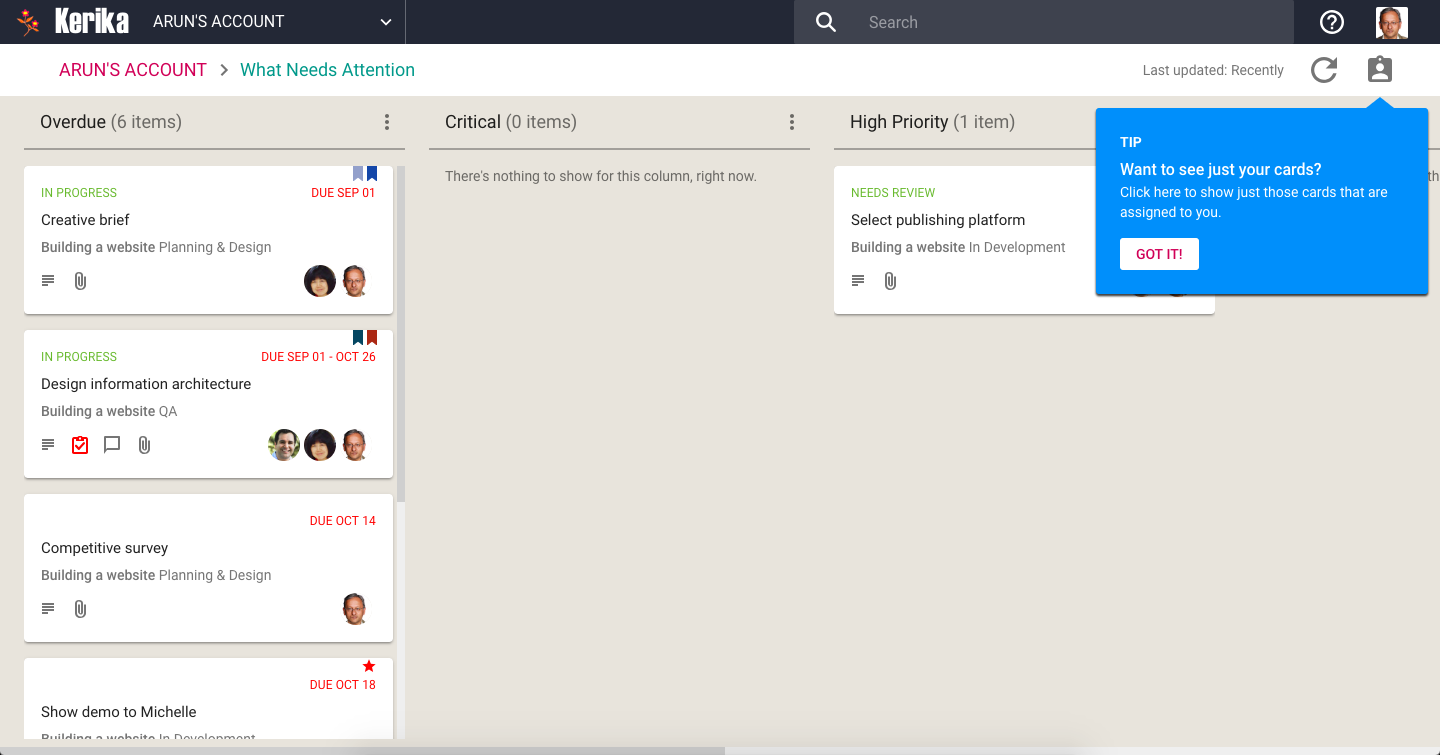
This new toggle appears on the top-right corner of the View, and we have added a Tip to help you understand the function:
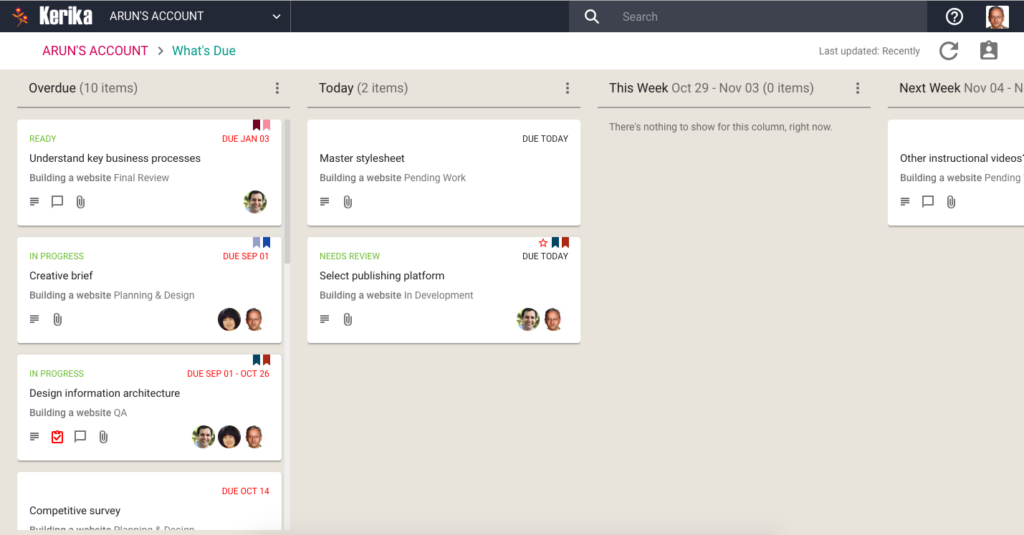
What Needs Attention without filtering
Clicking on the toggle will immediately shrink the View to show just those items that are assigned to you:
What’s Due with filtering
All the other items are hidden from the View, and a simple count at the bottom of each column shows you how many items are assigned to others. In the example shown above, 1 item is assigned to someone else, and is due today.
It’s a simple, fast feature that we think shows the best of Kerika’s design approach :-)
This feature has been added to all of our Views that need this:
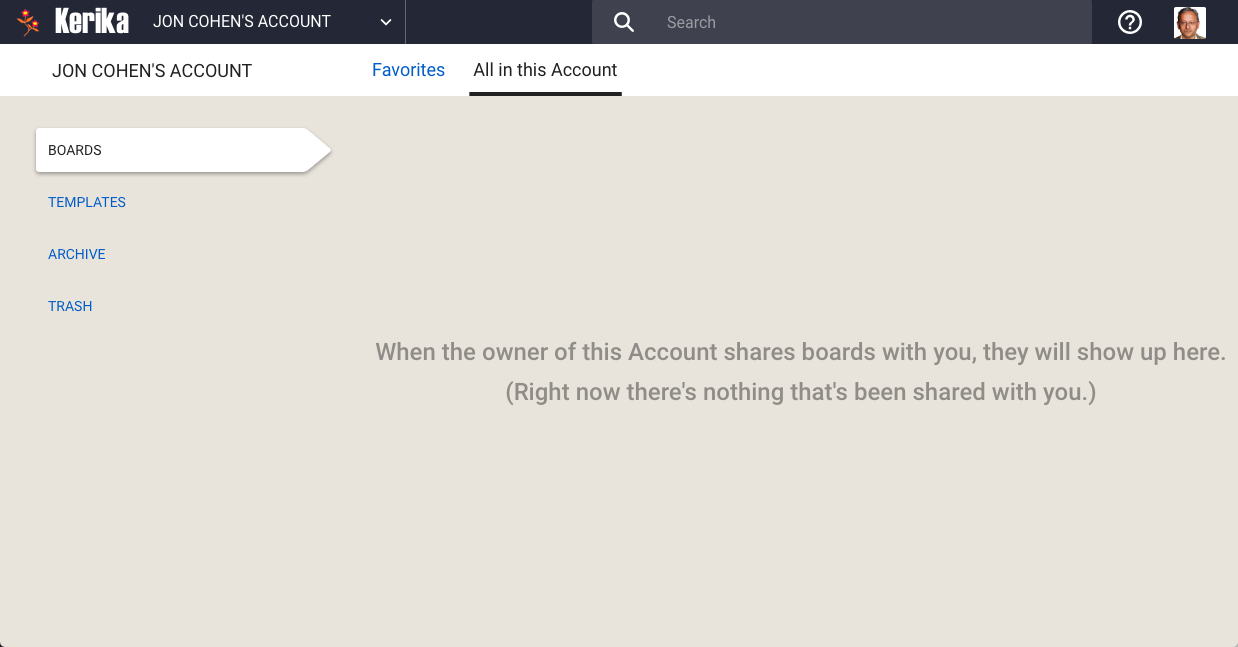
We have made a small usability tweak/improvement to handle the (rare!) situation where you are part of someone’s Account, but for some reason the Account Owner is no longer sharing any boards with you.
To make this clearer, we are now showing a helpful message:
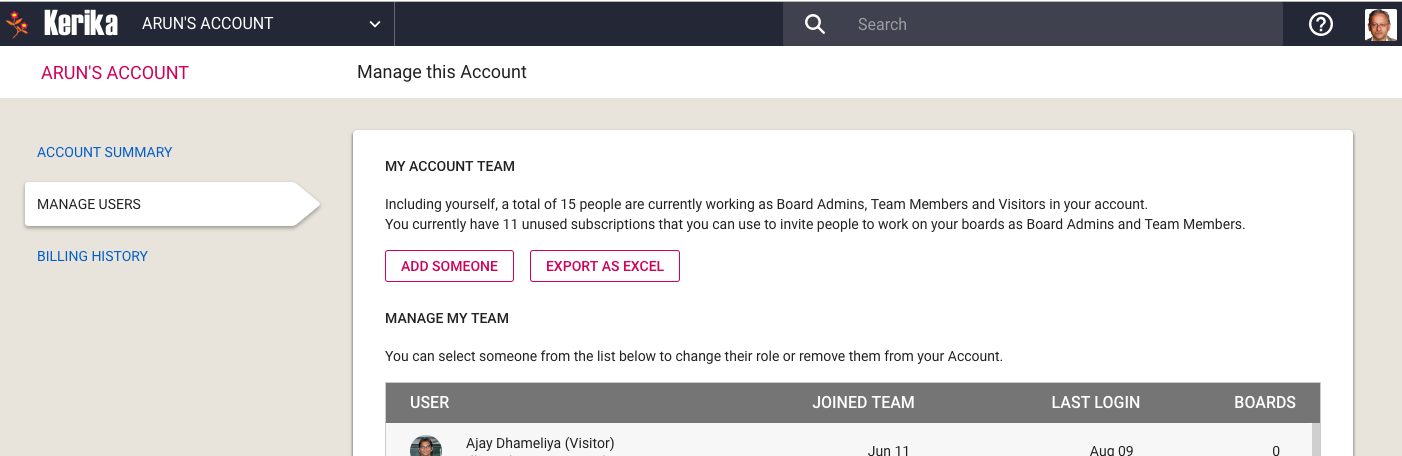
A new feature that should help our customers better manage their account teams, particularly in large organizations: the Account Owner can export (in Excel format) a complete list of everyone working on any boards owned by that account.
This feature can be found in the Manage Users tab of your Account page:
Exporting Account Team Members
The exported data also includes the IP address last used by an account team member: this can help IT departments review their security periodically, or investigate any concerns they may have about misuse.
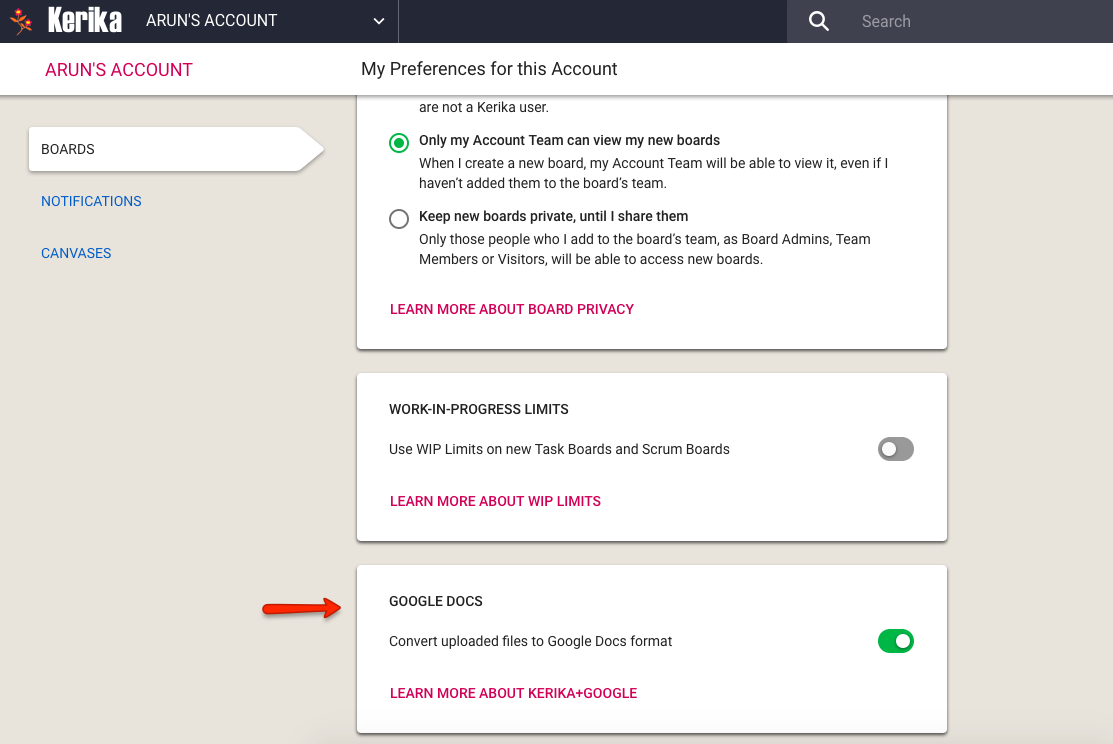
If you are using Kerika with Google, you don’t have to convert your documents to the Google Docs format in order to use Google Drive.
Google Docs Format Preference
You can use this preference setting to ensure that your Microsoft Office documents, for example, are retained in MS Office format even while they they are stored and shared using Google Drive.