We found a scenario where your Scrum Board could end up with duplicate tags. Let’s say you had a Shared Backlog which had some tags, and you also had a Scrum Board Template that had some similar tags.
If you created a new Scrum Board using that Backlog and that Template, you could have ended up with some duplicate tags, which is not at all helpful.
When cards, or entire projects, were copied and pasted, the chat attached to them were not getting copied as well.
That’s been fixed in our latest version. One side-effect of this to note, however: if you copy a card from Project A and paste it into Project B, the chat will be copied along with the card, and be resent to appropriate people in Project B.
The growing number of new top-level domains (in addition to the old familiar .com, .org, etc.) that are available is finally starting to have an impact upon us…
While we haven’t seen a lot of use of these new domains yet, a few useful websites are starting to pop-up, e.g. using the .guide top-level domain, and this has required us to abandon an old feature of Kerika that is not going to work any more.
We used to have some validation code that checked that people were entering URLs correctly, e.g when they wanted to add a Web link to a card or to a canvas.
This validation is pretty much impossible to do in the old form, because of the rapid proliferation of new top-level domains, so we are dropping that validation feature which was kind of nice to have…
We have been doing a bunch of testing and bug fixing related to using Kerika on Android tablets.
As with iPads, you don’t need to install a special app in order to run Kerika: you can just use the Chrome browser on an Android tablet to access Kerika, and use your finger to move stuff around just as you would with a mouse.
We found an fixed some problems with the Chrome touch interface; the overall experience should be a lot better than it was before!
Note: you are almost always better off using the Chrome browser rather than the standard browser that comes with all Android tablets; that’s because Google has a lot more enthusiasm for improving their proprietary (non open-source) products than “stock Android“.
If you are wondering whether Kerika is faster than it used to be, yes, it is.
We made a change in our software architecture — the way each board would connect to the server and ask for all its cards and all the updates on these cards — that has reduced the total upload of data.
This was actually a significant improvement in upload speed: about 10x.
Since upload speeds are frequently much slower than download speeds, even on broadband connections, this should help load larger boards much faster. And on mobile connections this should help reduce the amount of data consumed.
We made a small label change that we hope makes it clearer what your choices are for managing the privacy of your Kerika Task Boards, Scrum Boards or Whiteboards: “By Invitation Only”.
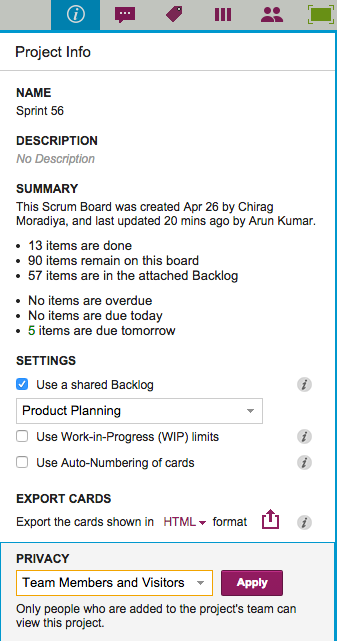
We used to have a setting that we had labeled “Team Members and Visitors”; it came with some help text that we thought clarified the issue, but which didn’t work well enough for everyone — as we found out through our ongoing conversations with users.
This is what it used to look like:
Team Members and Visitors
It turned out that not everyone was reading the help text that appears just below the choice for “Team Members and Visitors”.
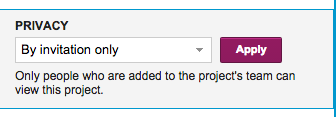
So, we are tweaking the choice to say “By invitation only”, which we hope will be more self-explanatory.
By invitation only
Sometimes the best usability improvements come from just changing a few words…
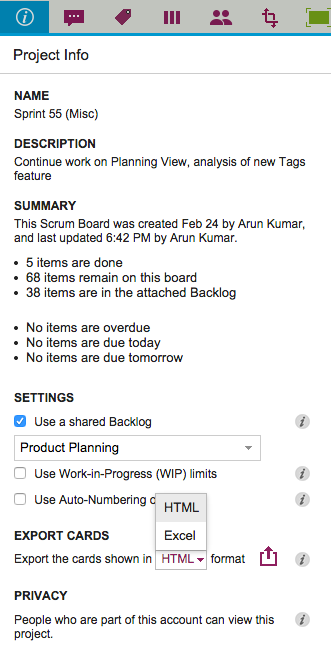
We used to have Export as HTML and Export as CSV as options for our Task Boards and Scrum Boards, and with our latest version we are tweaking the Export as CSV to become Export as Excel instead.
There are a couple of reasons we did this:
We now include chat and document links in the export: this was done specifically to help our many government users who need to respond quickly to Freedom Of Information Act (FOIA) requests.
(See our separate post on how Kerika makes FOIA-compliance one-click easy.)
Everyone who uses the CSV export wants the data to end up in an Excel file anyway, so why not put it in that format to start with? (After all, it’s easy to go the other way as well, from Excel to CSV…)
A long time ago we used to have a feature we called the “Daily Digest” which sent an email everyday summarizing all the changes that had been done to your Whiteboard projects overnight.
(This was back before we added Scrum Boards and Task Boards as a feature, when all we had was our patented Whiteboards.)
We never got this feature to work properly: not because it was buggy in a technical sense, but because we could never figure out how to make it a useful feature.
After trying numerous times to tweak it we finally gave up a long time ago.
And promptly forgot all about it.
It turns out that the feature had only been turned off on our server software; it hadn’t actually been ripped out.
We stumbled upon it in an obscure corner of our vast code base recently and were surprised to find it still there, albeit in a “commented-out” form.
Well, it’s gone for good now. It never worked well, it had been turned off for years, and now it’s in the trash…
As you know, we offer a great integration with both Google Drive and Box, giving you the choice of using either of these cloud storage services when you sign up as a Kerika user.
For most people, the choice of whether to use Google or Box is often made by their employer, whose IT departments may have already developed a cloud strategy for their organization.
For a small number of people, particularly those in organizations that haven’t committed to a particular cloud strategy yet, they do have the choice of using either cloud service, or even both.
So, what happens if you have the same email address, e.g. someone@example.com, and you set up a Google ID and a Box ID that use this same address?
You could end up with two different Kerika accounts that use the same someone@example.com ID: that’s because each sign up, from Google and from Box, takes a different path into Kerika.
This is not a great situation to be in, and we certainly don’t recommend it, but the software does try to behave well when confronted with this situation.
If another Kerika user invites you to join her project team, the invitation will show up in both your Kerika+Google and your Kerika+Box account — and in your email, of course — but when you try to accept the invitation Kerika will check to make sure you are logged into the correct service.
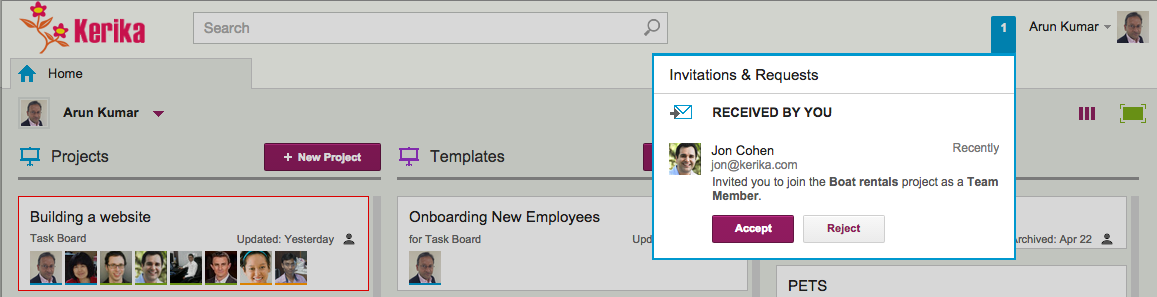
Here’s an example: Jon, who uses Kerika+Google, invites Arun to join one of his projects. Arun happens to have both a Kerika+Google account, and a Kerika+Box account, but Jon doesn’t know that — and he shouldn’t have to care, either!
When Arun sees the invitation, he happens to be logged into his Kerika+Box account:
Invitation received on Kerika+Box account
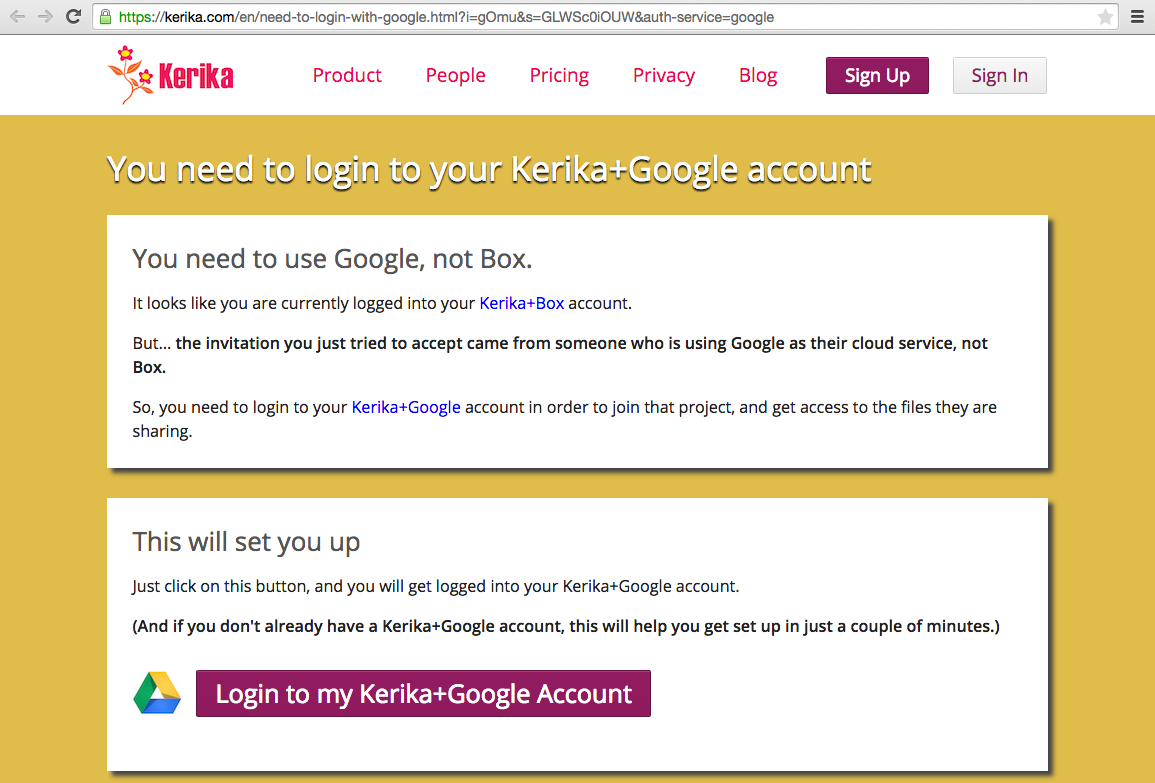
But when he tries to accept the invitation, Kerika checks to see whether Arun and Jon are both using the same cloud service, and discovers that Arun is logged into his Kerika+Box account and not his Kerika+Google account:
Prompt to login to Kerika+Google account
So, Kerika works behind the scenes to help Arun sort out his two accounts.
We are often asked how the Kerika team itself uses Kerika, and we freely share this through demos we have done in person for potential customers and at various events. For those who we haven’t met in person, here’s a blog post instead..
1. Kerika runs on Kerika.
Pretty much everything we do, from the smallest, tangential effort to our main product development is done using the Kerika software.
(It shouldn’t surprise you to hear that, given that we are a distributed team ourselves — spread out between Seattle and India.)
2. No email, limited phone calls
In fact, we gave up using internal email back in Dec 2013. (Email sucks, and Kerika is the smarter alternative to spam.)
Because our team is spread out over 10,000 miles, we do occasional phone calls, using Skype or Google Hangouts, to discuss product strategy, but we don’t have daily phone calls as a matter of routine.
We have a phone call only when there is something substantial to discuss, never to catch up on routine status. In other words, all our phone conferences are about interesting topics, like “What do you think about this idea…?” or “I met a customer today who brought up this problem…”; never about “Where are you with Task X?”.
Kerika keeps us in perfect sync across these 10,000 miles on all matters of routine status and project management, so our phone calls are all strategic in nature.
3. Scrum for Product Development
We work with a 2-week Sprint Cycle for the most part, although we have occasionally deviated from this — never with great results, so sticking to the cycle is usually a good idea!
We capture all of our product ideas and feature requests in one large Scrum Board, which we call, simply, Product Planning.
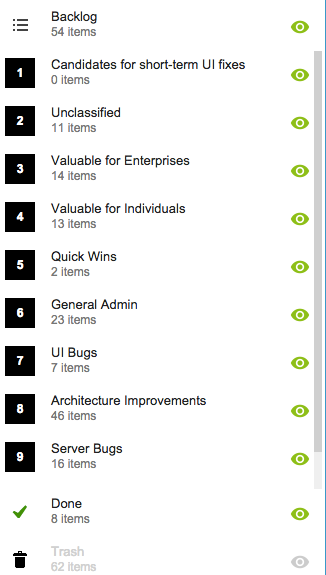
This board organizes our ideas into various buckets, like Valuable for Enterprises and Valuable for Individuals:
Product Planning buckets
You might notice that the Backlog column is relatively small: only 54 items. That’s because not everything in the other buckets is ready to go into the Backlog, either because a feature isn’t well defined enough, or it isn’t considered important enough to deal with in the short-term.
(We have a lot of ideas that sit and gestate for months, even years!)
It’s also worth noting that the Trash contains 62 items: this means we reject as many ideas as we pursue!
4. A Shared Backlog
As ideas for various features get prioritized — and, more importantly, defined clearly enough to be analyzed in detail by our developers — they get moved to the Backlog.
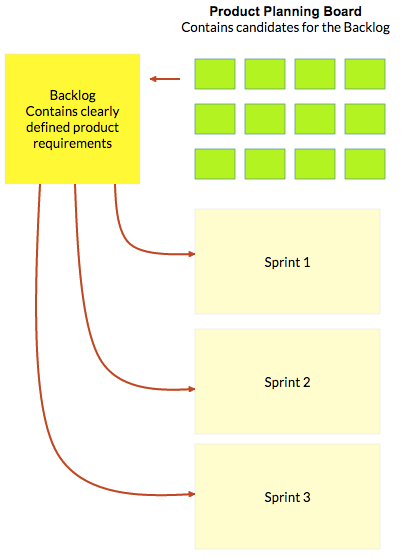
This backlog is shared by all the individual product development Scrum Boards:
Product Planning process
(And, by the way, the screenshot above is from a Kerika Whiteboard that we use to map out our product planning process.)
Each Sprint is organized as a separate Scrum Board, pulling items from the common Backlog.
As items get done (or not, as the case may be), the Backlog slowly shrinks over time.
But, as ideas for new features gets firmed up on the Product Planning board, this keeps feeding more stuff into the Backlog. So, the net result is that our Backlog has remained the same size for years: about 50-60 items.
We have been doing this for a while now, and are currently wrapping up Sprint 55, with each Sprint taking at least 2 weeks, and several taking 1 month to complete.
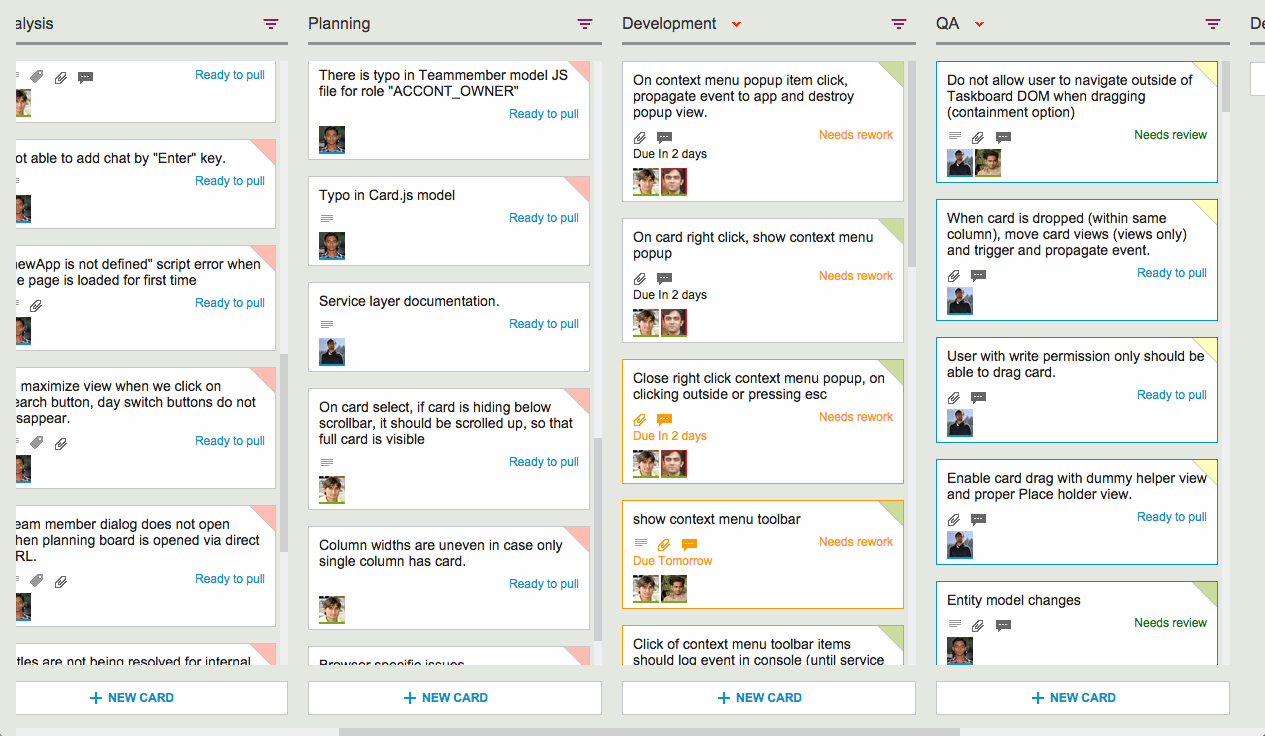
Here’s an example of one of our Scrum Boards:
Scrum Board
5. Kerika’s Smart Notifications
So, if we are a distributed team that doesn’t use email, and not that much phone either, how do we keep up with what’s happening? The answer is: Kerika’s smart notifications help each of us easily keep track of changes taking place across literally hundreds of cards each day.
Here’s an example:
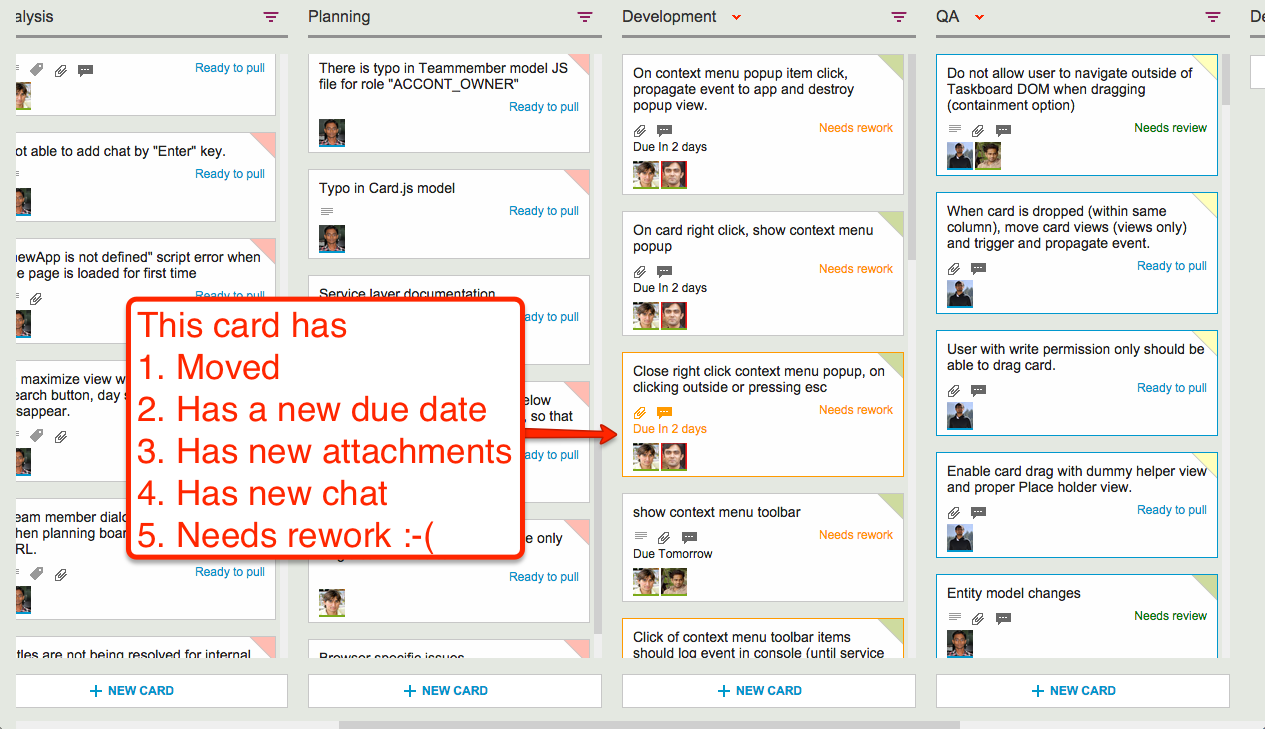
Smart notifications
At a glance we can tell that this card has
Moved
Has a new due date
Has new attachments
Has new (unread) chat messages
And, unfortunately, needs rework :-(
These smart notifications replace dumb email with a much more efficient mechanism for keeping everyone on the same page.
6. The Development Process
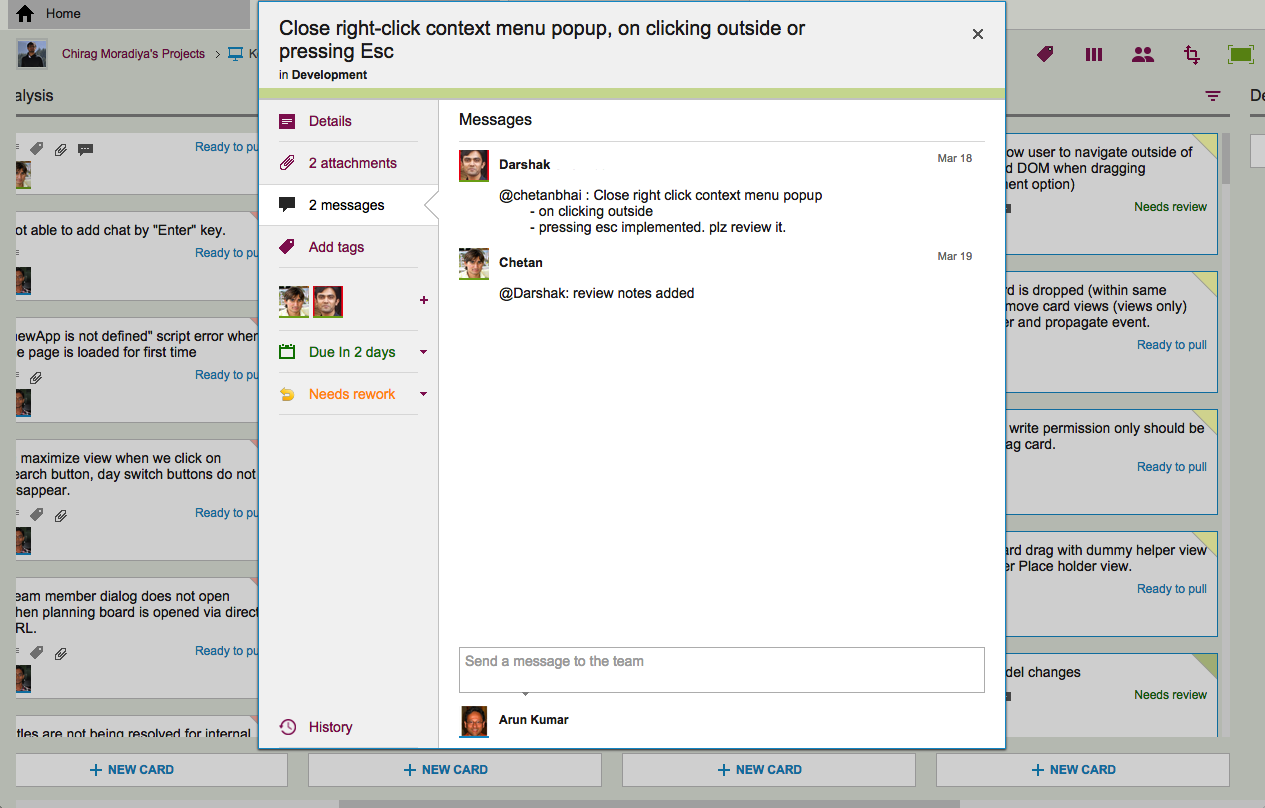
If we open up one of these cards, we can get a glimpse of the Kerika development process. Let’s start with the chat thread on this card:
Example of new chat
This chat shows a typical interaction between a junior developer and a technical lead: after writing the code for a particular feature, the developer has passed it on to the tech lead for code review.
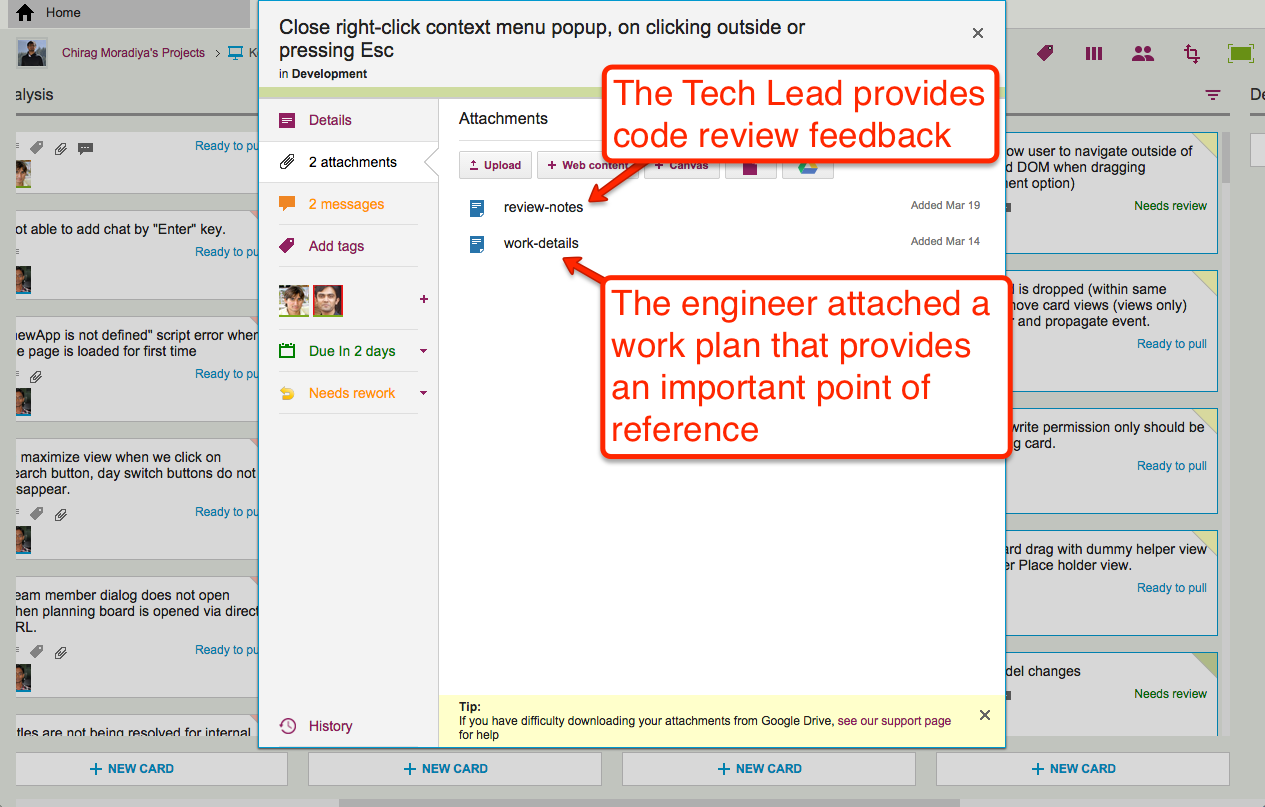
The code review itself is attached to the card, as an attachment:
Adding code review to a card
For each feature we develop, our engineers create a small work plan that outlines their design thinking.
This design/work plan is a critical artifact for good software development: it ensures that people can review the work more easily and effectively, and it also provides a reference for the future — if ever a bug is found in this particular feature, we can go back to the work plan to see where the design flaw may have originated.
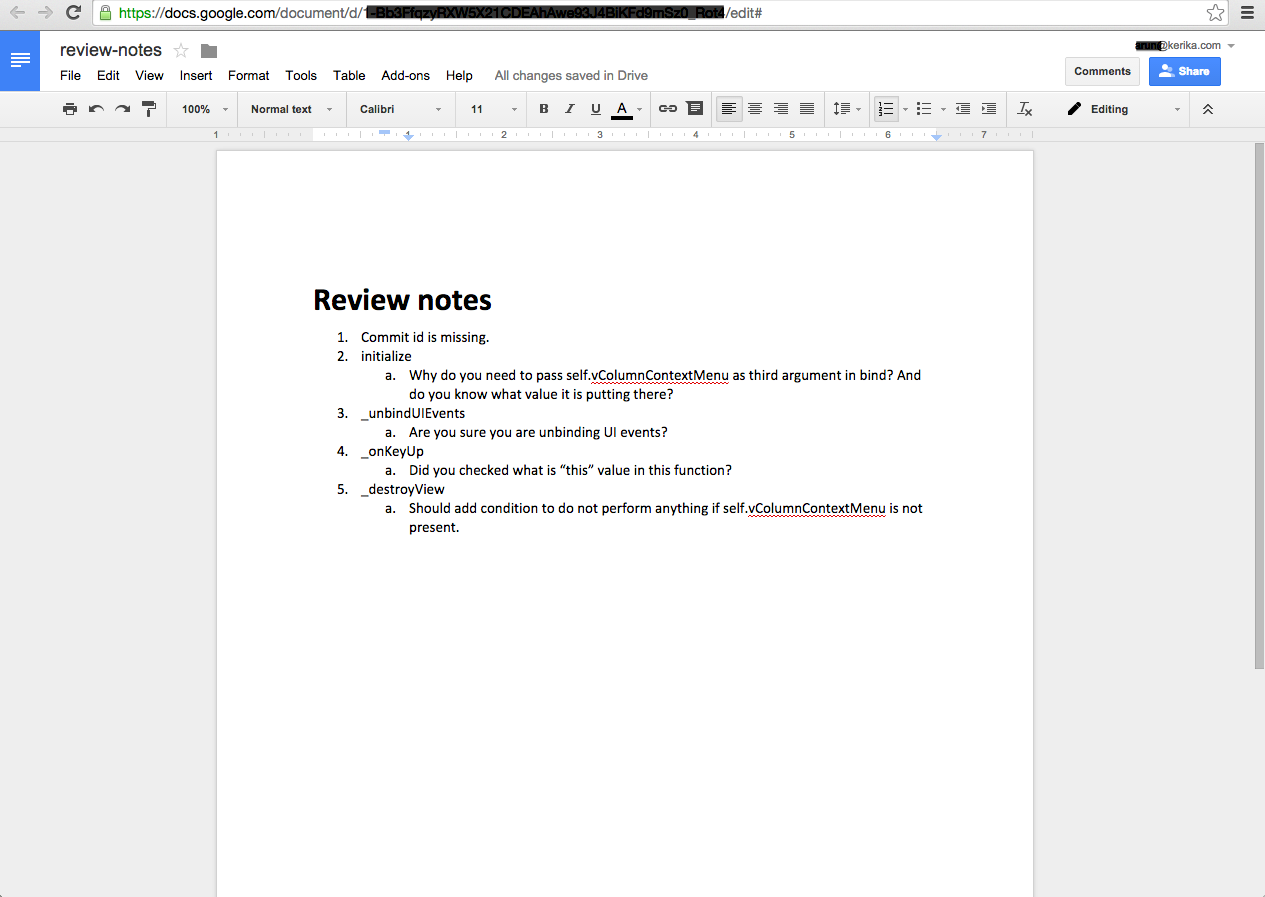
The code review is typically very short, and attached (in this case) as a Google Doc:
Example of code review
7. Card History
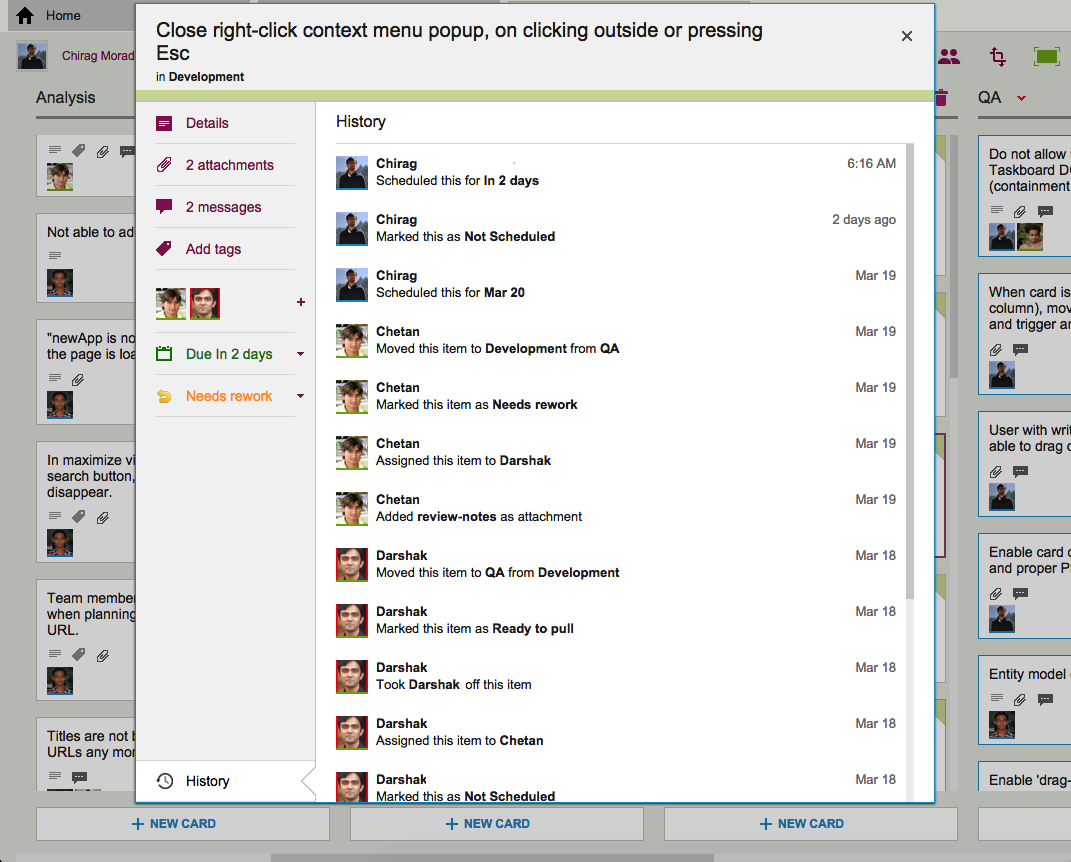
Each card in Kerika keeps track of its own history, which makes it easy for a distributed team to keep track of everything that happened. Frequently, a number of changes may have taken place on a single card during a workday, and someone who is 10,000 miles away is also about 13 hours away in terms of timezones, so the history feature is useful for understanding all the changes that took place when you weren’t looking.
History of the work
So, that’s a typical card, on a typical board. And, in a typical 2-week Sprint Cycle, our development team handles 175-200 cards!
We love Kerika, not just because we have built it, but because it makes our distributed team so very effective!