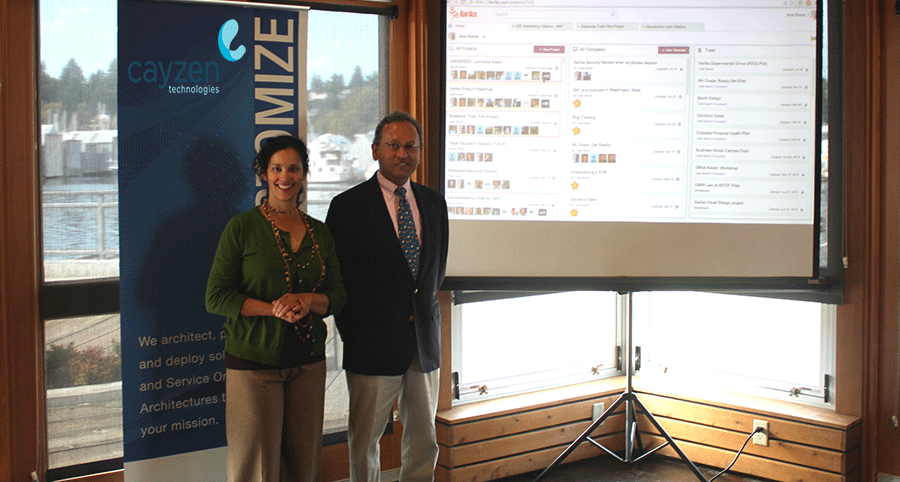
Cayzen Technologies organized a Lunch & Learn Agile event at the Harbor House at Percival Landing in Olympia, Washington, featuring Arun Kumar, CEO of Kerika.
Arun’s topic was Implementing Lean across Distributed Teams, and we would like to specially thank Mayra Pena from Cayzen who organized the event:
Arun Kumar & Mayra Pena
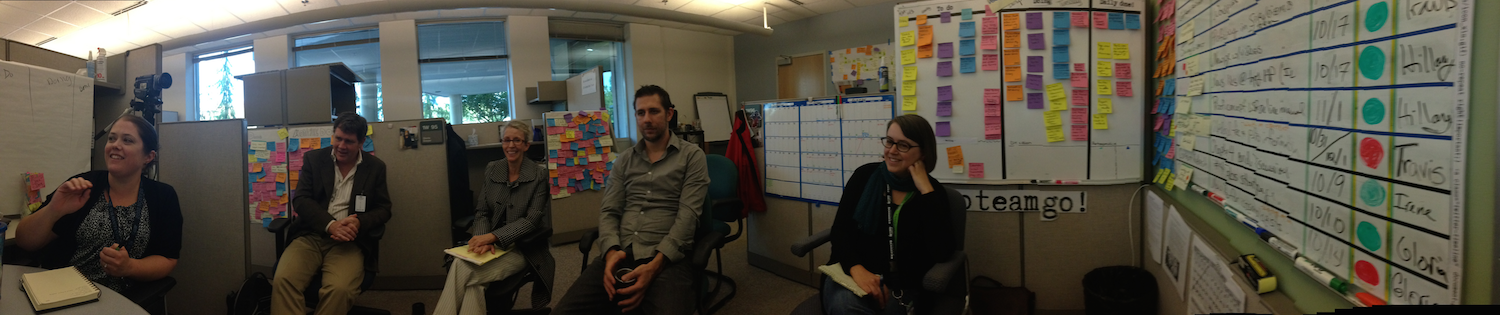
The event was attended by folks from Washington State’s Employment Security Department and Department of Health, among others, and there was a lively discussion.
Here are the slides from that presentation:
If you would like to see the sample Kerika board that featured in the demo, go to https://kerika.com/m/H51M
We are thrilled to announce a great new feature: Work-In-Progress (WIP) Limits for Kanban Boards and Scrum Boards.
WIP Limits are a very helpful tool when you are working in a true Kanban style: where work gets “pulled” as people become free, rather than work getting “pushed” onto people before the people ready.
To understand the difference between “push” vs. “pull”, think back to that famous episode of “I Love Lucy” where Lucy and Ethel take up jobs at a chocolate factory, and quickly find themselves unable to keep up with all the work that’s getting pushed onto them:
This is a perfect example of the perils of “push”: as the chocolate gets prepared upstream, the work becomes ready even though the people aren’t ready for the work.
If you push work on to people who aren’t ready to take it on, you will quickly have disastrous results. (It’s funny only when it’s on TV and it involves Lucy.)
At the very least, you will have an imperfect understanding of what each person is actually doing, if people upstream in the project’s workflow simply push work downstream as soon as the upstream folks are done with it.
A pull model is different: people “pull” work and assign it to themselves when they are ready.
Each person typically has a small number of items they are juggling at any time: it may be as few as two items, depending upon the complexity of the work, but it is rarely as few as just one item.
(You nearly always want to have one “background” task ready to be picked up whenever your “foreground” task gets blocked for any reason.)
When a person is able to take on a new task, she can “pull” a card from the column to the left of her on a Kerika board.
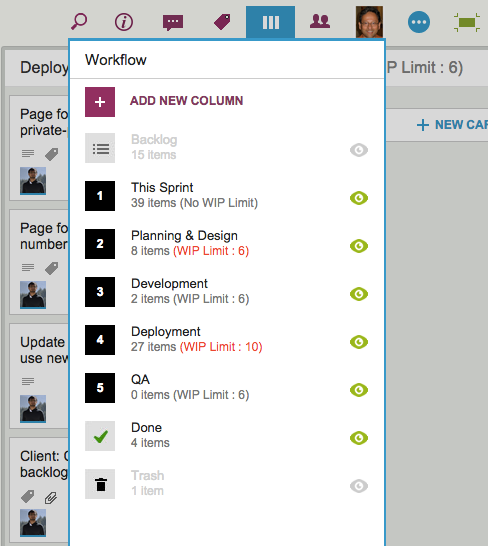
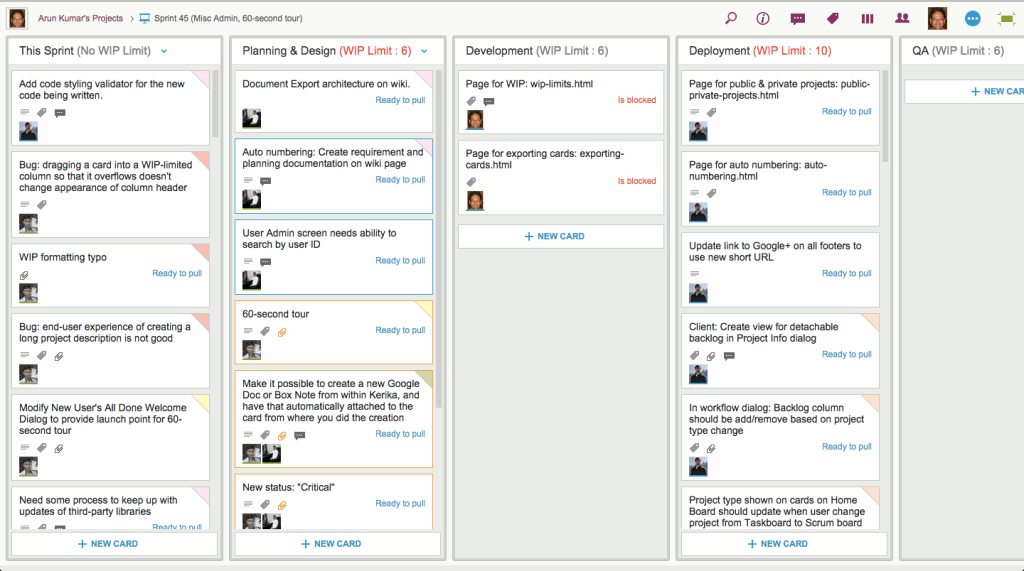
Here’s a simple example, reflecting the workflow for a software project:
WIP Workflow Example
This project includes people with different roles: designers, developers and QA, and each group has determined it’s own WIP limits, based upon the team’s capacity and velocity.
In this particular example, we can see that the Planning & Design and Deployment columns have currently exceeded their WIP limits (and, in the case of Deployment, by a large margin!)
When this happens, Kerika alerts you to the condition by showing the affected columns with red text in the column headers:
Example board with WIP exceeded
WIP Limits as “soft limits”: Kerika doesn’t stop you from exceeding a column’s WIP Limit, but it does provide a very clear, visible warning to everyone that a bottleneck is about to form.
When bottlenecks start to form, the Project Leader should intervene and help manage the upstream flow so that the WIP Limit can come back to its acceptable amount.
WIP Limits originated in Kanban, but Kerika lets you use them for Scrum Boards as well!
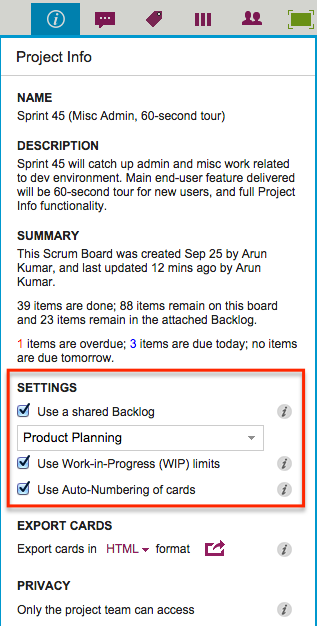
To use WIP Limits, click on the Project Info button that’s at the top-right of the Task Board or Scrum Board:
I will be presenting on Implementing Agile across Distributed Teams at the Lunch & Learn Agile event on October 2, 2014 at the Office of the CIO for Washington State.
The event is being organized by Cayzen Technologies; if you are interested in attending, please contact Mayra Pena.
Ben Vaught, from the Washington State Office of the CIO, and I had the pleasure of presenting at the state’s Office of Financial Management’s Fall Forum last week, held over two days at the Thurston County Fairgrounds in Olympia.
Ben talked about the use of visual processes as part of the Washington Business One Stop initiative he has been working on for a while, and towards the end of his talk he showed some pictures of the WIKISPEED garage in Lynnwood, where I first met Ben and Michael DeAngelo, Deputy CIO for the state.
My talk was supposed to have been on Visual Management in government and administrative processes, but seeing pictures of the old WIKISPEED garage, which used to be covered with stickies on all walls (including the massive garage doors!) before the team adopted Kerika to knit together their global community of volunteers, was a wonderful throwback moment!
When it came to my turn, in addition to showing the use of Kerika for cross-agency GIS projects, such as those led by Joy Paulus, I was also able to show examples of Kerika in use by Sherri Hrubi, Danica Ersland and Melissa Wideman, who all work together in OFM’s HR Division.
Several other people presented, including Irene Hill and her design team from the Department of Licensing, Howard Cox from the Department of Enterprise Services, and Eric Gardner from OFM’s Forecasting Division.
Our newest update to Kerika serves up a rather long list of changes; the two big areas for improvement were:
We have updated our integration with Google Apps Marketplace to use OAuth 2.0, since Google is retiring its OAuth 1.0 implementation.
We have made a bunch of improvements for using Kerika on iPads, with the Safari or Chrome browsers. (We still need to work on Android tablets, which, unfortunately, present too much variety…)
The OAuth 2.0 upgrade and iPad improvements are described in previous posts; here we want to highlight some of the other changes and improvements we made with this new version:
We have changed the way colors show on cards, on Task Boards and Scrum Boards to make them more usable:
In addition to being less distracting, this new design will enable us to expand the palette of colors we can offer: the old design restricted us to only the lighter pastel colors.
New styling for colored cards
We have redesigned our “Max Canvas” view so that it provides the most useful display, when you need the most space available to view a large board. In particular, you can now access Search even when you are in the Max Canvas view.We have improved security, by implementing secure cookies.
We added some subtle animation effects to improve usability. (So subtle, in fact, that you might not even notice them if you are an existing Kerika user, which is just what we want.)
In terms of infrastructure and other under-the-hood improvements, we have expanded our use of JUnit automated tests and done a bunch of bugs fixes, as usual.
There’s a lot of improvements being done on Kerika, and at a very fast rate. Make sure you subscribe to our blog to keep up!
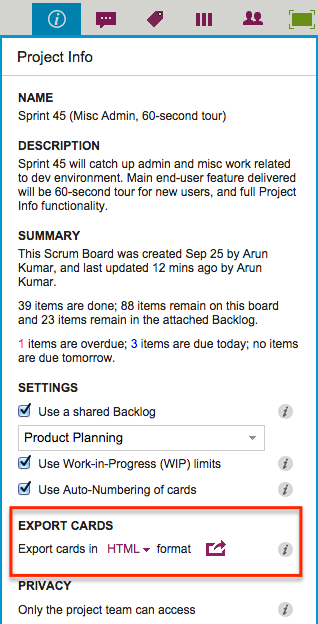
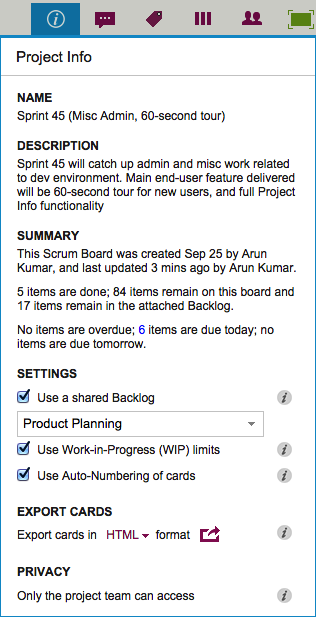
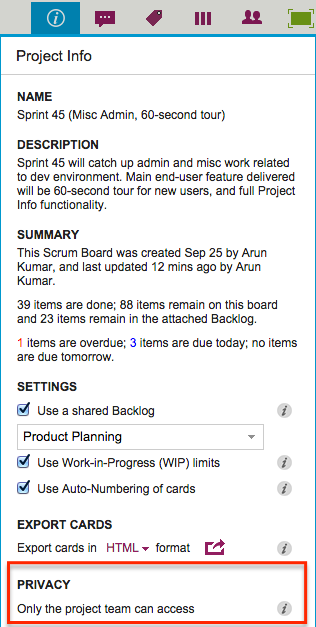
To access this feature, simply click on the Project Info button that’s shown at the top-right of each Kerika Board, and you will see the Project Info display (that we have talked about in an earlier blog post):
Export
CSV format is useful if you want to want to take data from Kerika and put it into Excel or some other analysis tool;
HTML format is useful if you want to print material from Kerika, or insert it into Word, PowerPoint or similar tools.
With both CSV and HTML exports, hidden cards are not exported: this means that if you are currently choosing to hide some columns (by using the Workflow button), or hide some cards (by using the Tags filters), then the cards that you are not viewing right now will not be part of the export.
When you export a board in CSV format, you get the following data, for each visible card:
Example of CSV export
Column Name: e.g. Backlog, In Progress, Done, etc.
Card Name: e.g. “Create PR news release”.
Card Description: e.g. “We need to create a PR news release once our latest version is ready…” (Rich text will be converted to plain text, since CSV files can only deal with plain text.)
Status: e.g. Needs Review, Needs Rework, etc. (If the card doesn’t have a special status, “Normal” will be shown.)
Due Date: the date the card is due, if a date has been set. (If the card doesn’t have a Due Date, “Not Scheduled” will appear.)
Assigned To: a list of names of the people the card is currently assigned to. (If the card isn’t assigned to anyone, “Not Assigned” will appear.)
Exporting could take a while: the exported data are put into a file in your Google Drive or Box account — depending upon whether you are using Kerika+Google or Kerika+Box — and when the process completes, you get an email with a link to the file containing your data.
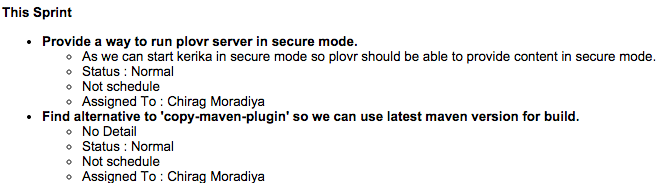
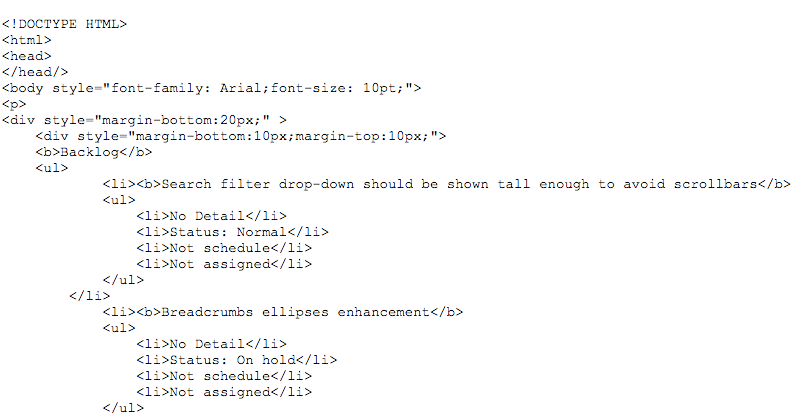
It’s a similar experience if you do a HTML export; however the format of the data is different, giving you an indented set of attributes for each card, like this example from a Kerika+Box project:
Example of HTML export from Kerika+Box
One caveat about exporting HTML: if you open the results in Google Docs, Google shows a preview of the output, and that doesn’t look good: instead of rendering the HTML, Google actually exposes it.
Here’s an example from a Kerika+Google project:
Example of HTML export from Kerika+Google
The export feature can be used for many different purposes, of course: the most common scenario we envision is people wanting to include material from Kerika in their analysis and presentations.
And, of course, one use would be for government agencies that have to respond to Freedom of Information Act (FOIA) requests, or other Sunshine laws.
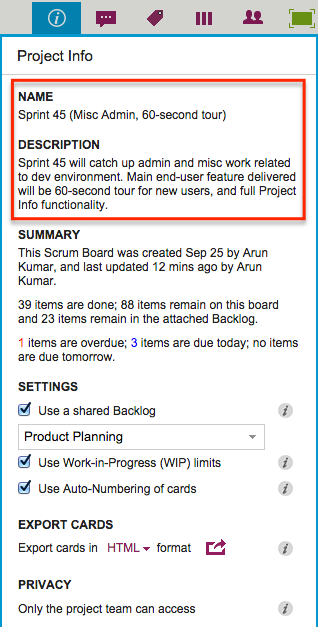
There are several sections in here: at the top is the Name and Description of the project:
Name and Description
The Description is a new attribute of Kerika’s boards: it lets you provide context about the project that can help orient new team members, and it can also help with your Searches in the future.
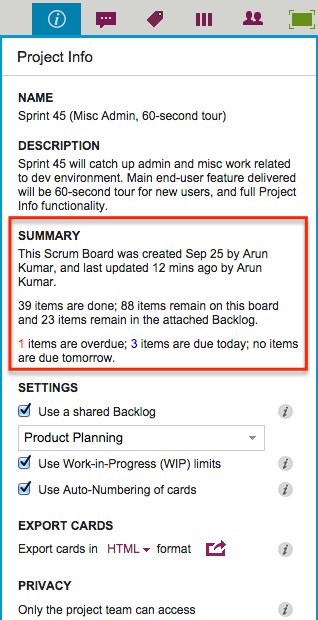
It tells you when the board was first created, and by whom.
It tells you when the board was last updated, and by whom.
And for Task Boards and Scrum Boards it tells you how many cards are done, and how many remain.
Since each card typically represents a work item, this is a quick way to find out how much work remains on a board, without having to count up all the cards in each column.
For Task Boards and Scrum Boards, this view also shows you how many cards are due today, due tomorrow, and overdue.
And for Scrum Boards, it shows you how many cards are in the Backlog that you are using, so you get a sense for how far along you are with the overall project, not just the current Sprint.
All Kerika Task Boards and Scrum Boards now have support for Work-In-Progress Limits: these can be turned on or off by the Project Leader or Account Owner:
Task Boards and Scrum Boards also have a new auto-numbering feature that can help you manage very large boards, e.g. if you are using Kerika for an internal Help Desk.
Arun Kumar, Kerika’s CEO, will present at the Washington State Office of Financial Management (OFM) Fall Forum, at 1:30PM on September 17, 2014 at the Thurston County Fairgrounds in Olympia, Washington.
The topic will be experimentation with Visual Management in government and administrative processes.