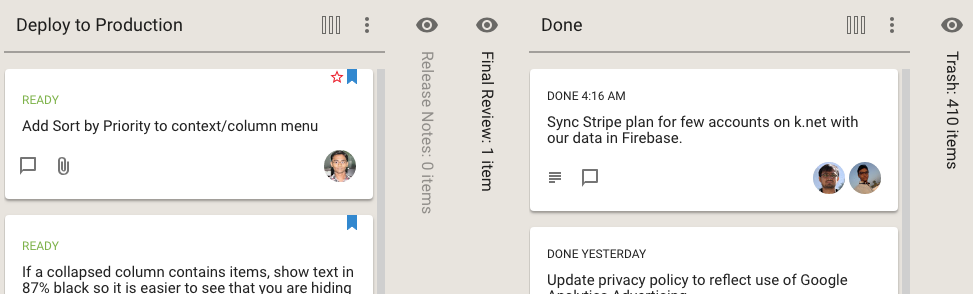
If you hide a column from your view of a Task Board or Scrum Board, Kerika now makes it clear whether this column has any cards or not:
Hidden columns
In the example shown above, the Release Notes column is empty, so it is shown in a light shade of grey, while the Final Review column has at least one card, and it is shown in black.
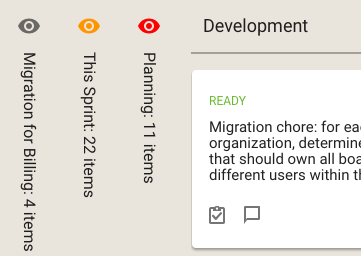
Kerika also helps you see, at a glance, whether the columns you are hiding have any updates you haven’t caught up on, or cards that are overdue:
Hidden columns with updates and overdue dates
The orange icon in the example above shows that the This Sprint column contains cards with updates on them that you haven’t caught up on yet, and the red icon shows that the Planning column contains overdue cards.
We have long had a deep, excellent integration with Google Apps: you can sign up with your Google ID and have all your Kerika-related files stored in your own Google Drive, where you can access them independently of the Kerika app.
We are now taking that one step forward, with seamless integration with Google Team Drive.
Google Team Drives are shared spaces where teams can easily store, search, and access their files anywhere, from any device.
Unlike files in My Drive, files in Team Drive belong to the team instead of an individual. Even if members leave, the files stay exactly where they are so your team can continue to share information and get work done.
You don’t need to do anything different: the integration is built-in with the latest version of Kerika (and, since we are software-as-a-service, everyone always uses the latest version of our product!) and the integration is seamless.
We have a complete (one-hour long) video of the tutorial presented by Arun Kumar, CEO of Kerika, at the recent Lean Transformation Conference on the subject of Kanban vs Scrum: what’s the difference, and which should you use?
(The slides for this talk, and more, can be found on Slideshare.)
Topics covered:
Forming a team 00:01:32
The Product Owner 00:02:01
The Scrum Master 00:02:55
The Scrum Team 00:03:55
Pulling Work 00:04:04
The Product Backlog 00:05:45
Scrum Stories 00:06:25
Writing a good Story 00:07:35
From Epics to Stories 00:10:25
From Stories to Tasks 00:11:13
Estimating with Story Points 00:13:04
Organizing a Sprint 00:15:00
How long is a Sprint? 00:19:15
Sprints in theory 00:20:32
Sprints in real-life 00:20:53
Daily Standups 00:23:25
Burndown Charts 00:24:13
Team Velocity 00:25:35
Best Practices for Getting Scrum Right 00:28:00
The Nuclear Option 00:30:57
Where does Scrum work best? 00:32:02
Scrum in Government 00:33:25
Where does Kanban work best? 00:35:43
Collaboration Networks 00:37:25
Paper doesn’t scale 00:38:30
Using Kerika for Personal Kanban 00:39:50
Using Kerika for Team Kanban 00:40:24
Using Kerika in the Public Sector 00:40:37
Using Kerika for Scrum Projects 00:40:54
Capturing stories as “virtual sticky notes” 00:41:20
Summary 00:42:57
Question: how do you deal with poor performers on the team? 00:49:15
Question: in Scrum, are units of measure like lines of code still applicable? 00:50:08
Question: how do you measure individual performance? 00:51:03
Question: how do you handle poor performers within a team? 00:52:25
Question: when do you use the Nuclear Option? 00:54:20
For users of Kerika’s Task Boards and Scrum Boards, we have made it easier to prioritize your work.
Background:
Traditionally, in a Kanban or Scrum board the priority is denoted by the position of the card within a column: cards that are higher priority are placed higher within a column, and the card at the top of the column is the highest priority at that stage of the workflow.
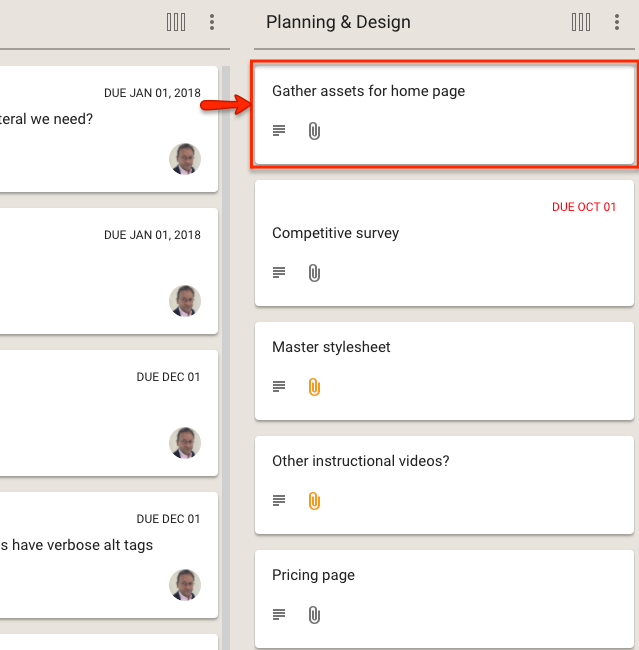
For example, in this view of a board the highest priority item for Planning & Design is the card on top of that column:
Highest priority item in Planning and Design
This method has the advantage of simplicity and clarity: there is no ambiguity about what is the most important work item at any stage of the workflow.
The disadvantage of this method is that as many cards start to move across the board, especially on boards where the workflow is complex (i.e. the board has many columns), it becomes harder to track all the cards that are especially important.
In other words: the simple method doesn’t scale well, and our goal with Kerika is to provide the simplest user interface on top of the most capable work management system, so we realized we needed to do something more.
Flagging cards
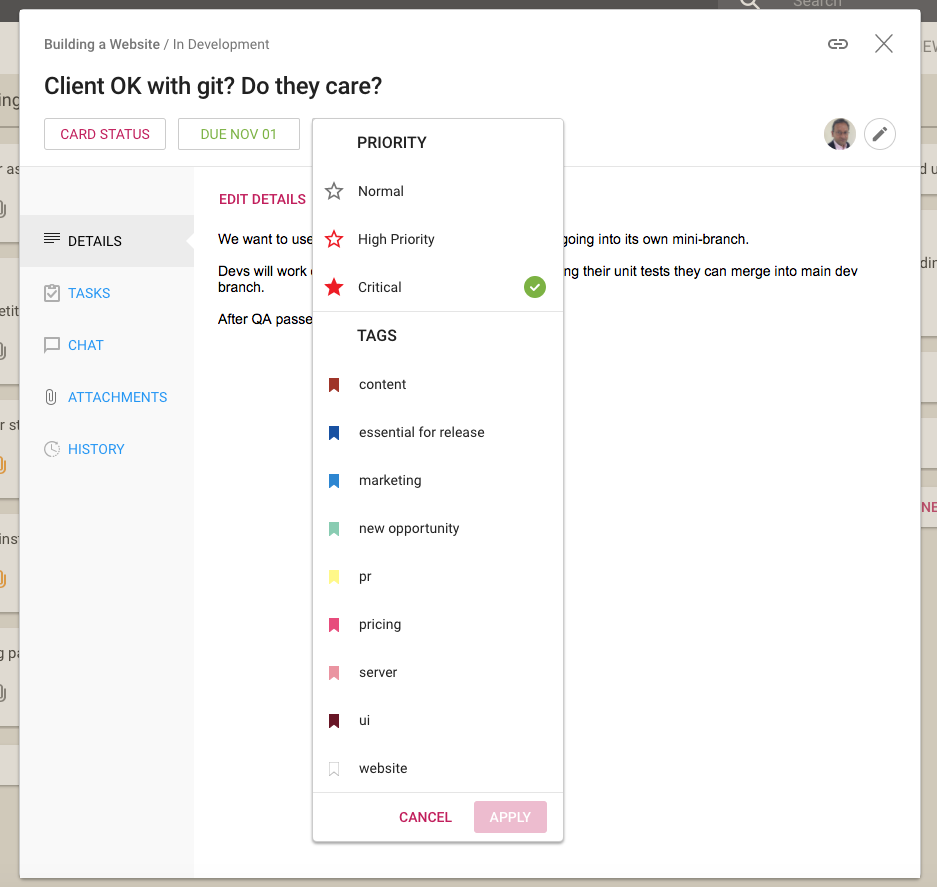
With our latest version, Kerika makes it easier to explicitly tag each card with a priority of Normal, High or Critical:
Setting Priority
Along with assigning tags to a card, you can now set the priority of the card as well: by default all cards are Normal, but they can alternatively be flagged as High Priority or Critical.
Viewing all the High Priority and Critical Cards
We have also extended the Highlights function for Task Boards and Scrum Boards to make it easy to quickly see all the High Priority and Critical cards on a crowded board:
Highlighting high priority and critical items
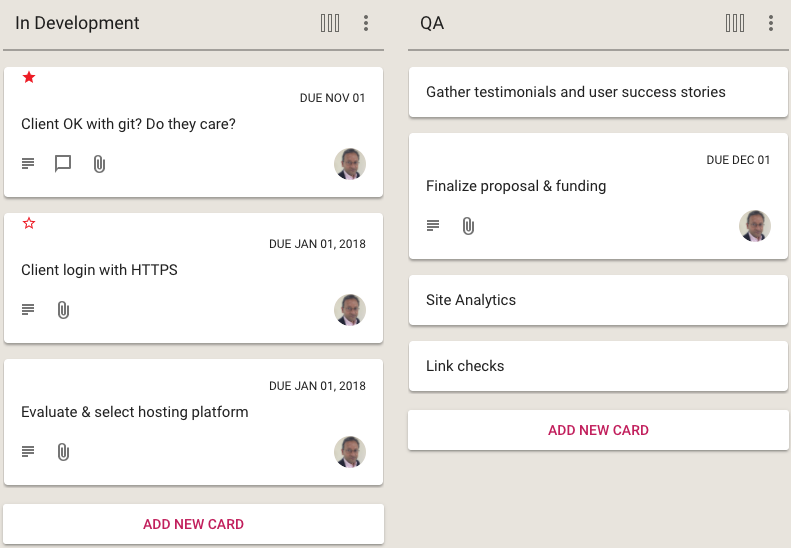
When you are looking at a board, the High Priority and Critical cards are also highlighted with small stars: a solid red star for Critical, and a hollow red star for High Priority:
High Priority and Critical cards
The Normal Priority cards don’t have any star; we didn’t want to crowd the design which would have made it harder to spot the more important High Priority and Critical cards at a glance.
High Priority and Critical Cards across all your Boards
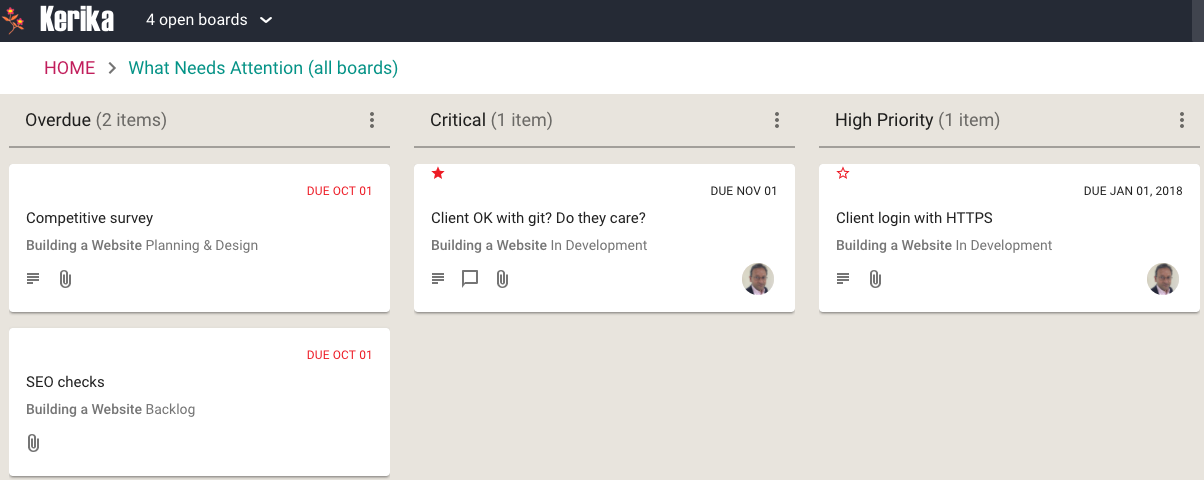
And, finally, we have enhanced the What Needs Attention View to include columns for the High Priority and Critical cards across all the boards where you are a Board Admin, or where you have been assigned the card as a Team Member:
We have made it easier for teams to manage multiple Due Dates within the same project, especially when a single work item (as represented by a Task Board or Scrum Board card) contains many different sub-tasks, each of which could have a different Due Date.
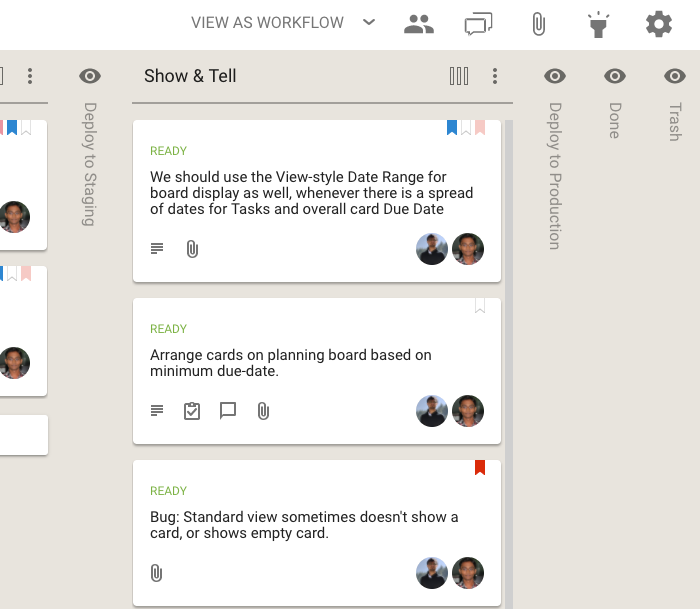
Where a card has multiple tasks, each with different Due Dates, the range of dates is shown on cards to make it easier to understand the “time footprint” of the work item as a whole.
Here’s an example of a card with two open/remaining tasks, one of which is due today and the other tomorrow:
Tasks with different due dates
When viewed on a Task Board or Scrum Board, Kerika will show the range of dates involved for this card:
Tasks with a range of Due Dates
This provides better context, better usability for users who work with due dates: at a glance you can see the overall “time footprint” of a work item that involves several sub-tasks.
The What’s Assigned to Me and What’s Due Views are now smarter about handling multiple due dates for the same card: if just one task within a card is overdue, even though the card as a whole isn’t yet overdue, this is shown in the Overdue column in these Views.
Your 6AM summary email (which you can turn on optionally) now lists the due dates on individual tasks within cards, as these become overdue or due this week or next week.
Previously, when you hid a column Kerika would show that like this:
Hiding columns (before)
The name of the column that was being hidden was shown vertically, to make it easier to retain the overall context of the board.
We have improved this so hidden columns now look like this:
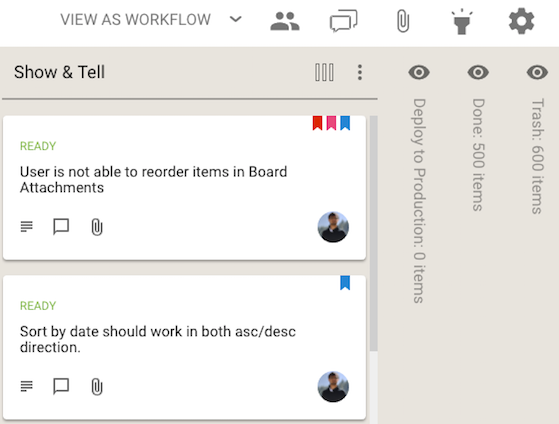
Hiding columns (now)
The subtle (but important) distinction is that Kerika now shows you how many cards are in the hidden columns, not just the name of the column. We think this will make this feature more useful, to more people, more of the time.
With our latest version, a task within a card (on a Task Board or Scrum Board) can now be assigned to multiple people, just like the card itself.
This makes it easier to handle more complex work items that contain a large number of tasks, each of which may require more than one person to handle.
To make this work, we have also updated the What’s Assigned to Me and What’s Due Views to make sure everyone who is assigned to a task, where tasks have multiple people responsible for them, sees this clearly.
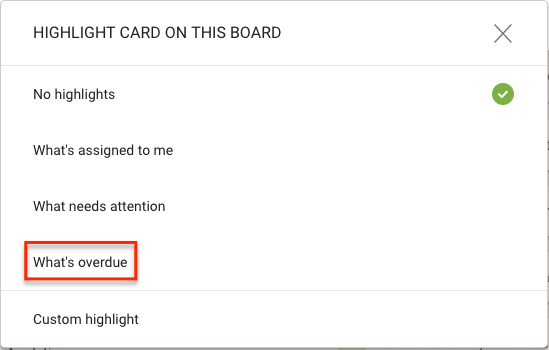
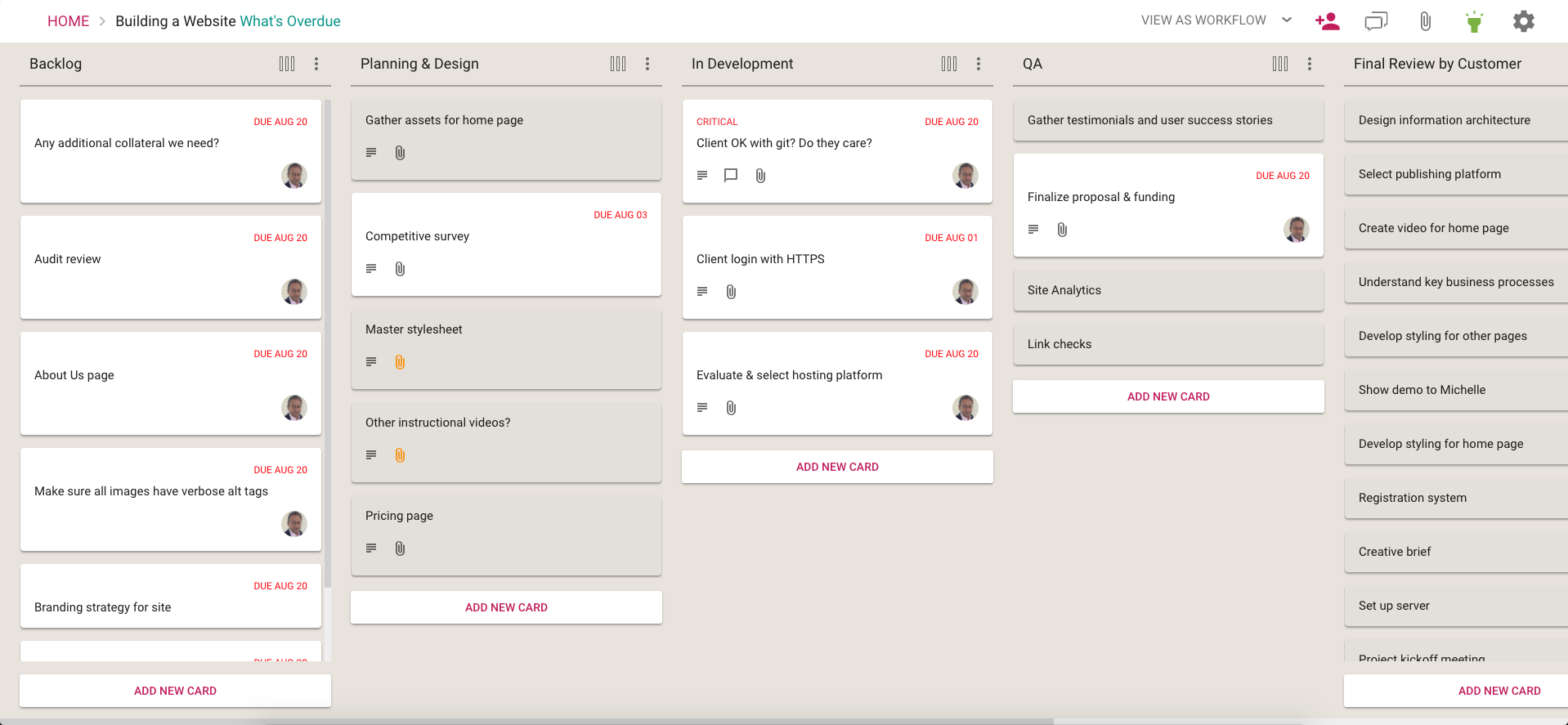
This option lets you quickly spot all the cards on a board that are overdue, and it does so in a smart way:
If a card’s overall due date has passed, this card will be highlighted.
More importantly, if a task within a card is overdue, even though the card as a whole isn’t overdue, this card will also be highlighted.
This smart highlight makes sure that you are aware of everything that’s overdue, even it is just one task that’s buried within a card on a large board.
All Kerika users have the option of getting an email sent to them at 6AM everyday, in their local time, that summarizes all the cards that are overdue, due this week, and due next week.
(Actually, we have two options for this email: you can get these cards summarized by due date, or by board. Or both.)
We have improved this email to include Tasks as well as cards.
This required some smarts in the code to handle scenarios where a Task’s Due Date is different from the Card’s Due Date, but we managed to do this nicely.