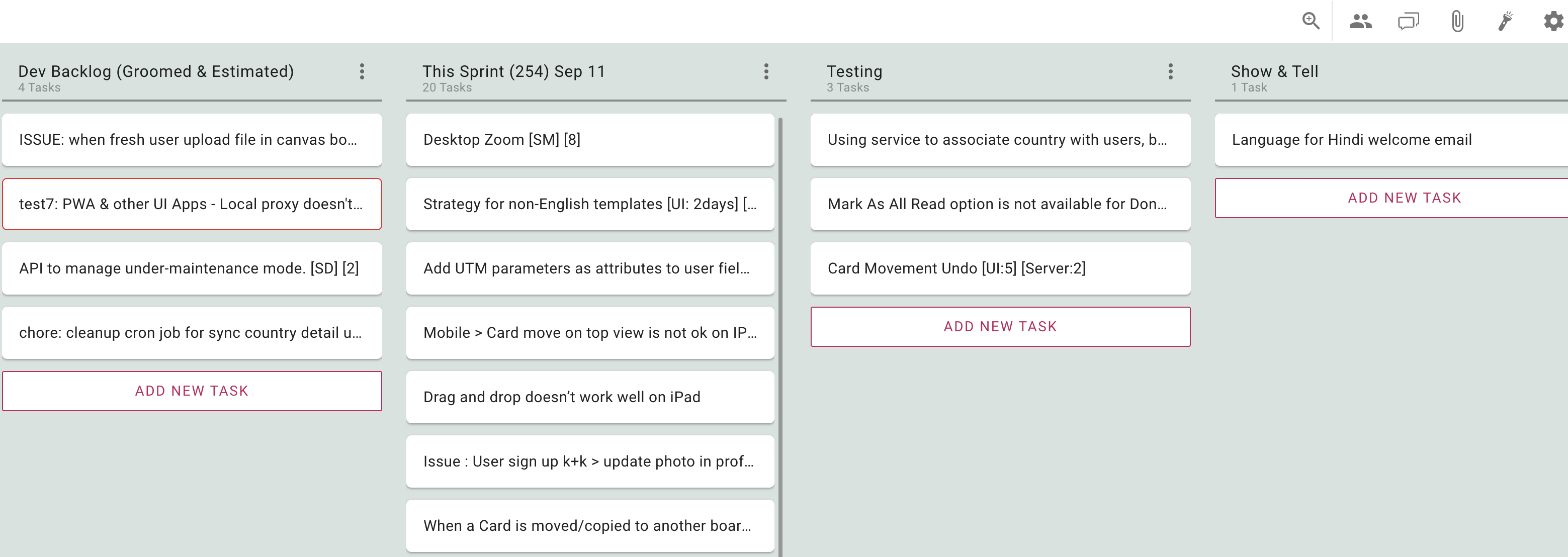
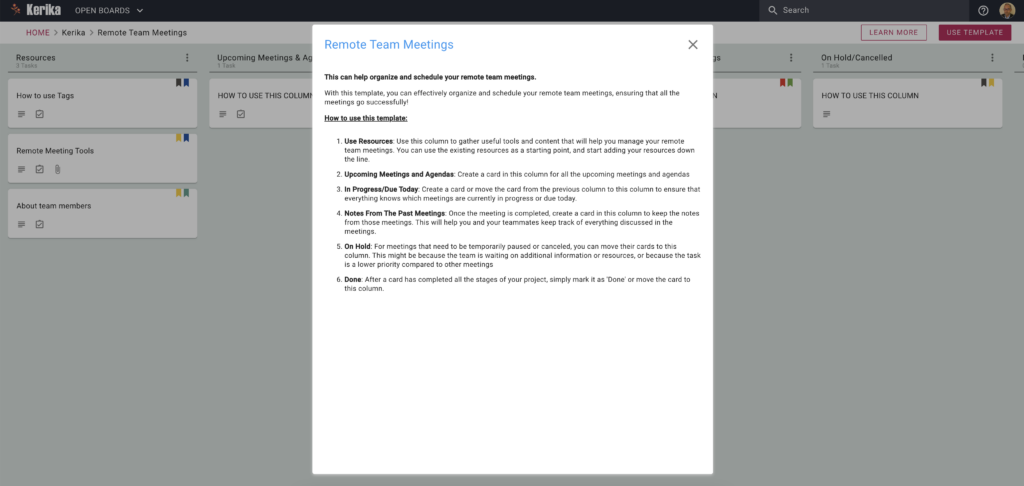
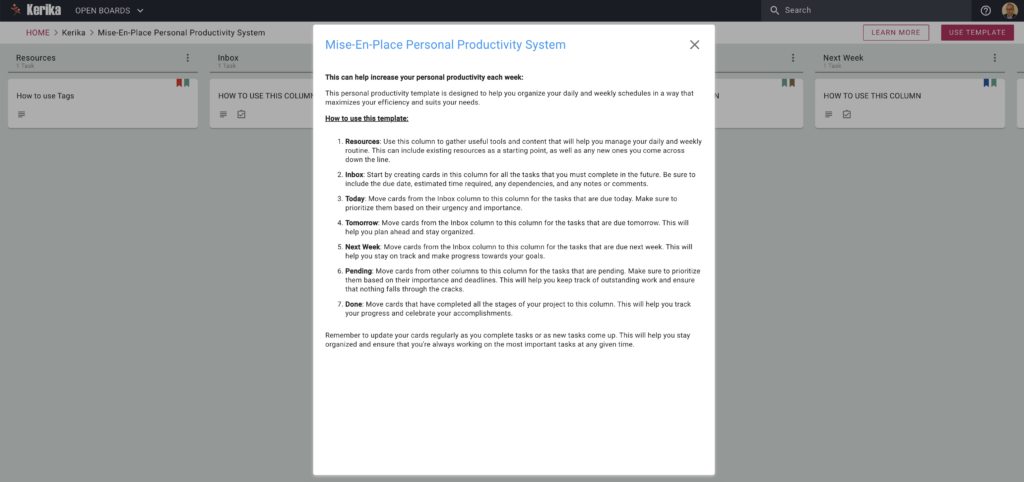
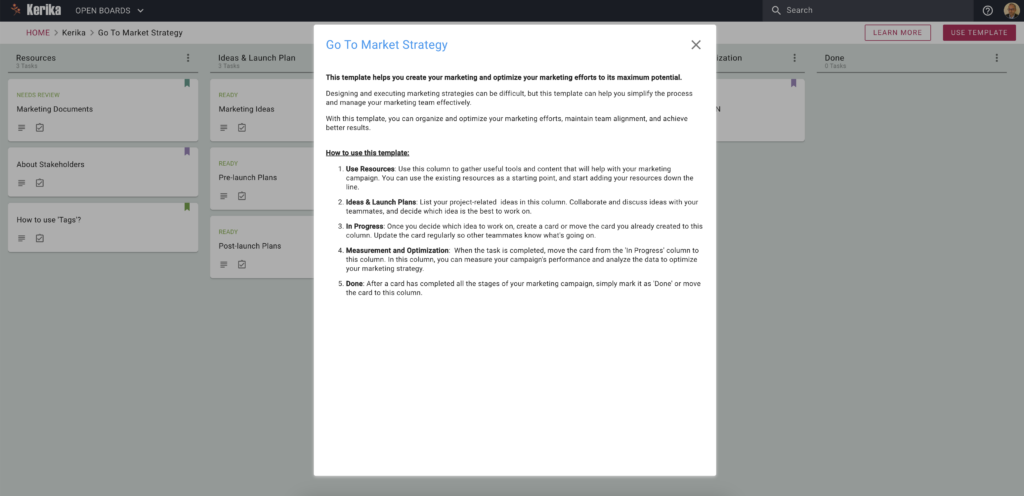
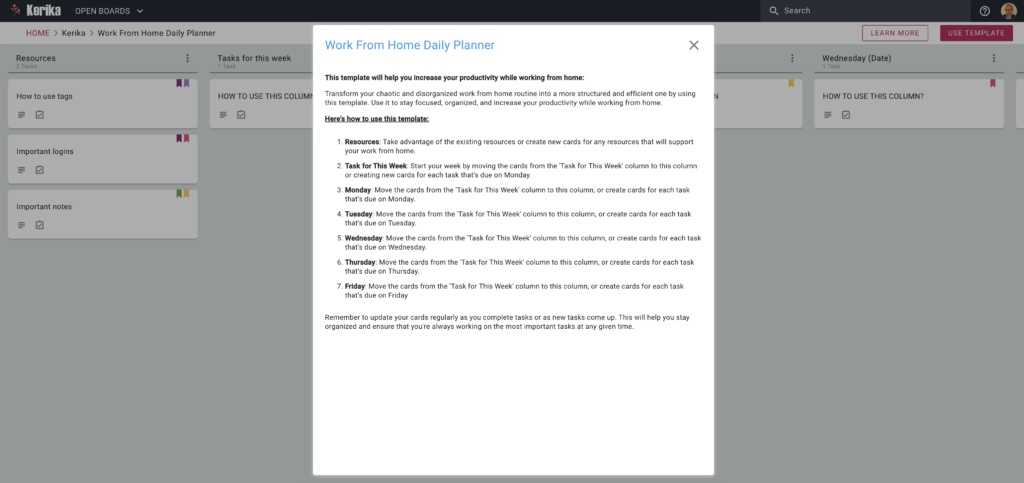
With our new user interface we made it easy to see how many tasks (cards) there are in a single column: the count appears at the top of each column.

We have added an Undo option for all Sort actions on Task Boards, to make it easier for you to use the sorting function without worrying about making a mistake.
Enjoy.
We are transitioning our Scrum Board users to Task Boards: the Scrum Boards are used only by a tiny portion of our user base, who overwhelmingly prefer using Task Boards and Whiteboards.
For many years now we have offered both Task Boards and Scrum Boards, but the relative popularity (and implied usefulness) of these two are lopsidedly in favor of Task Boards.
The main difference between Task Boards and Scrum Boards has been the use of a shared Backlog: a column of cards that can be shared by several Scrum Boards at the same time.
In Scrum Boards, the Backlog appeared fixed in the leftmost column of the board, and like Done and Trash, it couldn’t be be moved, renamed or deleted.
The Backlog was “live” all the time in the sense that any change made by one attached Scrum Board to the Backlog was immediately reflected in every other Scrum Board that was attached to the same Backlog. If Scrum Board A added a card to a shared Backlog, it immediately showed up in the Backlog column when viewed by Scrum Board B and Scrum Board C.
This wasn’t a good way to implement Scrum Boards, as we found out ourselves during our internal use of these boards. It’s principle weakness was it led to a proliferation of Scrum Boards, since each Sprint required a new Backlog. (Our own development team is currently on Sprint 180 so we experienced this proliferation early on.)
We though the general feature in Kerika that lets accounts archive old boards would help, but this just pushed the proliferation problem to another area; it didn’t really fix it.
We are just going to have Task Boards (and Whiteboards) from now on. At some point in the future we may completely rethink, redesign, and rebuild a new kind of scrum boards, but it doesn’t make sense for us to continue offering the current version.
As a consequence, all existing Scrum Boards will be converted into Task Boards. Here’s how that would work:
Consider an existing set of boards that all use the same shared Backlog: Board A, Board B, and Board C.
Right now all three boards see the same Backlog, at the same time: if cards are added or moved away from the shared Backlog by any board, this view is immediately updated for all three boards.
When we transform Scrum Boards to Task Boards, each of Boards A, B, and C will have its own local copy of the Backlog.
From this point on, any changes made by any of these boards to their local copies of the Backlog will not affect the copies that were made for the other boards. Each board, then, becomes independent and can proceed on its own path, without affecting any other board since there is no longer a shared column of cards.
We have already been in touch with active users of Scrum Boards and have not heard any concerns from them about this proposed change, so we are confident that we are making the right decision. If you do have any questions, please contact us at support@kerika.com.
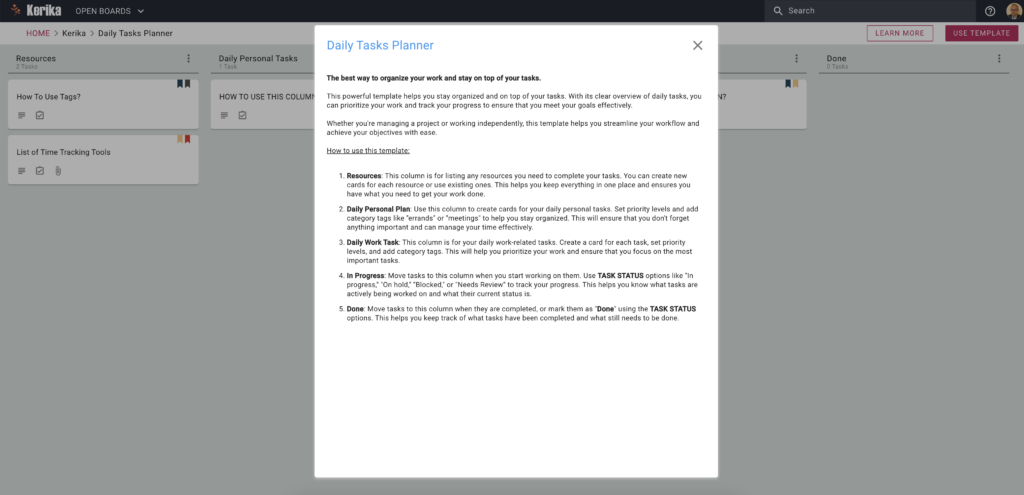
We have a complete set of templates for folks who want to use the Google Design Sprint methodology; you don’t have to be an expert at either Design or Sprints to get productive fast.
Here’s a quick overview:
We have made some improvements to the process that guides new users when they sign up, so they can join the accounts of coworkers they might need to work with.
The new process works like this:
When a user signs in (with a Google ID, Box ID, or their email), Kerika examines the email address associated with that user and compares it against other users who are already registered.
If it finds that other users from the same domain are already active Kerika users, it offers the new user the option of joining a colleague’s account or starting an entirely new account.
In most cases, people are better off joining accounts that have already been established by their coworkers, so they can find the most relevant Kerika boards.
Kerika tries to be smart about this in a couple of ways:
First, it rules out free domains, like Gmail, Yahoo, and Outlook. (There’s a long list of free domains that we check against.) With free domains, there could be thousands of other users who have similar emails but no connection with you.
So if you sign up with a free email, you won’t be offered the possibility of joining an existing account. (Of course, an existing Gmail user could invite you to join their teams; it’s just that Kerika doesn’t suggest these connections.)
Having winnowed out the free domains, Kerika then considers whether the older accounts from the same domain as the new user can actually accommodate new people: do they have free subscriptions available that could be used by the new user?
If the older accounts are still in the Free Trial phase, then the answer will be Yes: trial users can have unlimited Team Members .
If the older accounts are tagged as Academic/Nonprofit, there’s a good chance they can accommodate new users.
If the older accounts are Professional Accounts, the chances are much lower — unless the older account had bought a few extra subscriptions in advance to accommodate this scenario.
Having further narrowed down the list of potential accounts, Kerika considers whether your potential coworkers are, in fact, active users of Kerika. This is important in universities, for example, that have been whitelisted so that everyone joining up from a particular university automatically gets a free Academic Account.
From University of Washington, for example, there are thousands of registered free accounts, set up over the past several years. Not all are still active because the students involved may have graduated already. So even though an account may have free/unused subscriptions, it doesn’t make sense to suggest that to a new user if that account has been dormant for more than a month.
After all this we could still end up with a large set of potential list of collaborators, particularly in large organizations.
So, as the final step, we check the “last active time” of our candidate accounts and then present the 8 most recently active accounts. Our rationale is that a new user may want to join the most recently active account, which perhaps belongs to a fellow user who had suggested the new user sign up for Kerika.
All of this takes place in a fraction of a second, of course, so users don’t experience any wait times. But it helps new users orient themselves within Kerika by trying to connect them to the most likely coworkers.
At this year’s Lean Transformation Conference in Tacoma, Washington, Arun Kumar spoke on the subject of “Virtual Teams: How to Make Them Succeed”.
A synopsis of the presentation:
Virtual teams can be as successful, even more so, than traditional (collocated) teams – but you need to understand how the project dynamics change when everyone can’t be in the same room at the same time. In this session we will cover the key success factors to building a high-performing virtual teams: how you can plan your work, run your daily standups, communicate, and share content. We will discuss the different roles and expectations of Project Leaders, Team Members and Visitors, and how people can juggle multiple projects at the same time.
The presentation was an hour-long, including Q&A; here’s an edited version of the talk (about 45 minutes long.)
We just updated Kerika today, and along with the usual bug fixes and other behind-the-scenes stuff we have made an improvement to the way Views are shown on your Home Page:
Some of our users have dozens of boards in active use at the same time, with large (and sometimes overlapping) teams, and as a result their Views counts are nearly always high.
As you can see from the screenshot above, the Home page now shows two counts for each View:
This makes it easier to see if you need to go back to a View to catch up on something that’s directly related to you, i.e. is assigned to you.
Views are unique to Kerika: no other work management system provides such an easy way to see what matters, across all the boards you are working on.
These Views make it easy for organizations to really scale up their use of Kerika across multiple projects and many ongoing projects at the same time.
We have now added a very useful new View: What’s New and Updated. As you might guess from the name, this View lets you catch up on everything that’s new and changed, across all the boards you are working on — as a Board Admin, Team Member or Visitor.

This View can work very effectively as a Dashboard for managers who need to keep track of many different boards, all working at the same time: instead of constantly revisiting each board one-by-one, this View is a simple, comprehensive way to see everything that’s changing across all your boards.
The updates are shown in Kerika’s unique “heads-up” notification style: the blue New tags highlight cards that have been newly added to your boards (that you haven’t opened yet), and the orange highlights show you precisely what’s changed on your old cards.
The new and changed cards are sorted into columns, with each column containing all the new and changed items within a particular board. The newest changes appear at the top of a column, and if a board has nothing new to report, the corresponding column is not shown (so your View doesn’t get cluttered up.)
(Cards that are moved to the Done or Trash columns on a board are not included in the View, to help avoid getting the View cluttered.)
As with all Views, it’s easy to operate on all the cards within a column, by selecting the Column Actions button that appears on the top of each column:

The Mark All Cards As Read action is useful if you want to ignore everything that’s going on in a particular board, e.g. when you have just returned from a status meeting where you got fully briefed on what’s happening on a particular board.
Another way to temporarily ignore individual boards is to Hide Column: this collapses the column from the View, and let’s you focus more intently on the handful of boards you care most about.
Selecting a card in this View lets you open the card within the View itself, or to open it on the board where the card actually sits:

(Sometimes it’s easy to deal with cards just by themselves; sometimes the View Board action is more helpful, if you want to be sure you understand the full context in which a card changed.)
Using your mouse’s right-click action will also bring up a bunch of useful actions for that card:

In addition to all the other actions you can perform on cards, you also have the option to get the URL (address) of card using the Get Link action. Every cards, every canvas and every board in Kerika has a unique address, and using these URLs anywhere on a board, e.g. in the board’s details or chat, will automatically set up a link between the two cards.
When you mark a card as “read” on this View, it remains on the View until you click on the Refresh button (shown at the top-right corner of the View).
And, as with all Views in Kerika, the What’s New and Updated View includes the “For Me” toggle button on the top-right corner: clicking this will quickly filter the View to show you just those items that are personally assigned to you.

This feature is available to all our users, just like every other feature in Kerika: it doesn’t matter whether you are still in your 30-day free trial, you are working on the free Individual Plan, or are benefiting from Kerika’s free Academic and Nonprofits Accounts. Everyone always get the same Kerika goodies :-)