Category Archives: Kanban & Lean

Posts related to Kanban and Lean methodology.

Project Info summary of your Kerika Board: a new Kerika feature

We are thrilled to announce a new feature in Kerika: a very useful Project Info display that summarizes of your project.

You can access this by clicking on the new Info button that appears in your Kerika toolbar, at the top-right corner of your board view:

Project Info display

This view is available to everyone who is part of the project team:  Project Leaders, Team Members and Visitors.

There are several sections in here: at the top is the Name and Description of the project:

Name and Description

The Description is a new attribute of Kerika’s boards: it lets you provide context about the project that can help orient new team members, and it can also help with your Searches in the future.

The Name and Description of a project can be modified at any time by Project Leader or Account Owner.

Next up is the Summary of the project:

Summary
Summary

The summary varies by the type of board (Whiteboards, Task Boards or Scrum Boards), but it provides useful information in all cases:

  • It tells you when the board was first created, and by whom.
  • It tells you when the board was last updated, and by whom.
  • And for Task Boards and Scrum Boards it tells you how many cards are done, and how many remain.

Since each card typically represents a work item, this is a quick way to find out how much work remains on a board, without having to count up all the cards in each column.

For Task Boards and Scrum Boards, this view also shows you how many cards are due today, due tomorrow, and overdue.

And for Scrum Boards, it shows you how many cards are in the Backlog that you are using, so you get a sense for how far along you are with the overall project, not just the current Sprint.

All Kerika Task Boards and Scrum Boards now have support for Work-In-Progress Limits: these can be turned on or off by the Project Leader or Account Owner:

Settings
Settings

Another huge new change: we are making it super easy to switch a board from being a Kanban Board to a Scrum Board, and back again.

Task Boards and Scrum Boards also have a new auto-numbering feature that can help you manage very large boards, e.g. if you are using Kerika for an internal Help Desk.

For both Tasks Boards and Scrum Boards, there is now a great new Export feature that lets you export cards from a board in CSV or HTML formats:

Export
Export

And, finally, you now have the option to make individual projects open to the public to view (but not change): a handy feature for open-source and volunteer-based projects like WIKISPEED:

Privacy
Privacy

Kerika @ PMI Olympia Chapter

Arun Kumar, Kerika’s CEO, and Beth Albertson, Solutions Architect from Washington State’s Department of Social and Health Services will be jointly presenting at the November 18, 2014 dinner meeting of the Project Management Institute’s Olympia Chapter.

The topic will be  Using web-based work management for distributed and agile teams.

If you are interested in project management, and are close to the Olympia, Washington area, please sign up for this dinner event!

PMI
PMI dinner

Kerika @ Washington State Lean Transformation Conference

Come join us at the Washington State Lean Transformation Conference, to be held October 21-22, 2014 at the Greater Tacoma Convention & Trade Center  in downtown Tacoma at 1500 Broadway Tacoma, Washington!

Arun Kumar, Kerika’s CEO, will present a special Breakout Session on One team, many places: creating collaboration networks for distributed workgroups

The vision of Lean Government is about collaborating across offices, across agencies, and even across sectors. In an era of flat or even declining budgets, it’s become essential to get Lean across the state, not just across the room.

The old technologies never really supported distributed Lean and Agile, but that’s all changed now: a new generation of browser-based work management tools makes it fast and easy to build Lean and Agile teams that connect professionals across agencies, and across sectors so that expertise from the private sector, academia, and nonprofits can be leveraged to deliver great results in Washington.

This breakout session will feature a look at some great cross-agency projects and cross-sector projects: initiatives that have succeeded in delivering in a way that was unimaginable only a couple of years ago.

The session will be presented at 12:15PM in Room 318 on October 21, and again at 10AM in Room 318 on October 22.

If you are working in state, county or local city government and are interested in Lean and Agile, be sure to join us: the cost for attending is just one can of food, which will be donated to a food bank :-)

Managing really large (and really old) Kanban Boards

Kerika’s Task Boards are so easy to set up and use that teams sometimes make the mistake of sticking everything on the same board, week after week and month after month, until the board becomes really too big to be useful.

The Kerika software itself doesn’t buckle under the weight of hundreds of cards on a single board (and, to be honest, we are also guilty of sometimes doing very large Scrum iterations that turned over a few hundred cards  -.-), but just because the software works fine doesn’t mean the practice makes sense.

The most common way for a Kanban board to get overcrowded is for it to be used for too long: the Done column gets bigger and bigger, as more work gets completed each week, until you end up with a very lop-sided looking board with perhaps 20-50 items in “To Do”,  and maybe 1,000 items in “Done”.

When presented with a board that contains hundreds or even thousands of items in Done, it’s hard for individual team members to get visual satisfaction from seeing cards move over to the Done column on a regular basis: as work gets done, it seems to vanish into this endless pile of other work that’s already been done.

Teams and, especially, Project Leaders should not underestimate the value of this visual satisfaction of seeing a well-balanced board, with about the same number of items in “To Do” (or Backlog, or Pending, or whatever you choose to call your parking lot) and in the “Done” column, with an even-looking distribution of items in the columns in the middle.

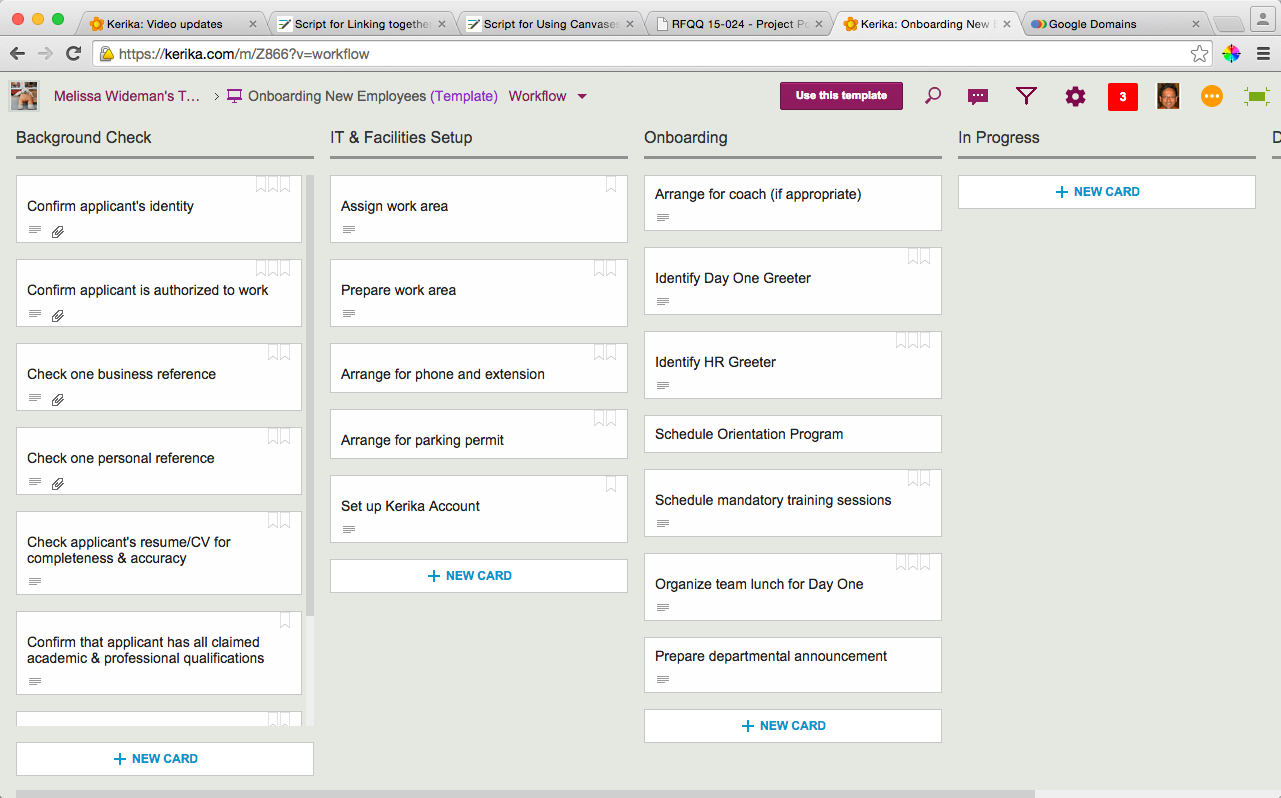
(The simplest Kanban board may just have three columns: To Do, Doing, and Done, but Kerika makes it easy to have far more complex workflows, and to capture your organizations’ best practices as a collection of process templates.)

If a Kanban board is going to be used for an extended period, say several months or more, then we recommend create a parallel History Board that can be used to track the historical achievements and progress of the team. Here’s how this scheme works:

  • Create a board called “History Board 2014”. (The name isn’t particularly important.)
  • Organize this boards with columns that look like this: Jan 2014, Feb 2014, Mar 2014…
An example of a History Board

We will use these columns to hold all the cards that were completed in that particular month. So, for example, the Jan 2014 column would contain everything that was completed in January 2014.

  • At the end of every month, pause for a moment to celebrate your team’s accomplishments for that month. (Order in some beer and pizza and maybe pause for longer than a moment…)
  • Move all the items that in Done onto the History Board: use Kerika’s cut-and-paste feature, which will let you move a bunch of cards intact, along with their history, chat, attachments, etc., from the Done column of your main Kanban board to the appropriate column in your History Board.

Laptop users will find their right-mouse click menu handy for this: click on a card in the Done column, do “Select All” from the right-mouse menu, and then do a “Cut”. Once you have cut (or copied) anything into your Kerika Clipboard, a Paste button will automatically appear at the top of each column, on each board where you can make changes.

So, Cut from Done on your active board, go over to your History Board, and then do click on the Paste button at the top of the appropriate column, e.g. the August 2014 column.

This simple method lets you achieve two objectives at the same time:

  • It’s an easy way to trim the size of your active Kanban board: by taking out the “Done” stuff each month you can stop it from ballooning in size over time.
  • It’s an easy way to create a comprehensive historical view of everything your team has achieved over time: go over to the History Board and you can see how work got done over an entire year. (Might be useful at performance review time ;-)

A side-benefit: your active Kanban board will load a lot faster if it doesn’t get overloaded.


True Tales from our Customers: Adding Kerika Spice to a presentation

One of our users wrote in last night with this great story, which we wanted to share with you…

I did a one hour webinar for the software company (Software AG) that we develop all of our software with as they were impressed with the way we were using their software development environment (NaturalOne).

I threw a little Kerika spice into my presentation as it has become such an important part of our development environment and I actually used it to prepare my presentation.

Instead of preparing the presentation by myself I used a Kerika project and had my software developers contribute cards and instructions in the areas that they specialized.

While I was doing a live presentation I was referring to the cards on my other monitor and swiping them to the ‘Done’ column as I completed them.

I know you like to hear stories about how people use your software and this worked very well for this presentation.  It was recorded and I will send you a link to it once it is published.  It might put you to sleep at night, except for the Kerika part.

Using status indicators on Task Boards and Scrum Boards: Done!

(The sixth, and last, in a series of blog posts on how you can make use of the status indicators on cards, in Task Boards and Scrum Boards.)

In our last post we talked about how to use the “Is blocked” flag; today, let’s take a look at “Done”.

Setting status
Setting status

“Done” is where you want to get to: it’s a special column that’s always to the right edge of every Task Board and Scrum Board.

(You can always chose to hide the Done column, of course, just like you can hide every other column on the board.)

Marking a card as “Done” is simply a quick way of moving it to the Done column, which can be handy when you have a very elaborate workflow — and we have seen folks whose boards have up to 20 columns!

In the near future when we add Work-In-Progress (WIP) Limits for Task Boards and Scrum Boards, the Done column, of course, will not be subject to WIP.

We are also planning on adding more metrics to help Project Leaders and Account Owners understand how well their projects are going, and these will naturally make use of the Done count.

All posts in this series:

Using status indicators on Task Boards and Scrum Boards: Is Blocked

(The fifth in a series of blog posts on how you can make use of the status indicators on cards, in Task Boards and Scrum Boards.)

In our last post we talked about how to use the “On Hold” flag; today, let’s take a look at “Is Blocked”

Setting status
Setting status

“Is blocked” sounds similar to “On hold”, but it should be used in a different context: Blocked is a red flag to the team — it indicates that you are unable to proceed with a task, and you need help.

The essential difference between Blocked and On Hold is that:

  • You, or perhaps your boss, chose to put something On Hold.
  • You were forced to mark something as Blocked.

For teams working in a Kanban or Scrum model, the highest priority for a Project Leader should be to unblock cards.

Unblocking cards (and hence, people) is the most useful thing that a Project Leader can do to help move work smoothly.

This is why “Is blocked” is shown in red on a card, so that you can literally raise a red flag!

All posts in this series:

Using Status Indicators on Task Boards and Scrum Boards: “Needs rework”

(The third in a series of blog posts on how you can make use of the status indicators on cards, in Task Boards and Scrum Boards.)

In our last post we talked about how to use the “Needs review” flag; today, let’s take a look at “Needs rework”.

Setting status
Setting status

In an ideal world, cards would only move from left to right: starting off on the left-most column, e.g. the Backlog in a Scrum Board, and moving in stages to the Done column.

In the real world, however, work can sometimes need rework, and that’s what the “Needs rework” status indicator can be used for.

The amount of rework that’s needed will vary widely, depending upon the project and the team:

If someone new has just joined a well-established team, that person may need some time to understand exactly what’s expected of them at each stage of the project’s workflow: they may, for example, be too quick to move a card from “Planning” to “In Development”, without realizing what’s expected of a card that’s fit to exit the Planning stage.

This new person may find that her work gets pushed back to the left, marked as “Needs rework”.

It’s imperative that whoever pushes back work as “Needs rework” also provides some precise description of what rework is needed.

This is most often done using chat, but sometimes a marked up document, screenshot or other materials may be more useful, particularly if the task is complex.

But, simply marking a card as “Needs rework”, without providing a good explanation, is never a good idea: it will generate ill-will within the team, discourage the new person, and simply result in more work for everyone.

Some times of work will always require a lot of rework: e.g. design.

Mockups of new products or features, or copy for new advertising, will go through a lot of rework before it is considered ready to move along a workflow.

This is quite normal, which brings up another critical point: good Project Leaders will ensure that there is no stigma attached to cards being marked as “Needs rework”.

If people are made to feel, however subtly, that their work is of poor quality because many of their cards are frequently marked as “Needs rework”, this will have a very bad effect on individual and team morale.

It’s really incumbent on the Project Leaders to ensure that people understand that “Needs rework” is simply a status indicator, not a judgment of someone’s abilities!

All posts in this series:

Using status indicators on Task Boards and Scrum Boards: “Ready to Pull”

(The first in a series of blog posts on how you can make use of the status indicators on cards, in Task Boards and Scrum Boards.)

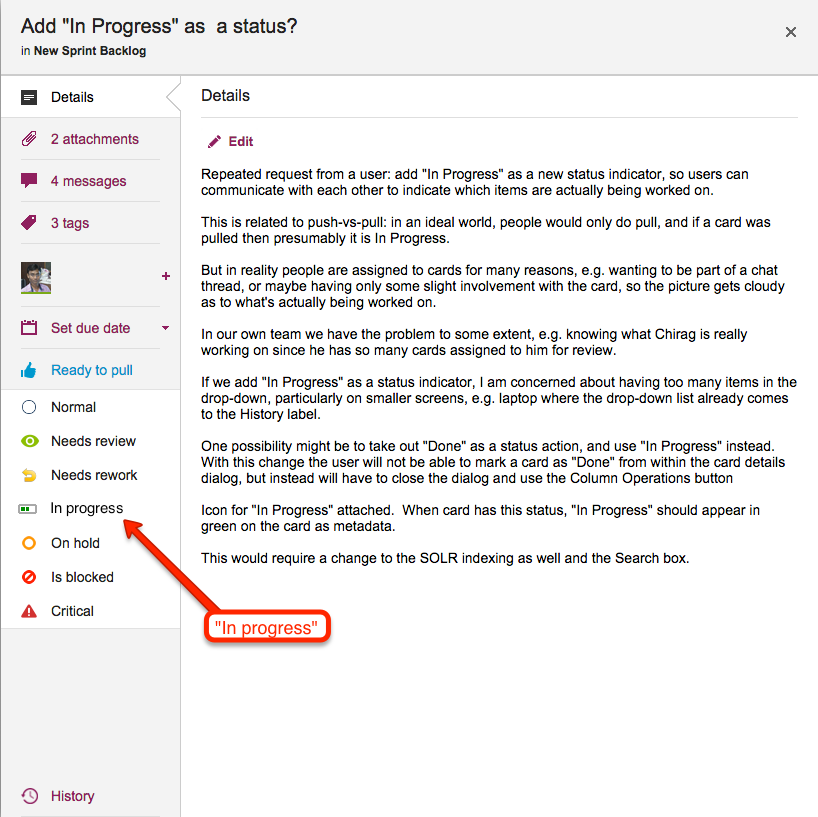
Kerika makes it really easy to flag cards on a board, if you need to alert your team members; here’s an example:

Examples of status flags on cards

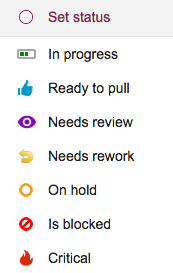
There are several statuses that you can report on cards (in addition to “Normal”, the default setting), and we will try to provide some advice in these blog posts on how best to use them.

First up: “Ready to Pull”

Setting status
Setting status

Ready to Pull is great if your team works in a “pull” environment, rather than a “push” environment. Here’s the easiest way to differentiate between the two:

  • In a “push” environment, work gets pushed onto people — quite literally. For example, Project Leaders (or even Team Members) decide that a particular card should be handled by a particular person, and they assign that card to that person: in other words, they push that work onto people.
  • In a “pull” environment, people only assign work to themselves: as they get freed up from whatever they are working on, they look at the board and pick up whatever task is waiting to be pulled (i.e. done) — in other words, they pick up a card that is marked as “Ready to Pull”.

There are advantages and disadvantages to both models, and it’s really a question of how your team prefers to work.

Particularly in organizations that are still transitioning from traditional (Waterfall-style) project management, the push model can be the easiest way to adopt a tool like Kerika: it helps retain the traditional role of a Project Leader as someone who is responsible for the assignment of work among the team.

This is definitely the easiest pathway for organizations that are still in the process of transitioning to a Lean or Agile model — a process that can take months in most cases.

There are, however, some disadvantages to the push model:

  • It can delay the organization’s cultural transformation to Lean/Agile: people feel less empowered, and can be more passive if they wait for work to get pushed to them by others.
  • A less empowered team is often slower to take the initiative.
  • Someone who has had work pushed onto them may feel less ownership of the outcome.
  • It provides a misleading picture of what’s actually getting done: this, in our experience, is the biggest shortcoming of the pull model!

When work gets pushed onto people, you can find that individuals have 10 or more items currently assigned to them. There’s no way they could be working on all 10 items at the same time, so one of the biggest advantages of Kerika — providing an accurate, real-time view of what’s getting done, and by whom — is somewhat negated.

The pull model is truer to the spirit of Kanban: it allows people to work at their own (true) pace, and empowers them to pick up new work as they get freed up — or blocked.

The Kerika team itself has transitioned from push to pull: with push we never had a true sense of what’s getting done; with pull, we do!

There are disadvantages to the pull model:

  • It requires more training and cultural change up-front: even for a team that generally feels empowered, it is a big shift in thinking and process to move from push to pull.
  • It can require a more complex workflow: for example, here’s a partial (!) view of the workflow that we adopted as part of transitioning to Pull, to make it work within our constraints:
Understanding the Pull Model

Pull is best implemented in conjunction with Work-In-Progress (WIP) Limits, which is a feature that we will be adding shortly to Kerika.

So, how should you use “Ready to Pull” as a status indicator?

If you are working in a push model, there’s nothing to do: you don’t need this feature.

If you are working in a pull model, whenever a user is done with a piece of work, she should mark it as “Ready to Pull”, and then take her name off the card.This will clearly signal the rest of the team that the work item is ready to be taken on by someone else.

All posts in this series:

A case study in transforming a Government Agency

Dan Genz from the Washington State Auditor’s Office gave a presentation at the 2014 IPMA Forum describing how the state agency is adopting Lean principles, while serving hundreds of state, county and local municipalities with a distributed team of auditors and analysts spread out across the state: