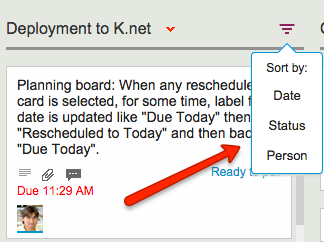
When working with Task Boards and Scrum Boards, you get a variety of options for quickly sorting a column of cards:
Sort options
Sort by Date is easy enough to understand, but what about sort by status?
Sort by Status organizes the cards in a column as follow:
Critical
Is blocked
Needs rework
Needs review
In progress
Normal
On hold
This sort order reflects the normal priorities of most projects: the most important stuff would ideally show up at the top of the column to get dealt with first.
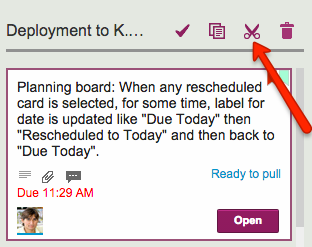
Cutting and pasting cards from one Task Board to another, or from a Task Board to a Scrum Board for that matter, is easy and simple with Kerika: just select the card, and then click on the “Cut” button that appears at the top of the column:
Cut button
You can cut several contiguous cards within the same column by shift-selecting them, and then clicking on the Cut button.
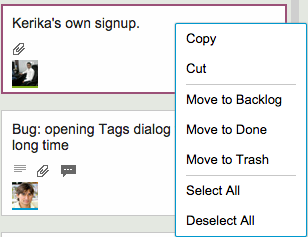
And, you can also access the Cut operation by using the right-click mouse menu:
Right-click menu
Cutting-and-pasting is effectively a move operation: it moves the card intact, along with its details, tags, attachments and chat, from one place to another.
You can cut and paste within the same board, of course, but this is pointless since it is much easier to drag cards from one column to another.
Cutting and pasting cards from one board to another is much more useful, and it doesn’t matter if the source is a Task Board or Scrum Board, and the destination is a board of different type — or even if the destination is a Template.
But what should you do if you click on the Cut by mistake? Well, that’s easy to undo: just click on the cut cards — which will appear slightly greyed-out — and the cut operation will be cancelled!
Some techies in Seattle may like up to 50 shades of grey, but at Kerika we try to stick with just three:
Kerika Grey
This is easier said than done: there’s a lot of grey in the Kerika user interface, and as we add new features or tweak old ones, it’s easy to slip and introduce new shades of grey.
So, periodically, we need to take digital color meter and examine the Kerika UI in detail, pixel-by-pixel, to look for stray shades of grey.
Limiting the palette of grey to just 3 shades is an example of how constraints can help designers.
Kerika’s Scrum Boards look a lot like regular Task Boards (which you can use for Kanban-style) work; the main difference is that each Scrum Board can share a backlog with other Scrum Board.
We were doing some fairly complicated bookkeeping when people added tags to their Scrum Boards, and we decided it was getting messy both for the system and probably the users as well.
So, we are simplifying tags for Scrum Boards:
Every Scrum Board is connected to a shared Backlog. (And, if there was no backlog to connect to, Kerika will automatically start a new backlog for you.)
Cards on the Backlog may use a certain taxonomy for their tags, while each Scrum Board could add to this taxonomy, e.g. by adding a new tag that makes sense for a particular Scrum cycle (Sprint).
Now, whenever you add a new tag to a Scrum Board, this will automatically get added to the Backlog’s taxonomy as well, and to all the Scrum Boards that share that Backlog.
The effect of all this is to ensure consistency of your tags taxonomy across all Scrum Boards that share the same Backlog: this will make it easier to pull cards from that Backlog into any Scrum Board and know that you will automatically get all the right tags set up for you by the system.
We try to be consistent in our use of colors and shades throughout the application, although it is easy to slip up from version to version, particularly since we do so many releases a year.
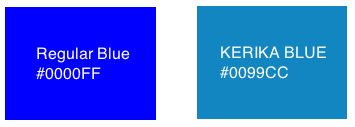
One recent diversion we corrected was in the use of the color blue: we have a specific shade we call Kerika Blue (#0099CC) which is used to indicate the concept of “new”:
Kerika Blue
Kerika Blue is more muted than the regular blue that you might find elsewhere: we generally try to keep our color scheme muted, so that the decoration of the Kerika app doesn’t compete with your data — after all, your data are far more important to you than anything we do in terms of decorating your screen ;-)
All of Kerika’s servers, which run on Amazon Web Services (AWS), operate within a Virtual Private Network (VPN), so they can be configured to only listen on local ports, e.g. ports like 10.0.0.1, etc.
This means that they cannot be accessed directly from the Internet: instead, all connections are routed through an Elastic Load Balancer (ELB), which is a special kind of AWS server that handles connections from all users.
The ELB is very secure: it implements SSL 2.0, and when vulnerabilities like Heartbleed and POODLE are discovered, it is relatively easy for us, with Amazon’s help, to quickly ensure that the the ELBs are patched. Patching the ELBs quickly gives us breathing room to patch all the other servers involved, particularly if vulnerabilities are found at the platform level itself.
But, running a VPN isn’t enough: while it blocks people outside the Kerika server environment from directly accessing our database, there is still — at least a theoretical possibility — that an attacker can find his way inside the VPN, and then try to connect to our database server on a local port.
To avoid this scenario, we use SSL within the VPN as well, so that the connections from the load balancers to the database servers are also authenticated and encrypted.
Many of our users work in globally dispersed teams; our own team is spread out between Seattle and India.
With multiple timezones, particularly when they are widely spaced apart, commitments like “I will get this done today” become a little tricky to understand.
If someone in India says “I will get this done today”, is that India time or Seattle time? Well, that depends upon where you are, when you log into Kerika.
Kerika automatically factors in differences in timezones when showing due dates: someone who commits to getting something done “today” in India is actually committing to get it done by 11:30AM Pacific Standard Time, now that the US is in Daylight Savings Mode.
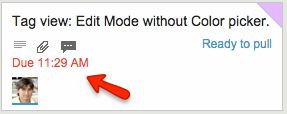
So, the due date is shown in a way that’s relevant to the user’s local time: our Seattle folks see an Indian’s commitment like this
Local time due date
These timezone differences automatically adjust for Daylight Savings Time: there’s nothing you need to do to see when a commitment is actually due.
Except, perhaps, notice that the item is now overdue, as indicated in red in the example above…
When working with a crowded Task Board or Scrum Board, you want to be sure that you haven’t missed any updates on cards that are out of view: for example, updates that are out of the scroll area because a particular column of cards is very crowded.
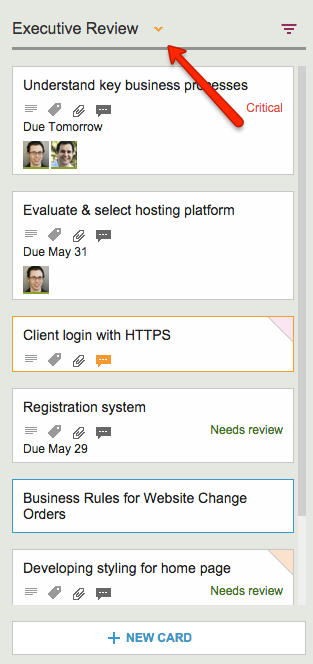
Kerika makes sure you don’t miss anything, and it does this will a handy little button in the form of a downward pointing caret that appears at the top of every column where there is at least one card that needs your attention:
Finding all the changed items in a long column
Clicking on this button will help you quickly find the next updated card in the column, and then the next, and so on.
The color of this caret (button) depends upon what sort of updates are present in a column:
If the column contains any overdue cards, the button is red, to alert you to the overdue problem. (We figured this is the most important information we could show you, particularly if the overdue card is out of sight.)
If the column contains any new cards, the button is blue. Unless, of course, the column also contains overdue cards, in which case the overdue condition is considered more critical than the fact that you have new cards, and so we show the red button.
If the column simply contains updated cards, and nothing that is new or overdue, the button shows in orange.
Regardless of the color, the button works the same way: clicking on it will help you find the next card of interest within that column, and then the next, and so on. The column will automatically scroll as necessary to show you updates that would normally be out of sight.
And when you have caught up on all the updates, the button goes away automatically. Neat, huh?
We found and fixed a bug related to our Whiteboards: it turned out that when you copied a bunch of items on a canvas, e.g. some shapes, documents, etc. that you had connected together with some lines or arrows, these weren’t always getting pasted properly when you did a copy–and-paste.
Our apologies for any inconvenience you may have faced.
When you reference a URL in a Task Board or Scrum Board’s cards or chat, Kerika fetches the title for that page and shows that instead of the URL.
This makes the URL references a lot easier for people to understand, because a “naked URL” would be difficult to comprehend.
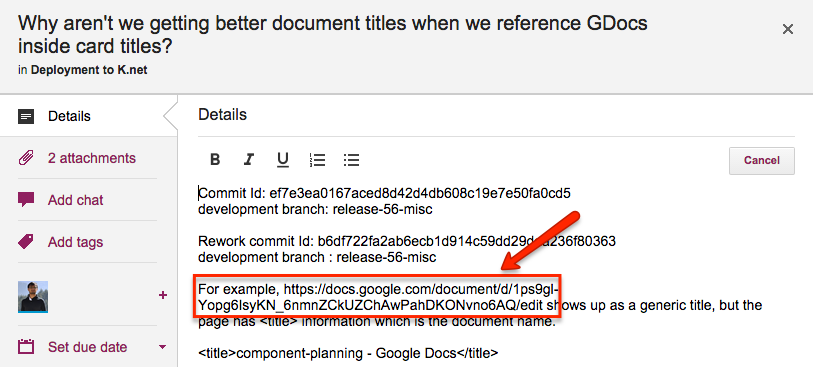
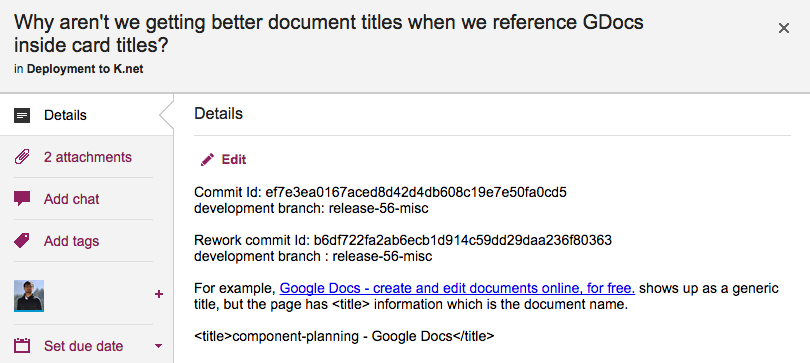
But this wasn’t working great for Google Docs URLs: we were showing the same generic title from Google each time. Here’s an example of the problem:
Google Docs URL
Simply showing the URL reference in it’s “naked” form as https://docs.google.com/document/d/1ps9gl-Yopg6IsyKN_6nmnZCkUZChAwPahDKONvno6AQ/edit would make it pretty incomprehensible, but showing the generic Google Docs page title wasn’t a huge improvement either because the page title is the same for all Google Docs URLs:
Generic Google Docs titles
What we need to do is get the actual Google Doc title, which would make for a useful reference because it would be (presumably) unique and meaningful in the context.