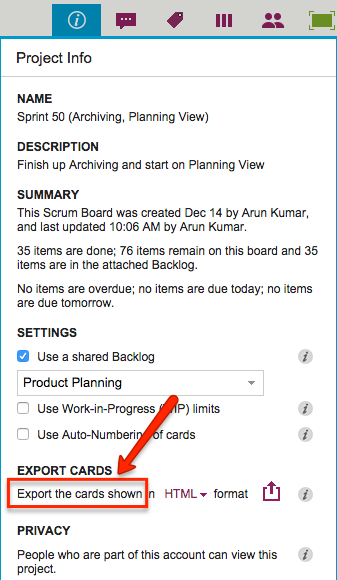
A tiny change in labeling in our latest version will, we hope, make it clear that Kerika’s Export feature is actually pretty smart about managing the amount of data that you export from a board:
Exporting subset of board
What used to say “Export cards” now says “Export the cards shown”.
“Cards shown” means just what it says: if you are hiding some columns from view, or filtering your view of the board to show just those cards that match particular colors or tags, then only the cards currently shown are going to be exported.
This makes it really easy for you to manage what information goes into an export: if you don’t want the Backlog of a Scrum Board to be included, for example, just hide the Backlog from view before clicking on the Export button.
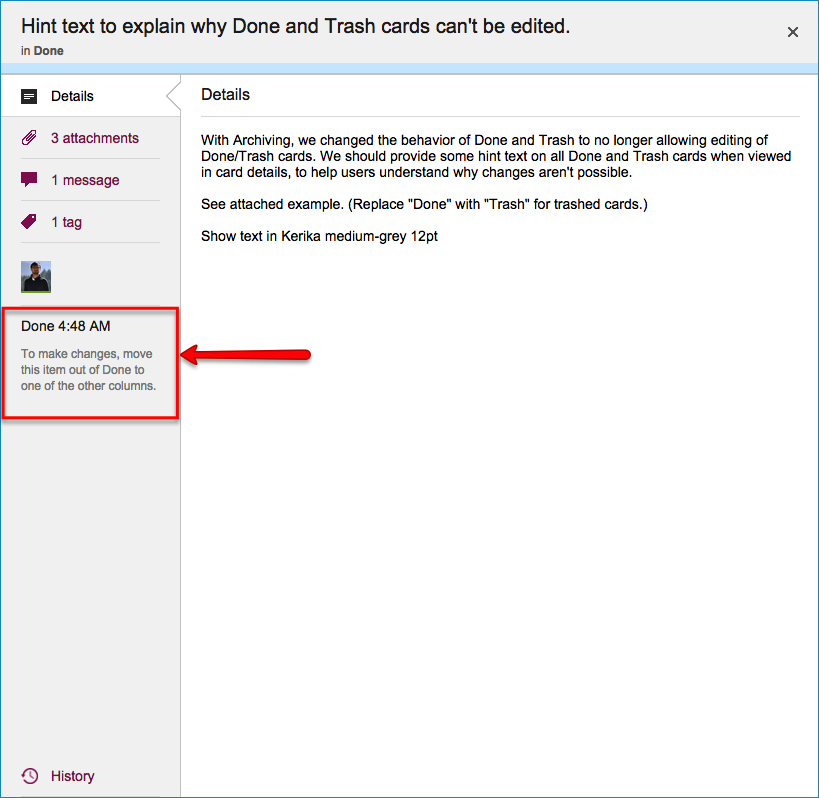
Cards in the Done or Trash column, of a Task Board or Scrum Board, cannot be modified without first moving them out of Done or Trash: this is different from how boards worked before, and we made this change as part of our recent update where we introduced the concept of Archives.
Done cards
There are a couple of reasons why we did this:
It seems like common-sense: if you have deleted a card, or marked it as Done, why would you be making changes to it? If the card needs changes, or someone wants to do chat or any other updates, that card isn’t really deleted or done, is it?
It matches the behavior of Archived Projects: when you move a project into the Archive in your account, that project is frozen in its current state, and remains frozen while it is in the Archive.For symmetry and ease of understanding of the concepts of “Done” and “Archive”, it made sense that Done cards should also be frozen.
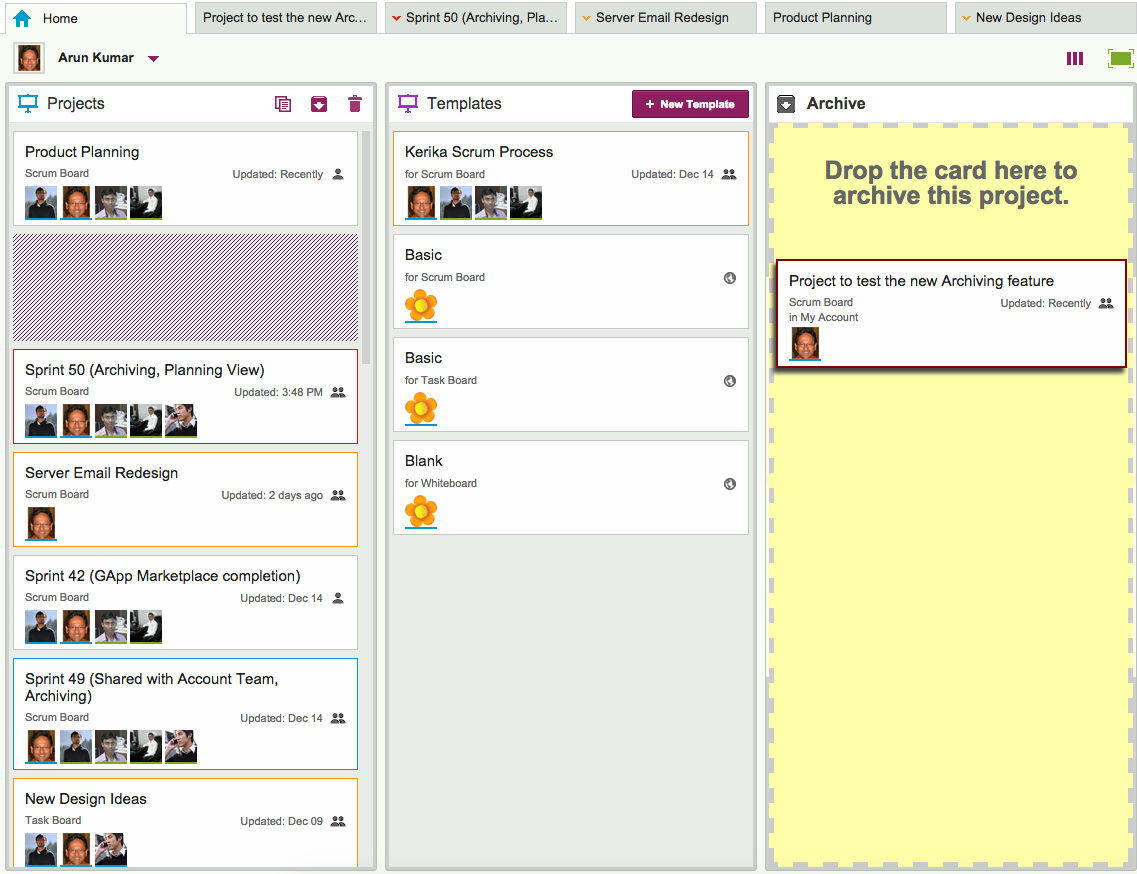
Here’s another new feature with our latest update: when a project is done, you can drag it to the Archive column on your Home page.
Archiving Projects
Archiving a project freezes it: no one can make any changes to it while it is in the Archive, so if you change your mind and want to make some changes to an archived project, you need to drag it back out of the Archive and into your Projects column.
All the documents attached to an Archived Project are frozen: the goal here is to preserve the final/completed state of a project and all its assets, so that later on if you need to investigate a problem — or deal with a FOIA request or some other legal disclosure requirement — you can do so with confidence.
All dates, status, chat and teams are also frozen: if someone was part of an Archived Project’s team at the time the project was moved to the Archive, they will continue to show up on that project team.
If a task had a due date and hadn’t yet been completed (i.e. the card hadn’t yet been moved to the Done column), that due date stays intact.
If the project was a Scrum Board, it will continue to stay attached to the Backlog it was using at the time the board got archived: when you view an archived Scrum Board, it will show that Backlog in it’s current state. This makes it easy to archive Scrum Boards that represent different Sprints that work off the same shared Backlog!
You can change your mind: If you need to work again on a previously archived project, just drag it out of the Archive column and drop it into the Projects column on your Home Page, and that will “un-archive” (restore) your project.
You can create templates from archived projects: if you drag an archived project and drop it into the Templates column on your Home Page, that will create a template based upon that project, while leaving the project in your Archive.
Ben Vaught from the Washington State Office of the CIO has come up an interesting use-case for Kerika’s new export feature that we hadn’t considered: use it to write your weekly status reports!
Kerika lets you export cards from a Task Board or Scrum Board in CSV or HTML format: the CSV format is useful for putting data from Kerika into another software tool, like Excel, but the HTML format is designed for human consumption.
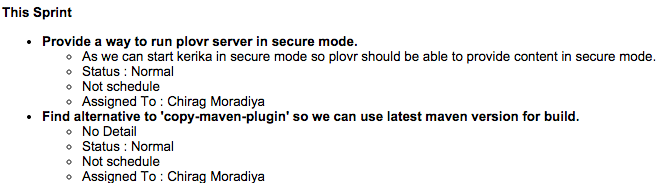
Here’s an example of a card that’s been exported as HTML:
Example of HTML export
By using the Workflow button (on the top-right menu bar), you can adjust your display to show just the Done column on a board, and then further use the Tags button to limit the number of cards that are shown in this column.
For example, you could display just the Done column, and filter the cards to show just the ones that were assigned to you.
Do an HTML export of this, and you will be able to easily cut-and-paste the output into a Word document or email, and submit your status report!
We were thrilled to be part of the Lean Transformation Conference organized by Results Washington week at the Tacoma Convention Center. Over 2,700 people attended — a sellout crowd!
Attendees at Lean Transformation
Arun Kumar, founder & CEO of Kerika, gave a presentation on both days on Distributed Lean and Agile Teams in the Public Sector, drawing upon lessons learned, case studies and best practices from multiple state agencies and private sector firms.
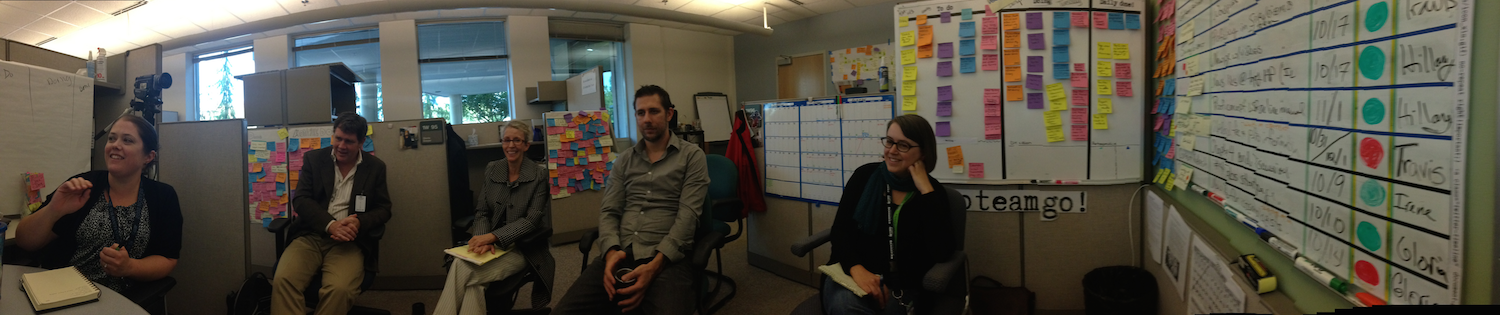
A couple of weeks ago we visited a UX team at the Washington State Department of Licensing, and took a photo of the “Post-It Palace” they had built within their cubicles:
We did a quick refresh to Kerika today, and we will be quiet for a while our development team — which is based in India — takes a well-earned Diwali break for about 2 weeks.