A new tutorial video on how you can easily draw curved lines and arrows on Kerika’s canvases and Whiteboards:
Tag Archives: Workflow
UI tweak: removing the “Add member” button from card details
As part of our work on combining tags and colors, we have been cleaning up parts of the Kerika user interface that had minor inconsistencies.
One such inconsistency — in our view — was that you were able to add people to a project team from within the card details dialog itself:
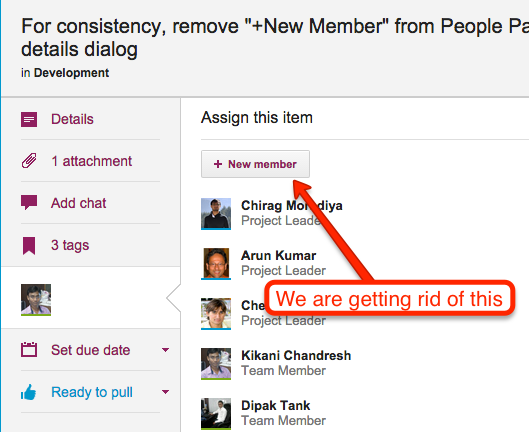
This button has been there in Kerika for a very long time, but it doesn’t really make sense to have this capability within the card details dialog: it just isn’t the best place to decide to add someone to a project team.
Instead, in our new layout the Project Settings dialog consolidates all the board management in one place, including adding people to a team, changing someone’s role within a team, and removing someone from a team:
UI tweak: showing attachments in chronological order
It used to be that when you added content to a card — files from your laptop or Web content from your Intranet or the Internet, or a canvas — the newest content was added at the top of the list.
Of course, you could always rearrange them, by grabbing and dragging them up or down the list, but this it not a feature that many users discovered on their own :-(
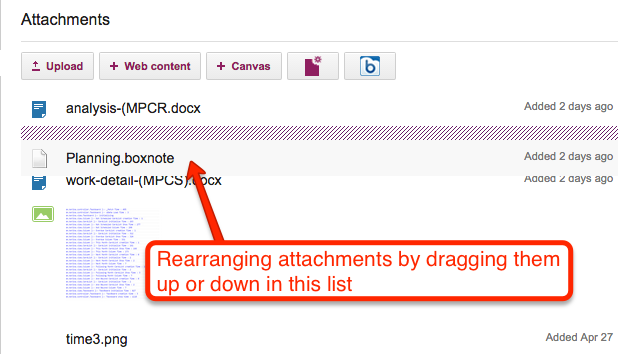
Well, for greater consistency with how the chat and history are shown within a card’s details, we are now going to show attachments in chronological order as well — the latest files and URLs that you added to a card will appear at the bottom of the list, and the view of these will be automatically scrolled to show the latest items:
An easy way of keeping track of sub-tasks
With our latest update, it’s become easy to keep track of sub-tasks for cards on a Task Board or Scrum Board; here’s an example:
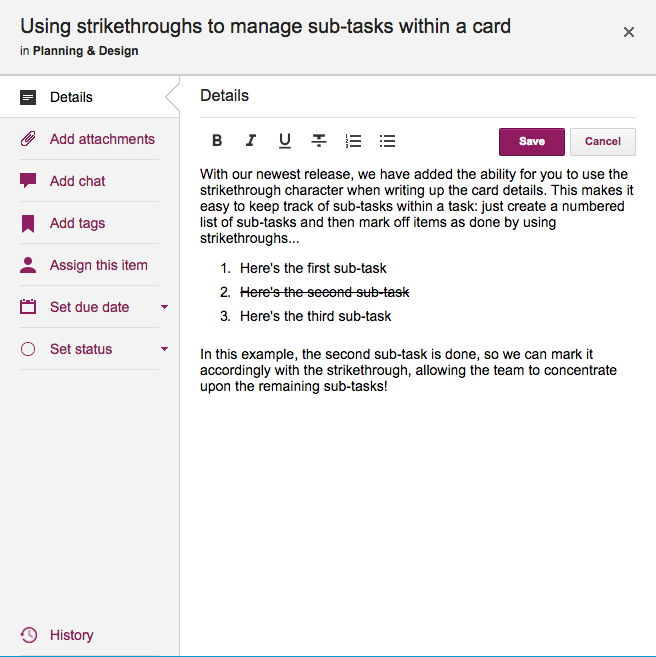
In the example shown above, the second item in the numbered list has been been taken care of, and so it has been struck-through, making it clear to the rest of the team that it isn’t an issue any more.
We have added the capability of marking text within card details with a strike-through, and this, combined with the easy way in which you can create numbered lists, makes it easy to track sub-tasks!
Making sure all Project Leaders are equally empowered
On any Kerika Task Board, Scrum Board or Whiteboard, you can have as many Project Leaders as you like.
(Normally, teams prefer to have just a single Project Leader, but sometimes it is helpful and appropriate to designate more than one person as Project Leader; among other things it provides redundancy, so that the single Project Leader doesn’t become a bottleneck for handling requests.)
Just how active a Project Leader is depends upon the dynamics of the team: in some teams the Project Leader is just an administrative role, filled by someone who is like a Team Member in every other respect in terms of how much work she takes on, while in other teams the role may be more formal.
It turned out there was a bug in how Kerika handled notifications and requests when there were several Project Leaders on a single board: these notifications and requests were getting routed to just one Project Leader instead of all of them, so there was still a potential for having a bottleneck.
With our latest release we have fixed that problem: now, all notifications and requests get routed to all Project Leaders, so any of them could act upon it. This should remove the bottleneck!
Easier to tell who moved a card to your board’s Trash
When a Team Member deletes a card, it just gets moved to the board’s Trash; it doesn’t get immediately deleted from Kerika’s database even though it disappears from your view right away.
That’s because the “delete” action in Kerika is really a “move to Trash” action: you are removing something from view, but not necessarily getting rid of it for good.
Any Team Member can delete a card, but only a Project Leader can completely and permanently get rid of it — in other words, “taking out the trash” is one of the privileges reserved for Project Leaders (and Account Owners).
The Trash column is normally not shown on your Task Board or Scrum Board, but you can bring it view easily by clicking on the Filter button:
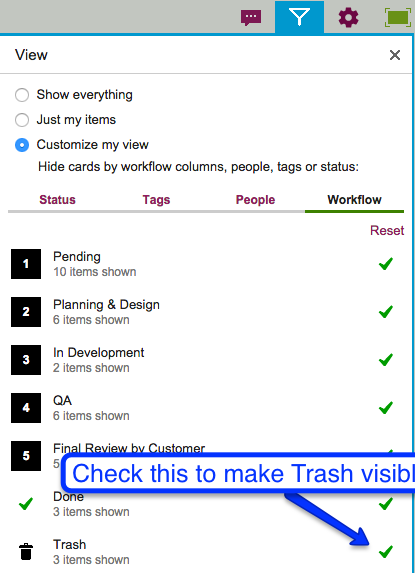
With our latest version, it’s easy to see who moved the card to the Trash: we show this right on the card itself.
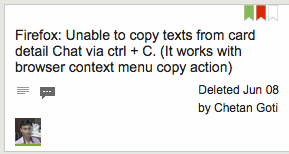
“In Progress”: a new Kerika feature
We are adding “In Progress” as a new status tag for cards, on Task Boards and Scrum Boards, that we think will make it easier for everyone to see which items are actually moving along.
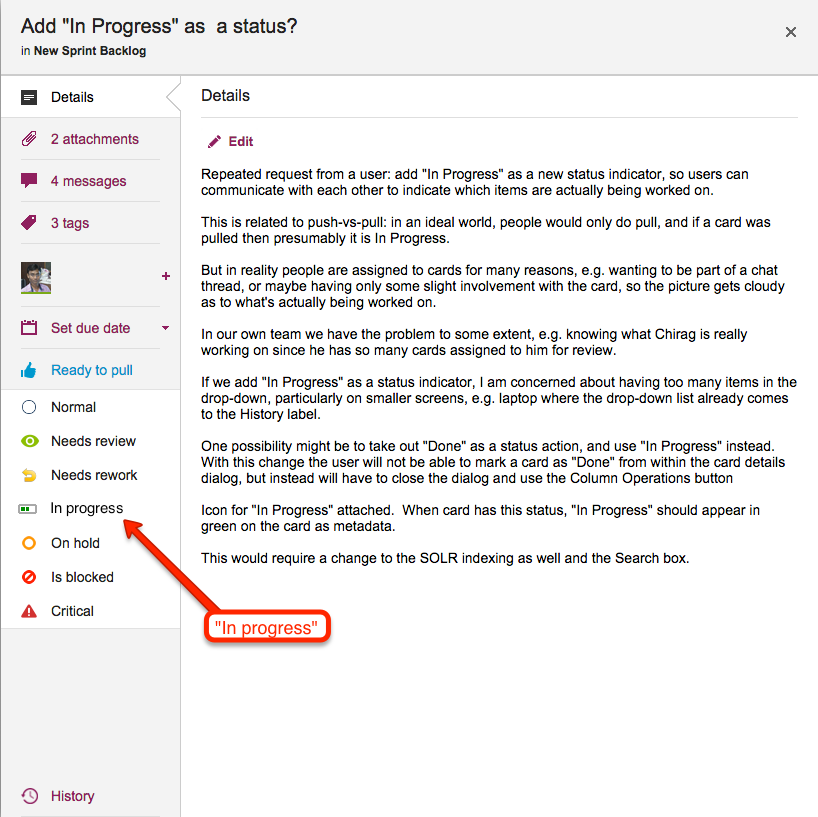
Couple of reasons why we did this:
- People get assigned too many cards sometimes, even when they are working with a “Pull” model (as opposed to “Push”), sometimes even using Work-in-Progress (WIP) Limits don’t solve the problem of easily seeing exactly what’s being worked on at any time.
- It allows for greater flexibility in designing process templates: like in this example, for a process for hiring and onboarding new employees:
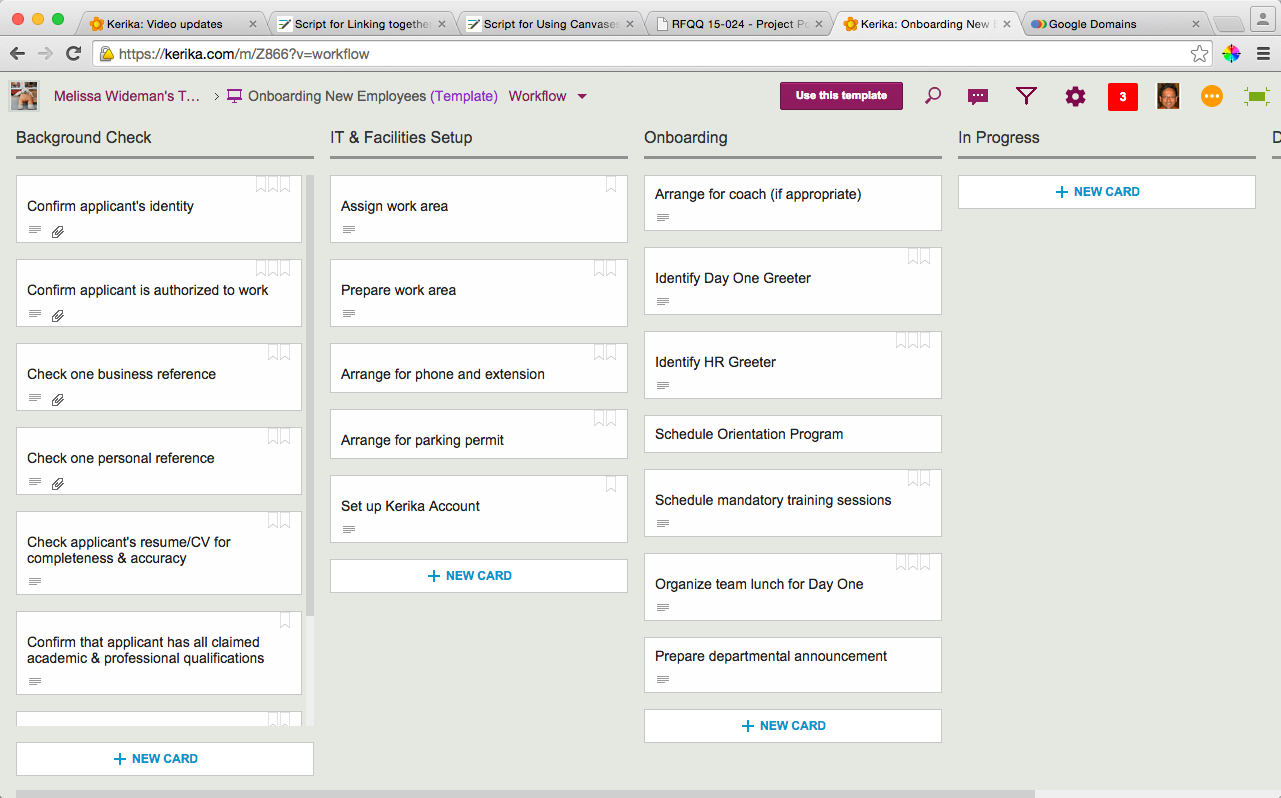
In this process template, we have three buckets of activities: Background Check, IT & Facilities Setup, and Onboarding, and we have a separate In Progress column that you could use to indicate which card is currently in progress.
But, with a “In Progress” status indicator on cards, you wouldn’t need that extra column: you could work on cards from any of those three buckets and indicate their status right there. And when the work gets completed, these cards can go straight to Done!
Using Search in Kerika: a new tutorial video
We have an updated tutorial video on how real-time Search works in Kerika, across all your projects and templates:
Filtering by Status: a new feature
Here’s another way that Kerika makes it easy to manage really large Task Boards and Scrum Boards: you can use the new Filter dialog to show just those cards that are flagged as having a particular status — for example, you could view just the Critical items, or just the Needs Rework items:
Kerika has several flags you can use to identify the state of the cards on your board:
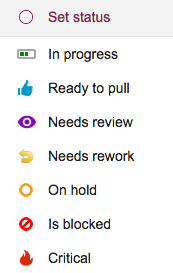
- Ready to Pull: this means the card is ready to be picked by someone within the team, in accordance with the project’s workflow.
- In Progress: this signals the card is being actively worked on by someone; it helps call out which cards are active, among several that may be assigned to the same person.
- Needs Rework: this calls out the need for a “do-over” of some part of the work — e.g. if a design fails review, or work was not done as expected on a particular card.
- On Hold: this indicates that the person assigned to that card has put it aside temporarily, usually because the person got diverted by some other work (which presumably is now marked as “In Progress”).
- Is Blocked: not good; it means that the person who has been assigned that work is not able to progress as they would like to, due to forces beyond their control. Time for the Project Leaders to intervene!
- Critical: hopefully this gets used sparingly…
Use Kerika’s new Filter by Status capability for your project status review meetings: it’s easy to see which cards are going well, and which ones need help.
Using Custom Workflows in Kerika
A new tutorial video that shows you how you can customize the layout of any Task Board and Scrum Board, and — more importantly — switch any board from being a Task Board to being a Scrum Board, or back.
Only Kerika lets you have several Backlogs within the same Account, and easily pull cards from different Backlogs into the same Scrum Board if you want to combine work items from several Backlogs into the same Sprint.