Kerika’s integration with the Box Platform: a customer’s perspective on how sweet it is…
Kerika with the Box Platform: a Customer’s Perspective from Arun Kumar on Vimeo.
Kerika’s integration with the Box Platform: a customer’s perspective on how sweet it is…
Kerika with the Box Platform: a Customer’s Perspective from Arun Kumar on Vimeo.
With our big UI redesign, launched a couple of weeks ago, we have started using lazy loading of cards in an effort to improve performance, particularly with very large boards.
Background:
Most Kerika boards tend to be small, or moderate: up to 100-200 cards in size. A few users, however, have very large boards: several thousand cards in size!
And this is not because we have users who are tracking thousands of work items simultaneously; it’s just that some users have been continuously using the same board for years to track all their work.
For people who use the same board over several years, the number of items in the Done or Trash columns can eventually number in the thousands. Displaying such large boards was already difficult in our old architecture: we had underestimated how many cards some boards might contain, so our old design downloaded all the cards on a board every time it was opened, and then created a DOM for each card!
This meant that, for very large boards, the browser had to create thousands of DOMs before it could even display the board. This was obviously not a sustainable model.
What we did:
With our redesign, we have laid the groundwork for a better architecture using two related concepts in lazy loading:
Here’s an example of lazy loading of the Done column:

On this board, the Done column contains 163 cards, but when the board is opened only 10 are shown. Since these are the 10 most recently done cards, this works great for most users, most of the time.
If the user really wanted to see something that was done a long time ago, they can simply scroll down the Done column, as they would have with our old design as well.
As a user scrolls down, more cards are fetched automatically from the server. Slightly more cards are fetched from the server than are likely to be displayed, e.g. the browser may fetch 15 cards from the server even when it expects to display only 10.
This helps avoid the perception of delay when the browser needs to fetch more cards, since it will already have 5 more cards stored in memory to show as the user begins scrolling, giving it time to fetch another 15 before the user has finished scrolling.
We also decided to use lazy loading on the Home page: with our new design we display more information about the state of each board than we did previously, and the cards themselves are much larger than before. This means we are unlikely to show the full set of boards to any user at any time, so lazy loading is a natural choice for this view.

Finally, with our most recent update (launched two days ago), we have extended our use of lazy loading to include the Not Scheduled column in the Planning Views, where you can pivot your view of a Task Board or Scrum Board to see all the cards organized in terms of due dates.
Here’s an example of a board where there are a very large number of unscheduled cards:

The Not Scheduled column only fetches and displays 10 cards at a time even though there are over 200 cards that are not scheduled. Since the browser (on this laptop) can only show 3-4 cards at a time, there isn’t any point in fetching all 200 cards: just fetching and displaying 10-15 at a time does the trick!
Arun Kumar, CEO of Kerika, and Joy Paulus, Senior Policy and Program Manager for the Washington State Office of the CIO, delivered a joint presentation at the Lean Transformation 2016 Conference.

The subject of the talk was “Collaboration Across Organizations: Big Results with Small Teams”. Here are the slides from the talk:
Interested in using Kerika for software development? Here’s a practical example, taken from one of our own boards, that highlights best practices for tracking, investigating and fixing bugs.
Every software development team will want to set up its own workflow, of course, reflecting its internal dynamics and available resources. Here’s the Scrum Board workflow we use in our team:

Our Scrum Boards are organized with these columns:
The Backlog contains all the ideas, large and small, that we have on our product road map: in Scrum terminology, it’s our Product Backlog.
The Sprint Backlog is the set of cards that we pulled from the Backlog at the start of this Sprint: right now, only 4 items are left as we are close to the end of our 2-week Sprint Cycle.
Within each Sprint, cards are picked up developers and first moved into the Planning column, where detailed analysis of the work to be done is completed.
Depending upon the complexity of a particular work item, a developer may request a design review before moving the card further into the Development column.
Developers do their own unit testing as part of the Development phase, but then the work item moves further down to the the QA column which frequently includes formal code review. (More on that below…)
After a bug has been fixed, had its code reviewed and passed unit testing, it gets Deployed to the Test environment.
We usually wait until the 2-week Sprint is over before asking the entire team to present the entire Sprint’s output to the Product Owner for the Show & Tell; this avoids distracting the team midway through the Sprint.
Once the output of a Sprint has passed the Show & Tell, it can then be Deployed to Production.
The Done column shows all the work that got done in this Sprint. That’s where all cards are supposed to go, but sometimes a work item is abandoned and moved to the Trash.
(Side note: we sometimes use WIP Limits to make sure that people are not over-committed to work, but this is not a consistent practice within our team.)
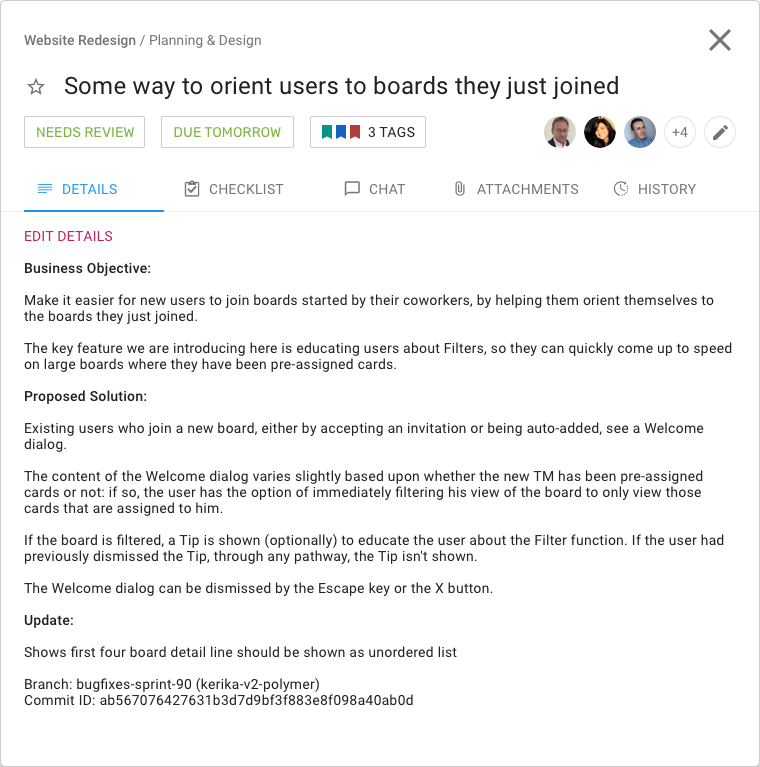
Now, let’s take a look at an example of an actual bug card that was worked on by our team:

(This particular bug doesn’t have a lot in the details, because it is related to another task that is currently underway, and Kerika makes it easy to link cards, canvases or boards.)
Some bugs go into the Product Backlog, if they are not considered especially urgent, but others go straight into the Sprint Backlog if they represent serious production problems that might affect user’s access or the reliability of their data.
Adding bugs to the Product Backlog lets us process bugs along with other development, e.g. of new features, in the same way: everything can be prioritized by the Product Owner and handled through a consistent workflow.
Our bug reports typically come with two attachments; at least one of these should always be included so that the developer has a clear starting point for her work:

Kerika makes it easy to attach any kind of content to any card, canvas or board: for bug fixing, particularly in the analysis phase, this is very useful if the user needs to include URLs, material from Sourceforge or similar sites, links to Github, etc.
Before any bug is fixed, our developers always add a standard document we call Repro, Cause and Fix as an attachment to the card:

This document is added no matter how trivial the bug.
Why? Because, on average our team goes through about 30-40 cards a week, and has been doing so for years now. If we don’t document our analysis now, we will never recall our logic in the future.

Repro, Cause and Fix
Our team adopts a consistent layout of the Repro, Cause & Fix document, which we adhere to even for trivial bugs:
The Repro Steps are the steps needed to trigger the bug: usually they consist of a specific sequence of actions taken by a user that cause the bug to appear, but they can also consist of a sequence of events in the background, like specific server activity or memory/CPU utilization conditions, or overall network traffic, that trigger the bug.
The Expected Behavior helps clarify the developer’s understanding of the how the software should behave in this situation. It’s not uncommon for a developer who is new to the team to misunderstand how a particular feature is expected to behave, which could lead to more bugs being introduced. Clarifying Expected Behavior in this document provides an easy way for the Product Owner and the Team Lead to confirm that the developer is not going to go down the wrong track.
Introduced Since: our developers try to pinpoint the specific point in the software’s life where the bug was introduced. This helps the developers reflect upon how errors are created in the first place: the blind spots lie in their analytical patterns that need to be strengthened.
(In this particular example, the developer has been able to point back to some of her own work on an earlier feature implementation that caused this bug to appear.)
Root Cause is not the same as the Repro Steps. While a specific sequence of actions or events may reliably display the effects of a particular bug, they only provide the starting point for the analysis; the Root Cause itself is discovered only when the developer examines the code in detail and determines exactly what is breaking.
Affected Feature: all of our code goes through code review, which we view as one of the most effective QA processes we could adopt, but it can be very challenging when you are processing 30 cards each week, each affecting a different part of the software.
Identifying the Affected Feature helps with the code review process, since the reviewer can consider the bug fix in the larger context of the feature that’s being modified. Without this, it is doubtful that we could review so many changes each week.
Affected User: in most cases, this is “everyone” we offer the same Kerika to all our users, whether they are on free trials or have paid for professional subscriptions.
Identifying Affected Users is useful, nonetheless, when dealing with bugs that are browser-specific, or service-specific: for example, determining that a particular bug affects only Kerika+Google users, or only Internet Explorer users.
The Fix: OK, this might seem obvious, but this section really refers to identifying the specific modules in the software that will be changed as a result of the bug fix being applied.
Like many others, we use Git for managing our source code — along with Maven for builds — since our server environment is all Java-based.

The Fix section usually includes references to Git checkins: this helps with future bug fixes, by making it easy to traceback sources of new bugs — part of the Introduced Since section described above.
We use separate Git branches for each feature that we develop so that we can decide precisely what gets released to production, and what is held back for future work.
This helps with the Show & Tell phase of our workflow, when the developers demonstrate the output of the Sprint to the Product Owner, who has the option to accept or reject specific features (i.e. cards on the Scrum Board).
All of our code goes through code review, no matter how trivial the change:

We really believe that code reviews are one of the most effective QA practices we could adopt: having a second pair of eyes look over code can very considerably reduce the chances of new bugs being introduced.
Kerika is great for distributed software teams: our own team is spread out between Seattle and India (roughly 10,000 miles apart!), and all of our work is done using Kerika for task management, content management and team collaboration.
Of course, an added benefit of “eating our own dogfood” is that we are highly motivated to make sure Kerika is the best tool there is for distributed teams :-)
Kerika helps you (and your team) manage multiple versions of a document, and it does this so smoothly that you might not even have noticed…
Here’s how it works: when you add a file to a Kerika card or canvas, it shows up in the list of attachments, like this:

If you then attach another file to the same card or canvas that has the same name and file type, Kerika automatically treats it as a new version of the same file, rather than a completely different file:

In the example above, when a Team Member adds another document called Foo.docx to a card that already has a file attached to it with the same name and file type, Kerika treats the new document as a new version of the old Foo.docx rather than as two documents called Foo.docx.
How you access all these old versions depends upon how you set up your Kerika account:
If you are using Kerika+Google, these files are being stored in your Google Drive, and Google will manage the versions for you: you can find this under the File menu in Google Docs

And pretty much the same thing is true if you are using Kerika+Box: Box will take care of the older versions automatically, although their user interface is slightly different

And what if you signed up directly with Kerika, without using a Google or Box ID?
We provide an easy way to get to older versions of a file for users who signed up directly: when you are previewing a file, click on the Older versions of this file link on the top-right.

Kerika will show you a list of all the old versions that are available for that file, along with details on who uploaded those versions, and when:

Another great new feature: if you upload a file on any card, canvas or board with the same name as a file that’s already attached to that particular card, canvas or board, Kerika will automatically keep track of these as being different versions of the same file. This makes it even easier to organize all your Kerika project files.
Here’s how it works:
Kerika lets you add files to any cards, boards or canvases, on any of your Kerika Task Boards, Scrum Boards or Whiteboards.
There’s no limit to the number of files you add, nor any limit on the size of these files.
When you add a file, to a card, board or canvas, Kerika automatically uploads that file and shares that with everyone who is part of your board’s team. You don’t have to do anything: Kerika makes sure that all the Team Members have read+write permission, and all the Visitors have read-only permission.
These files are stored in your Google Drive, if you are using Kerika+Google, or in your Box account, if you are using Kerika+Box, or with Kerika if you have signed up directly with an email address.
That’s how Kerika has always worked; what we have added is an automatic versioning feature that checks when you add a new file to see if has the same name, and type, as a file that’s already attached to that particular card, canvas or board.
If the file name and file type match something that you have already added, Kerika automatically treats that new file as a new version of the old file, rather than as a completely different file. This makes it really easy to manage your Kerika project files.
Here’s an example: this card has a file attached to it called “Foo.docx”.

If a Team Member adds another file to this same card, also called “Foo.docx”, Kerika will treat that new file as a different version of the same Foo.docx, rather than as a completely different file:

Accessing these older versions is easy: if your Kerika files are in being stored in your Google Drive, you can get the older versions using the Google Docs File menu:

If your files are being stored in your Box account, you can access the older versions from the menu on the right side of Box’s preview window:

If you signed up directly with Kerika, you can access the older versions from within Kerika’s file preview:

Clicking on the Older versions of this file link on the top right of this preview will give you a list of all the old versions of this file that Kerika has:

So, that’s it: simple, easy, automatic tracking of multiple versions of your project files! Brought to you by Kerika, of course.
A new video that is the shortest summary we have ever made of Kerika:
Kerika in 70 seconds from Arun Kumar on Vimeo.
This is going to feature in our all-new website redesign, which we hope to get in place this week.
Arun Kumar, Kerika’s CEO, gave a presentation on Visual Workflows at the Lean Transformation 2015 Conference in Tacoma, Washington, which was very well received.
Here are the slides from that talk:
Once again Arun Kumar, Kerika’s founder and CEO, will be speaking at the annual Lean Transformation Conference organized by Results Washington.
This conference is all about Lean and Agile in the public sector: thousands of folks from state, county and local (city) government agencies will be attending, and as usual Kerika will also have a display booth on the 5th floor of the Tacoma Convention Center.
Arun’s topic this year is “Can You See It Now? Visualizing your Lean and Agile Workflows”.
We look forward to seeing our Washington users at the conference; please do stop by our booth or sign up for Arun’s talk!
When you are writing a chat message, on a card or canvas on any Kerika Task Board, Scrum Board or Whiteboard, what happens if you need to leave that message in the middle and go look at something else in Kerika?
For example, suppose you are in the middle of writing a chat message, but in order to complete it, you need to go off and look at another card’s details, or maybe a file attached somewhere else on the board?
You can leave aside a chat in mid-stream, go somewhere else in Kerika, return to the chat, and pick up where you left off!
That’s because Kerika uses your browser’s local cache storage to keep your unsent message: it means your changes aren’t lost while you go look at something else in Kerika.
This is a handy usability fix we have always had in Kerika, but it may be one that folks didn’t realize existed…
Well, now you know :-)