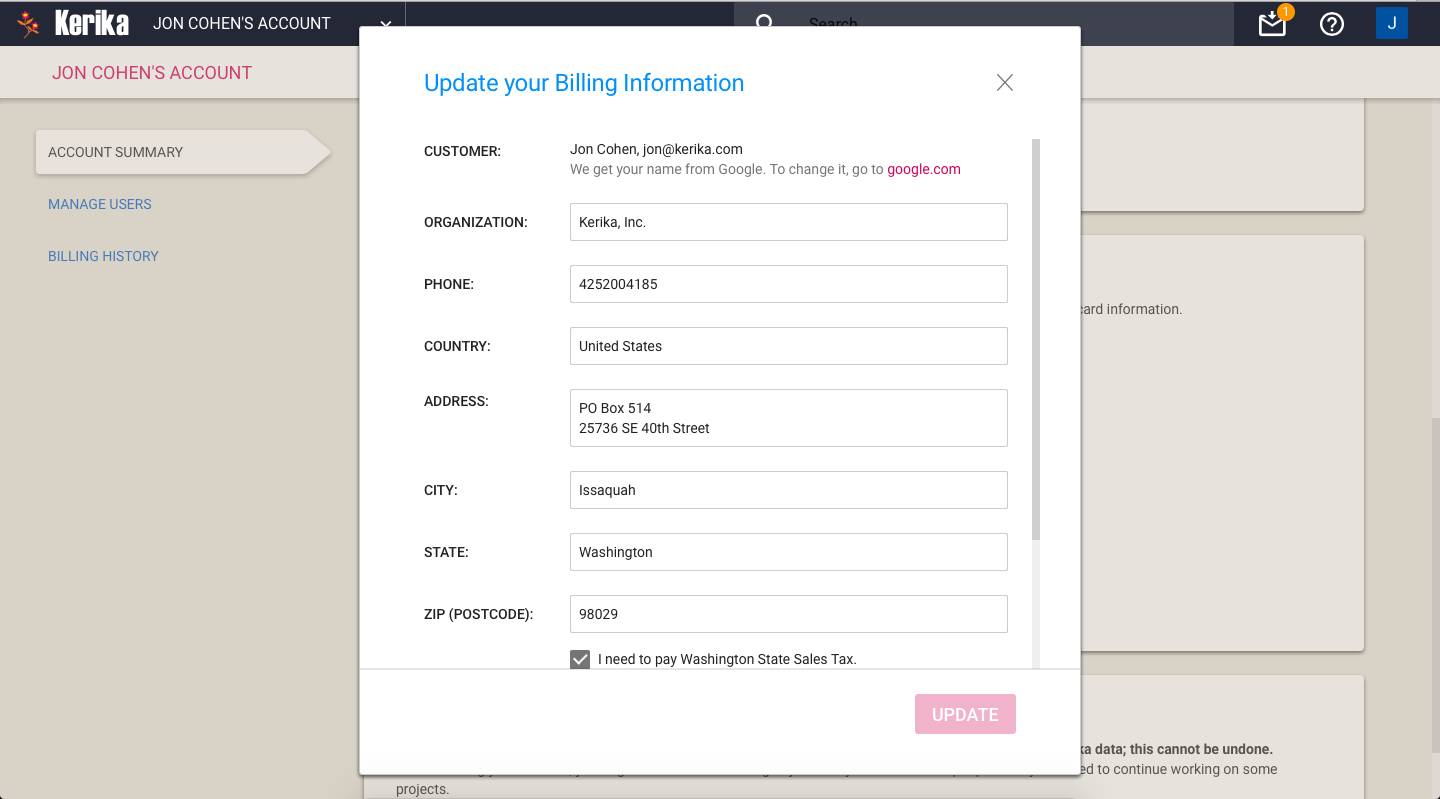
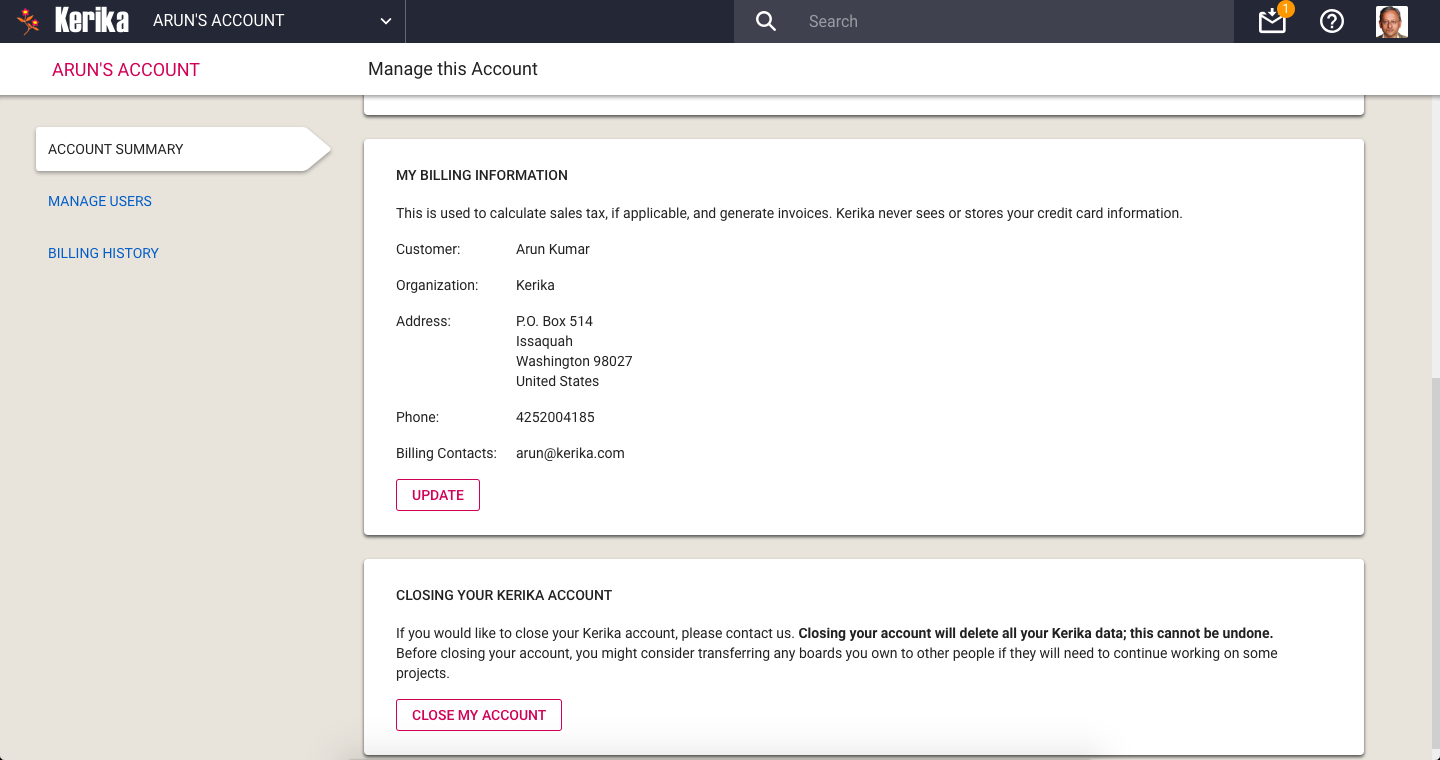
If you purchase subscriptions, or do other actions like request a refund, Kerika prompts you to update your Billing Information:
Updating Billing Information
This information is needed to complete a transaction:
Your name or organization (school, college, nonprofit, company, government agency…) are used to ensure invoices and receipts are addressed to the correct person (the purchaser).
Your phone number is needed to handle any problems we face processing your invoices or purchases.
Your address is used to create invoices and receipts, and to check whether we need to charge you Washington State sales tax.
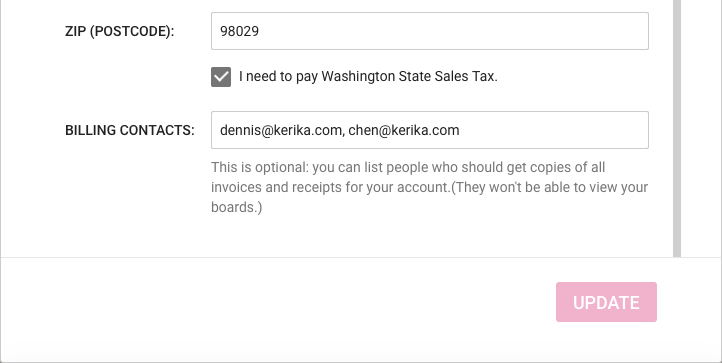
At the bottom of this screen you can optionally include Billing Contacts: people who need to get copies of all your transactions, such as your organization’s Purchasing Department or outside accountants/bookkeepers.
We store this information securely: as you may have already noticed, all access to Kerika servers is done using SSL/HTTPS, and within the Kerika virtual network, our servers communicate with each other using SSL as well.
We never ask for your credit card information: we use Stripe to handle all online payments, and we never see your credit card at any time.
If you pay by bank check or electronic funds transfer, this information is handled by Bank of America: details of these transactions, such as your bank information, are stored only at Bank of America and not stored on the Kerika servers.
With the new billing system that we will be rolling out next week, Kerika will also be adding a slew of account management features that will make it much easier to purchase subscriptions, manage teams and handle your payments.
Manage Account options
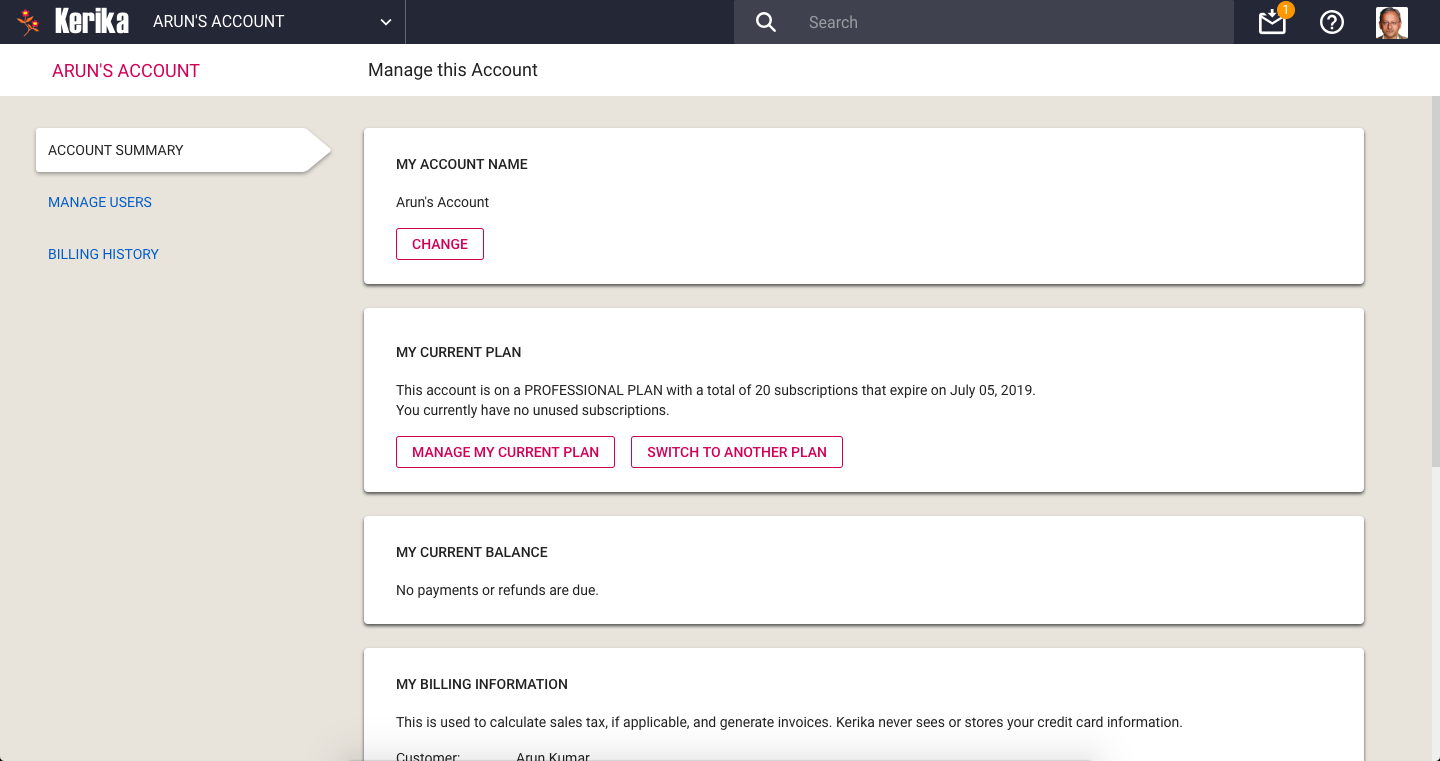
The Manage Account screen has a new layout, with three tabs on the left: Account Summary, Manage Users, and Billing History.
Account Summary
This page has several sections, starting with your Account Name at the top. When you create an Account, you can give it any name that you like, and on this page you can change it if needed. Changes to the Account Name are shown instantly to everyone who is viewing boards owned by your Account.
Next is a section that lets you manage your Kerika subscriptions. You can see which plan you are currently on — Individual, Nonprofit or Professional — and switch to a different plan if needed.
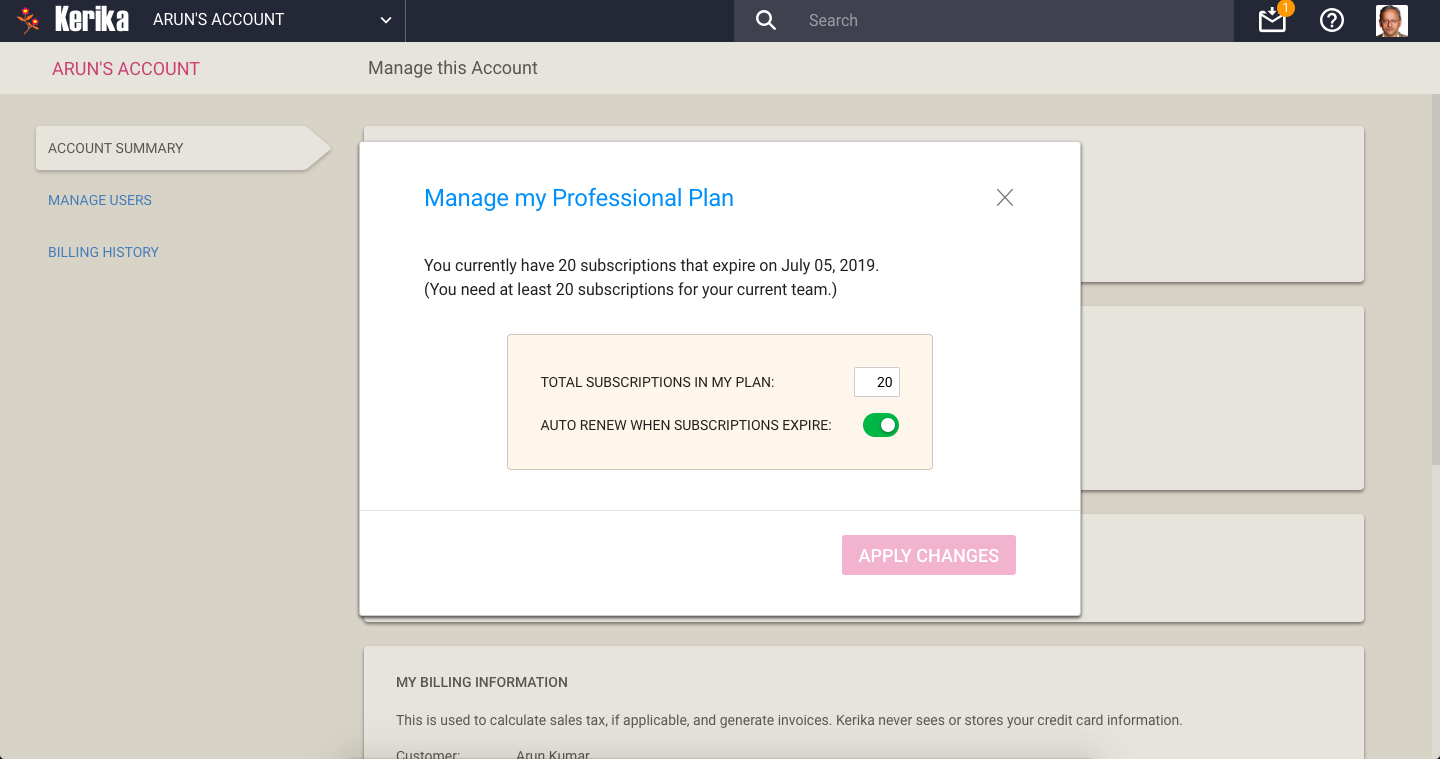
People on a paid Professional Plan can manage the number of subscriptions they currently have (you need enough to cover your current Account Team, which consists of everyone who is currently a Board Admin or Team Member on the boards owned by your Account.)
Managing your Professional Plan is easy: you can increase the number of subscriptions you have, or decrease them.
Manage Professional Plan
All subscriptions have the same end-date: this makes annual reviews and renewals easy for Account Owners. You can also decide whether you want to turn on, or off automatic renewals of your subscriptions.
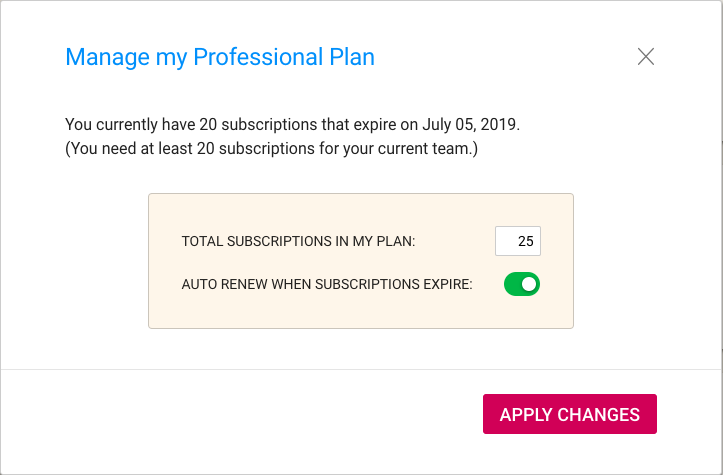
Changing number of subscriptions
In the example shown above, the user is increasing the number of subscriptions from 20 to 25. The system reminds the user that he needs at least 20, for the size of his current Account Team.
Confirm purchase
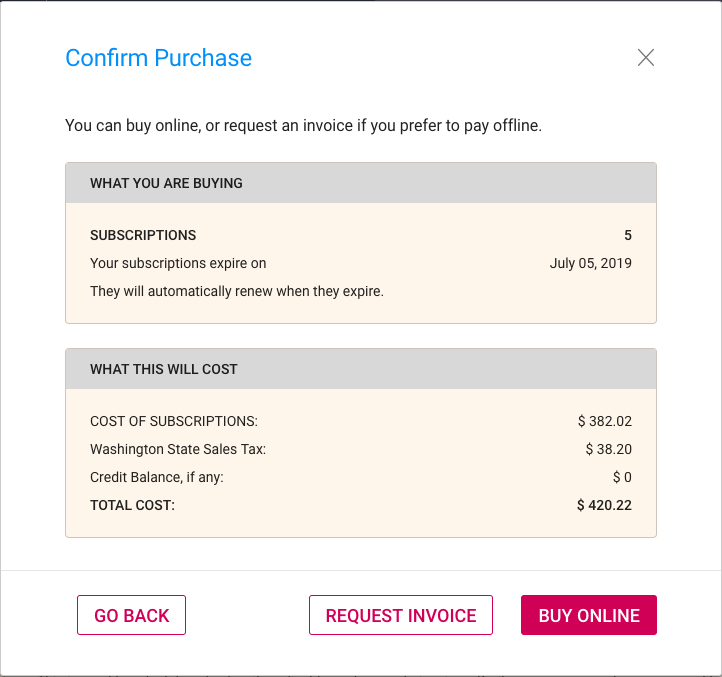
With our new billing system, it’s easy to make purchases online, or request that an invoice be sent to you.
Online purchases are handled by Stripe, so Kerika never sees your credit card information.
If your Account currently has a credit balance, because you had reduced the number of subscriptions, this is reflected in your purchase: by default a credit balance is applied to future purchases, but you can also request a check be mailed to you if you don’t plan to use your credit balance.
If you are located in Washington State (in the USA) we may be required to charge you Washington State Sales Tax. You can specify whether this applies to you by updating your BillingInformation:
Billing Info
Your Billing Information contains just your address and phone number; we never ask for, or store, your credit card or bank information.
Updating Billing Information
One useful new feature we have added is the concept of Billing Contacts:
Billing Contacts
Billing Contacts can be any set of people who need to get copies of all your Kerika transactions, e.g. your manager or Purchasing Department. Every purchase will generate a PDF for the transaction which will be automatically emailed to all the Billing Contacts for the Account.
Billing Contacts can include people from outside your organization, e.g. if you use a bookkeeping service from another company. Billing Contacts only get copies of your receipts and invoices; they don’t have access to your boards, and are not considered part of your Account Team.
Manage Users
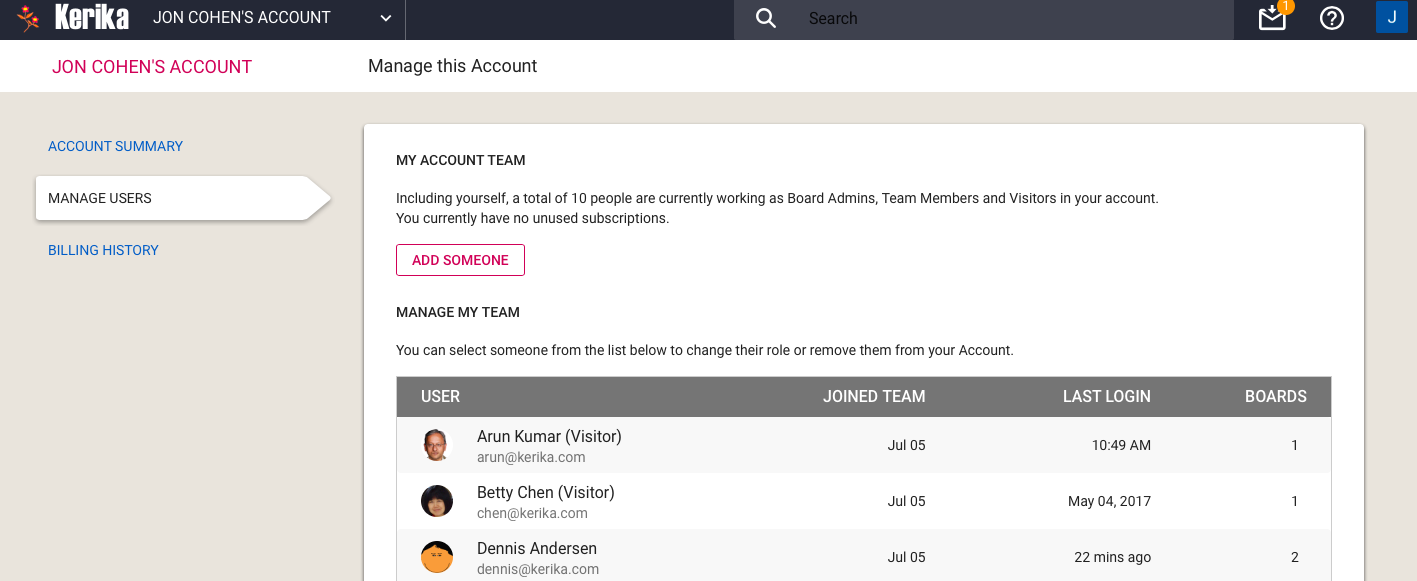
The Manage Users page has been enhanced as well: you can see at a glance who is currently part of your Account Team, and now it is possible to invite someone to join the Account as a whole: previously people could be invited to join only a specific board.
Manage Users
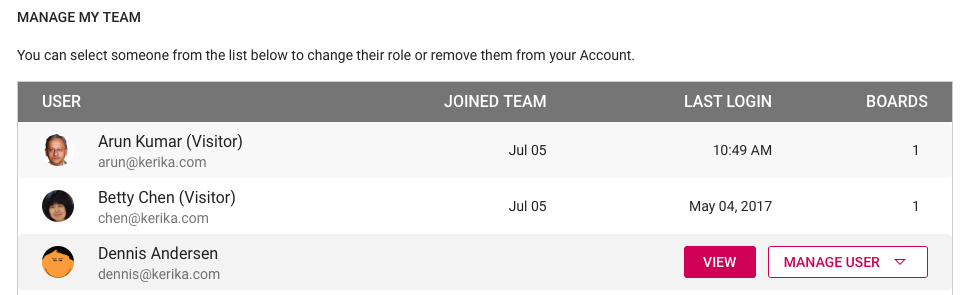
For each member of your Account Team, Kerika will list the date when they joined your Account, the date of their last login, and the total number of boards where they are currently a Board Admin or Team Member.
This makes it easy to see at a glance how active someone is, if you are wondering whether to continue paying for their subscriptions.
(Note: in some cases the “Joined Team” information may not be available if it was months or years in the past; we didn’t start tracking this information until we started building the new billing system.)
Selecting a member of your Account Team offers additional actions:
Account Team actions
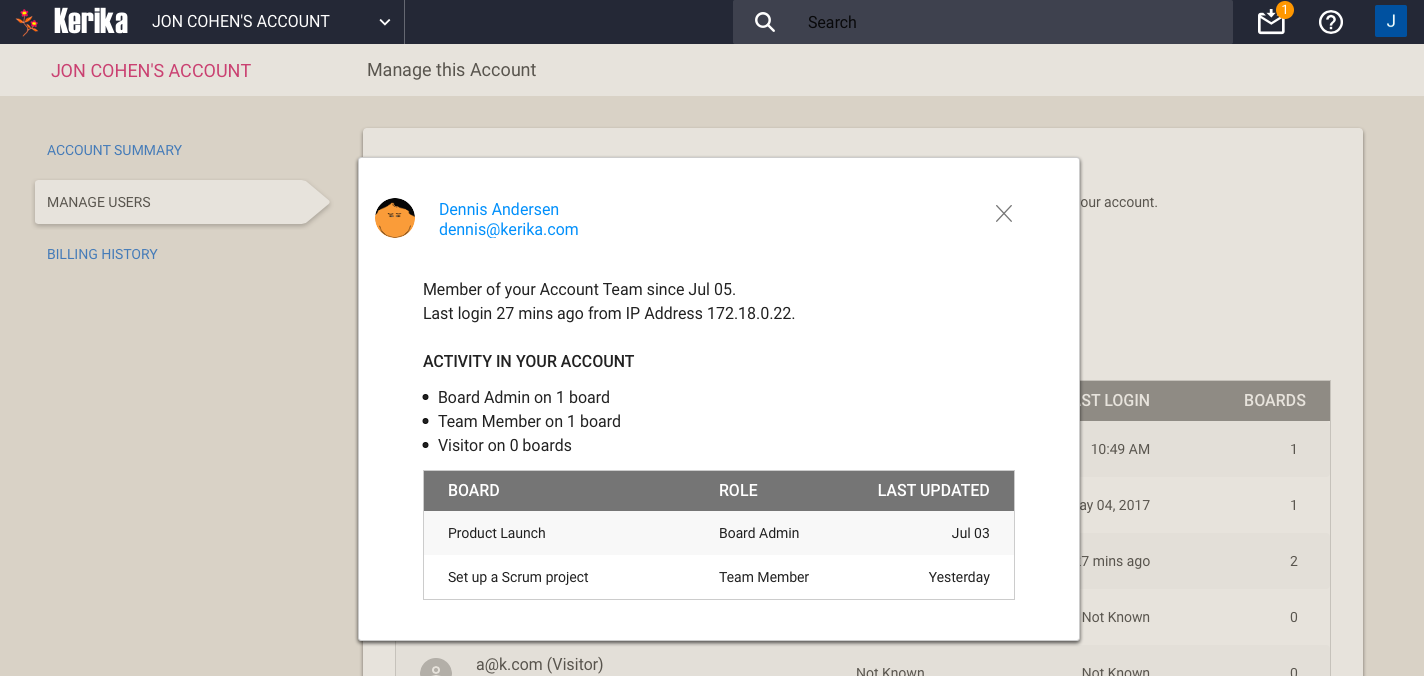
Clicking on the View button gives you a more detailed view of particular member of your Account Team:
Account Team Member detail
One new feature is you can see the IP address last used by the team member: this can be helpful in security reviews.
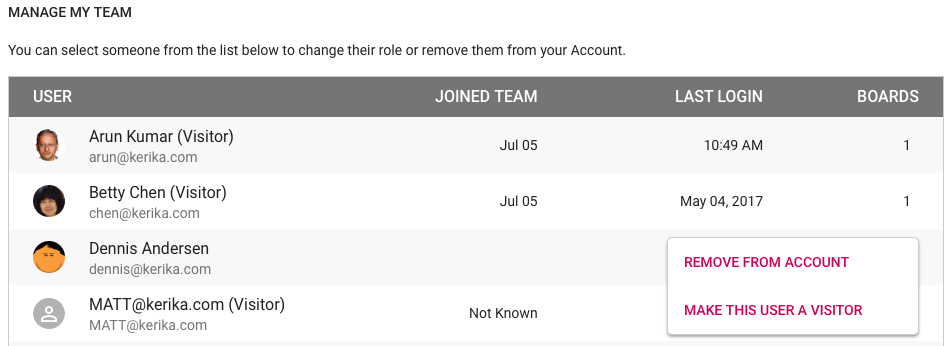
With the Manage User button, you can also remove someone from your Account Team altogether, demote their role to Visitor (across all boards owned by that account).
Remove from Account Team
Billing History
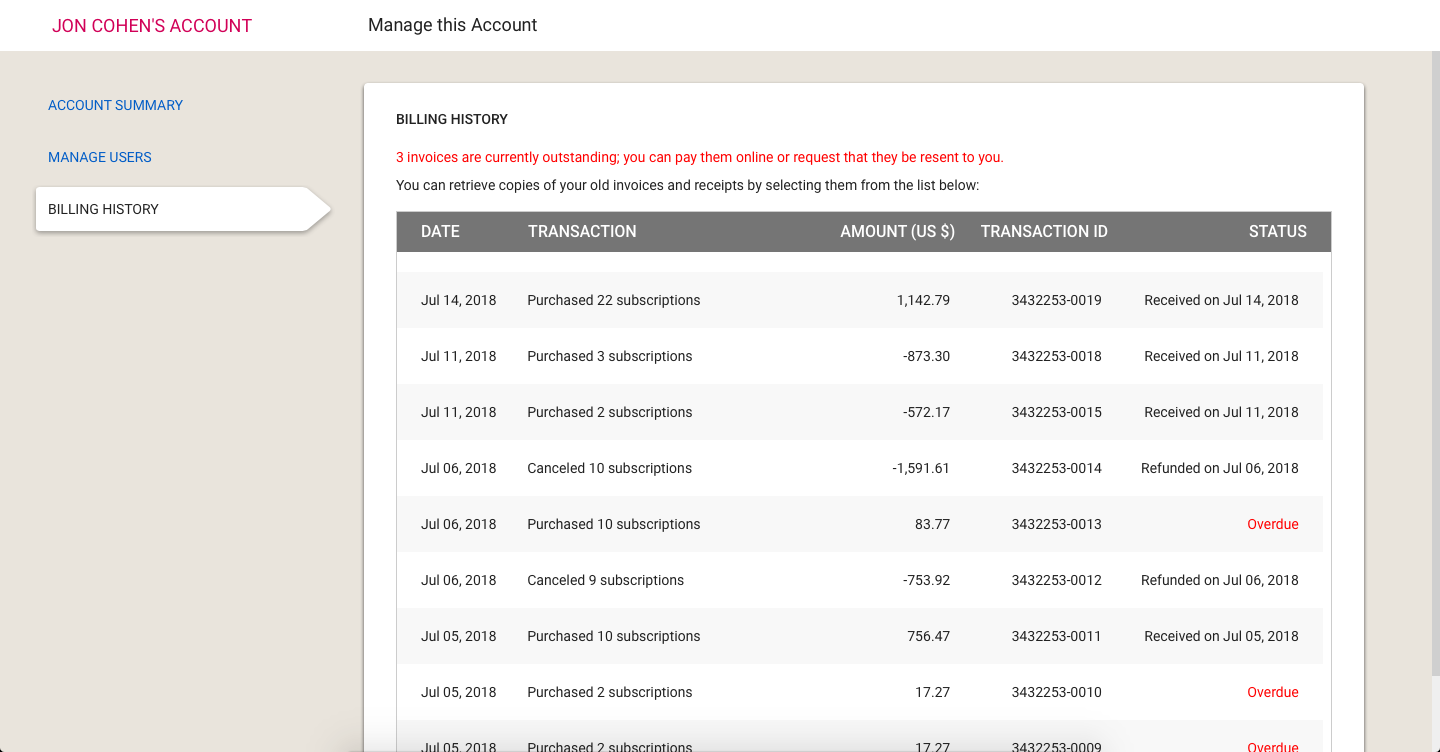
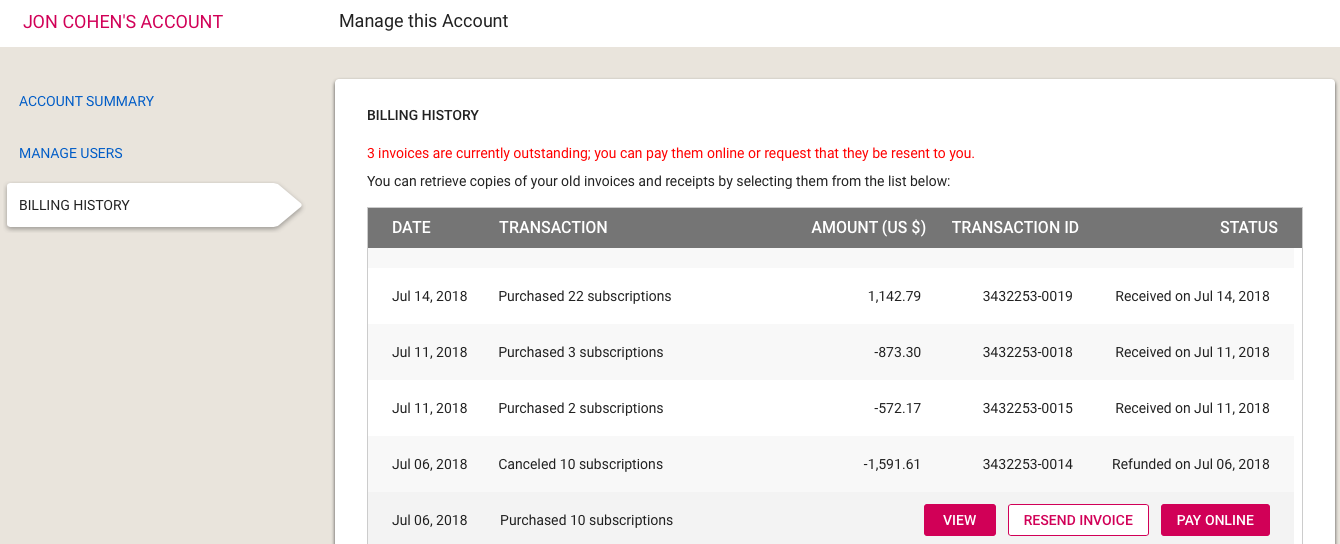
Going forward, all transactions — including online and offline payments — will be tracked automatically by the new billing system.
We will start keeping a history of your transactions going forward (we won’t have all the old transactions; sorry) and they can be accessed through the Billing History page:
Billing History
If you have an overdue invoice — and we sincerely hope you don’t! — you can pay it online, or request it to be resent to the billing contacts for the Account:
Overdue Invoice
Summary
The new billing system took a lot of work, over many months, but it was long overdue: our old billing process was largely manual, and somewhat error-prone.
Unlike some of our competitors, we understand that even though Kerika is software-as-a-service (SaaS), not everyone is set up to make online purchases. That’s why we have made it equally easy for people to receive invoices and make payments offline, e.g. by bank check or funds transfer, and have these transactions show up inside their Kerika account with the same flexibility as online purchases.
All of this should go live at the beginning of next week!
As part of our next release, which will include a new billing system, we will make it easier for you to move boards that you own to another account.
This can help in several scenarios:
If someone is leaving a team, it’s good practice to have their boards transferred to someone who will remain, so that ownership of project assets — the boards and all the content in the boards, including documents — remains with the team.
More importantly, it is good practice to stay away from having individuals own boards, and instead use service accounts to be the single Account Owner in your organization.
A service account is an omnibus account, typically set up with an email address like kerika@example.org, that isn’t associated with a single individual. A service account will never quit, never get fired, or take a vacation because a service account is not a real person — it is simply an account/ID used to be the permanent, omnipresent, owner of project assets so that team turnover doesn’t disrupt anyone.
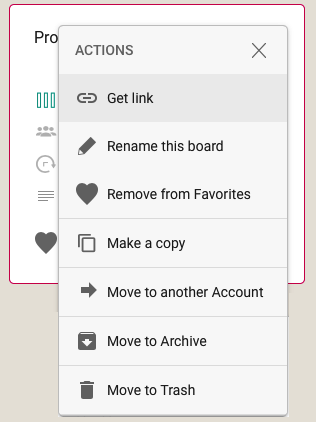
If you own a board, you can move it to another account, i.e. effective change its ownership, by selecting the board on your Account’s Home, and clicking on the Board Actions button which appears on the top-right corner of the board card:
Board Actions Menu
This will bring up a small menu of actions that are available to us as the board’s current owner:
Board Actions
(Note: this menu can also be accessed using the right mouse button.)
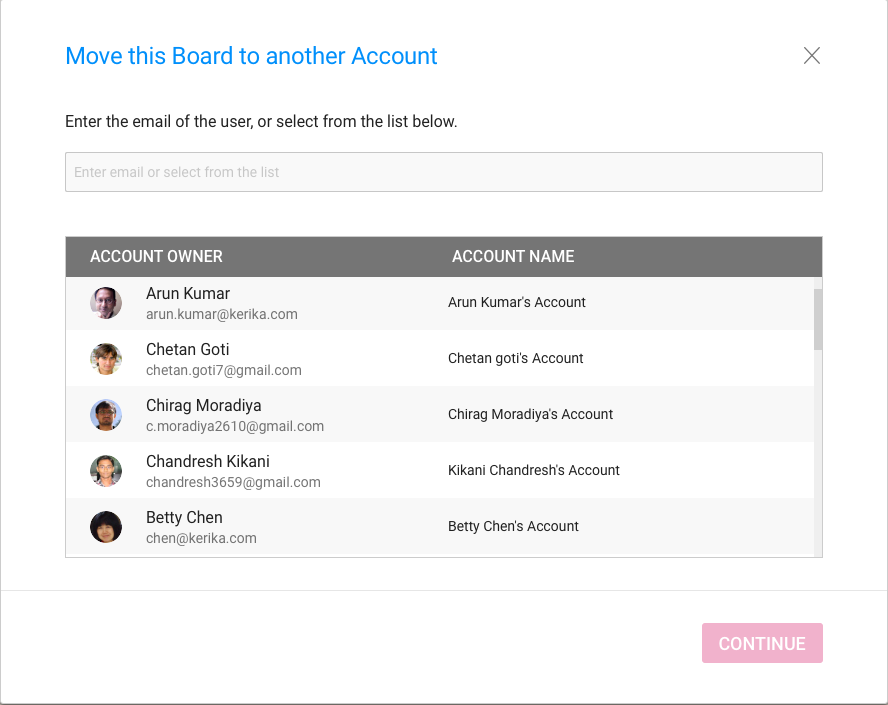
When you select the Move to another Account action from this menu, we will present you with this new dialog box:
Move Board dialog
A list of “known collaborators” is presented to you by Kerika to make it easy to select a coworker with a single mouse click, but you can also move the board to someone else, who isn’t part of your current Kerika collaboration network.
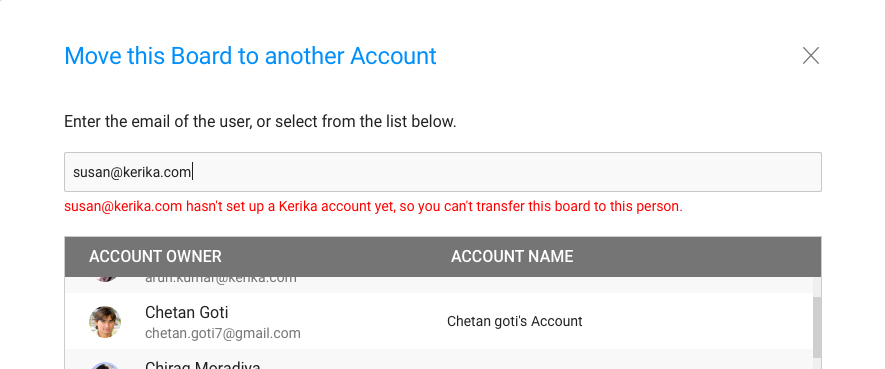
If you type in an email address, Kerika will immediately check to see whether this email address is that of a known Kerika user, before letting you proceed further:
Checking if new owner is a Kerika user
We think these improvements will make it easier for our users to manage their organizations boards, and move towards consolidated ownership for easier asset management.
As you know, Kerika is a Web Application: everything runs inside a browser, without the need for any plug-ins or add-ons.
We achieve all this with a ton of JavaScript code (and a sprinkle of SVG, for our Whiteboards.)
One, significant, disadvantage of JavaScript is that it is “single threaded”: two bits of script cannot run at the same time; they have to run one after another.
So while Kerika is running inside a browser on your laptop, our JavaScript has to share a thread with lots of other stuff that’s going on, such as painting, updating styles, and handling user actions. All of this has the potential to slow down Kerika, while the JavaScript code waits for something else to finish.
To get around this, we used JavaScript’s Promise function: this let Kerika’s code get going with its normal business while waiting for other browser functions to finish. What we didn’t expect, however, was that the Promise function isn’t supported by Internet Explorer 11. (Although it is supported in Microsoft’s Edge browser.)
This caused problems for all of our Internet Explorer 11 users — people using Chrome, Safari, Firefox or Edge were unaffected. We finally figured out what the underlying problem was, and did a workaround using a polyfill, which is a way to provide new functionality in older browsers that don’t support it natively.
We recently got hit by spammers signing up as Kerika users, using fake emails from domains like mailinator.com, which seems to exist principally to help people do bad things on the Internet.
After signing up, these spammers (who seemed to be based in the Philippines) would invite hundreds of people with accounts on Tencent’s qq.com service in China. This would result in invitations being sent to these qq.com people to join the spammers on their Kerika boards.
To avoid a repeat of this problem, we are using Google’s reCAPTCHA in “silent” mode, on our signup and login pages — for people who sign up directly with Kerika using their email addresses.
This doesn’t affect the majority of our users, since most people sign up using their Google or Box accounts. And because the reCAPTCHA works silently, it shows up only when Google has reason to doubt that the person at the keyboard isn’t human.
The Kerika team works in 2-week Sprints, but not every Sprint results in a feature being deployed to production: sometimes we have to wait for enough pieces to be built before we can release an entire feature.
(Bug fixes always get deployed at the end of each Sprint, and we we aim to have zeroknown bugs at all times.)
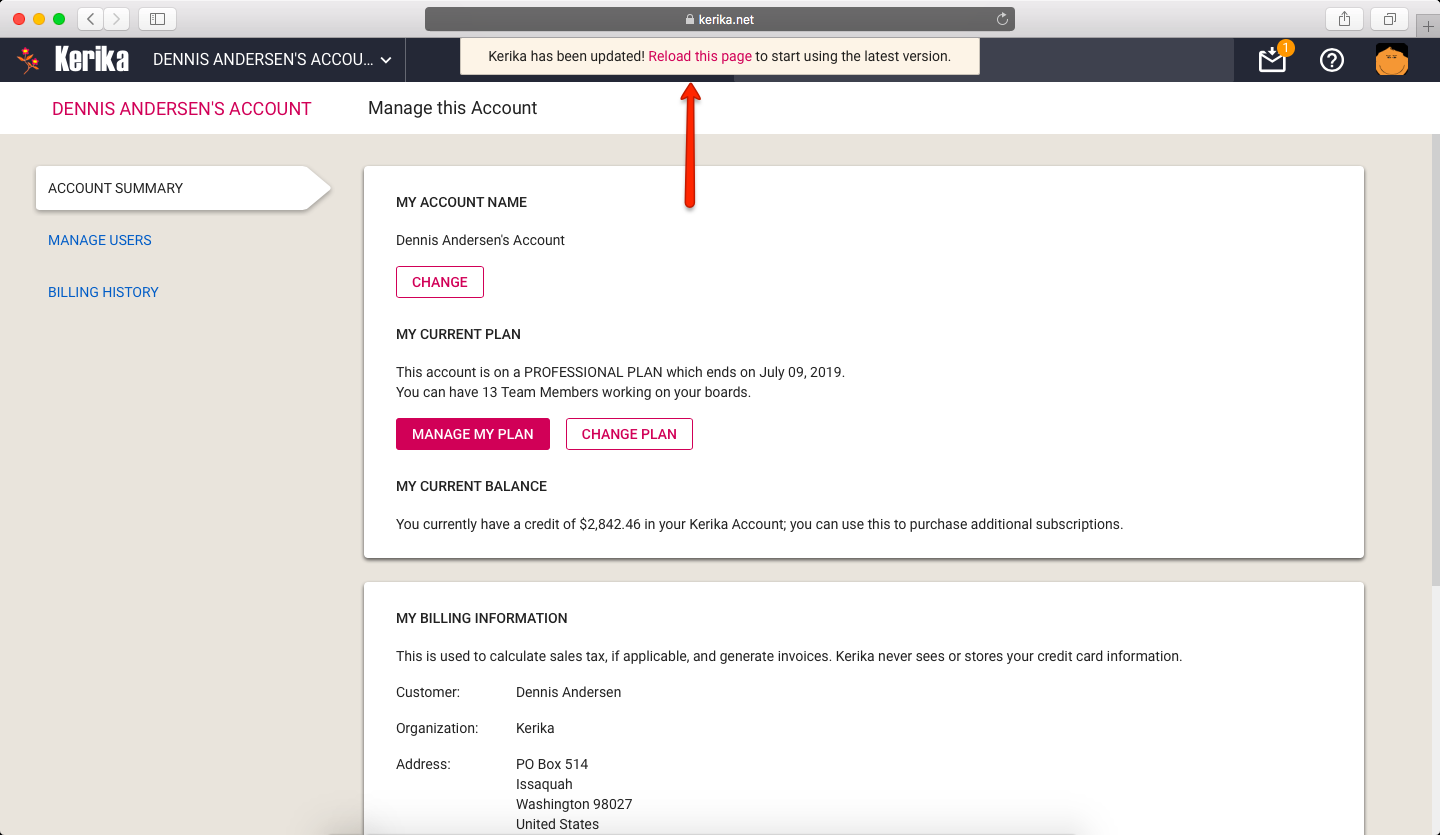
If you left Kerika running overnight in your browser while we rolled out a new version, it’s important to make sure your browser updates itself to get the latest software from our server.
To make this easier, we are introducing a notification inside the app that will let you know that you need to reload/refresh Kerika to make sure you are working with the latest version. This notification appears only when we have a new version deployed, and we can detect (or suspect) that your browser is running outdated code.
Kerika offers a great deal of control over how each board is shared:
A board can be made public to everyone. This makes sense for open-source projects and many nonprofit and advocacy groups, where the goal is to get maximum visibility and publicity rather than to hide the details of what the project is about.
Making a board public means that anyone who has the URL of the board can view it, even people who are not Kerika users. Note: we are talking about viewing the board; viewing doesn’t mean anyone who isn’t part of the board team can make changes.
If a board is viewable by the public, it can be found by anyone using Kerika’s search function.
A board can be viewable by everyone who is part of the account team. This is the default setting, and it makes a lot of sense for most organizations: you want your coworkers to be aware of what your team is doing, unless the project is particularly sensitive.
As people get added to individual boards, they are also automatically added to the account team. When someone is removed from every board owned by an account, they are automatically removed from the account team as well.
As with public boards, described above, we are talking only about viewing, not changing: only people who are Board Admins or Team Members on a particular board’s team can make any changes to that board. (And, of course, the Account Owner who owns the board.)
If you use Kerika’s search function, you can find boards that are being shared with the account team, provided you are part of that particular account team.
A board can be kept private. This means that only the people who are listed on the board’s team — as a Board Admin, Team Member or Visitor — can view the board. (And, of course, the Account Owner who owns the board.)
This is appropriate for any sensitive projects, e.g. stuff related to personnel matters or confidential contracts.
Private boards can’t be found by Kerika’s search function either, and it doesn’t matter if you know the URL for the board: only the specific people listed on the board team can see anything related to that board.
For each board owned by an account, the Account Owner or Board Admins can manage the board’s team: decide who is part of the team, and what sort of role (Board Admin, Team Member, or Visitor) each person has.
Board Admins and Team Members can make changes to all the items on the board, including any documents attached to the board.
Visitors have read-only access to the board and all its documents.
A person’s role can be changed at any time by the Board Admin or Account Owner: the effect is immediate, and extends to all the documents associated with the board as well regardless of whether you are using Google or Box for your file storage, or whether you are storing your files with Kerika.
A board’s team and current privacy settings can be viewed by clicking on the Team button that appears on the top-right of the Kerika app, when viewing a board:
Board Team button
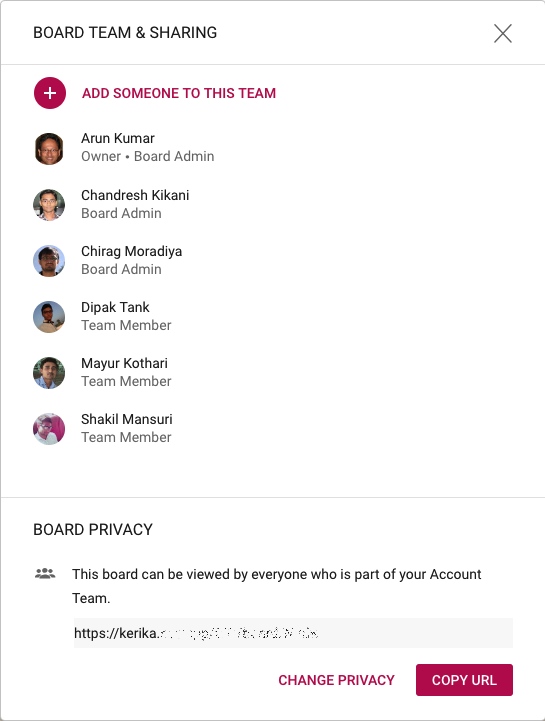
Clicking on this button brings up the Board Team dialog:
Board Team dialog
Each person who is part of the Board Team is listed in this dialog, in alphabetical order along with their role.
At the bottom of the dialog is the board’s current privacy setting: in the example shown above, the board is being shared with everyone who is part of this user’s account team. (We have obscured the URL in the screenshot for security reasons.)
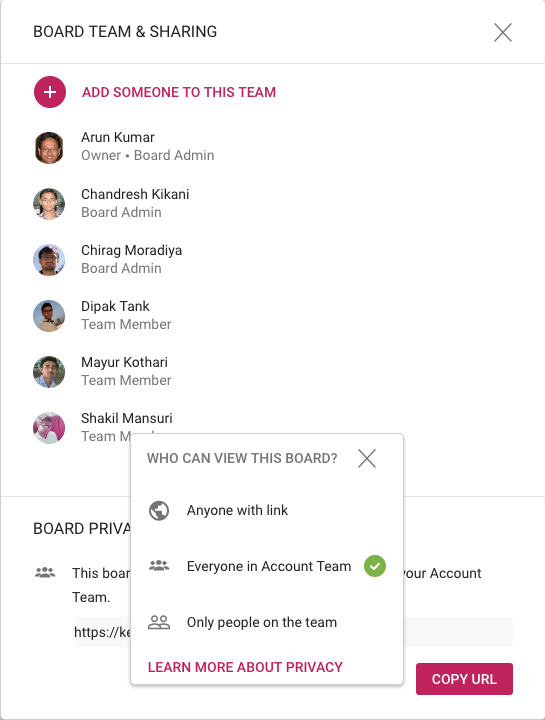
If you are a Board Admin or the Account Owner, you can change the privacy of the board using the Change Privacy link that’s shown on the bottom of the dialog:
Board Privacy options
So, every board can have it’s own privacy settings: private, shared with account team, or public.
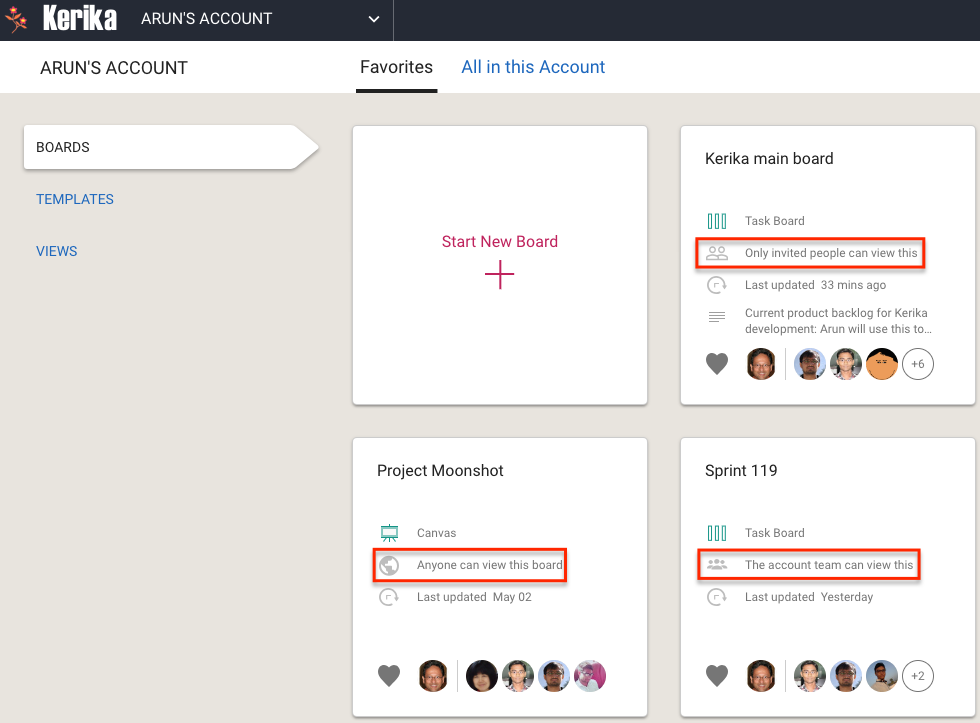
When you are viewing the boards in an account, Kerika shows clearly what the privacy setting is for each board:
Privacy settings, at a glance
If you are part of someone’s account, you will be able to create new boards in that account: you will automatically be a Board Admin on those new boards, but the owner will always be the account you are working in.
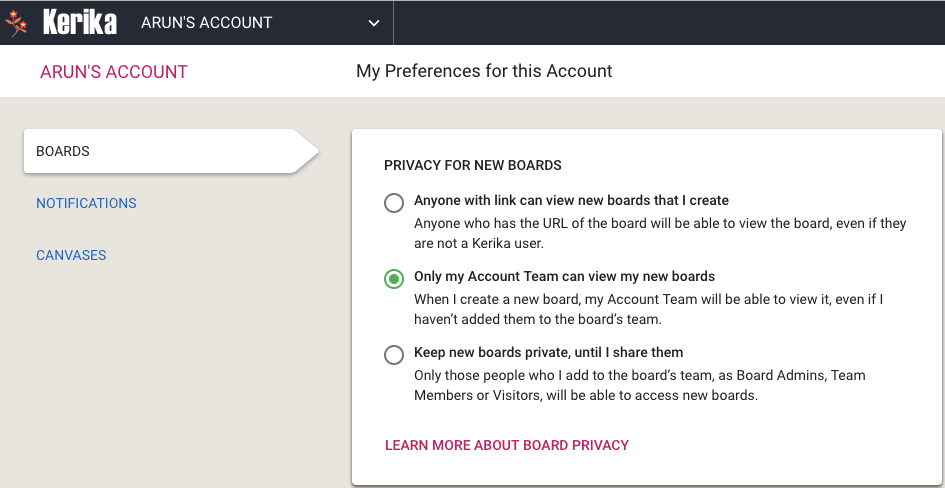
You can set your privacy preferences for each account; this will determine whether new boards you create are automatically shared with your coworkers or not:
Privacy preferences
All your preferences can be set at https://kerika.com/preferences. The default setting is Share with Account Team, which works well for most people, most of the time.
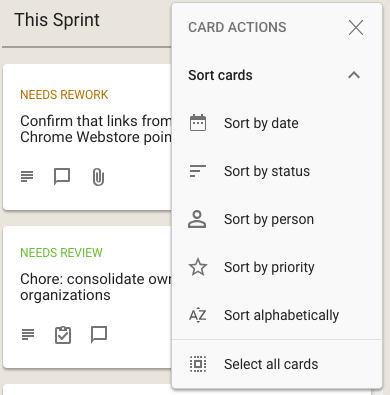
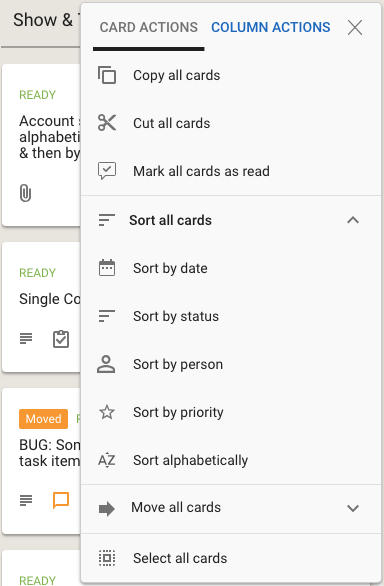
We are adding a new feature for cards on Task Boards and Scrum Boards: in addition to sorting by date, person, status, and alphabetic order, you can sort by priority as well:
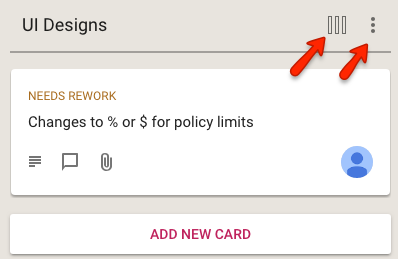
We used to have separate button, and associated menus, for actions related to cards and for actions related to columns:
Separate card and column actions
This reflected the history of the Kerika product: we first designed and built the card actions, and much later added the column actions.
In retrospect, however, we concluded that separating these into two separate menus was not a good idea: it was confusing for our users to remember which menu supported which action. (Even the Kerika team, which uses Kerika for everything that the company does, was having trouble remembering the differences between the two buttons and menus.)
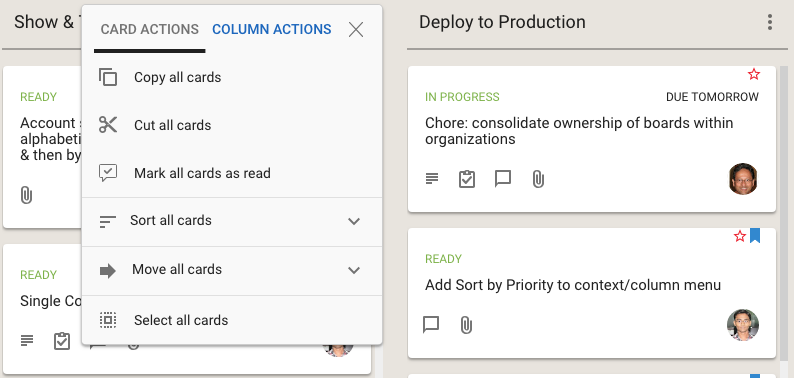
We have fixed that usability problem with our latest release: a single button is shown, and the popup menu that appears includes both card actions and column actions:
Combined Card and Column Actions Menu
Clicking on the Sort and Move actions brings up all the sorting and moving options you have; the Sort menu now has a much richer set of actions:
Sort options
We have also done some small tweaks to the sorting action: Sort by Status now puts the On Hold cards at the bottom of the column, below all the ones flagged as Normal.