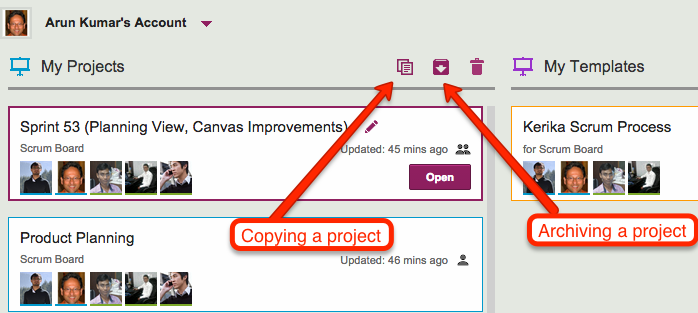
We have enhanced our recently introduced Archive feature, so that you can now copy a current project and paste a copy directly into your Archives:
Go to your Home Page
Select the project you want to backup
Click on the Copy button that appears on the top of the Projects column (or use the right-mouse-button)
Go over to the Archive column, also on the Home Page
Click on the Paste button that appears on top of the Archive column.
Copying a project
One possible use-case for this, that some of our users have asked for, is to do quick backups that “capture current state” of important projects.
As with anything else that’s in the Archive, the copies you paste there are frozen, and can’t be changed unless and until you drag them out of the Archive and into your Projects list.
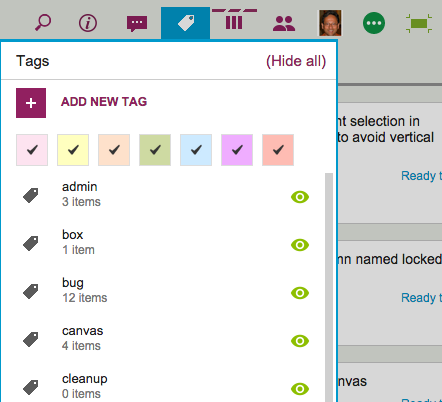
The Tags filter button, which appears on the top-right corner of your Task Boards and Scrum Boards, lets you filter your view of a crowded board by showing just those cards that match a particular tag that you are using (or a particular color coding):
Tags button
It used to be that when you were filtering your view of the board, you couldn’t add any new cards.
The reason made sense from a technical, geeky perspective, but it proved confusing and frustrating for our users, so we have added more flexibility by letting you add new cards even while you are using filtering.
The new cards will appear as you add them to the board, and stay there until you refresh your view of the board. At that point, whether the new cards continue to appear or not will depend upon whether they meet your tags filtering criteria or not.
That sounds complicated, we know, so let’s take a look at the original logic behind not letting users add cards while using tags filtering…
In the example screen shown above, the board has a bunch of tags defined, like admin, box, bug, canvas, and cleanup.
Suppose we were using filtering, to only show those cards that are tagged bug and box. With this filtering in effect, you are going to see only a small subset of all the cards that exist on the board — only those cards that have either bug or box as a tag. (Or both.)
So, what should happen if you add a new card to the board, which isn’t tagged bug or box?
From a strictly logical perspective, this new card shouldn’t be displayed, because it doesn’t match the filter criteria you are currently using — it should be displayed only if the new card had bug or box as one of its tags.
We originally dealt with this problem by saying that you couldn’t add new cards while using tags filtering, because the new cards would disappear immediately after you had added them, which we felt would make for a very confusing user experience.
(People would likely think they failed in their attempt to add a new card, and keep trying. Eventually they might turn off tags filtering, and then find they had added many copies of the same new card.)
So, that was one solution to the problem, but it still presented a user experience challenge because many folks would forget that they had turned on tags filtering, especially if they were bouncing around between multiple boards. (Yes, Barb, we are looking at you!)
If a user returned to a board and didn’t realize that they had tags filtering turned on, they would get confused as to why they were unable to add new cards.
We thought of a couple of different solutions to this problem, including the use of callouts (those balloon-like bubbles that appear to give you hints about how a page works) but we aren’t generally a fan of callouts — too many apps misuse them to excess these days.
So we have come up with what we think is a better solution: if you are using tags filtering, go ahead and add new cards. They will show up, but if you refresh your page, your tags filtering will be re-applied, and the new cards will be displayed only if they match the tags you want to show.
We have been hacking away at the application chrome within Kerika, removing some of the purely decorative elements that were starting to crowd out the user’s critical view of data.
Application chrome is like Kudzu: if you are not careful, what seemed like a nice-looking decoration on one part of the screen can quickly grow to overwhelm the application.
Kudzu
Here’s a before-and-after view of Kerika:
Kerika with column chrome
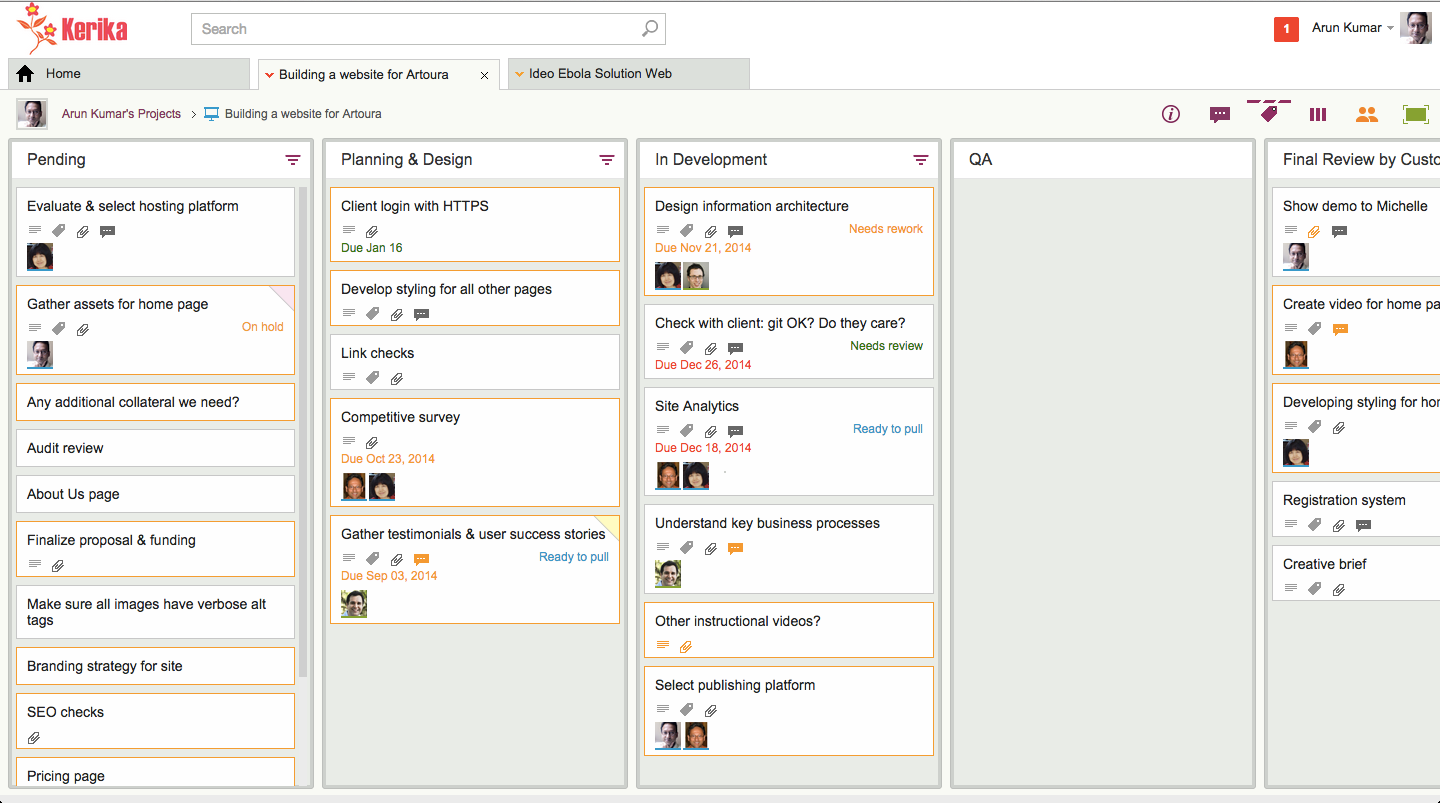
And here’s the same board, viewed with less application chrome, which allows the cards on the boards to stand out more:
Kerika with less chrome
This wasn’t just an aesthetic decision, although we are pleased with the new, cleaner appearance of Kerika: it was actually essential for our development of the new Planning View in Kerika, which lets you easily view a Task Board or Scrum Board from the perspective of Due Dates.
For the Planning View to work with workdays, it became essential to show more columns at a time, more of the time: showing at least 5 columns on most laptops became an essential requirement, and we could not achieve that solely by shrinking the width of cards — we also needed to remove the column chrome so that the board would not appear so crowded.
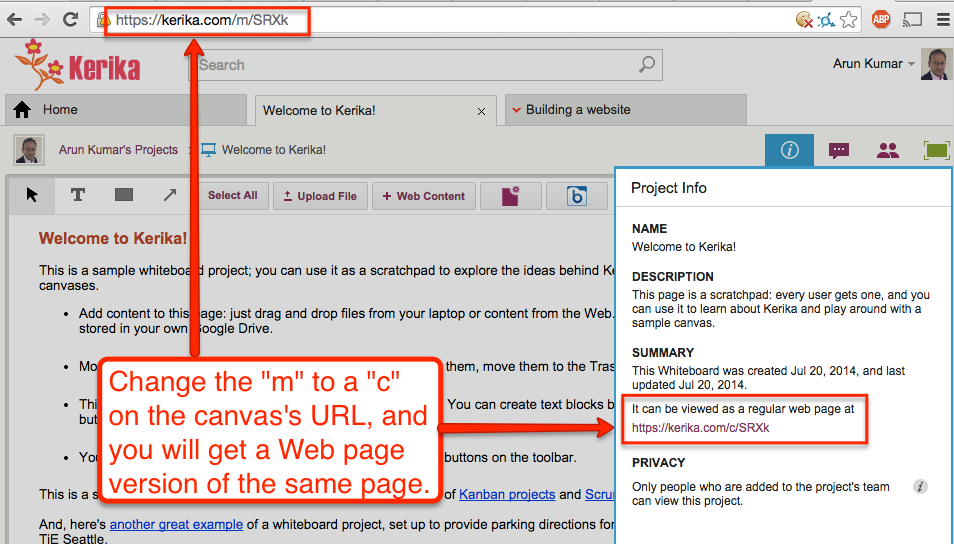
Did you know that any Kerika canvas, whether on a standalone Whiteboard or attached to a card on a Task Board or Scrum Board, can be viewed as a regular Web page by folks who have been given access to the board?
Kerika automatically creates a version of your canvas that can be viewed without the Kerika application: you can get this version by using the Project Info dialog, or, more simply, by just changing the “m” in the canvas’s URL to a “c”:
Web page version of Canvas
Every Kerika page has a URL of the form “https://kerika.com/m/…”
The URLs are randomly generated and unique: every card, every canvas, every board has a unique URL.
The first part of the URL is always of the form kerika.com/m/… There’s no special reason for using the “m”; it’s just part of Kerika’s history.
But if you change the “m” to a “c”, like in the example above where “https://kerika.com/m/SRXk” becomes “https://kerika.com/c/SRXk”, then you can view the Web page version of the canvas.
In the Web page version there are no buttons or other indications of the Kerika software: it looks and works just like a regular Web page.
Of course, security is not compromised: you cannot view the Web page version of a canvas if you aren’t permitted to access the Kerika canvas itself.
We are facing a small crisis over here at Kerika… Our designer has turned hipster. Apparently he has been drinking hand-crafted beer from a Mason jar while watching the sunset from the rooftop. It might have something to do with the temperature hitting 61 degrees Fahrenheit today, which pretty much qualifies as mid-summer in Seattle.
Beer from a mason jar
Kerika’s UI will probably change real soon. Expect it to get more hip.
When you copy or cut an item on a Kerika board — a set of cards, or may be some things sitting on a Canvas — these objects are placed in a special Clipboard that sits on the Kerika server, not in your browser.
This is important to note for several reasons:
Because the Clipboard is on the server, you won’t lose the items if your network connection breaks before you have a chance to paste whatever you cut.
The Clipboard will hold on to the items for 20 minutes, to give you time to think about where you want to put them. (And, to recover from any network problems you may have experienced.)
If you don’t paste something that you had previously cut, the Clipboard “releases” it back to where it was originally, after waiting 20 minutes to go by while you ponder. But, if you are impatient, you can reverse your cut action sooner simply by clicking on the cut items, which continue to appear in a faded (greyed-out) appearance on your board.
Because the Clipboard is on the Kerika Server, other team members won’t see the change until you actually do the paste. So, for example, if you have cut some cards from a Task Board or Scrum Board and haven’t pasted them yet, your project team members will continue to see the items on the old board until you complete the paste.
And, finally, here’s a great feature, thanks to the Server Clipboard: one of your team members can be making changes to a card while you are in the process of cutting-and-pasting it, and those changes aren’t lost. That’s because the object is stored on the server rather than your browser, making it possible for your team members to make changes even as you are in the process of doing a cut-and-paste.
We had problems occasionally with our servers running reliably, and if you were unlucky you may have noticed this.
Well, it took a very, very long time but we have finally figured out what’s happening.
It turns out that the garbage collection function on the Java Virtual Machine that runs our server software (all on a Linux virtual machine running on Amazon Web Service) was having problems: most of the time the garbage collection runs just fine on an incremental basis, taking up only a fraction of a second of CPU time, and periodically the JVM would do a full garbage collection as well.
The problem we are facing is that sometimes this full garbage collection would fail and immediately restart.
In the worst-case scenario, the garbage collection would start, fail and restart over and over again, until the server basically thrashed. And each time the full garbage collection ran, it took 5-7 seconds of CPU time (which is a really long time, btw).
We are trying to understand the best long-term solution for this, but in the short-term we can mitigate the problem in a variety of ways, including upgrading our server virtual machines to have more RAM.
One reason it took so long to debug is that we were chasing a red herring: we had noticed network spikes happening frequently, and we wrongly assumed these were correlated to the server’s CPU load spiking, but this turned out to be coincidental rather than causal.
Some characters shouldn’t be used when you name a project — and we are going to make a change in Kerika that will rename any old projects you have to replace these characters with blank spaces — because they cause problems when you need to export the cards on your Task Board or Scrum Board.
Here’s what you need to avoid:
Forward slash (“/”)
Backward slash (“\”)
Colon (“:”)
Semi-colon (“;”)
When you do an export, the exported data are stored in a file in your Google Drive (if you are using Kerika+Google) or your Box account (if you are using Kerika+Box) and these characters are used by these cloud services as file separator characters, which means they cannot be part of a file name.
So, your export will fail (and we end up logging an error on our server, which doesn’t make us happy either)
We did make a change in Kerika a month ago that stopped new projects from using these characters in their names, but it looks like there are still a bunch of old projects out there that have these characters in their names, and now we are going to try to clean up these as well.