Beth talked about her own background in project management — how she started off as a chemist and researcher, and gradually found her way into project management and IT over the years — and how she used Kerika to transition from a classic “Waterfall” style of project management to something more Agile.
The presentation was very well received, and she has graciously agreed to share it with everyone :-)
Our latest update to the Kerika software features a bunch of bug fixes and other improvements that are mostly under the covers, as several user interface tweaks to help improve usability.
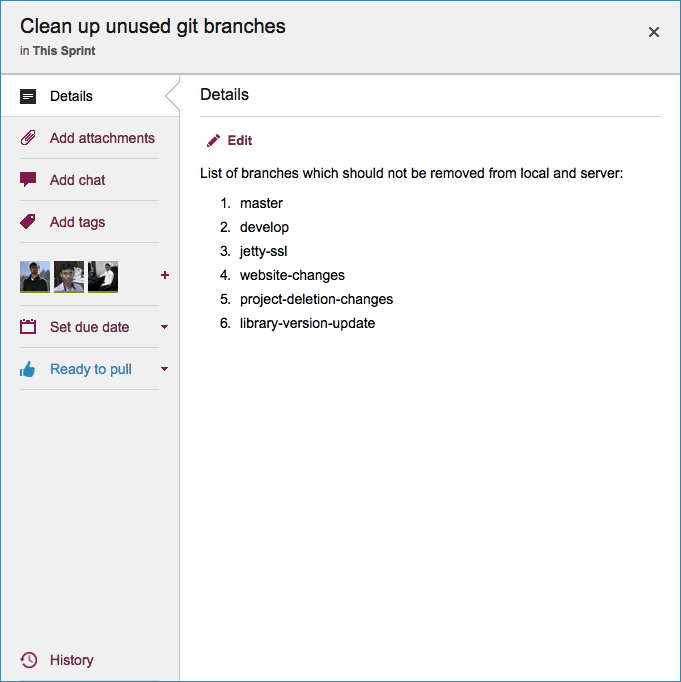
One change you will notice right away is that when you open a card, the details dialog box has new tabs for Tags and History: this was done to make it easier for people to find these functions, which were previously tucked away within the tab for the card’s description.
Card Details
The History tab is all the way at the bottom now, where it’s easily accessible but not in the way — since History is not a frequently used function.
There are other UI tweaks: icons have been modernized and the overall look is cleaner, and the Trash column of a board now shows you when each card was deleted.
Kerika always sends emails to users in two scenarios:
Someone assigns a card to you. The system waits 2 minutes, to ensure that the person who made the change doesn’t change her mind, and then sends you an email that an item has been assigned to you.
We figured that if someone expects you to do a piece of work, it would be good to know that sooner rather than later.
Someone chats on a card assigned to you. Any Team Member can write a message on any card, regardless of whether they are assigned that card or not.
If someone chats on a card that you own right now, an email gets pushed to you (again, after a 2-minute wait.) We figured that if someone has something to say about a work item that you are responsible for, you would want to know that sooner or later.
Kerika optionally sends emails to users in a bunch of other scenarios, all of which are determined by your user preferences (which you can set at https://kerika.com/preferences).
If someone chats on the board itself (as distinct from chatting on an individual card), you can get this sent to you as email.
If there are cards assigned to you that have due dates, at 6AM you can get an email that lists everything that is overdue, due today, or due tomorrow.
If you are a Project Leader on any board, this email includes all cards on those boards that are overdue, due today, or due tomorrow, regardless of whether they are assigned to you or not. (We figured that as a Project Leader you would care about overdue items even if you weren’t personally responsible for them.)
If new cards are added to a board where you are a Project Leader, you can get notification emails if you want to keep track of all new work items.
If cards are moved to Done on a board where you are a Project Leader, you can get notification emails if you want to keep track of completed work.
If a card is reassigned from one person to another on a board where you a Project Leader, you can get notification emails if you want to keep track of how work is being handed off from one person to another.
So that’s emailed notifications in Kerika: just two types of emails are always sent, and they relate only to cards that you are personally responsible for; all the other emails are optional and can be turned on/off as you like.
What happens if people make changes to cards while you weren’t looking? (If you were looking at the board, you would see the changes in real-time, but even then, with a very crowded board, you might not notice that a card has changed in some way.)
Kerika uses the orange color as a way to alert you of changes. You can learn more about this on our website, but the basic concept is simple: Kerika highlights, in orange, any card that has changed in any way since you last looked at it, and by “look at it” we mean that you opened up the card and looked at the specific details that changed.
For example, if someone adds new files to a card, the attachments icon (the small paper-clip) appears in orange. After you open the card and look at the list of attachments, the orange highlight disappears.
These orange highlights are very smart about making sure you know exactly what changed on a board; they even let you find changes that are outside your immediate visibility: e.g. changes on cards that are way down below the scrolled view of the board, or changes in columns that you have chosen to hide.
Since we use OAuth 2.0 to let people sign up (and sign-in) using their Box or Google IDs, Kerika never actually sees any user’s password.
But, a lot of our users don’t quite understand how OAuth works, and they expect that when they go to the My Account screen in Kerika, they should be able to change their password right there.
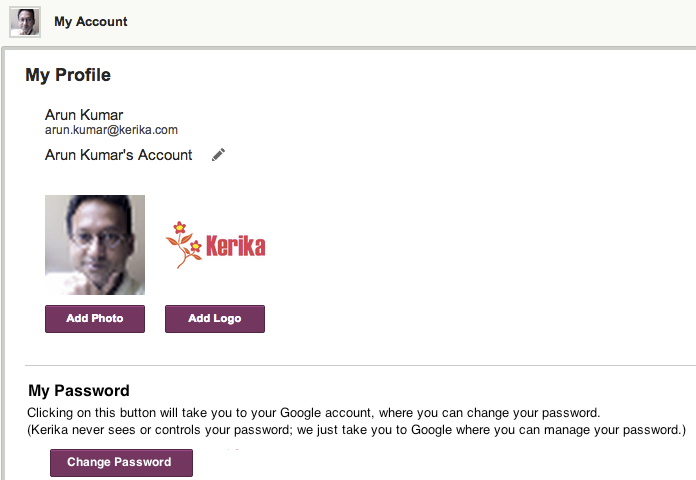
Well, we aren’t going to move away from OAuth because we believe that’s a far more secure arrangement than having Kerika manage your password, but with our new release we are making it easier for people to figure out where they should go to change their passwords:
Change Password
If you go to your Kerika account (http://kerika.com/my-account) and click on the Change Password button, it will take you to either Box or Google website where you can change your password.
A small “feature”, but one which we know will help smooth the way for at least some of our users :-)
We did a quick refresh to Kerika today, and we will be quiet for a while our development team — which is based in India — takes a well-earned Diwali break for about 2 weeks.
Kerika is welcoming and friendly for people who are already familiar with online project boards, but what about people who have never used anything like Kerika before?
To make Kerika more welcoming for new users, we have created a new Welcome Experience: a series of simple callouts that can orient new users to the Kerika user interface, within 30 seconds.
We understand only too well that these kinds of callouts have been misused by many apps and websites, and that — when badly implemented — they can be annoying and ineffective, so we have take a good deal of care to design the Kerika Welcome Experience:
It is short. Seriously. We timed it so that it will take well only about 30 seconds of a user’s time.
It is personalized and relevant: it figures out whether someone just signed up fresh at our website, or whether that person joined after accepting an invitation to someone’s else project.
If you are a new user, let us know whether it worked!
We have a new feature in Kerika: a simple way to add numbers to your cards, for both Task Boards and Scrum Boards.
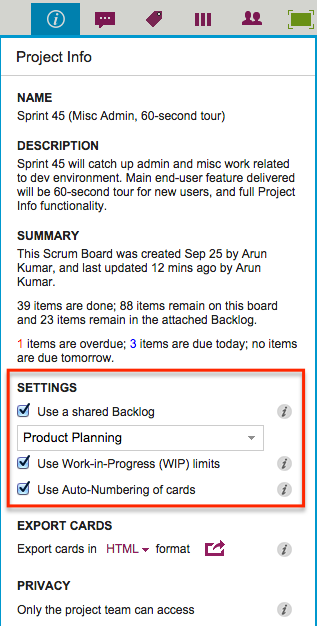
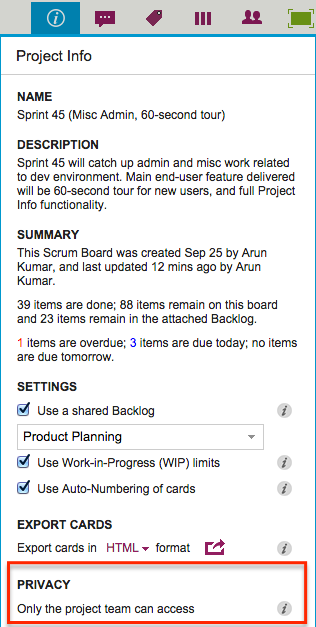
Project Leaders (and, of course, the Account Owner) can access this feature by clicking on the Project Info button, which appears on the top-right area of a Kerika board:
Settings
Auto-Numbering can be turned ON or OFF at any time.
It is a simple feature, intended primarily to help manage large numbers of cards on a single board, e.g. a Help Desk team using Kerika as a ticket management system.
In ticket management or asset tracking scenarios, the titles of many cards may be similar, e.g. “User has trouble logging in”.
A more useful way of distinguishing between cards might be through the card’s numbers, e.g. “104 User has trouble logging in” and “242 User has trouble logging in.”
When Auto-Numbering is turned ON, Kerika will automatically insert a number as a prefix to new cards that are added to that board.
Numbers are sequential: for example, the first card would have “1” added as a prefix, the second card would have “2” added as a prefix, etc.
Auto-Numbering can be stopped at any time, and then new cards added to the board won’t have numbers added to the card titles.
Auto-Numbering can be resumed after a pause, the numbering will intelligently figure out how many cards are on the board by excluding the Backlog and the Trash, as well as looking at the last number used.
The numbers are simple text, added as a prefix: they can be edited by any Team Member, and even removed.
Most users work on private projects: i.e. projects that are accessible only to people added to the project team.
But some folks find it useful to have their projects viewable by everyone, typically because they are working on nonprofit causes, like WIKISPEED.
WIKISPEED publicizes its projects because it helps attract new volunteers to their cause, and this is actually a pretty smart way for nonprofits to showcase their work.
Kerika has always had an option for people to have all their projects made viewable by the public, but even nonprofits, for example, may have some Kerika boards that they don’t want to share with the rest of the world.
Well, with our newest release, it is possible for the Project Leader (or Account Owner) to make individual projects open to the public to view.
A project can be easily switched from Private to Public, and back again, using the Project Info button that’s available on the top-right of every Kerika board:
Privacy
The privacy choices are as follows:
Only the project team can access: this is the default setting, and it means that unless people are added to the project team, they won’t be able to view it — or even find it using the Search function.
Anyone, anywhere can view: this means the project is “public” — it can be found through search, and anyone who knows the URL of the project can view it. (But, they still won’t be able to make changes.)
When a project is made Public, all the documents contained within it — on all the cards and canvases that make up that board — are also made viewable to the public.
This means, for example, that if your Kerika+GoogleWhiteboard or Task Board is made available to the public, all the documents in that board’s Google Docs folder are also made viewable by the public.
(And Google indexes all public Google Docs, the project could be found in more than one way, depending upon who is searching for it.)
One caveat: users of premium Google Apps, e.g. Google Apps for Business, cannot make their projects open to the public, because of limitations imposed by Google.