For experienced users who don’t need as much help in starting new boards, we are providing a faster mechanism that skips some steps that are currently shown to new users.
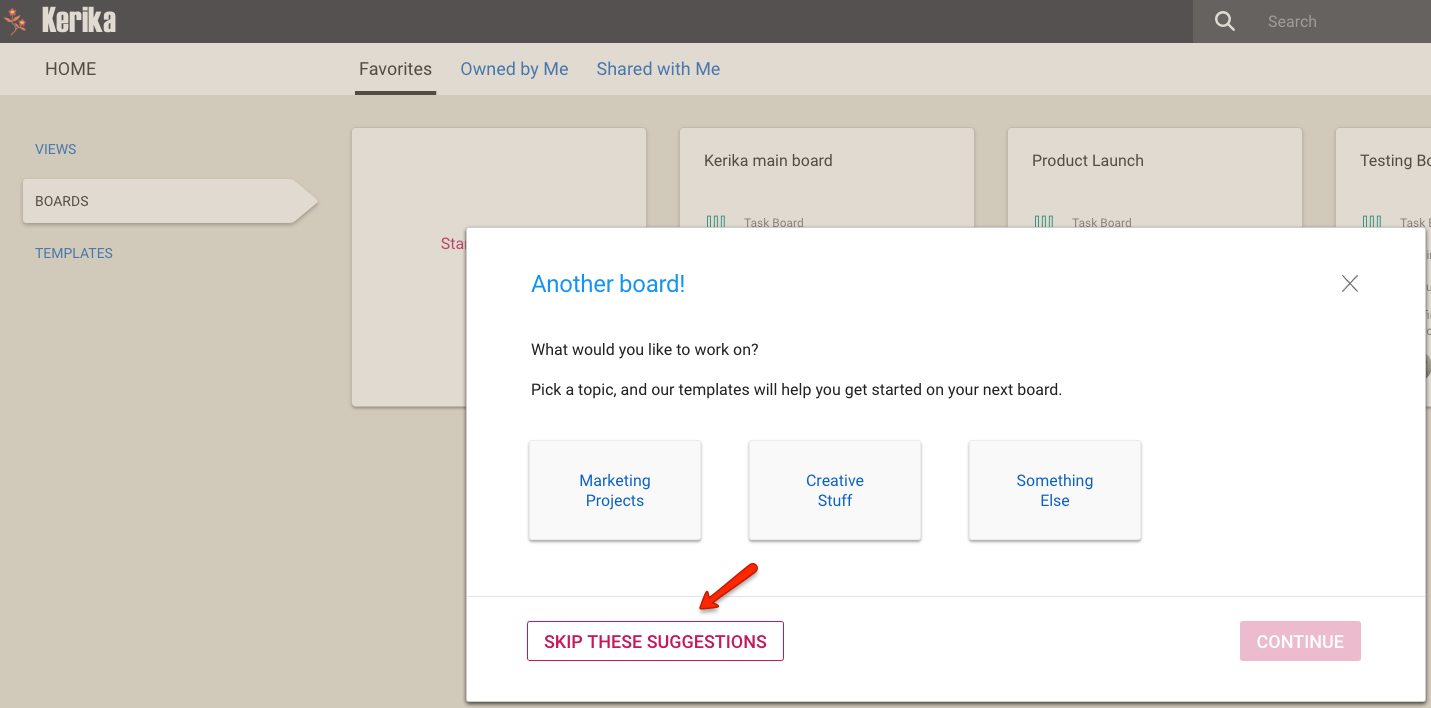
You can access this faster mechanism by clicking on the Skip Suggestions link in the current Start New Board dialog:
Skipping Suggestions
Once you click on Skip Suggestions, Kerika will recognize you as an experienced user who prefers a path like this:
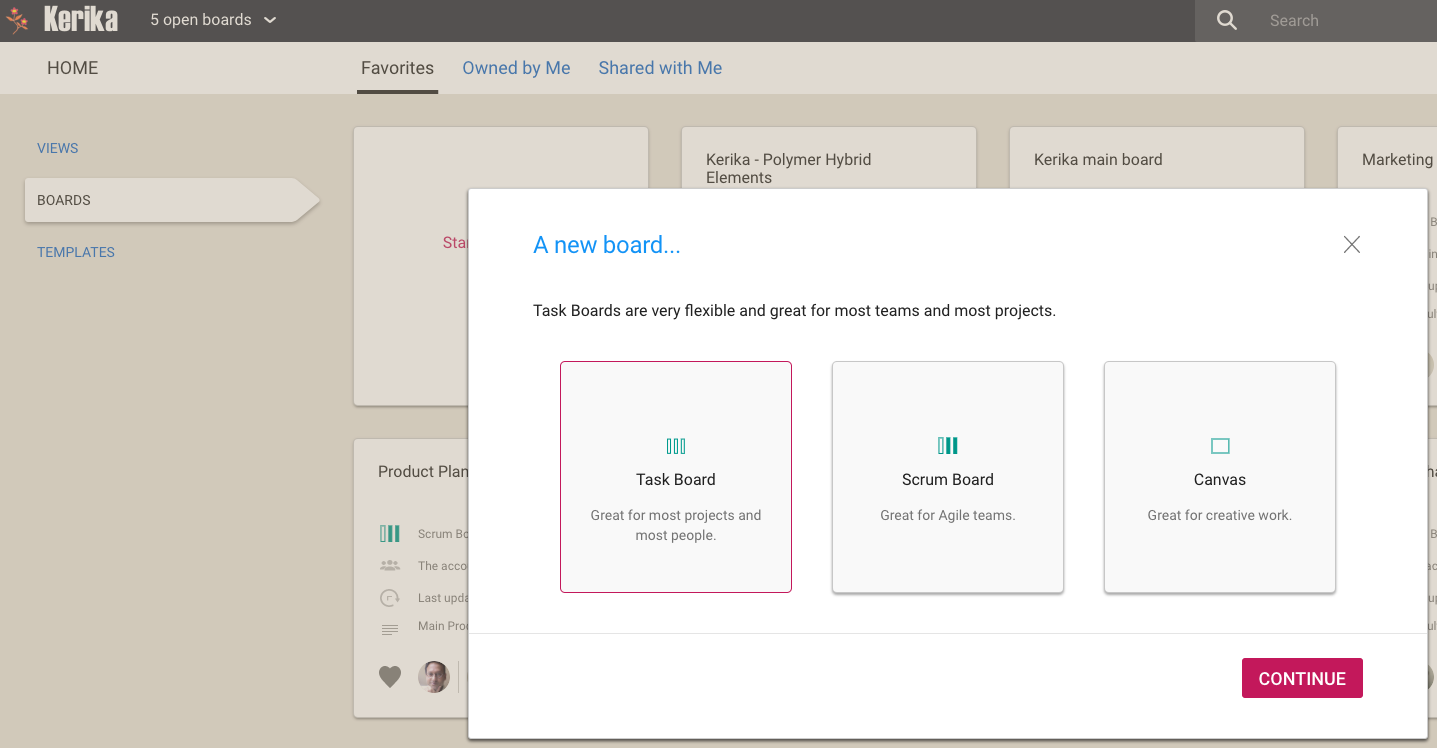
Starting a New Board
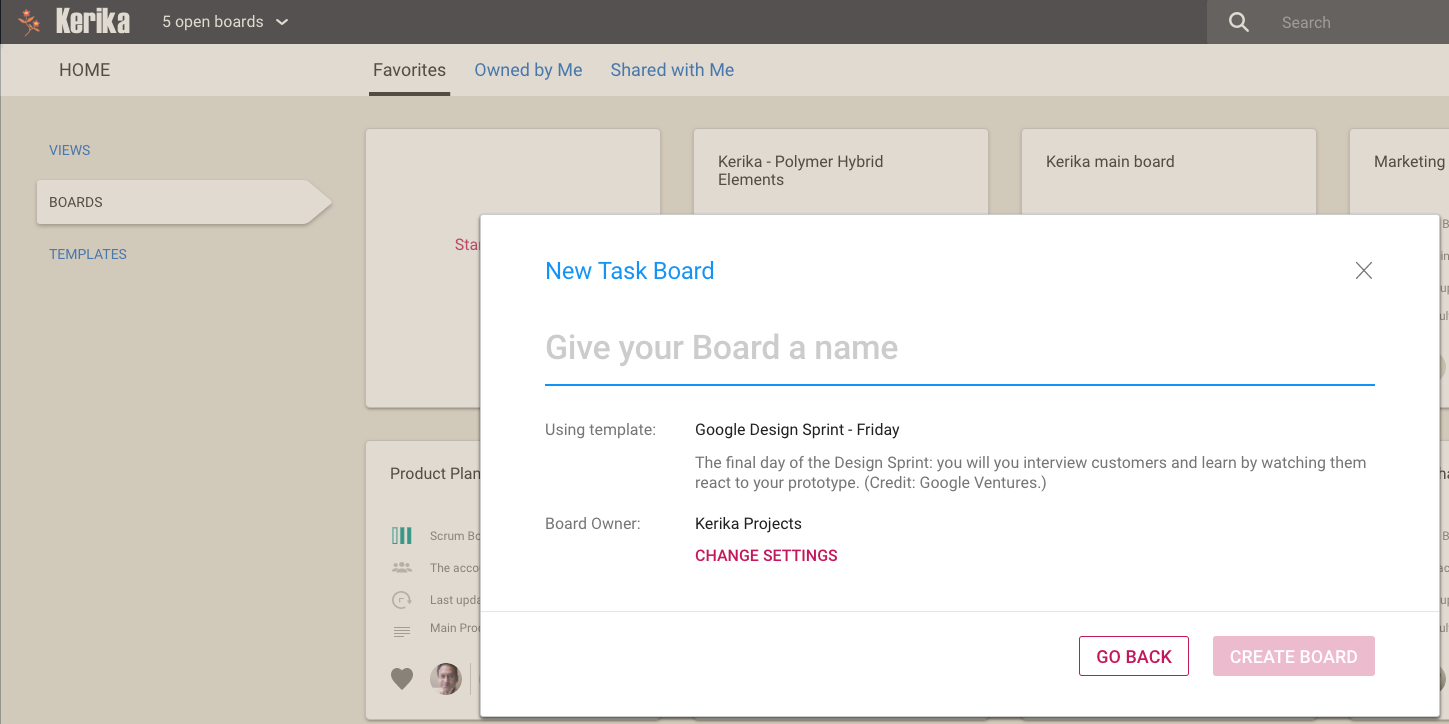
Once you pick the kind of new board you want — Task Board, Scrum Board, or Whiteboard — you can immediately name your new board:
Starting a new Task Board
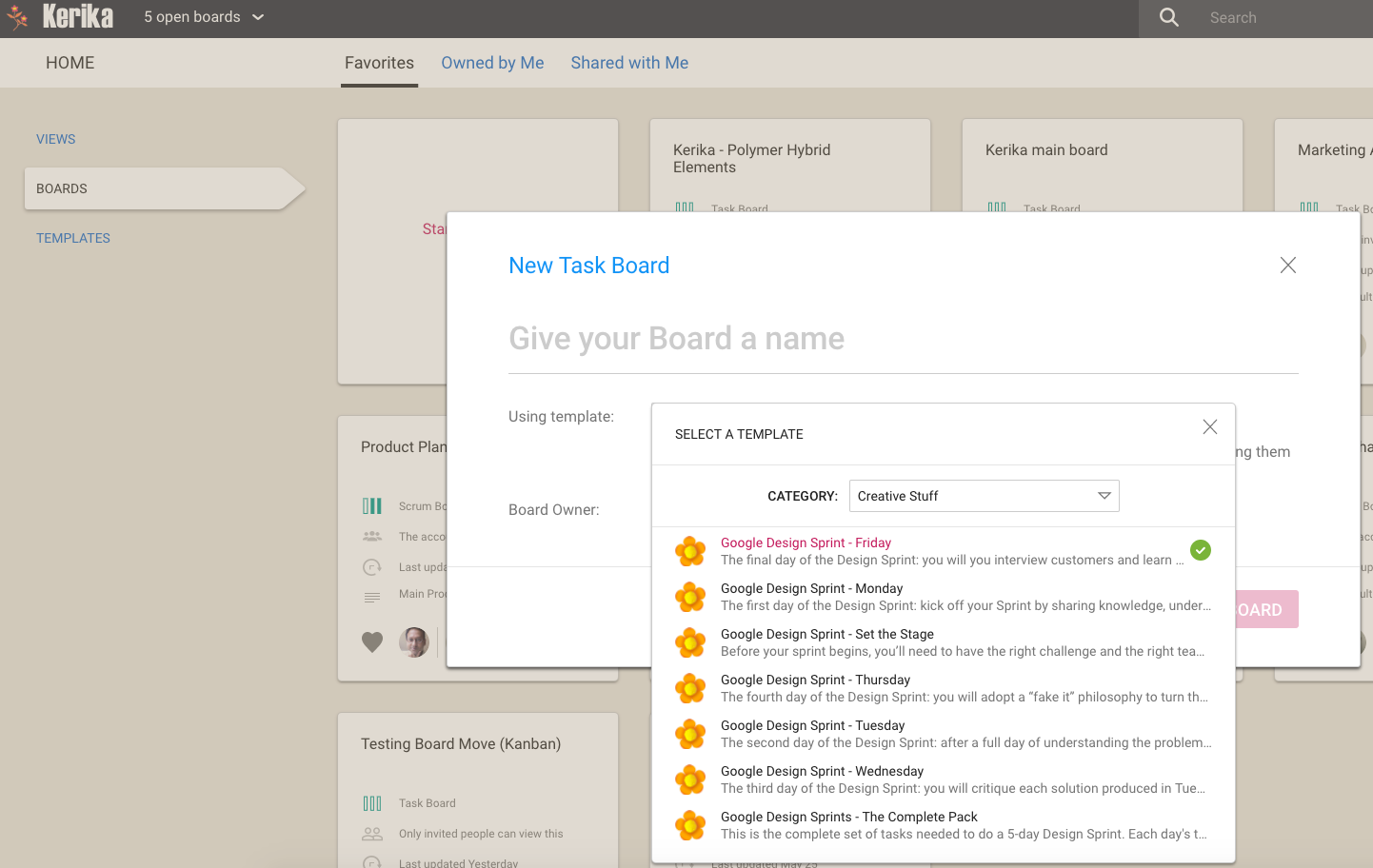
Kerika will assume your new board will use the same template that you last used, but if you like you can change to a different template by clicking on the Change Settings link:
Selecting a Template
This should save our experienced users a few clicks when they want to start a new board…
We made some user interface tweaks to make sure people are aware of a really great feature in Kerika that’s existed for a while, but was buried in a Preferences screen that not everyone paid attention to: you can have your Kerika Due Dates automatically show up on your Google, Microsoft or Apple Calendar.
Well, that’s buried no more: we have added a Calendar Synch button in a more prominent place on the top-right of the Kerika app:
Calendar button
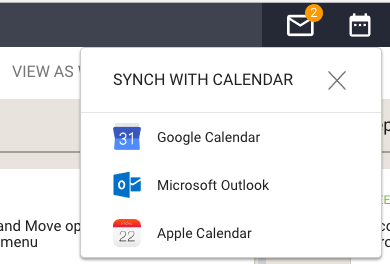
Clicking on this button will let you choose the type of calendar you want to synch with:
Calendar choices
(Hint: you can have your Kerika Due Dates synch with more than one calendar, if you like.)
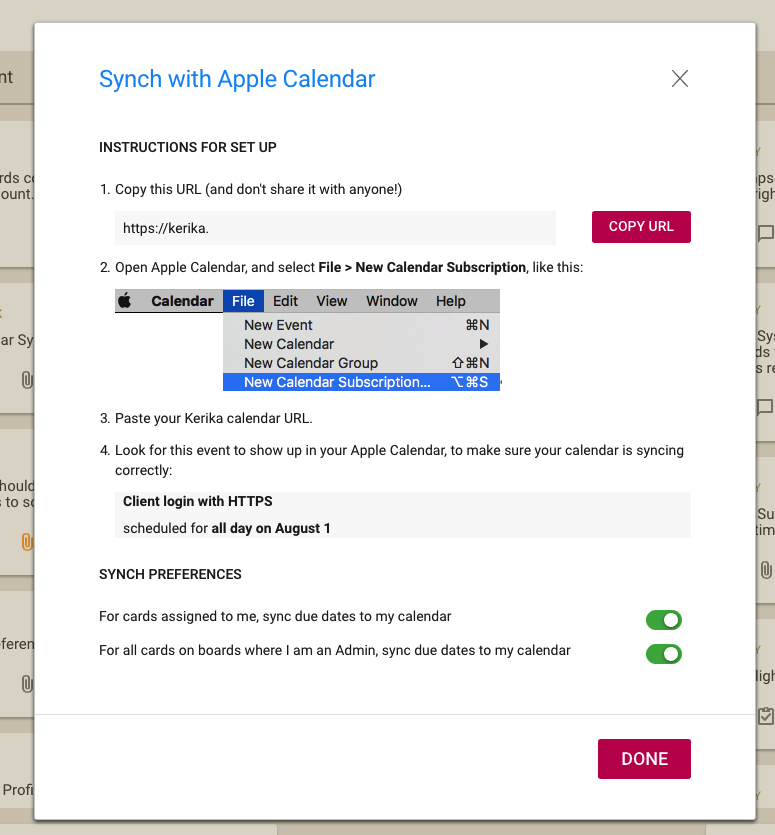
Pick your favorite calendar type, and you will see detailed instructions on how to set up syncing of your Kerika Due Dates. Here’s an example of syncing with Apple Calendars:
Calendar instructions
The URL is personal, and should be kept confidential. (That’s why we aren’t showing it in the illustration above.)
The URL is long and random so it will be impossible for others to guess, but it’s not a good idea to share it with others unless you really want them to know all your Kerika Due Dates, e.g. if you have an assistant or delegate that helps manage your daily schedule.
At long last, we have built Views — one of the most commonly requested features, and something that we had been obsessively designing and redesigning over years, trying to figure out the best way to handle this need.
We have done it now. Views has been built, and is automatically available across all your Task Boards and Scrum Boards, whether they are owned by you or shared with you.
We are starting off with four standard Views, and we will built more in the future, and add a way for you to build your own Views as well.
The Views we have built are:
What’s Assigned To Me
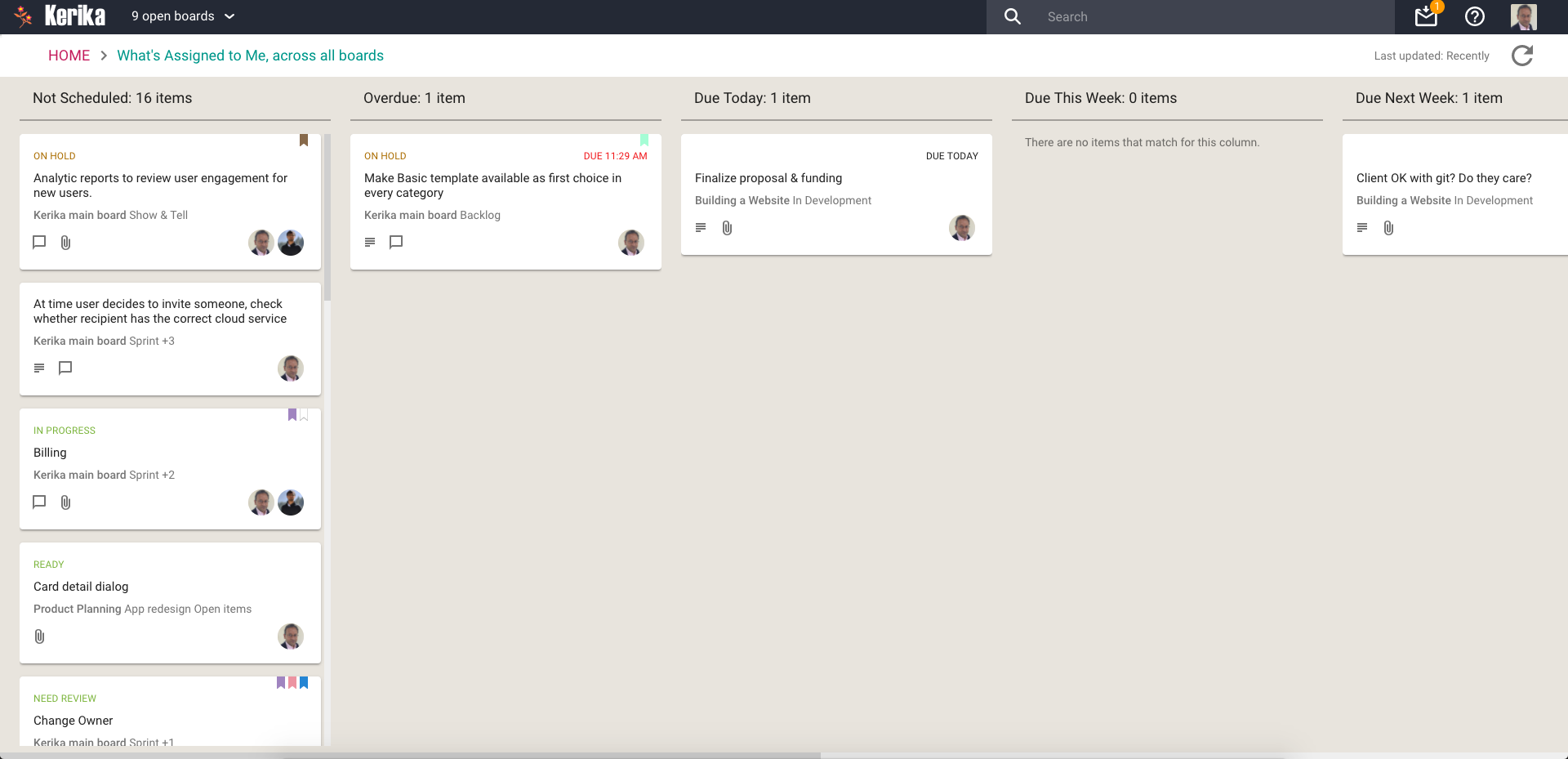
The most commonly asked for feature by people who are working on several projects — and, hence, several boards — at the same time. This is what it looks like:
What’s Assigned To Me
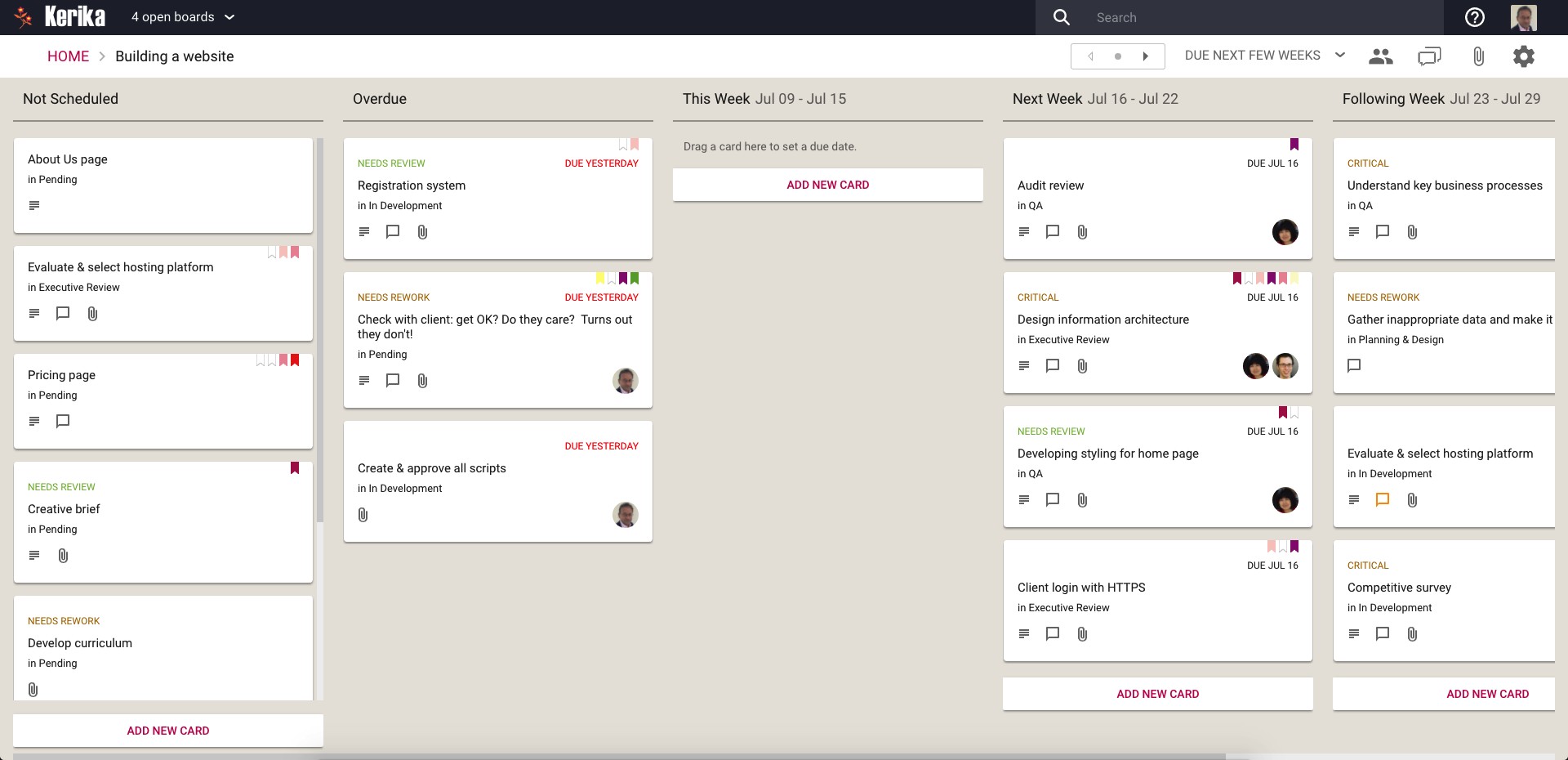
Everything that’s currently assigned to, on all boards except for those that are in the Trash or Archive, are collected for you into a single View, where cards are organized as follows:
Not Scheduled
Overdue
Due Today
Due This Week (excluding what’s already included in Due Today)
Due Next Week
Due This Month (excluding what’s already included in Due Today and Due This Week)
Due This Quarter
Due Next Quarter
It is a comprehensive summary of everything you need to get done, and it will be invaluable for managers and anyone else who has to work on multiple projects at the same time.
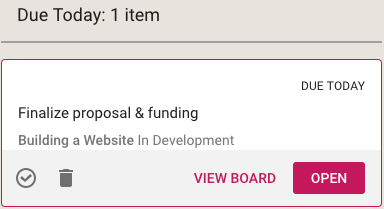
If you select a card in a View, like this
Selecting card from a View
You get quick access to key actions:
Move to Done
Move to Trash
View Board
Open
Open opens the card right there, inside the View itself. View Board, on the other hand, opens the card in the board in which it is located.
Both are useful, depending upon the card and what you want to do: in some cases you just need to update a particular card — e.g. reschedule it, add a comment or file — and opening the card in the View itself, which is very fast, is enough.
In other situations you might want to be sure you are understanding the context of the card, and it is better to see where it is on the board that contains it. This can be helpful for cards that you are not quite sure about.
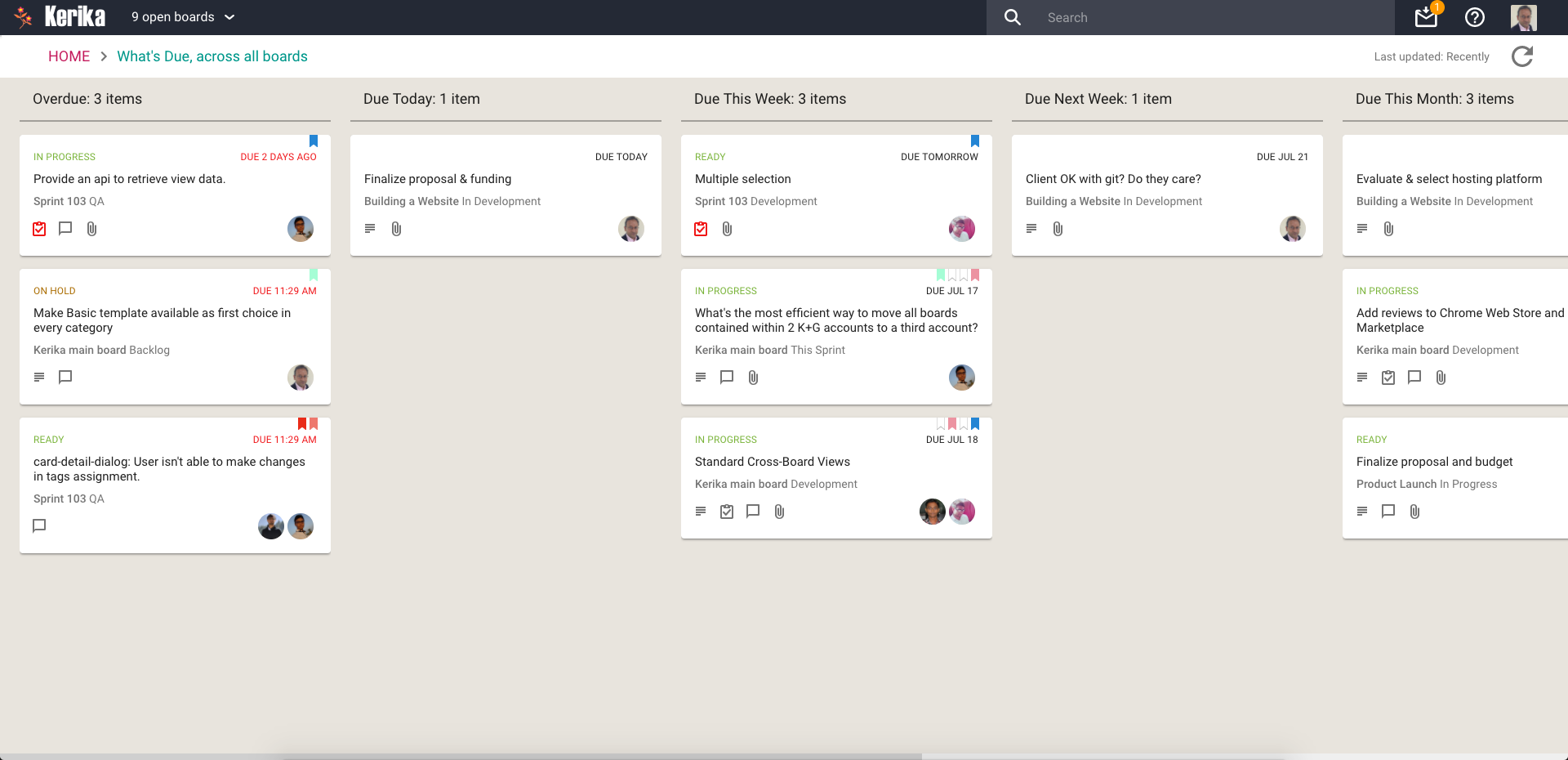
What’s Due
This View will be particularly helpful to managers (Board Admins): it summarizes everything that’s due, on all boards where you are one of the Board Admins:
What’s Due
This basically brings to life everything that you can also (optionally) get in your 6AM Task Summary email.
Cards are organized for you as follows:
Overdue
Due Today
Due This Week (excluding what’s already shown as Due Today)
Due Next Week
Due This Month
Due Next Month
For this View, as with the What’s Assigned to Me View, we try to be smart about not showing duplicate cards: if something is due today, for example, it will show up in the Due Today column, but not get duplicated in the Due This Week or Due This Month column.
This makes it easier for you to plan your schedule: you can see what needs to get right away, and what needs to get done later.
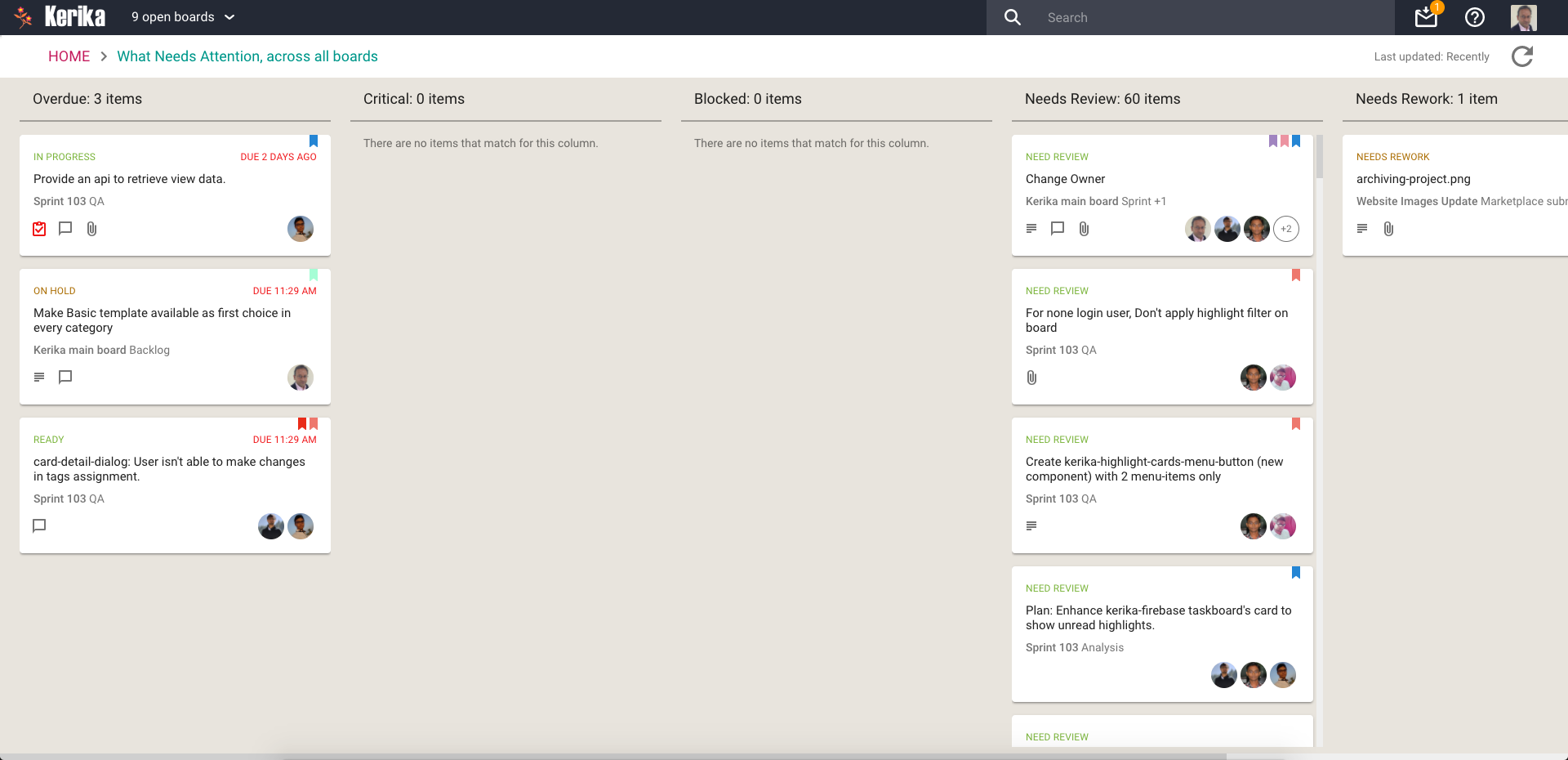
What Needs Attention
Again, a View that will be of particular interest to managers concerned with several ongoing boards:
What Needs Attention
Here, Kerika tries to show everything that needs a little extra attention: things that are
Overdue
Flagged as Critical
Flagged as Blocked
Flagged as Needs Review
Flagged as Needs Rework
Flagged as being On Hold
These items typically represent your risk profile across all your boards, and Kerika brings it all together in a single View.
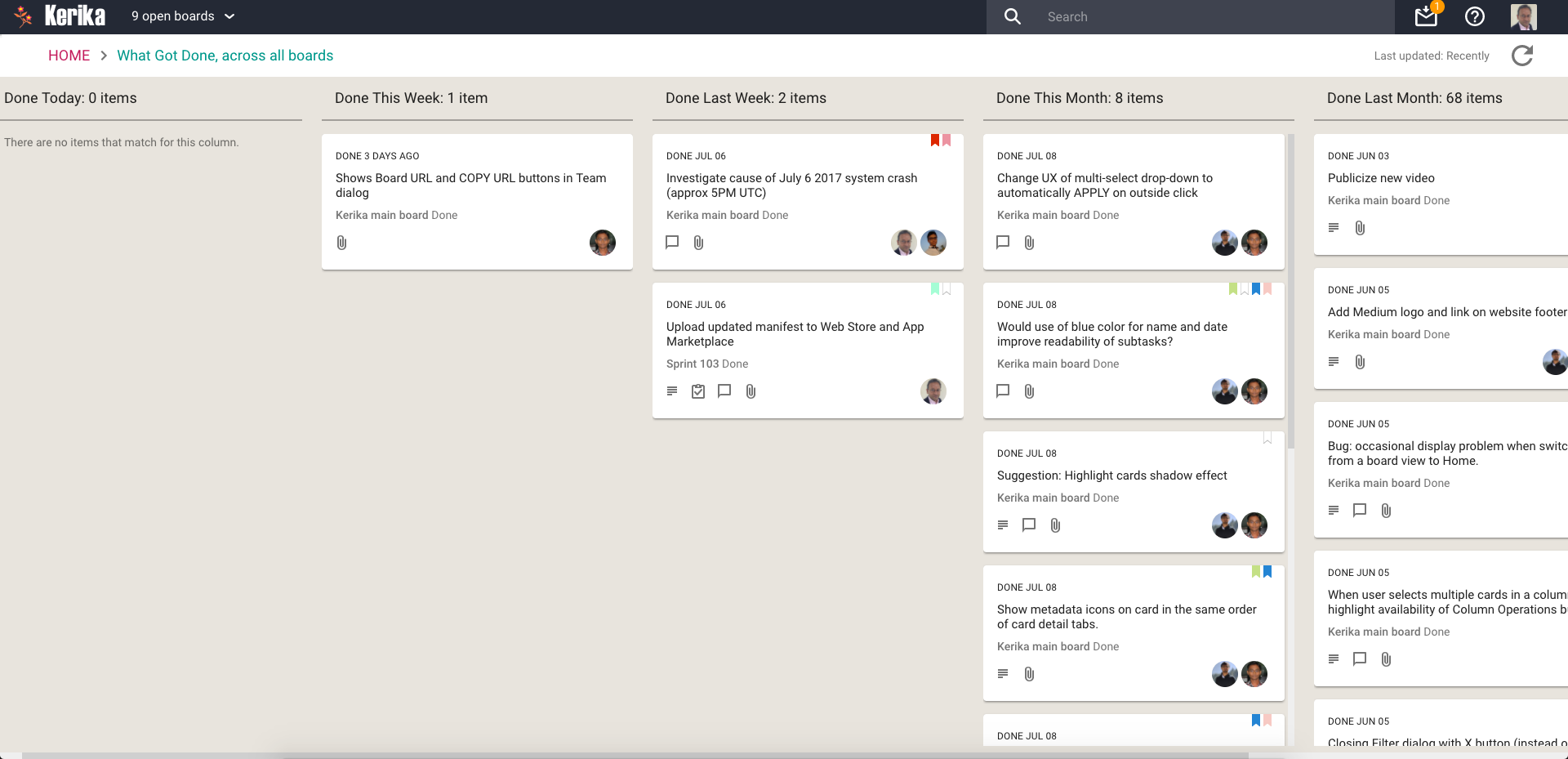
What Got Done
Great for anyone who needs to produce a status report, or any manager who needs to monitor progress across many different projects:
What Got Done
Across all boards where you are a Board Admin, this View summarizes
What got done Today
What got done This Week (excluding items shown in This Week)
What got done Last Week
What got done This Month (again, excluding items shown for Today and This Week)
What got done Last Month
What got done This Quarter
Accessing Views:
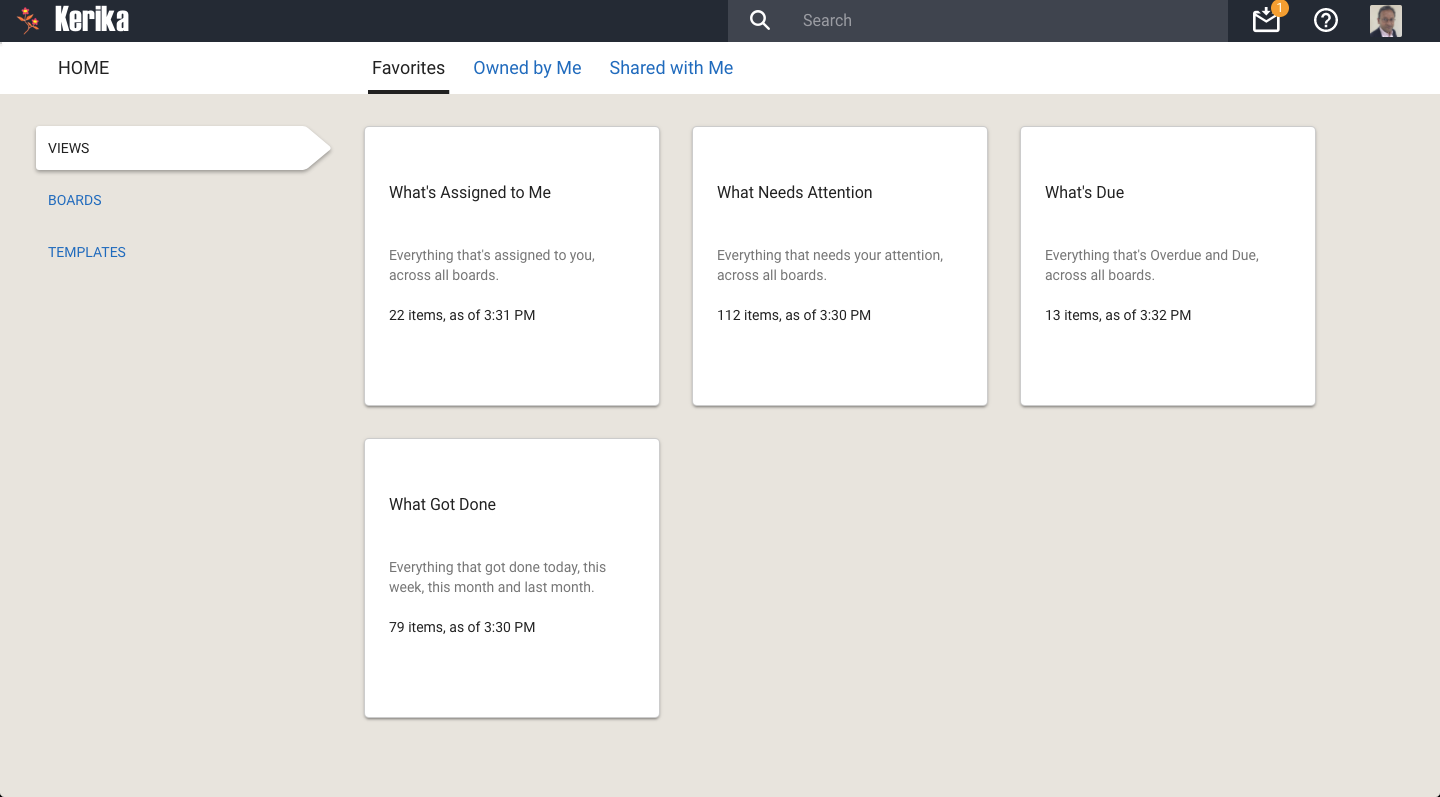
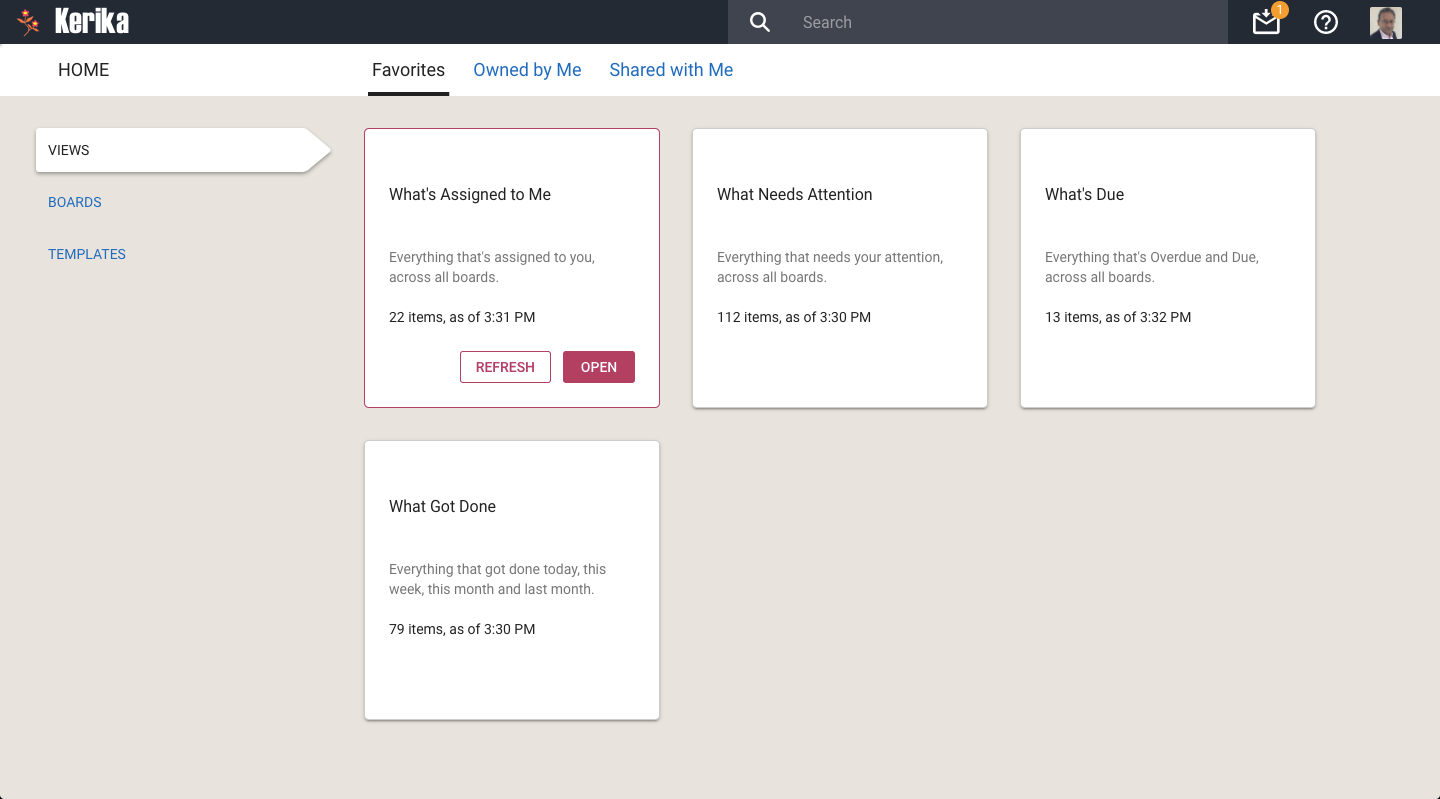
All your Views can be accessed from a new tab called Views (naturally) on your Home Page:
All your Views
On each View card, Kerika shows how many items are included in that View, and as of when. The Views are automatically refreshed when you open them, but in-between they are not updated because we do not expect the information shown to change on a second-by-second basis.
If you are worried that your View is out of date, you can update it by selecting it on your Home Page:
Refreshing a View
You can also update any View that you currently have open, by clicking on the Refresh button shown on the top-right of the View:
Refreshing a View
We will let you go crazy with these Views, for now. In the future we will add more (we already have some ideas on that front, but would love to hear from you as well!) and also add a Custom View capability.
We have done a bunch of small bug fixes and usability tweaks to the Tasks feature we introduced a few weeks ago:
When a user’s last Task within a card is marked as Done, the user’s name is removed from the list of people shown as being assigned to that card. (Previously you had to do this cleanup manually.)
When a Task that was previously marked as Done is changed to be “undone” (open/remaining), the user who had previously been assigned to that Task is added back to the list of people shown assigned to the card.
Bug fix: If someone is assigned to a Task, and this person had previously completed a Done Task, this user wasn’t getting added automatically to the list of people shown on the card. This has been fixed.
If you have signed up directly with Kerika, we use the Box Platform to store your files for you — Box is a secure, reliable cloud service and we have been a partner with them for several years.
But we do all this for you: efficiently, quietly and behind the scenes.
Which means you may never notice (and, really, you shouldn’t have to…)
However, we found that some users automatically block third-party cookies (this is a browser setting available in all types of browsers).
This was causing problems for the preview function for these users: when a user clicks on a file attached to a card or canvas, that’s getting stored in Box by Kerika for that user, we use Box’s Preview function in the form of an IFRAME.
Using an IFRAME enables us to add some Kerika-specific features, like automatic version tracking, to the standard Box Preview function.
This, however, requires users to allow Box.com to set a cookie, and this can fail if the user has never permitted Box.com to set cookies, or is automatically blocking all third-party cookies in their browser: when you are using Kerika.com, Box.com is effectively a third-party to the connection.
We want to make sure people understand this can be a problem, so we have added some smarts to Kerika to detect when people who have signed up directly are blocking Box.com.
If this is the case, a pop-up dialog box will appear explaining why the Preview function won’t work correctly without allowing Box.com’s cookies to be stored in the browser.
In the recently added Highlights feature, we let you create your own custom highlights:
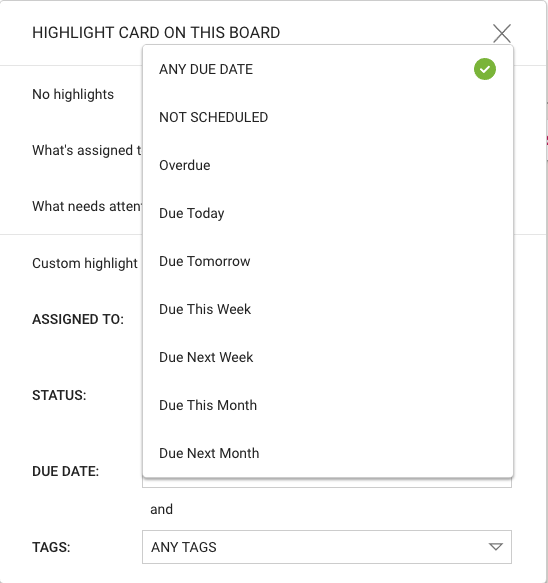
Smart choices for Due Dates
We fixed a problem where “This Week”, “Next Week”, etc. wasn’t including Overdue Tasks and cards, which could give users a somewhat misleading impression of what they needed to get done in a particular week or month.
After all, if something is already overdue, you will need to get that done this week along with anything that’s scheduled for this week!
We fixed a bug that was kind of annoying: if you had a Custom Highlight defined for one board, and then switched to another open board, the Custom Highlight was getting applied automatically to the second board as well.
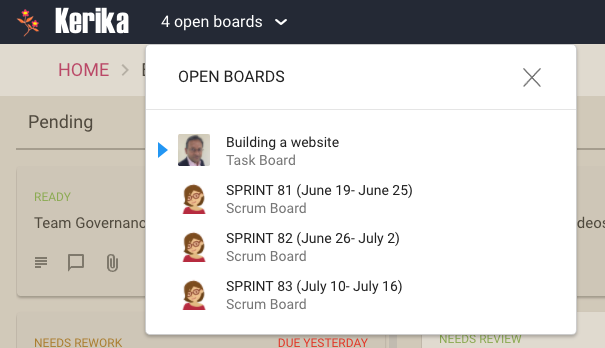
This happened only if people used the Board Switcher button that appears on the top left of the Kerika app:
Board Switcher
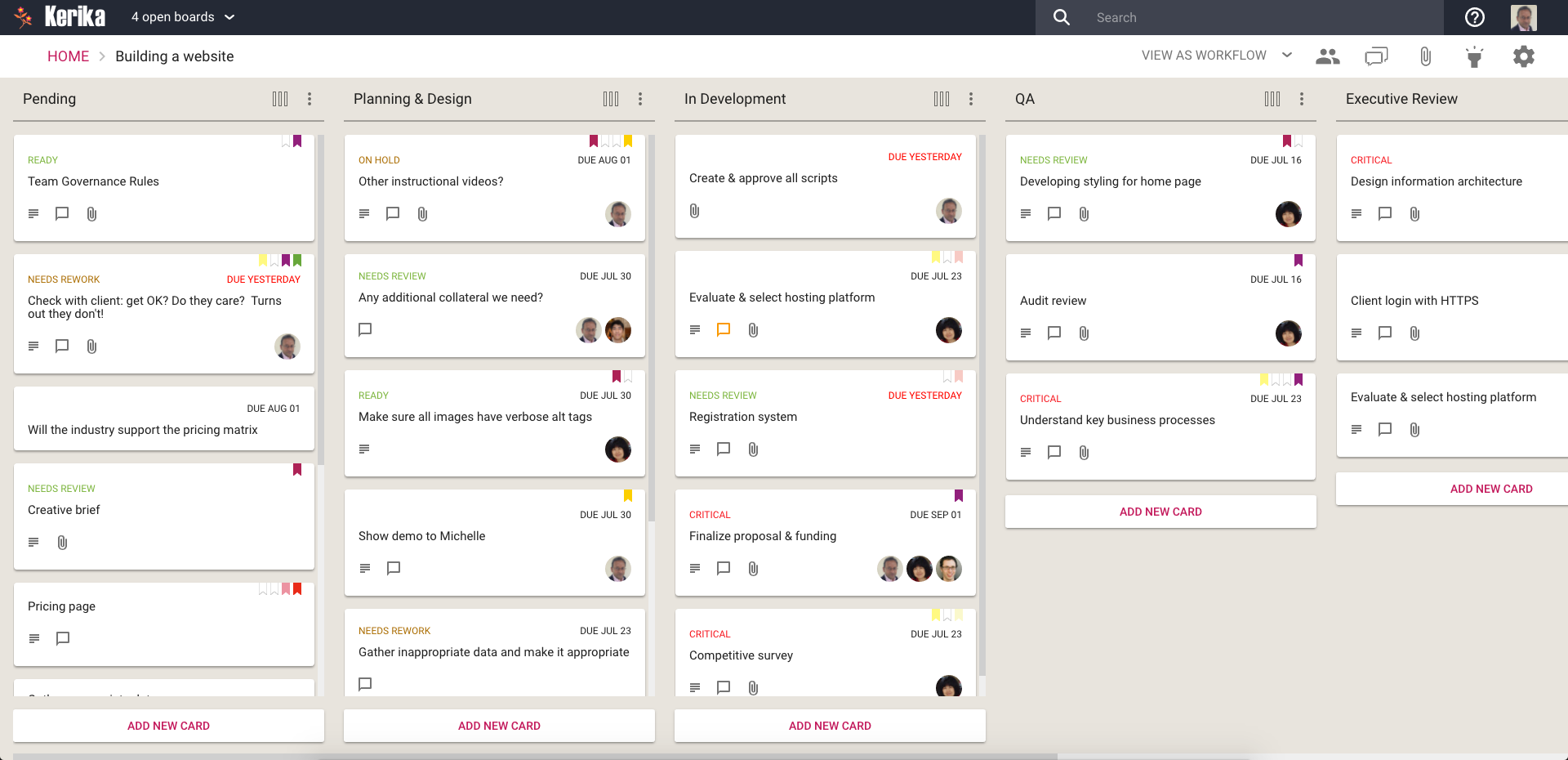
The Board Switcher keeps track of all your open boards and is a fast way to switch between them if you are working on several different projects at the same time — you don’t have to go back to the Home page to find your boards again and again.
Every of your open boards can have Highlights set, or not, as you like. This bug fix makes that a smoother process.
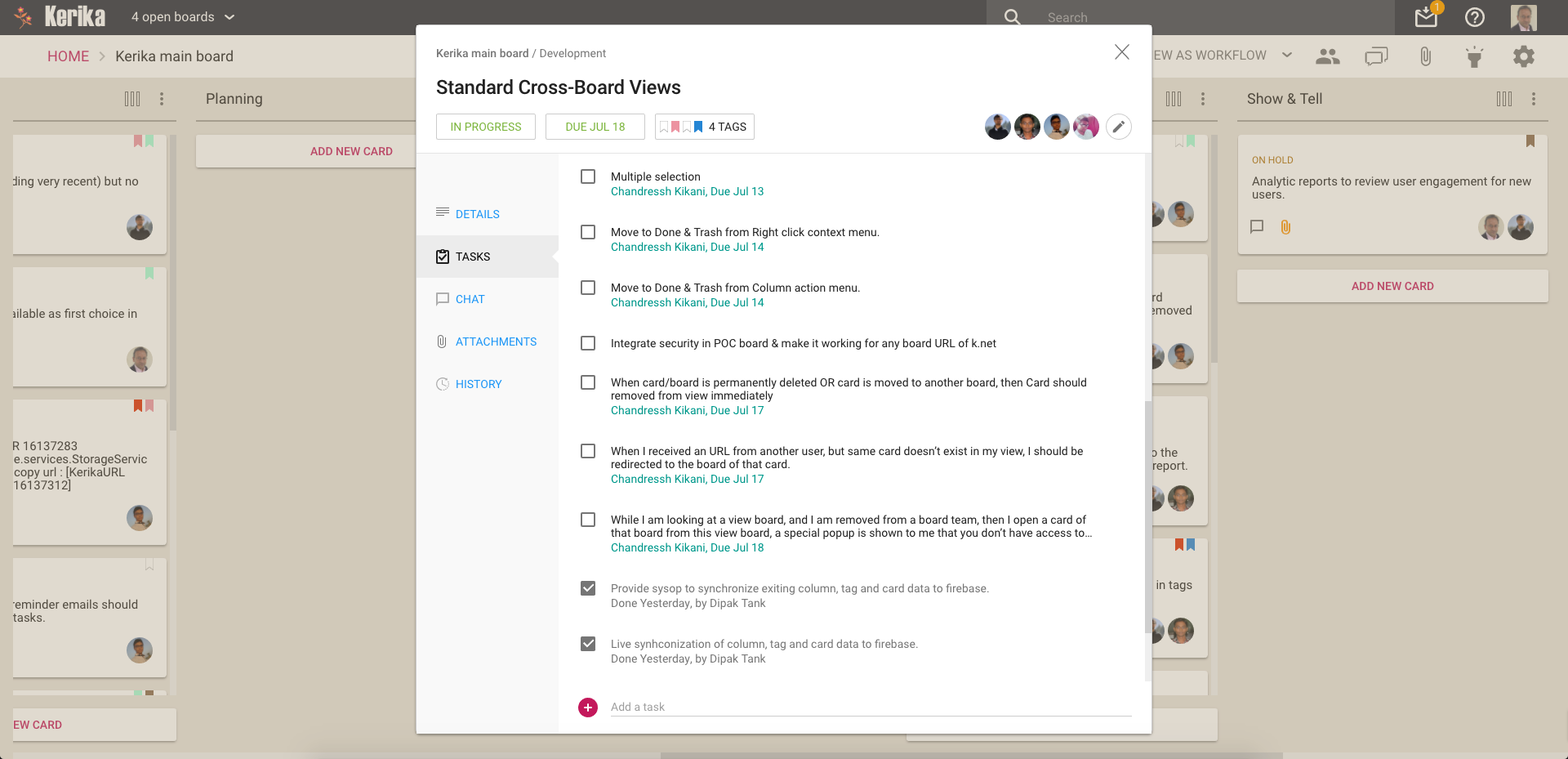
We really like the Tasks feature that we introduced recently: this has significantly cut down on the number of cards that we have to track on boards, since many items can be easily captured, assigned and scheduled as tasks rather than independent tasks.
This means we have a better, epic-oriented view of our boards; we don’t get lost in the weeds.
However, the first implementation of the styling could do with some improvement, so that’s what we did:
Improved styling for tasks
This makes it easier to see the names of people assigned to cards, and the due dates, more easily.
By the way, it took a surprising amount of experimentation before we settled on these colors: in Kerika’s design every color is supposed to have a particular meaning, so that colors appear in a consistent context in every instance.
For example, if we use blue to indicate a clickable link — like we do on the card details left tab, to let you switch between Tasks, Attachments, Chat, etc. — we can’t use blue anywhere else where it wouldn’t be clickable.
So, if blue is clickable in one place, it must always be clickable everywhere else.
This is easy enough, but we also have rules about using colors consistently across actions or displays that seem related, again to minimize the learning effort needed by new users.
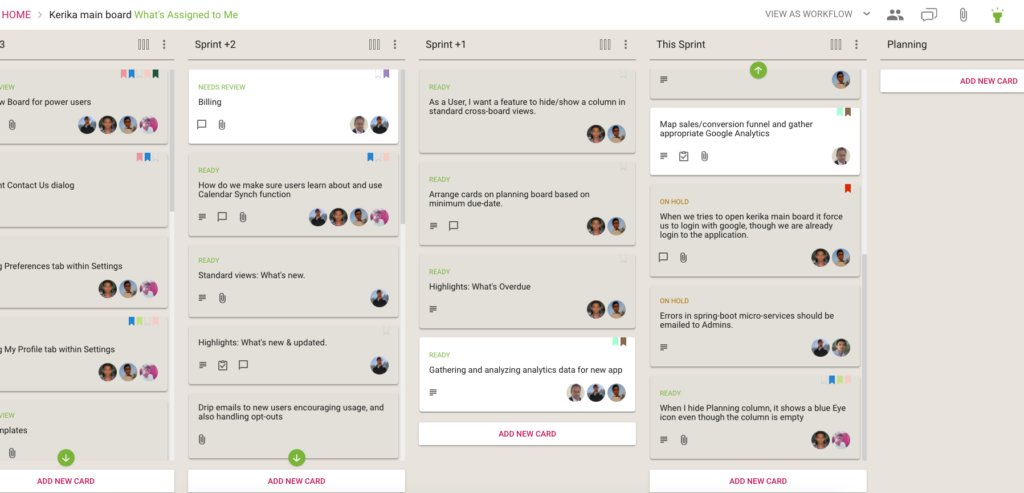
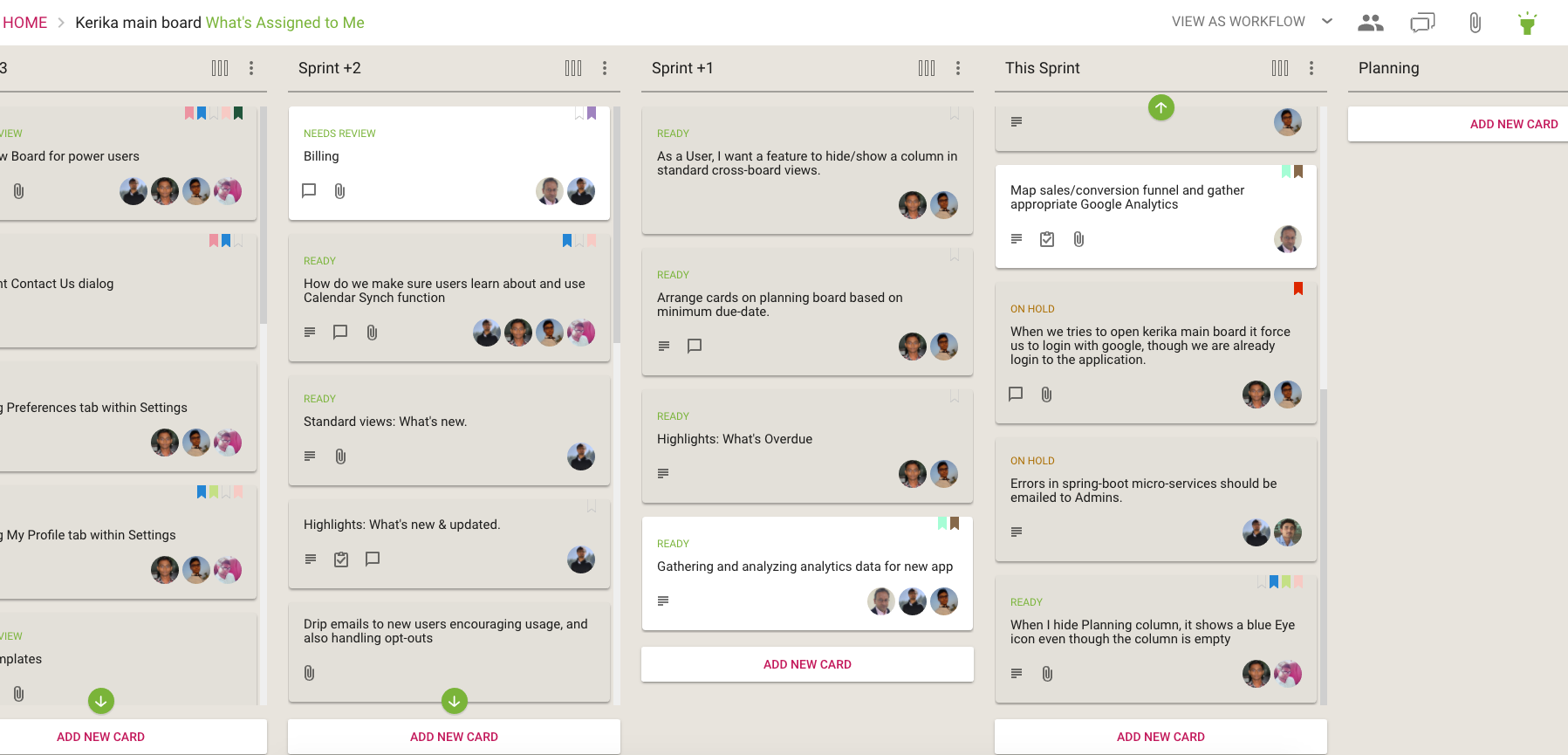
Our green is used for Highlights in a consistent way:
What’s Assigned to Me
The breadcrumbs includes the suffix “What’s Assigned to Me” in green, the Highlights button is green to indicate that it is in use, and a green button is used to indicate that items matching the highlight are out of view.
If we are rigorous about this, there is an internal consistency about the Kerika user experience that makes it easier to learn. But it takes a lot of discipline.
So if consistency applies a bunch of constraints in our choice of colors, so do legibility and color-blindness: we have to be careful to avoid using color combinations like red and green that are difficult for some people to distinguish. (About 8 percent of males, and 0.6 percent of females, are red-green color blind in some way or another, whether it is one color, a color combination, or another mutation.)
All of this means that it isn’t easy to pick a new color when we design!
We have replaced the old Filters feature for our Task Boards and Scrum Boards with a new Highlights feature that we think is better in every way!
Click on the Flashlight icon on the top right corner of the Kerika app:
Highlights button
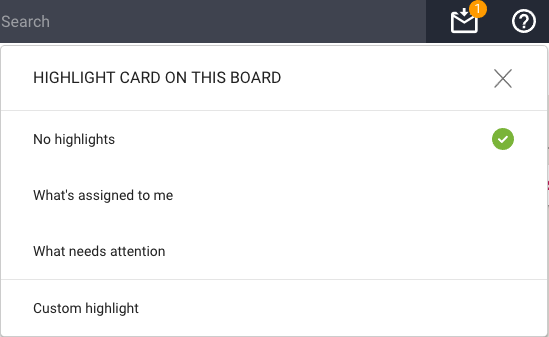
And you will see this menu of actions:
Highlight options
The default is No highlights. We have a couple of built-in highlights that we know you will find useful right away:
What’s assigned to me: very useful if you are working on a large board, or with a large team, and you focus on just what you need to get done.
What needs attention: this highlights all the cards on the board that we think need to pay attention too — items that are overdue, on hold, or flagged as needing review.
Here’s how the Highlights work:
What’s Assigned to Me
A shadow effect helps spotlight all the cards that match the highlight, making them literally pop out of the screen!
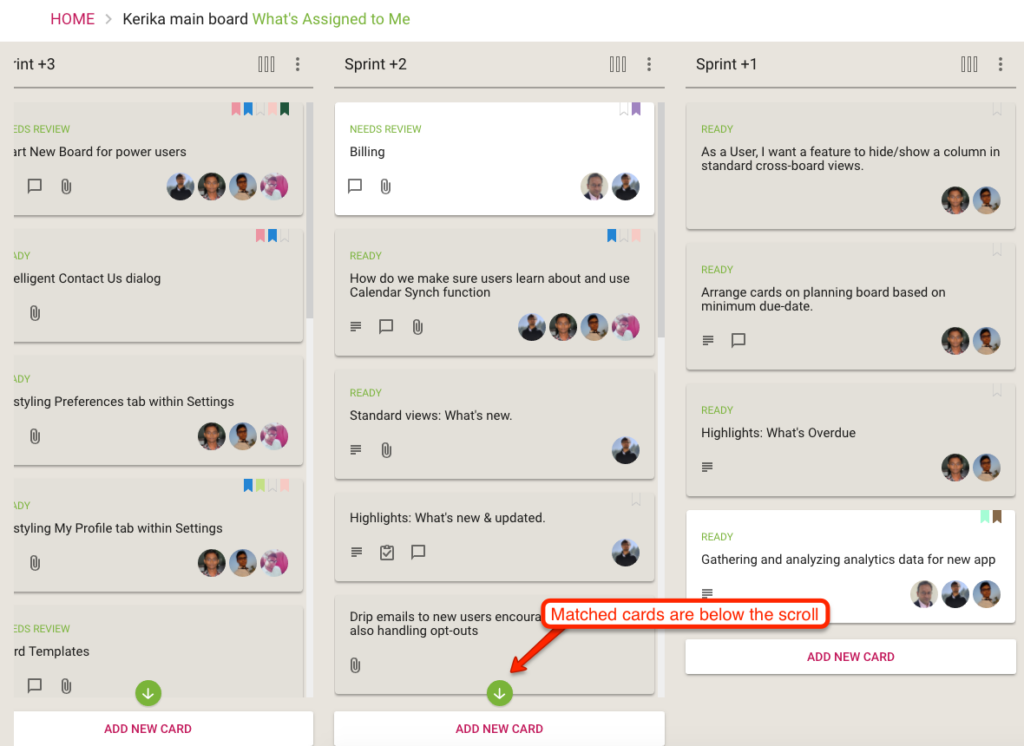
If you are working on a board with a lot of columns, there’s always a chance that something that is being highlighted is currently out of view — if, for example, it is near the bottom of a long column.
Kerika takes care of that as well: if a card that matches your highlight choice is currently out of view, a green button appears at the top or bottom, as needed, of each column to indicate that there are cards out of view that match your highlight.
When matched cards are below the scroll
The green arrow acts as more than just an indication that you need to scroll: it is also a button that will scroll the column to show you the next card that you need to see.
(Pretty cool, huh?)
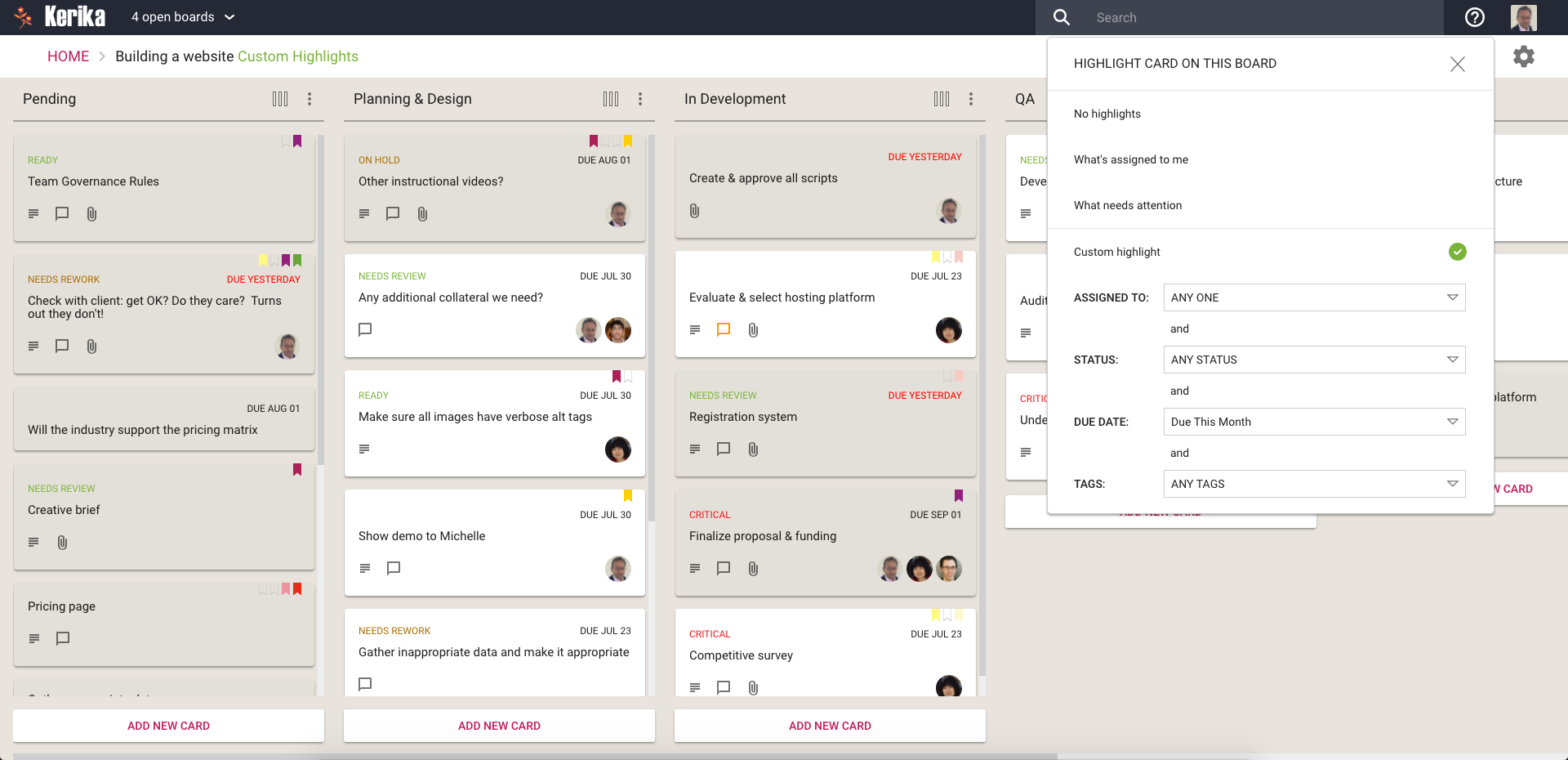
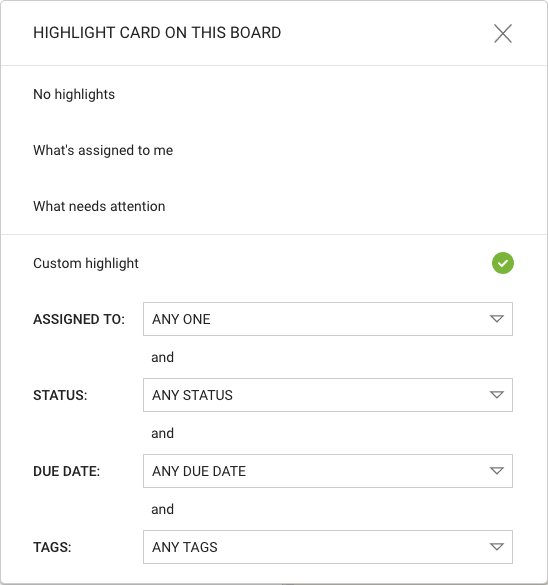
We will be adding more smart highlights in the coming weeks, but in the meantime you can also create your own custom highlights:
Custom Highlights
A Custom Highlight can include any combination of people assigned to cards, status, due dates and tags.
For the due dates, we have offered several smart options that are a lot easier to use than standard date pickers:
Smart choices for Due Dates
These ways of specifying due dates — like “Due Next Week” or “Next Month” — make it even easier to set up a custom highlight.