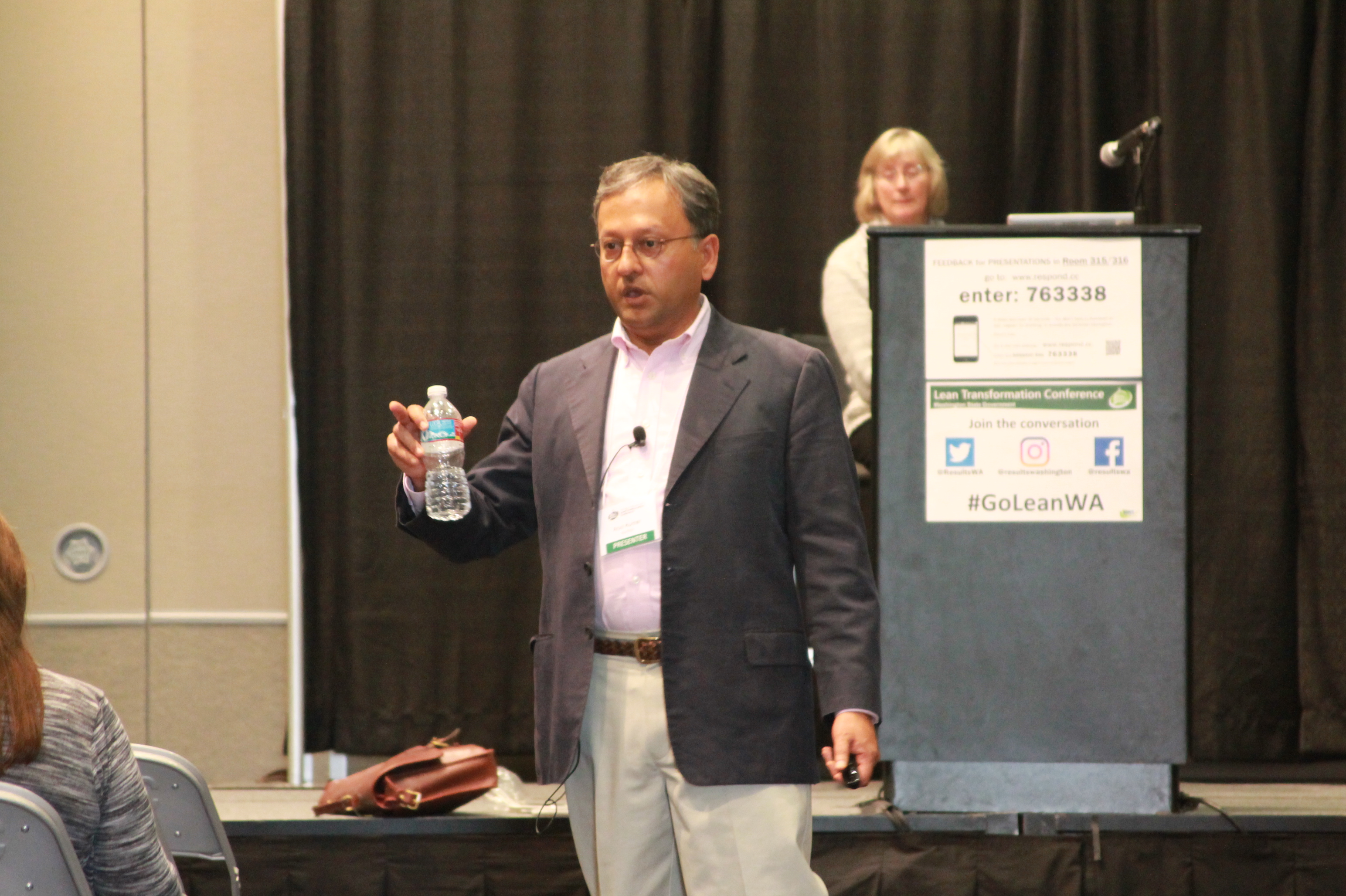
Arun Kumar, CEO of Kerika, and Joy Paulus, Senior Policy and Program Manager for the Washington State Office of the CIO, delivered a joint presentation at the Lean Transformation 2016 Conference.
The subject of the talk was “Collaboration Across Organizations: Big Results with Small Teams”. Here are the slides from the talk:
Interested in using Kerika for software development? Here’s a practical example, taken from one of our own boards, that highlights best practices for tracking, investigating and fixing bugs.
First, a look at our Workflow
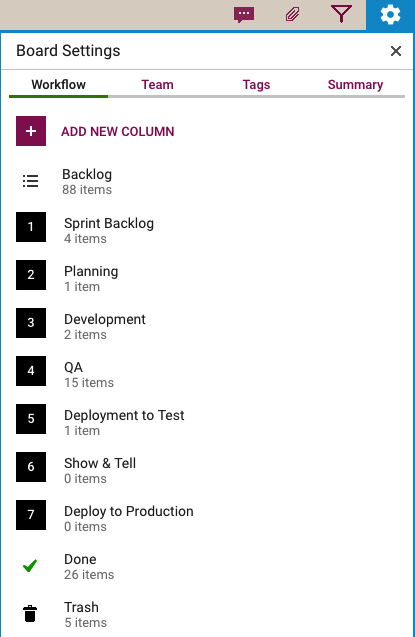
Every software development team will want to set up its own workflow, of course, reflecting its internal dynamics and available resources. Here’s the Scrum Board workflow we use in our team:
Scrum Workflow
Our Scrum Boards are organized with these columns:
The Backlog contains all the ideas, large and small, that we have on our product road map: in Scrum terminology, it’s our Product Backlog.
The Sprint Backlog is the set of cards that we pulled from the Backlog at the start of this Sprint: right now, only 4 items are left as we are close to the end of our 2-week Sprint Cycle.
Within each Sprint, cards are picked up developers and first moved into the Planning column, where detailed analysis of the work to be done is completed.
Depending upon the complexity of a particular work item, a developer may request a design review before moving the card further into the Development column.
Developers do their own unit testing as part of the Development phase, but then the work item moves further down to the the QA column which frequently includes formal code review. (More on that below…)
After a bug has been fixed, had its code reviewed and passed unit testing, it gets Deployed to the Testenvironment.
We usually wait until the 2-week Sprint is over before asking the entire team to present the entire Sprint’s output to the Product Owner for the Show & Tell; this avoids distracting the team midway through the Sprint.
Once the output of a Sprint has passed the Show & Tell, it can then be Deployed toProduction.
The Done column shows all the work that got done in this Sprint. That’s where all cards are supposed to go, but sometimes a work item is abandoned and moved to the Trash.
(Side note: we sometimes use WIP Limits to make sure that people are not over-committed to work, but this is not a consistent practice within our team.)
Logging the bug
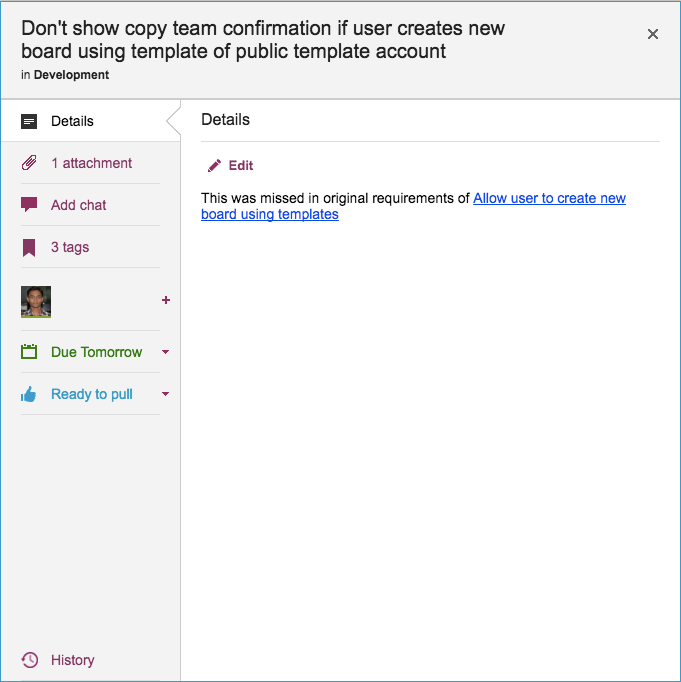
Now, let’s take a look at an example of an actual bug card that was worked on by our team:
Example of a bug tracked as a Kerika card
(This particular bug doesn’t have a lot in the details, because it is related to another task that is currently underway, and Kerika makes it easy to link cards, canvases or boards.)
Some bugs go into the Product Backlog, if they are not considered especially urgent, but others go straight into the Sprint Backlog if they represent serious production problems that might affect user’s access or the reliability of their data.
Adding bugs to the Product Backlog lets us process bugs along with other development, e.g. of new features, in the same way: everything can be prioritized by the Product Owner and handled through a consistent workflow.
Documenting the bug
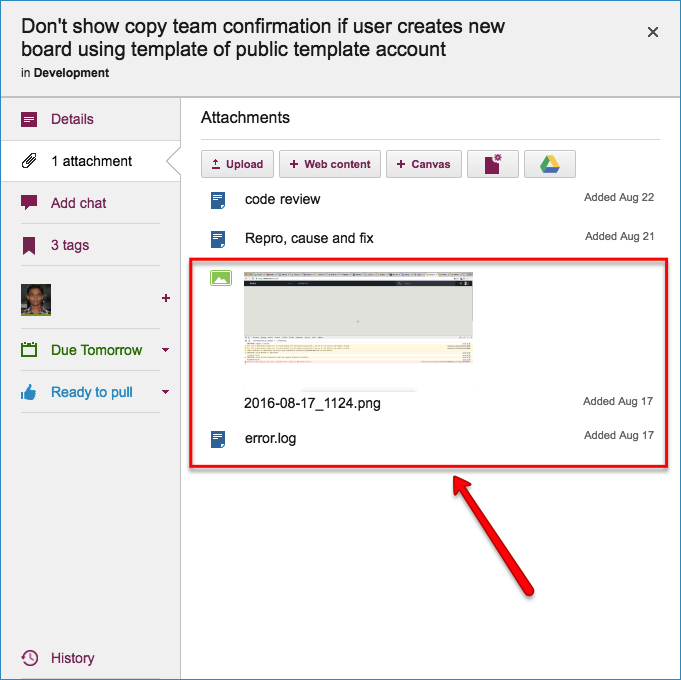
Our bug reports typically come with two attachments; at least one of these should always be included so that the developer has a clear starting point for her work:
A screenshot showing the user experience (if the bug can be observed directly by the user.)
An excerpt from the error log, if the server reported any errors around the time the bug was observed.
Original bug report documents
Kerika makes it easy to attach any kind of content to any card, canvas or board: for bug fixing, particularly in the analysis phase, this is very useful if the user needs to include URLs, material from Sourceforge or similar sites, links to Github, etc.
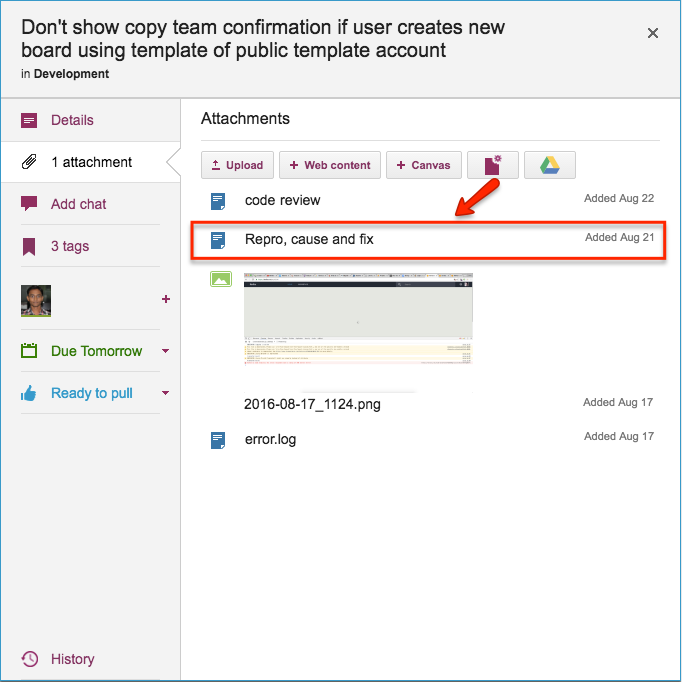
Repro, Cause & Fix
Before any bug is fixed, our developers always add a standard document we call Repro, Cause and Fix as an attachment to the card:
Repro, Cause and Fix
This document is added no matter how trivial the bug.
Why? Because, on average our team goes through about 30-40 cards a week, and has been doing so for years now. If we don’t document our analysis now, we will never recall our logic in the future.
Repro, Cause and Fix
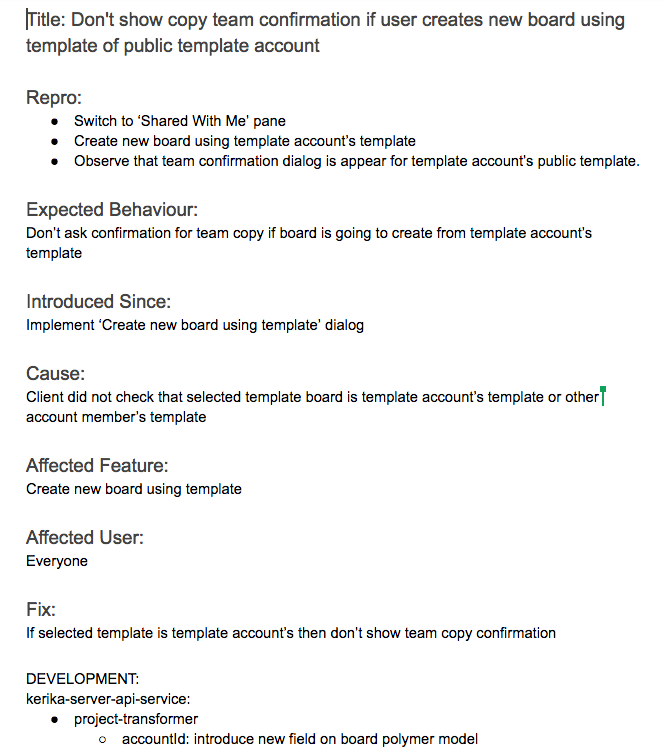
Our team adopts a consistent layout of the Repro, Cause & Fix document, which we adhere to even for trivial bugs:
The Repro Steps are the steps needed to trigger the bug: usually they consist of a specific sequence of actions taken by a user that cause the bug to appear, but they can also consist of a sequence of events in the background, like specific server activity or memory/CPU utilization conditions, or overall network traffic, that trigger the bug.
The Expected Behavior helps clarify the developer’s understanding of the how the software should behave in this situation. It’s not uncommon for a developer who is new to the team to misunderstand how a particular feature is expected to behave, which could lead to more bugs being introduced. Clarifying Expected Behavior in this document provides an easy way for the Product Owner and the Team Lead to confirm that the developer is not going to go down the wrong track.
Introduced Since: our developers try to pinpoint the specific point in the software’s life where the bug was introduced. This helps the developers reflect upon how errors are created in the first place: the blind spots lie in their analytical patterns that need to be strengthened.
(In this particular example, the developer has been able to point back to some of her own work on an earlier feature implementation that caused this bug to appear.)
Root Cause is not the same as the Repro Steps. While a specific sequence of actions or events may reliably display the effects of a particular bug, they only provide the starting point for the analysis; the Root Cause itself is discovered only when the developer examines the code in detail and determines exactly what is breaking.
Affected Feature: all of our code goes through code review, which we view as one of the most effective QA processes we could adopt, but it can be very challenging when you are processing 30 cards each week, each affecting a different part of the software.
Identifying the Affected Feature helps with the code review process, since the reviewer can consider the bug fix in the larger context of the feature that’s being modified. Without this, it is doubtful that we could review so many changes each week.
Affected User: in most cases, this is “everyone” we offer the same Kerika to all our users, whether they are on free trials or have paid for professional subscriptions.
Identifying Affected Users is useful, nonetheless, when dealing with bugs that are browser-specific, or service-specific: for example, determining that a particular bug affects only Kerika+Google users, or only Internet Explorer users.
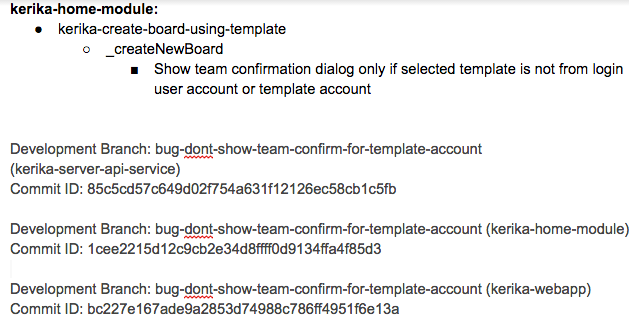
The Fix: OK, this might seem obvious, but this section really refers to identifying the specific modules in the software that will be changed as a result of the bug fix being applied.
Like many others, we use Git for managing our source code — along with Maven for builds — since our server environment is all Java-based.
The Fix
The Fix section usually includes references to Git checkins: this helps with future bug fixes, by making it easy to traceback sources of new bugs — part of the Introduced Since section described above.
We use separate Git branches for each feature that we develop so that we can decide precisely what gets released to production, and what is held back for future work.
This helps with the Show & Tell phase of our workflow, when the developers demonstrate the output of the Sprint to the Product Owner, who has the option to accept or reject specific features (i.e. cards on the Scrum Board).
Code Review
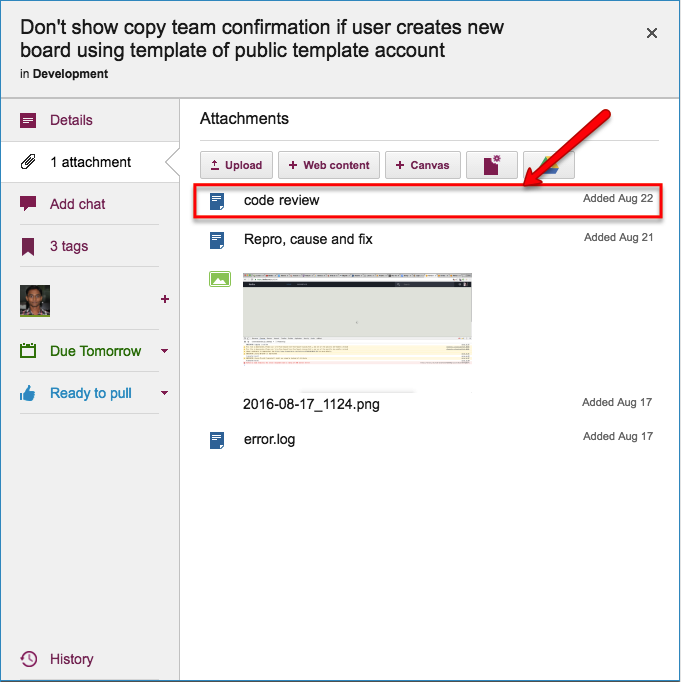
All of our code goes through code review, no matter how trivial the change:
Code review
We really believe that code reviews are one of the most effective QA practices we could adopt: having a second pair of eyes look over code can very considerably reduce the chances of new bugs being introduced.
So…
Kerika is great for distributed software teams: our own team is spread out between Seattle and India (roughly 10,000 miles apart!), and all of our work is done using Kerika for task management, content management and team collaboration.
Of course, an added benefit of “eating our own dogfood” is that we are highly motivated to make sure Kerika is the best tool there is for distributed teams :-)
A small bug fix we did recently: when you do an Export of data from a Task Board or Scrum Board, you get a notification from Kerika when the export completes: that’s because the export could potentially take a long time, if you had a very large board, i.e. with hundreds of cards on it.
(In practice, most exports take just a few seconds, so the notification comes very quickly after you start the Export.)
The notification comes in two forms:
By email, with a link to open the file containing your exported data.
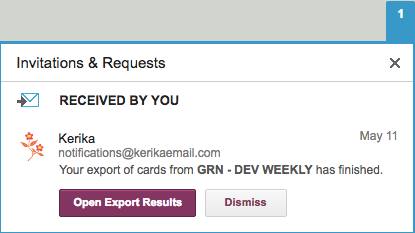
In your Kerika Inbox, on the top-right of the Kerika application, looking like this:
Export Notification in Kerika Inbox
There was a bug that clicking on the “Dismiss” button on Kerika Inbox didn’t make the notification go away: it would reappear after a page refresh.
Another great new feature: if you upload a file on any card, canvas or board with the same name as a file that’s already attached to that particular card, canvas or board, Kerika will automatically keep track of these as being different versions of the same file. This makes it even easier to organize all your Kerika project files.
There’s no limit to the number of files you add, nor any limit on the size of these files.
When you add a file, to a card, board or canvas, Kerika automatically uploads that file and shares that with everyone who is part of your board’s team. You don’t have to do anything: Kerika makes sure that all the Team Members have read+write permission, and all the Visitors have read-only permission.
These files are stored in your Google Drive, if you are using Kerika+Google, or in your Box account, if you are using Kerika+Box, or with Kerika if you have signed up directly with an email address.
That’s how Kerika has always worked; what we have added is an automatic versioning feature that checks when you add a new file to see if has the same name, and type, as a file that’s already attached to that particular card, canvas or board.
If the file name and file type match something that you have already added, Kerika automatically treats that new file as a new version of the old file, rather than as a completely different file. This makes it really easy to manage your Kerika project files.
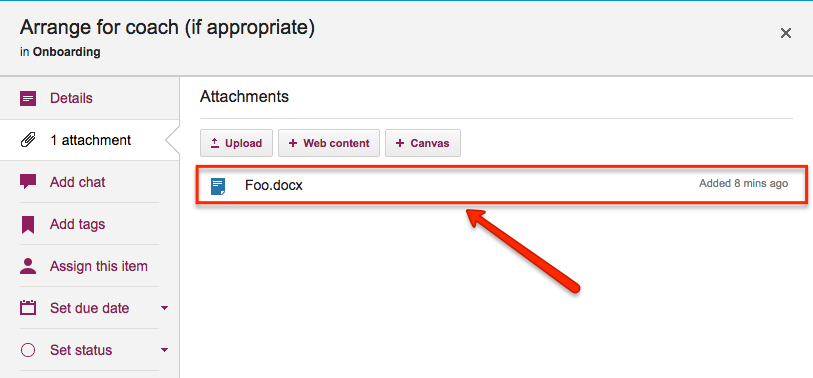
Here’s an example: this card has a file attached to it called “Foo.docx”.
File attached to a card
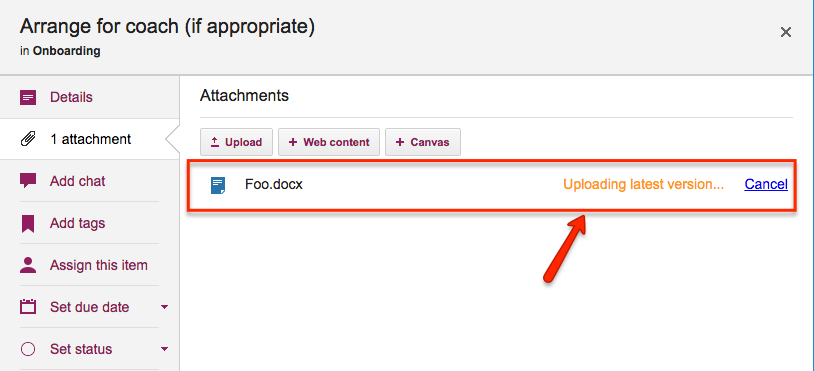
If a Team Member adds another file to this same card, also called “Foo.docx”, Kerika will treat that new file as a different version of the same Foo.docx, rather than as a completely different file:
Uploading a new version
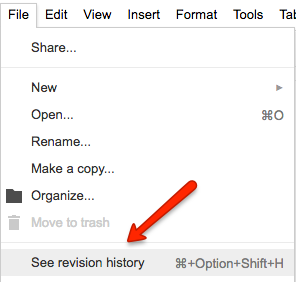
Accessing these older versions is easy: if your Kerika files are in being stored in your Google Drive, you can get the older versions using the Google Docs File menu:
Google revision history
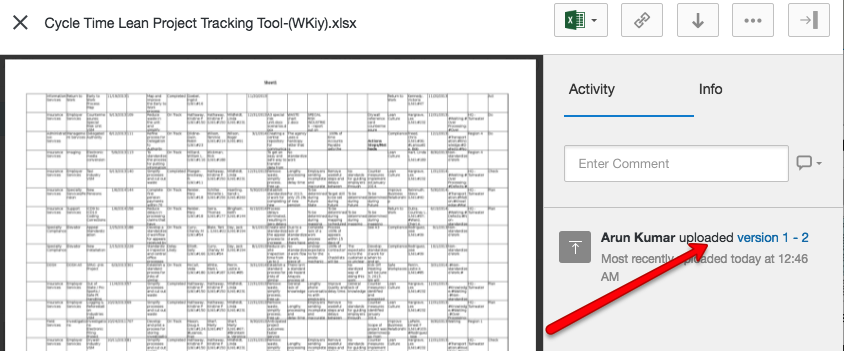
If your files are being stored in your Box account, you can access the older versions from the menu on the right side of Box’s preview window:
Box version history
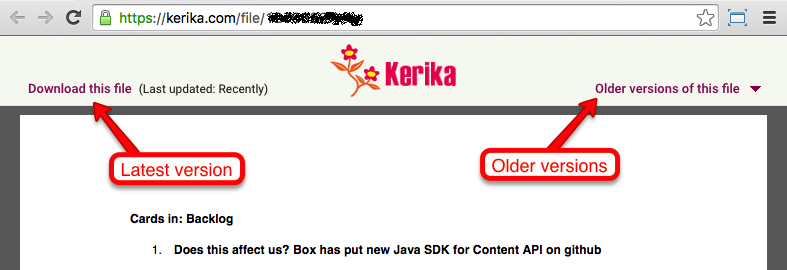
If you signed up directly with Kerika, you can access the older versions from within Kerika’s file preview:
File preview
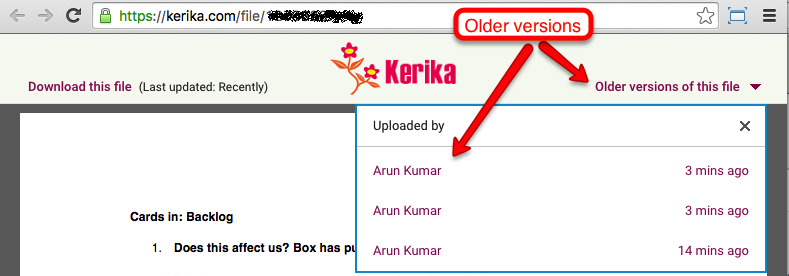
Clicking on the Older versions of this file link on the top right of this preview will give you a list of all the old versions of this file that Kerika has:
Older versions
So, that’s it: simple, easy, automatic tracking of multiple versions of your project files! Brought to you by Kerika, of course.
Arun Kumar, Kerika’s CEO, gave a presentation on Visual Workflows at the Lean Transformation 2015 Conference in Tacoma, Washington, which was very well received.
This conference is all about Lean and Agile in the public sector: thousands of folks from state, county and local (city) government agencies will be attending, and as usual Kerika will also have a display booth on the 5th floor of the Tacoma Convention Center.
Arun’s topic this year is “Can You See It Now? Visualizing your Lean and Agile Workflows”.
We look forward to seeing our Washington users at the conference; please do stop by our booth or sign up for Arun’s talk!
Our thanks to Tatjana and Steve from Ducks Unlimited in Canada, who helped us track down a bug that was stopping notification emails being sent properly when a Team Member is assigned a card on a Task Board or Scrum Board.
(Board Admins were getting these emails when people’s assignments changed, but not the Team Members themselves.)
When you are writing a chat message, on a card or canvas on any Kerika Task Board, Scrum Board or Whiteboard, what happens if you need to leave that message in the middle and go look at something else in Kerika?
For example, suppose you are in the middle of writing a chat message, but in order to complete it, you need to go off and look at another card’s details, or maybe a file attached somewhere else on the board?
You can leave aside a chat in mid-stream, go somewhere else in Kerika, return to the chat, and pick up where you left off!
That’s because Kerika uses your browser’s local cache storage to keep your unsent message: it means your changes aren’t lost while you go look at something else in Kerika.
This is a handy usability fix we have always had in Kerika, but it may be one that folks didn’t realize existed…
We used to refer to “Projects” and “Boards” somewhat interchangeably on our website, our blog and in the Kerika app itself.
There was no special reason for this: in our mind, a Project was clearly a Board, and vice-versa, and it never occurred to us that this might prove a source of confusion to anyone.
Well, we were wrong about that.
In the real world, people are very cautious about “starting a new project”, because this might involve getting formal administrative approval, budget allocation, staff changes, etc.
In other words, in the real world a “project” is a big deal.
Unlike so many other collaboration tools that make it difficult for you to create as many boards as you like, Kerika was always designed to make it very easy for you to redesign your work as needed: start new boards, move cards or canvases from one board to another (using Cut, Copy and Paste), and to move ideas and content from one context to another.
Many of our competitors don’t offer this kind of flexibility: either the software makes it hard, or their billing model actively discourages you from creating multiple boards.
That will never be the case with Kerika: we will always support flexibility in how you organize and manage your boards.
Still, our interchangeable use of “projects” and “boards” was definitely causing some confusion, which we have fixed with our latest release by using the term “Board” consistently and avoiding use of the term “Project”.
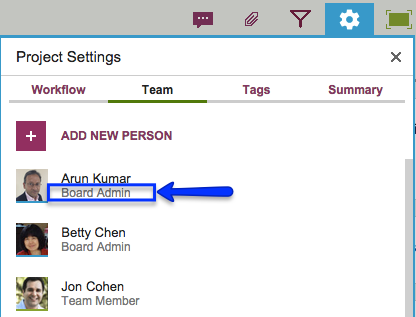
So, if you were a Project Leader previously, you are now a Board Admin on that board. Your rights and privileges remain the same, it’s just your title that changed.
Board Admin
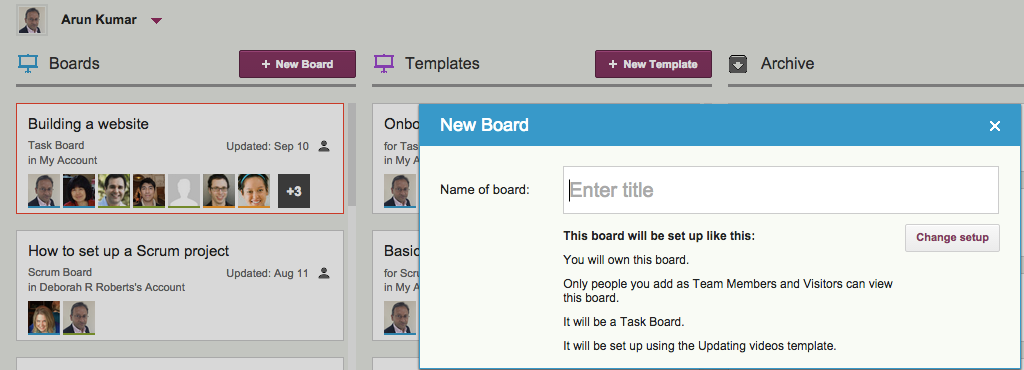
When you start a new board, what used to be called “New Project” is now labeled “New Board” to make it clear what you are doing:
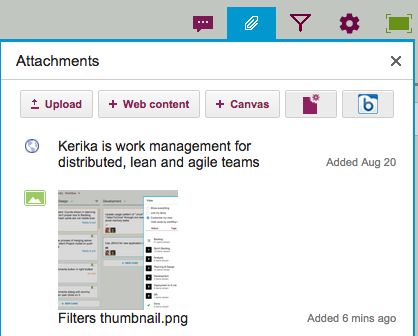
We have added a new feature that should prove handy for a lot of folks: you can now add content — files from your laptop, images from your mobile or tablet, Web links from your Intranet or the Internet, or canvases — to a Task Board or Scrum Board itself.
If this sounds like something that was always there, maybe we need to say that differently: you used to have the ability to add content to a card, now you can add it to the board itself.
There are many situations we have encountered where we want to share content or a canvas with a team, but there wasn’t any obvious place to still it — no single card on the board that seemed like the right place to attach that content.
And that’s because the content we wanted to add was applicable across the entire board, not just relevant to a single card.
This was getting frustrating, so we decided to scratch our itch: a new button on the top-right area of your Kerika app will let you add files, Web links and canvases to the board itself:
Board Attachments
This should make some of you as happy as it has made us!