With our new user interface we made it easy to see how many tasks (cards) there are in a single column: the count appears at the top of each column.
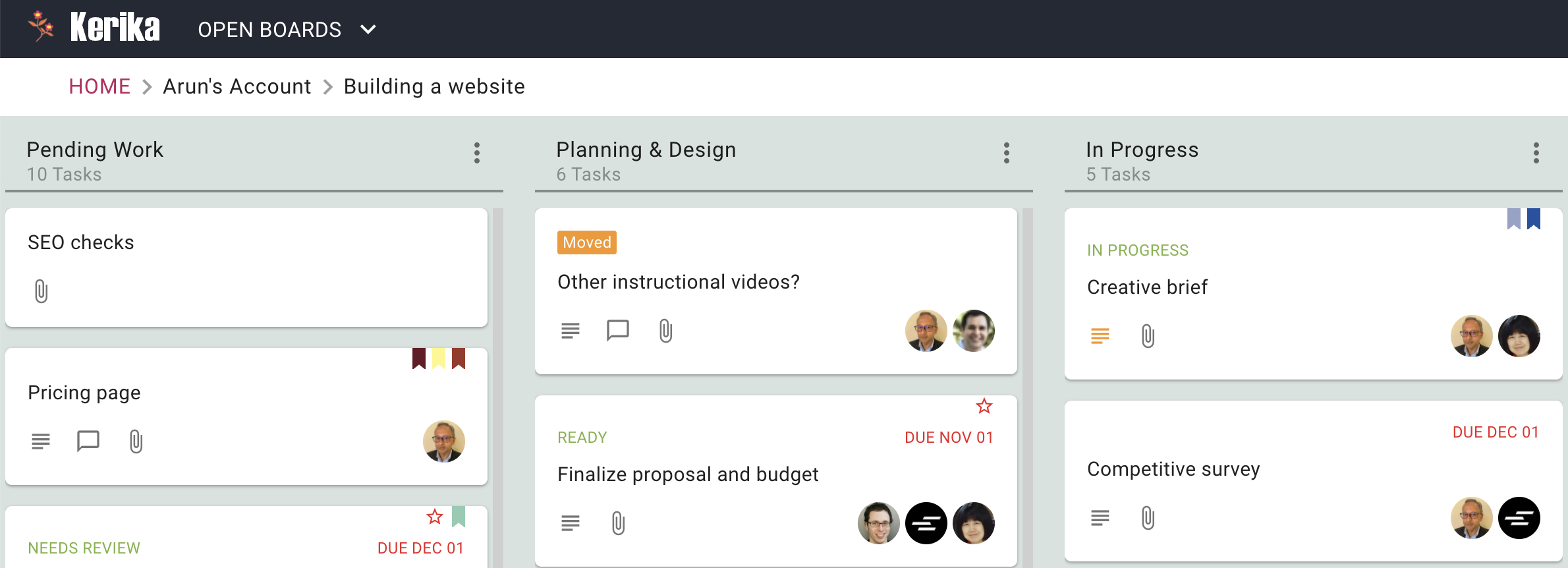
With our new user interface we made it easy to see how many tasks (cards) there are in a single column: the count appears at the top of each column.
We are transitioning our Scrum Board users to Task Boards: the Scrum Boards are used only by a tiny portion of our user base, who overwhelmingly prefer using Task Boards and Whiteboards.
For many years now we have offered both Task Boards and Scrum Boards, but the relative popularity (and implied usefulness) of these two are lopsidedly in favor of Task Boards.
The main difference between Task Boards and Scrum Boards has been the use of a shared Backlog: a column of cards that can be shared by several Scrum Boards at the same time.
In Scrum Boards, the Backlog appeared fixed in the leftmost column of the board, and like Done and Trash, it couldn’t be be moved, renamed or deleted.
The Backlog was “live” all the time in the sense that any change made by one attached Scrum Board to the Backlog was immediately reflected in every other Scrum Board that was attached to the same Backlog. If Scrum Board A added a card to a shared Backlog, it immediately showed up in the Backlog column when viewed by Scrum Board B and Scrum Board C.
This wasn’t a good way to implement Scrum Boards, as we found out ourselves during our internal use of these boards. It’s principle weakness was it led to a proliferation of Scrum Boards, since each Sprint required a new Backlog. (Our own development team is currently on Sprint 180 so we experienced this proliferation early on.)
We though the general feature in Kerika that lets accounts archive old boards would help, but this just pushed the proliferation problem to another area; it didn’t really fix it.
We are just going to have Task Boards (and Whiteboards) from now on. At some point in the future we may completely rethink, redesign, and rebuild a new kind of scrum boards, but it doesn’t make sense for us to continue offering the current version.
As a consequence, all existing Scrum Boards will be converted into Task Boards. Here’s how that would work:
Consider an existing set of boards that all use the same shared Backlog: Board A, Board B, and Board C.
Right now all three boards see the same Backlog, at the same time: if cards are added or moved away from the shared Backlog by any board, this view is immediately updated for all three boards.
When we transform Scrum Boards to Task Boards, each of Boards A, B, and C will have its own local copy of the Backlog.
From this point on, any changes made by any of these boards to their local copies of the Backlog will not affect the copies that were made for the other boards. Each board, then, becomes independent and can proceed on its own path, without affecting any other board since there is no longer a shared column of cards.
We have already been in touch with active users of Scrum Boards and have not heard any concerns from them about this proposed change, so we are confident that we are making the right decision. If you do have any questions, please contact us at support@kerika.com.
We have been lax in updating this blog, sorry, but not lax at all in working on improving Kerika, especially for mobile browser users. We are also getting close to releasing our mobile app, which will contain the same functionality as you get today when you access Kerika on a phone, but it will be packaged as a traditional-looking app for folks that want an icon on their desktop.
Here’s a short list of things that have been improved and added in the past few months:
There’s more of the desktop functionality now available on phones as well, including:
It’s possible to copy-paste text into a Kerika Chat message, and there are legitimate use-cases for this: for example, a developer may ask a question to a coworker who replies with a code snippet.
Kerika handles code in chat messages by storing two versions of the message: as plain-text, and as the original format. When a chat message is displayed, the original format is used but not executed, which means the embedded code is visible, but doesn’t run in the browser. This makes it easy and safe to share code snippets through chat messages.
While making this improvement, we went through all the places where a user can type in text, Card Title and Description, Board Name and Description, Tag, Attachment Name, etc. to make sure we are guarding against malicious code injection.
Along with the recent improvements we made to the Auto-Number Cards feature for Task Boards and Scrum Boards, we have also made it easier for you to search for cards by their number.
It’s simple to use: just type in a number in the Search box on the top of the Kerika app and Kerika will assume you are looking for a card with that number. It will also search for anything else with that number, but will prioritize a card matching that number as the first result it shows.
We have added the University of Malaya to the list of domains from which people can automatically qualify for a free Academic Account: anyone signing up for Kerika+Google with a um.edu.my email — students, teachers and administrators — can automatically qualify to have up to 10 Team Members working on boards owned by their account.
Enjoy!
For new users, a new tutorial video on how you can customize the workflow on your Task Boards and Scrum Boards:
Most people sign up as new Kerika users using a Google ID or Box ID, but an increasing number of folks are opting for direct signup: this means signing up with your email (any email will do).
For these folks, here’s a quick tutorial video that shows you how your files are stored and shared.
https://youtu.be/AXTSyB2j7YA
https://www.youtube.com/watch?v=BKRKoBOC6-o
An updated tutorial video shows you how you will always know what changed on all your Kerika boards, even when you are working on the other side of the world.
https://youtu.be/JAhHMm2B430